
Is your iPad Pro (M4) screen stuck in one orientation and refusing to flip when you turn the tablet? It's a common hiccup that can happen to any iPad, and it's usually a quick software setting that needs adjusting. The auto-rotate feature relies on the device's sensors and software working together, and when they get out of sync, the screen stays locked.
Here are the most effective ways to get your iPad Pro's screen rotation working properly again, starting with the simplest check.
Toggle the Rotation Lock
The most frequent culprit is the Rotation Lock, which is easily turned on by accident from Control Center. When this is active, you'll see a small lock icon inside the rotation button in Control Center. To check, swipe down from the top-right corner of your screen to open Control Center.
Look for the button with a circular arrow around a lock symbol. If it's highlighted or shows the lock icon, tap it once to turn Rotation Lock off. The icon should change to show the circular arrow without the lock. Try rotating your iPad now to see if it responds.
Check the App's Orientation Support
Not every app supports both portrait and landscape modes. Some are designed to work in one orientation only, especially older games or certain utility apps. If rotation works fine in Safari or Mail but not in a specific app, the app itself is likely the limitation.
Try opening a different app, like Notes or the App Store, and rotate your iPad. If it works there, you've identified an app-specific behavior. You can check the App Store listing for that app to see if landscape mode is mentioned as a feature, but often it's just a developer choice.
Force Restart Your iPad Pro
A quick force restart can clear out temporary software glitches that might be affecting the gyroscope or accelerometer sensors. This doesn't erase any data. For the iPad Pro (M4), press and quickly release the Volume Up button, then press and quickly release the Volume Down button.
Immediately after, press and hold the Power button. Keep holding it until you see the Apple logo appear on the screen, then release. Once your iPad boots back up, test the rotation in an app you know supports it.
Update iPadOS
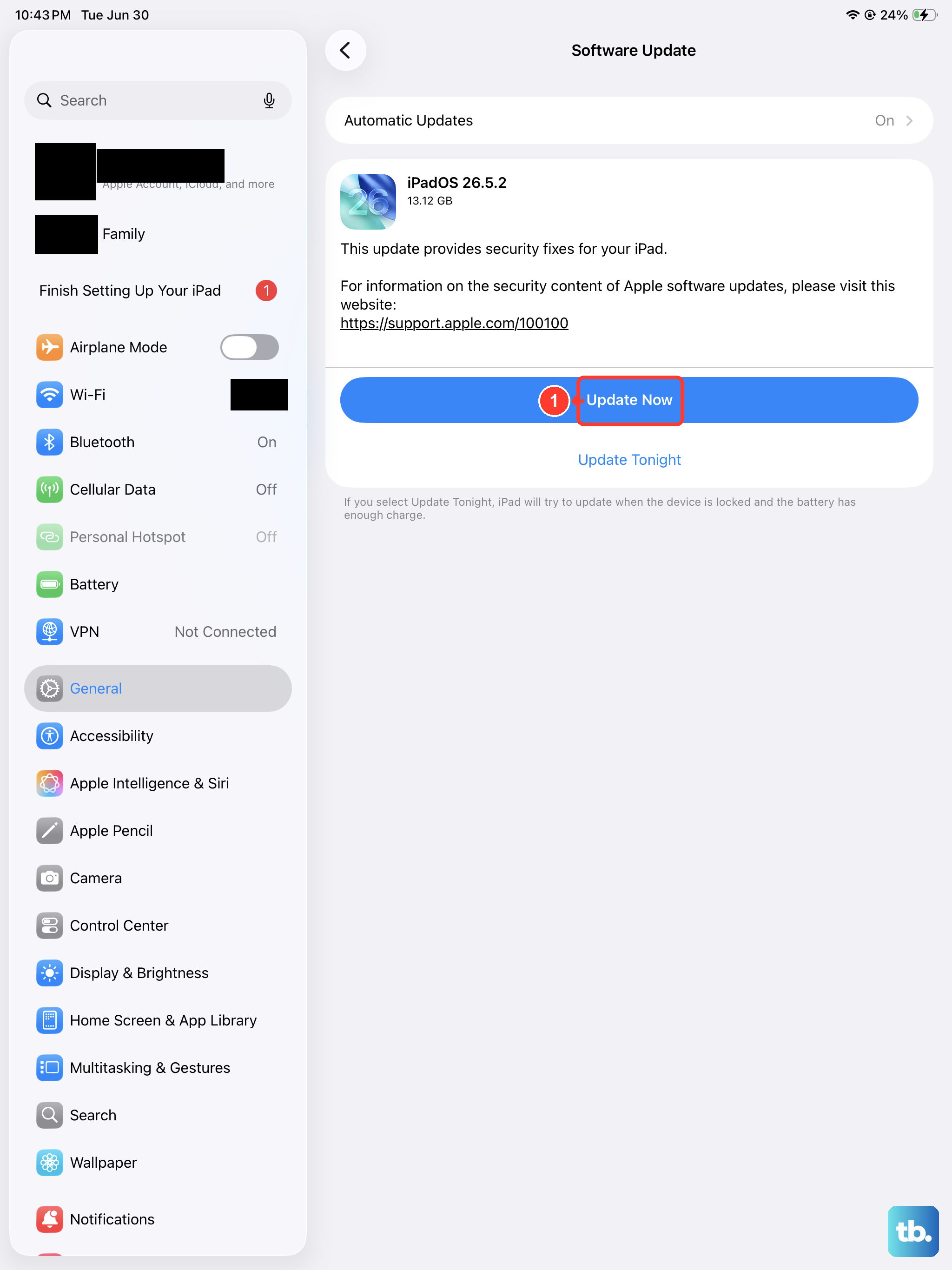
Occasionally, a bug in the system software can interfere with sensor functions. Apple regularly releases updates that fix these kinds of issues. Make sure your iPad Pro is running the latest version of iPadOS 26.
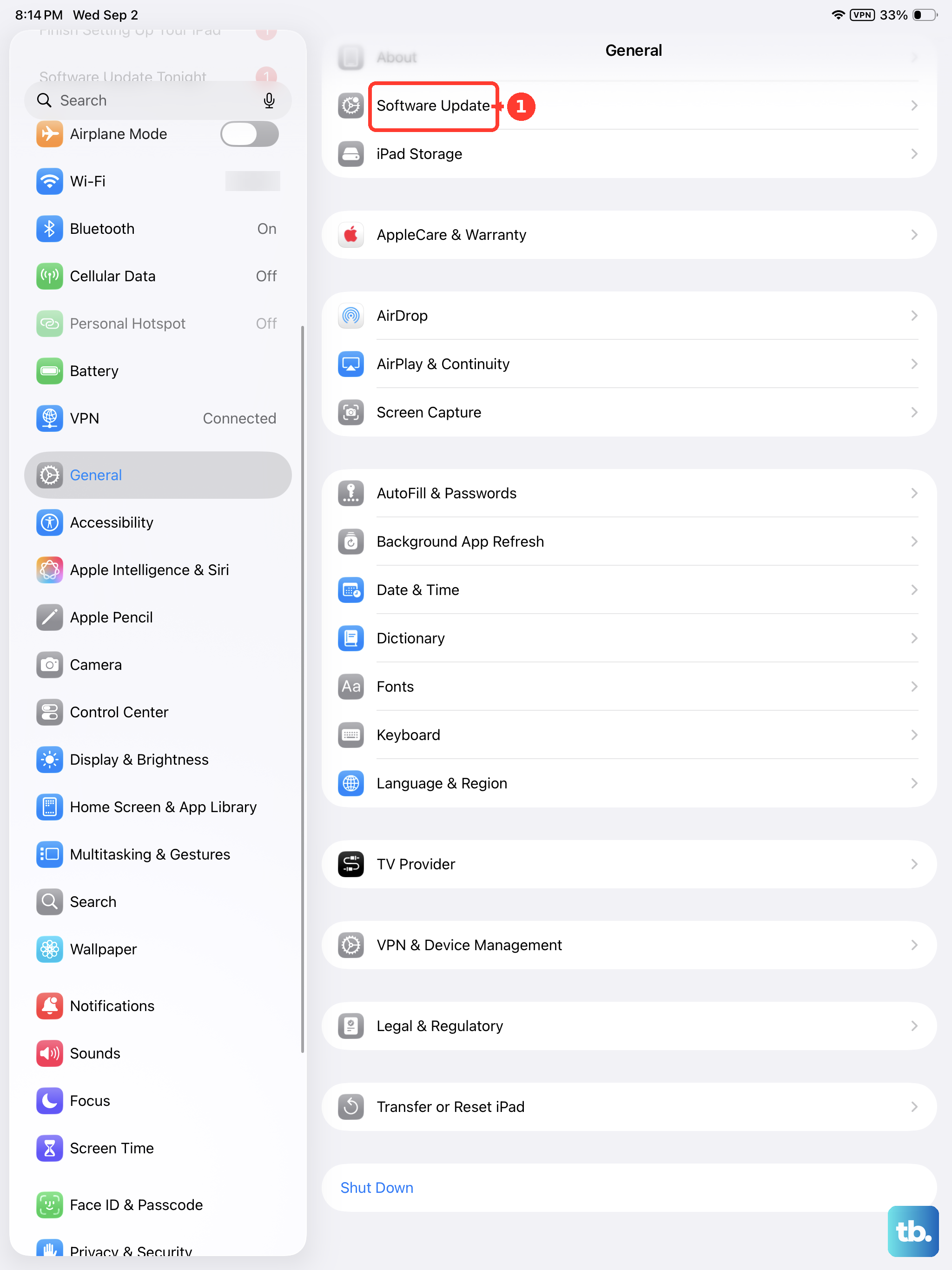
Go to Settings > General > Software Update. Your iPad will check for available updates. If one is listed, tap Download and Install. I'd recommend doing this over Wi-Fi and while your iPad is charging to ensure the update completes smoothly.
Check for Physical Obstructions or Cases
A bulky case or a magnetic accessory can sometimes interfere with the iPad's sensors. This is less common with modern iPads, but it's still worth checking. Try removing your iPad from its case or folio cover and test the rotation without it.
Also, make sure you're not covering the top bezel or corners of the iPad with your hands while trying to rotate it. Hold the tablet by its sides or frame to give the sensors a clear reading of the device's movement.
Reset All Settings
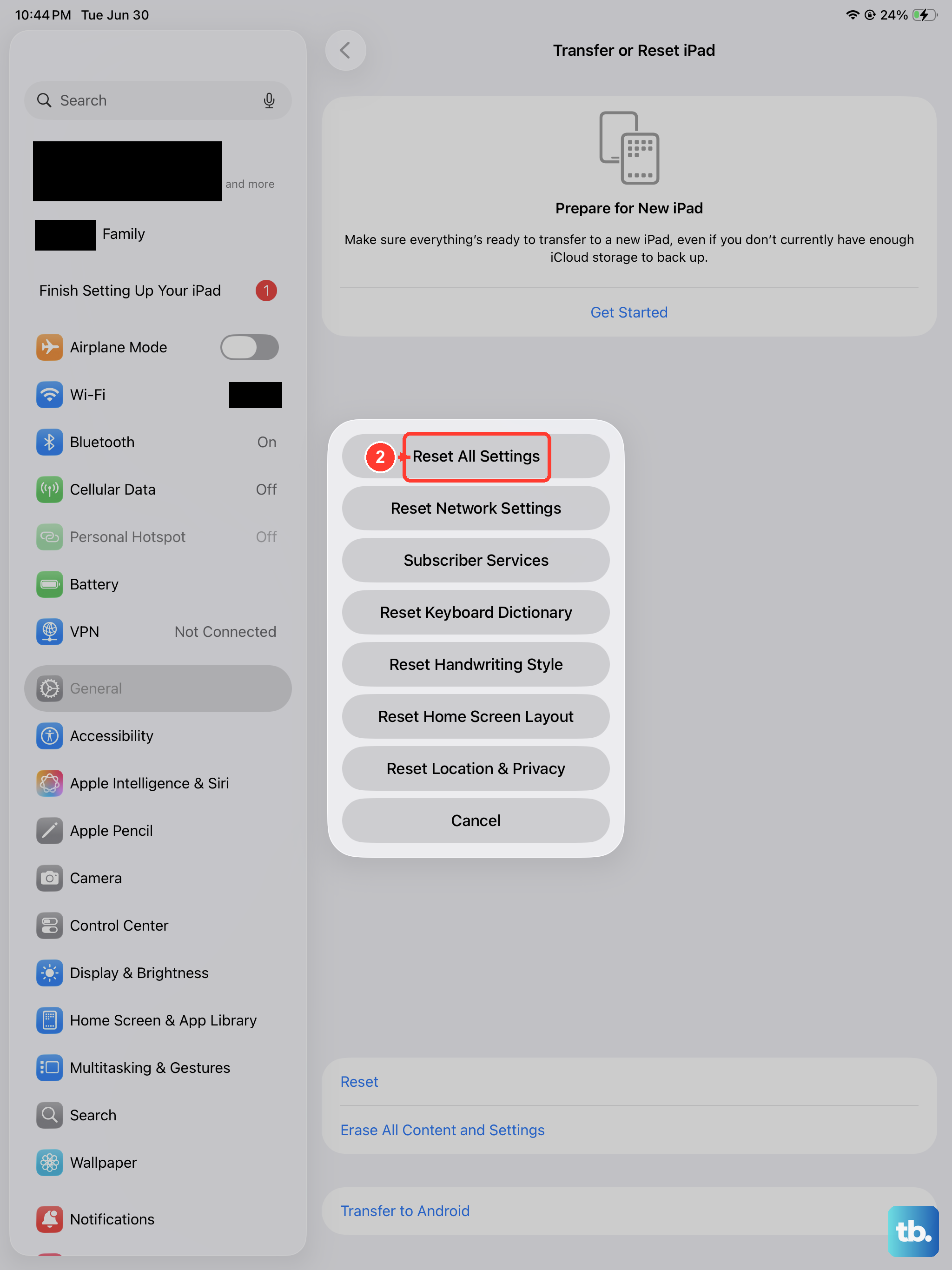
If the issue persists, a deeper software reset can help. This will revert all your preferences, like Wi-Fi passwords, wallpaper, and privacy settings, back to their defaults, but it won't touch your personal data or apps. It can resolve conflicts caused by a misconfigured setting.
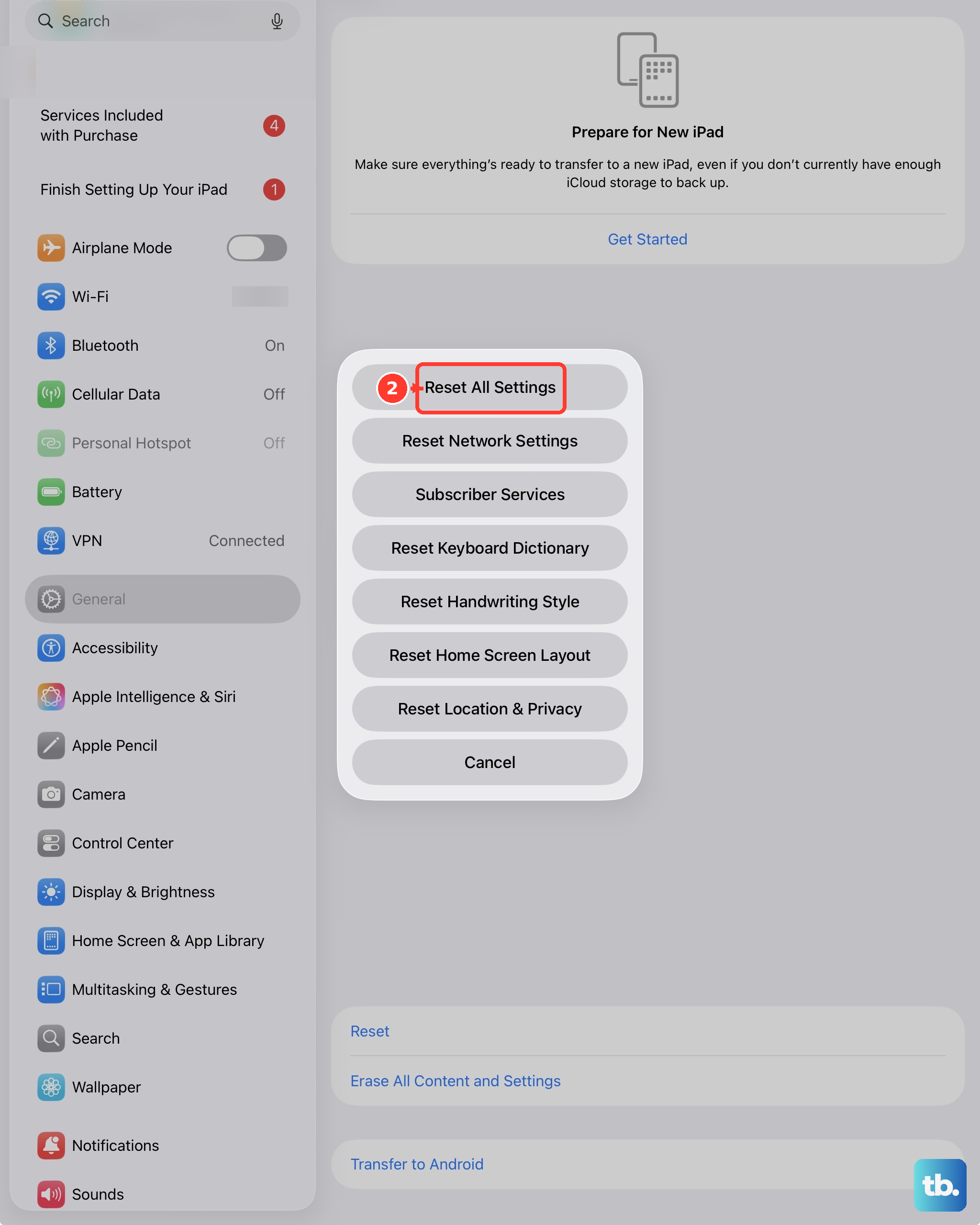
Go to Settings > General > Transfer or Reset iPad. Tap Reset and then choose Reset All Settings. You'll need to enter your passcode to confirm. After the iPad restarts, you'll need to reconfigure things like Face ID and notifications, but it often clears up stubborn sensor issues.
Test in Safe Mode
A third-party app you've installed could be causing a conflict. Booting into Safe Mode temporarily disables all user-installed apps, letting you see if the problem is with iPadOS itself or something you've added. The method to enter Safe Mode can vary slightly between iPadOS versions.
For iPadOS 26, a common method is to turn off your iPad completely. Then, press and hold the Power button to turn it back on, but immediately press and hold the Volume Down button as soon as you see the Apple logo. Keep holding it until you see "Safe Mode" in the bottom-left corner of the lock screen. If rotation works normally here, a recently installed app is likely the cause.
Consider a Hardware Diagnostic
If you've tried all the software fixes and your iPad Pro's screen still won't rotate in any app, there's a small chance of a hardware fault with the internal gyroscope. This is rare, but it can happen if the device has been dropped or suffered impact damage.
You can use the built-in diagnostics by contacting Apple Support directly through the Apple Support app. They can run remote tests on the sensors. Since the iPad Pro (M4) is a future model, any repair would be handled through Apple's official service channels, and it's worth checking your warranty status first.