
When your iPad Pro (M4) won't download apps from the App Store, it can feel like you're locked out of your own device. Apps are the lifeblood of the iPad experience, so a download failure is a major roadblock. The good news is that most of these issues are caused by simple glitches that you can fix yourself.
Let's go through the most effective troubleshooting steps to get your iPad downloading apps again.
Check Your Internet Connection First
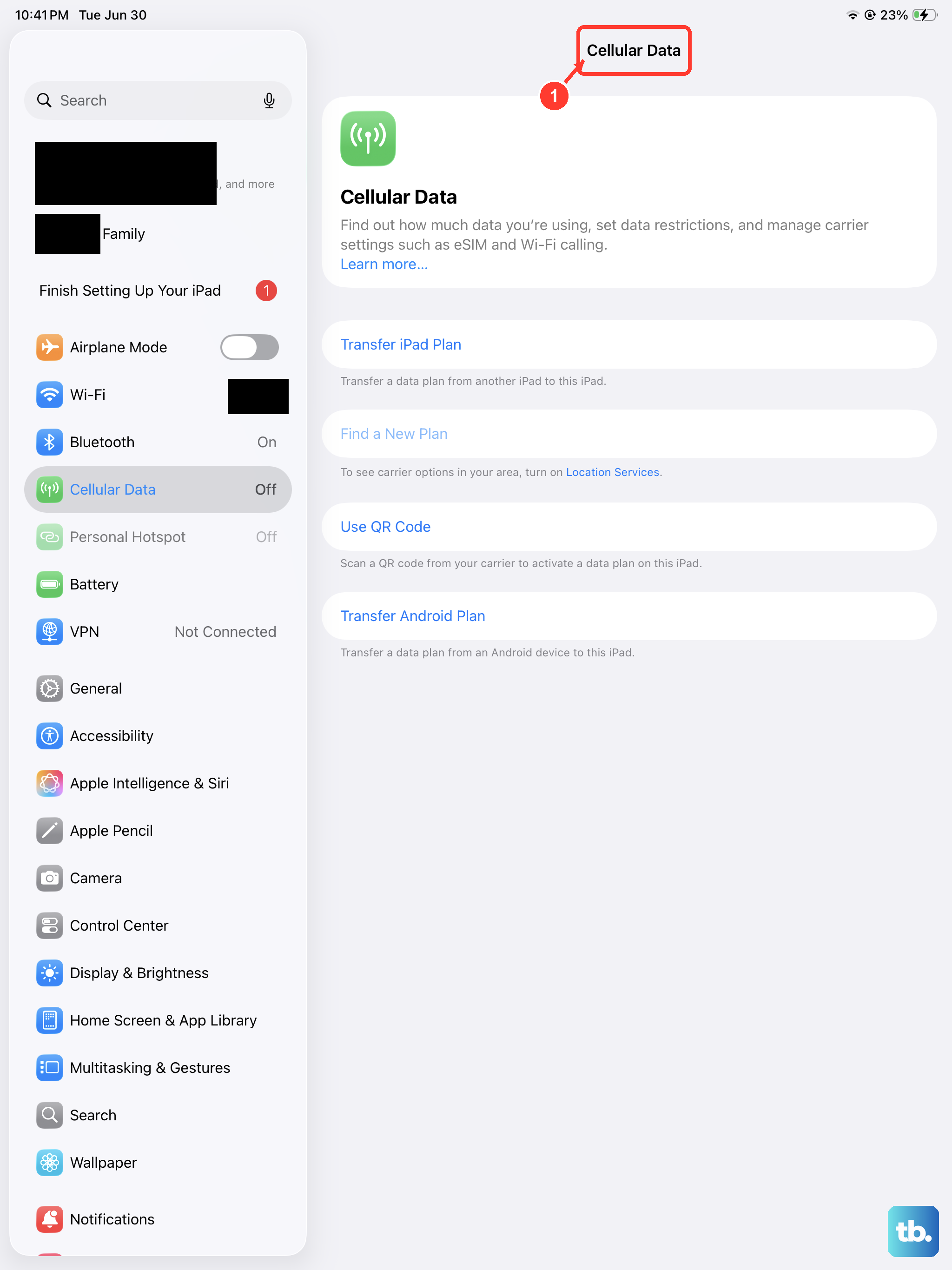
This is the most common culprit. The App Store needs a stable internet connection to communicate with Apple's servers and download app packages. Pull down from the top-right corner to open Control Center and make sure your Wi-Fi or cellular icon is blue and active.
If you're on Wi-Fi, try toggling it off and back on. Sometimes, a simple network refresh is all it takes. You can also try switching to cellular data temporarily to see if the problem is specific to your Wi-Fi network.
Restart Your iPad Pro
A quick restart clears out temporary software bugs that can interfere with the App Store. It's a good first step if downloads were working before and suddenly stopped. Just hold the Power button and either volume button, then slide to power off.
Wait about 30 seconds, then press the Power button again to turn it back on. Once it boots up, try the App Store again. I've found this resolves the issue more often than you'd think.
Sign Out and Back Into the App Store
Your Apple ID is the key to downloading apps. If there's a temporary authentication hiccup with Apple's servers, signing out and back in can re-establish a clean connection. Go to Settings > tap your name at the top > Media & Purchases.
Tap Sign Out. Wait a moment, then sign back in with your Apple ID password. This doesn't affect any other services on your device, it just refreshes your connection to the App Store.
Check Your Date & Time Settings
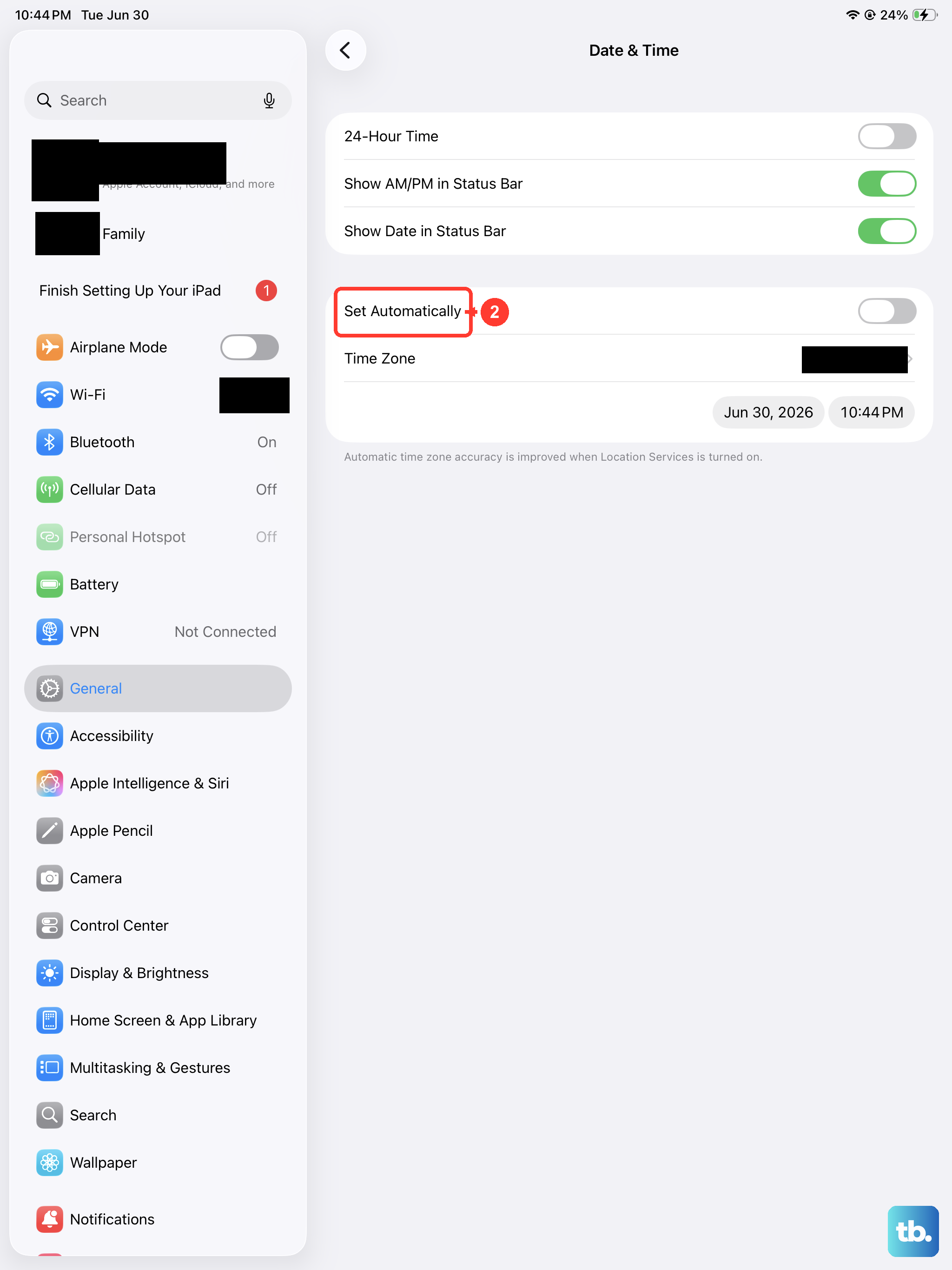
This one catches a lot of people off guard. The App Store uses secure certificates that rely on your device having the correct date and time. If these are wrong, downloads can fail silently.
Go to Settings > General > Date & Time. Make sure Set Automatically is turned on. If it's already on, try turning it off and back on to force a refresh from the network time server.
Check for iPadOS and App Updates
An outdated version of iPadOS can have bugs that break App Store functionality. Similarly, the App Store app itself might need an update. Go to Settings > General > Software Update to check for any available iPadOS updates.
For the App Store app, updates happen automatically in the background, but you can force a check. Open the App Store, tap your profile icon in the top right, and scroll down. If any updates are pending, you'll see them listed there.
Check Your Available Storage Space
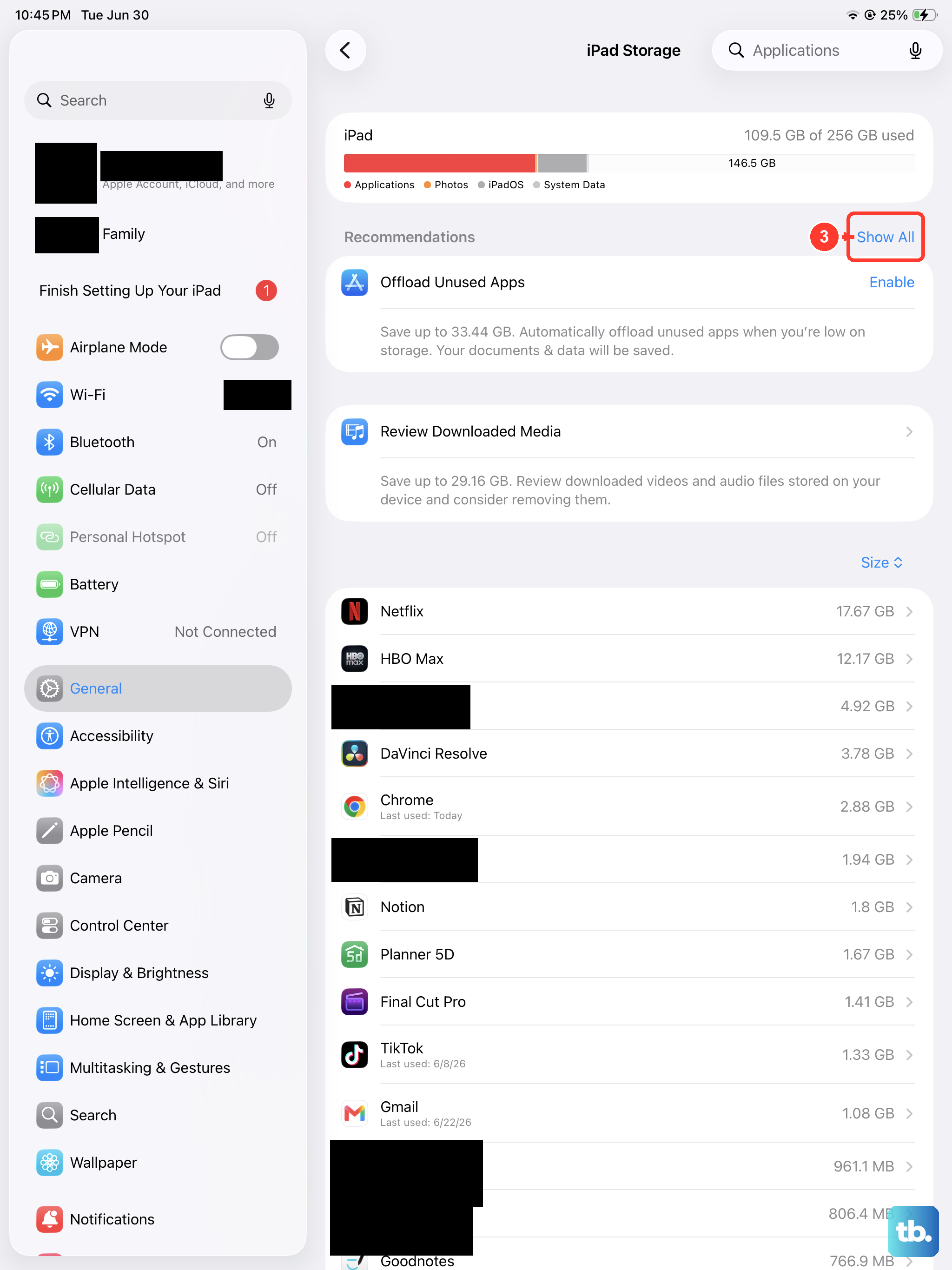
Your iPad Pro might be telling you it's full. Apps, especially high-end ones for the M4 chip, can be several gigabytes in size. Go to Settings > General > iPad Storage to see how much free space you have.
If you're low, you'll need to free some up. You can offload unused apps (which removes the app but keeps its data), delete old videos and photos, or clear cache from streaming apps. Aim for at least a couple of gigabytes free for a comfortable download.
Review Your Screen Time & Content Restrictions
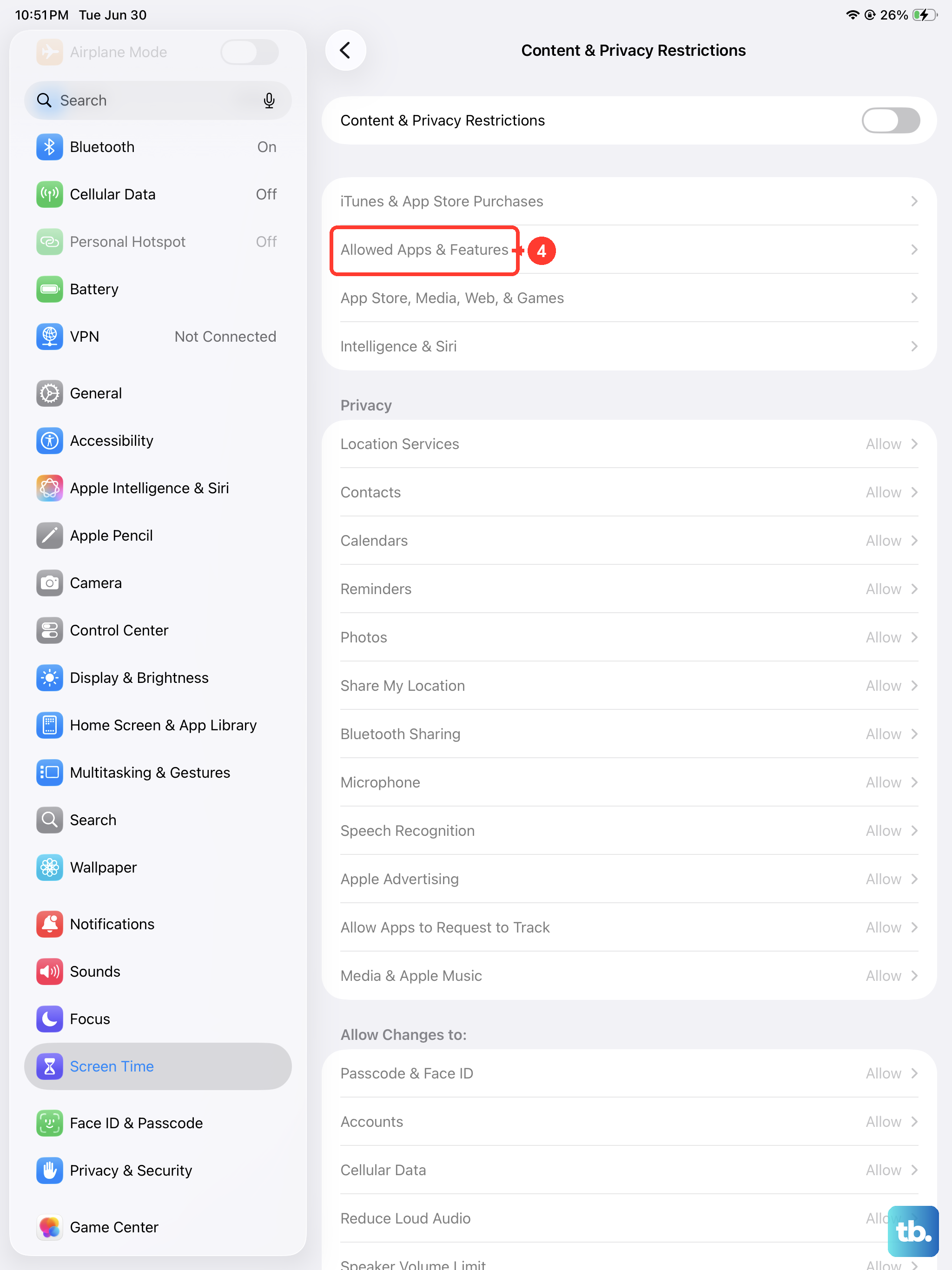
Screen Time settings can block app downloads and purchases, sometimes accidentally. Go to Settings > Screen Time > Content & Privacy Restrictions.
Tap iTunes & App Store Purchases. Make sure Installing Apps is set to Allow. Also, check Allowed Apps further down the main restrictions page to ensure the App Store isn't toggled off.
Reset Your Network Settings
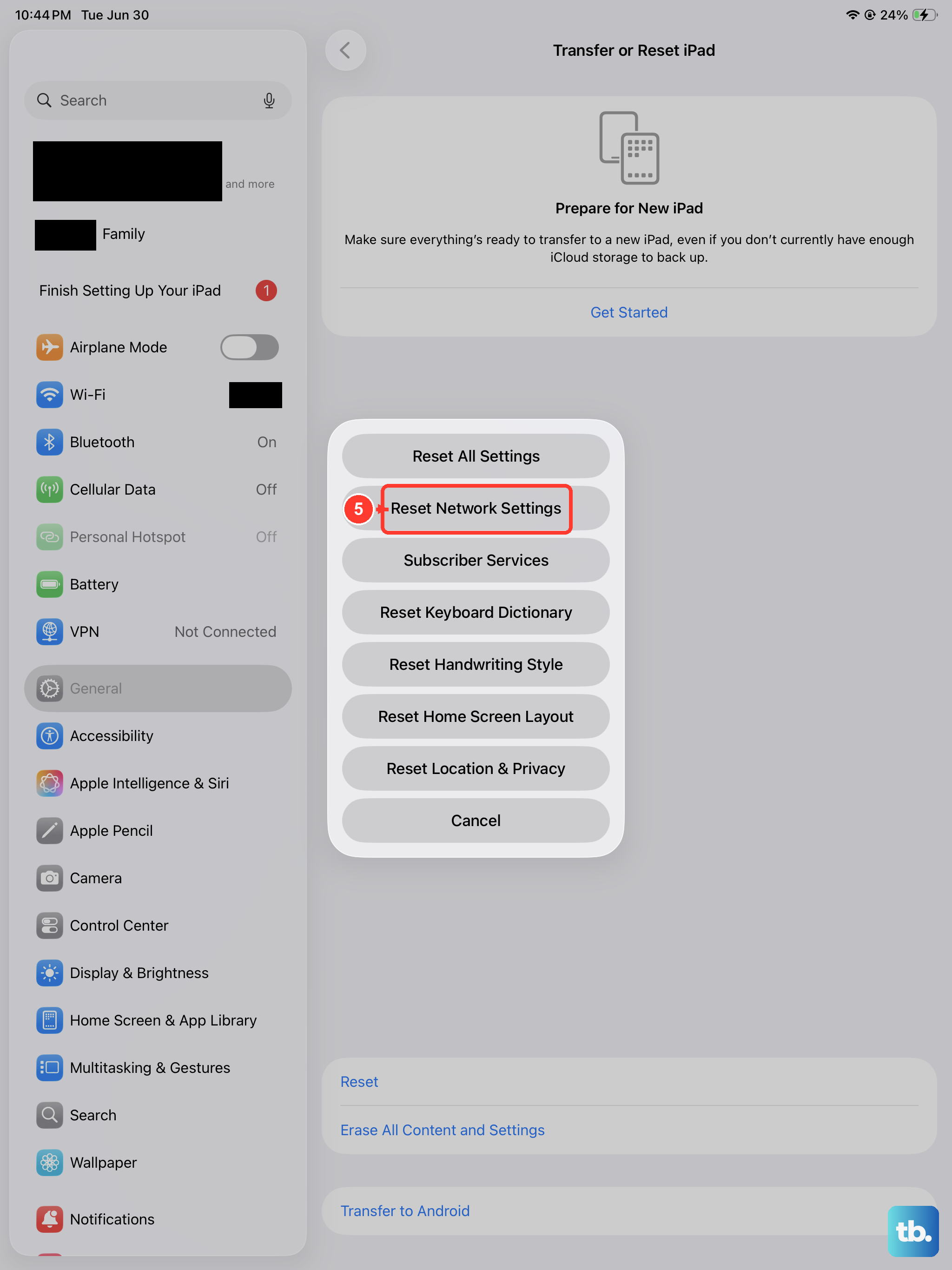
This is a more involved step, but it can fix persistent network-related download issues. It will erase all your Wi-Fi passwords and cellular settings, so you'll need to re-join your networks afterward.
Go to Settings > General > Transfer or Reset iPad > Reset. Choose Reset Network Settings. Your iPad will restart, and you can then try connecting to Wi-Fi and downloading an app again.
Force Restart Your iPad Pro (M4)
A force restart is different from a normal shutdown. It clears the device's memory more thoroughly and can kick-start services that have frozen, including those related to the App Store. For the iPad Pro (M4), press and quickly release the Volume Up button, then quickly press and release the Volume Down button.
Immediately after, press and hold the Power button. Keep holding it until you see the Apple logo appear, then let go. This won't delete any of your data or settings.
Update Your Payment Method
Even for free apps, the App Store needs a valid payment method on file for your Apple ID account. An expired credit card or a billing issue can sometimes block all downloads. Open the App Store, tap your profile icon, and tap Manage Payments.
You can update an existing card or add a new one. If you want to remove the requirement entirely for free apps, you can sometimes add "None" as a payment method, depending on your region and account history.