
When your iPad doesn't show up on your computer, it stops you from transferring photos, backing up with Finder or iTunes, or updating your device. This is a common hiccup, but it's almost always something you can fix yourself with a few checks.
The issue usually comes down to a simple cable problem, a software setting on either device, or a temporary glitch. I'd start with the cable and port, as that's the fix for most people.
Check Your USB-C Cable and Port
The USB-C cable is the most frequent point of failure. Not all USB-C cables are created equal, especially when it comes to data transfer. Start by trying a different cable, ideally the one that came with your iPad.
Make sure both ends are plugged in firmly. Try a different USB port on your computer, preferably one directly on the machine and not on a hub. Also, take a close look at the USB-C port on your iPad for any lint or debris.
You can gently clean it with a dry, soft-bristled brush or a can of compressed air. Avoid using anything metal that could damage the contacts inside.
Restart Your iPad and Computer
A simple restart can clear out temporary software bugs that are preventing the handshake between devices. First, restart your computer. Then, restart your iPad.
For iPads without a Home button, quickly press and release the Volume Up button, then the Volume Down button, then press and hold the Top button until you see the Apple logo. For iPads with a Home button, just press and hold both the Home and Top buttons until the logo appears.
Once both devices are back on, try connecting the cable again. This basic step resolves a surprising number of detection issues.
Trust This Computer on Your iPad
If this is the first time you're connecting your iPad to this computer, or after a software update, you need to explicitly grant permission. When you connect the USB-C cable, your iPad screen should light up with a prompt asking if you "Trust This Computer."
You must tap "Trust" and enter your passcode. If you accidentally tapped "Don't Trust," the computer will be blocked. To reset this, you need to disconnect the iPad, restart it, and then reconnect to hopefully get the prompt again.
Update Your Software
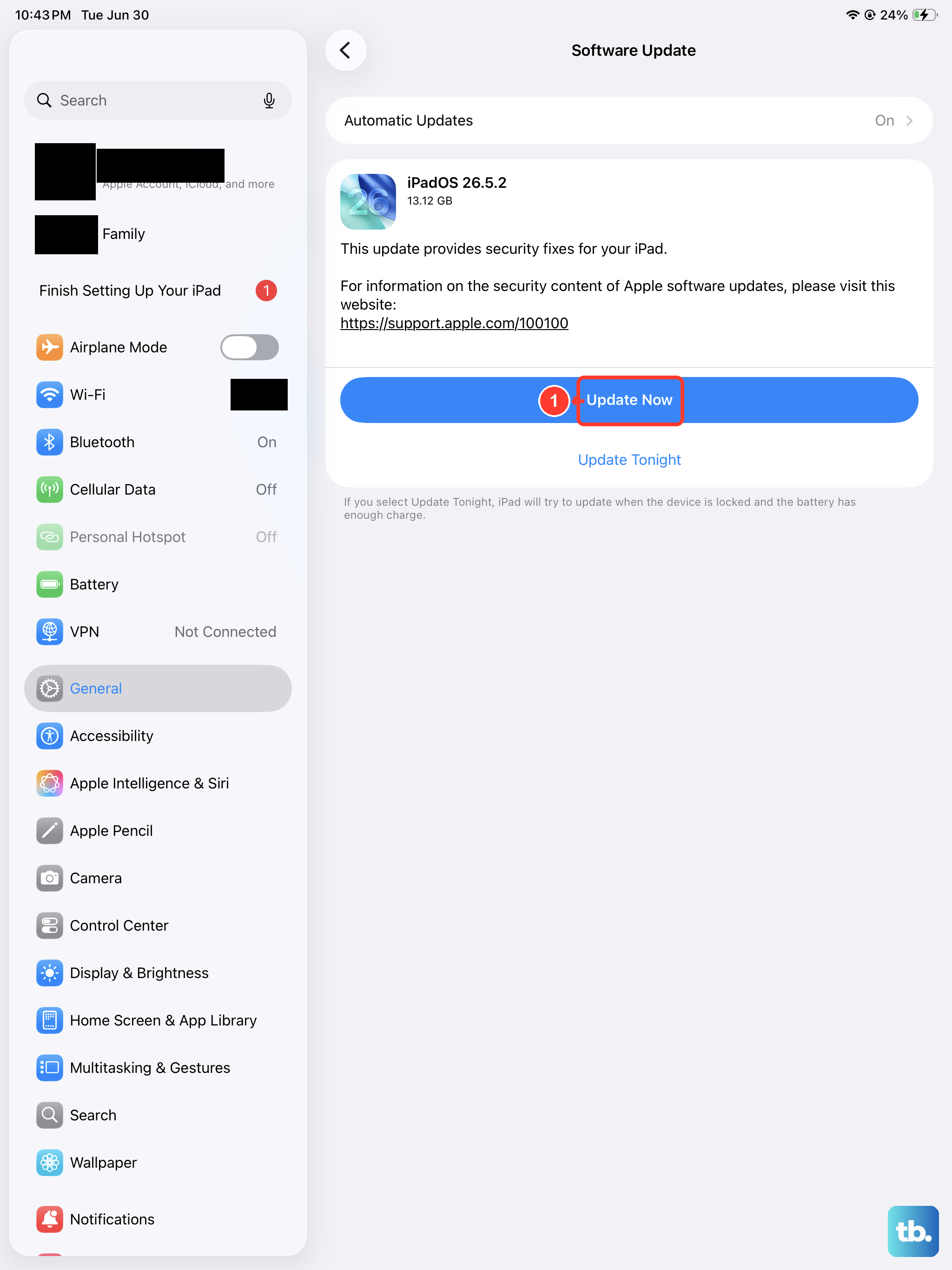
Outdated software is a major culprit. First, check for an iPadOS update on your tablet. Go to Settings > General > Software Update. Install any available updates.
Next, make sure your computer's operating system is up to date. On a Mac, go to System Settings > General > Software Update. On a Windows PC, check for updates through Windows Update.
Also, if you're using a Windows PC, ensure you have the latest version of iTunes or the Apple Devices app from the Microsoft Store. Apple's support software on Windows is essential for communication.
Check Finder or iTunes Settings
On a Mac running macOS Catalina or later, iPads are managed through Finder. Connect your iPad, open a new Finder window, and look for your device in the sidebar under "Locations." If you don't see it, make sure your iPad is unlocked.
You may also need to configure Finder to show it. Go to Finder > Settings (or Preferences), click the "Sidebar" tab, and ensure "CDs, DVDs, and iOS Devices" is checked.
On an older Mac or a Windows PC using iTunes, connect your iPad and open iTunes. Look for a small iPad icon near the top-left of the window. If you don't see it, try closing and reopening iTunes after the iPad is connected.
Try a Different Computer or User Account
This is a great way to figure out where the problem lies. Try connecting your iPad to a different computer, if you have access to one. If it works on a second machine, the issue is with your primary computer's software or USB ports.
If you're on a Mac, you can also try creating a new test user account and seeing if the iPad is detected there. This can rule out a corruption in your specific user profile's settings.
Reset Location & Privacy and Network Settings
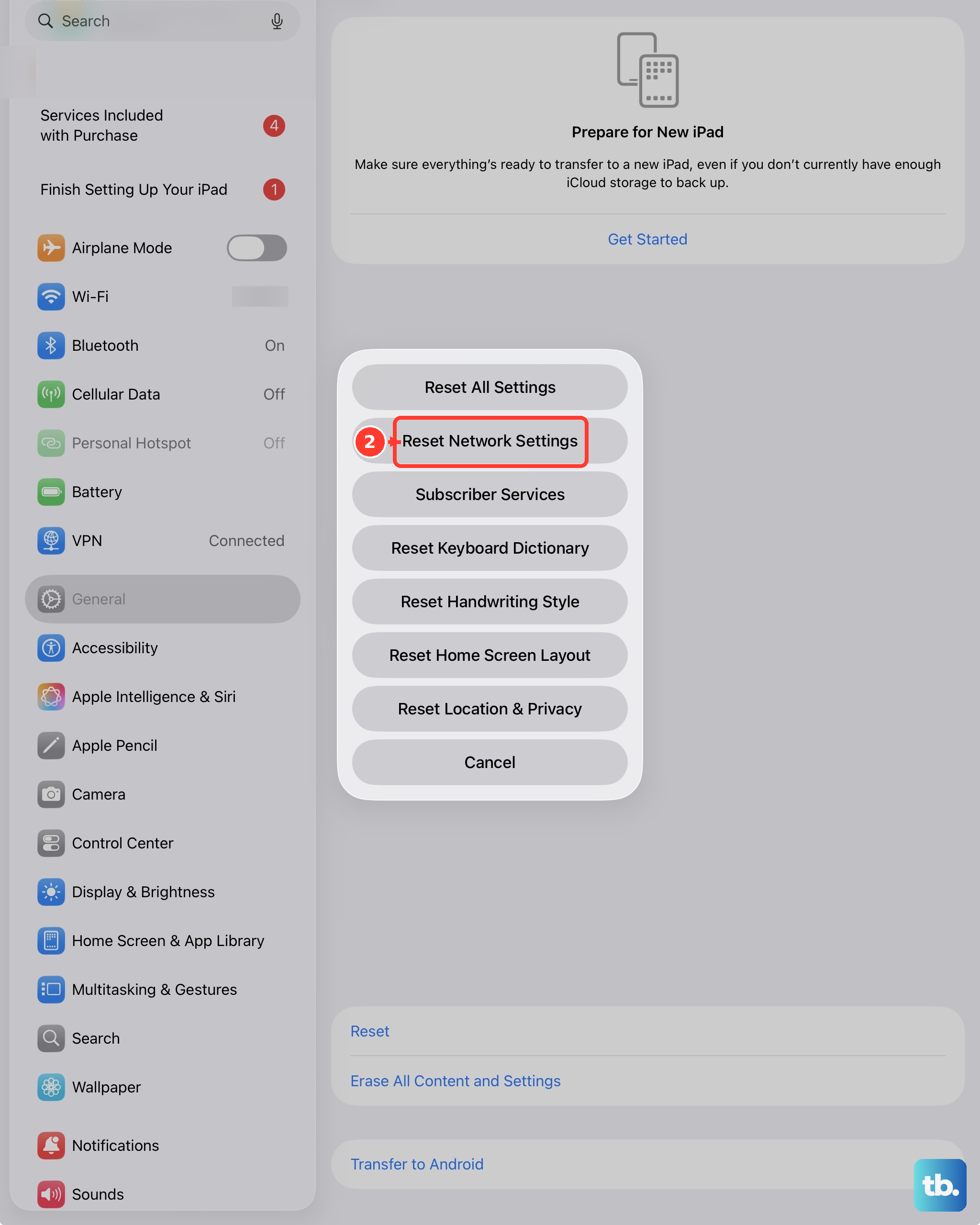
If the "Trust This Computer" prompt is malfunctioning, resetting the related settings can help. Go to Settings > General > Transfer or Reset iPad > Reset.
Tap "Reset Location & Privacy." This will reset your trust decisions for computers and Wi-Fi networks, so you'll have to grant permission again when you reconnect. You can also try "Reset Network Settings" if you're having broader connectivity issues, though this will erase saved Wi-Fi passwords.
Check for iPadOS-Specific Glitches
Sometimes, a particular iPadOS version can have a bug that affects computer detection. If this problem started right after a software update, it's a strong clue.
Check Apple's support forums or community pages to see if other users with your iPad model and iPadOS version are reporting the same issue. A subsequent minor update from Apple often resolves these kinds of bugs.
If you're technically inclined and the issue is severe, you might consider using a Mac to restore the iPad via Finder, but this erases all data. Always ensure you have a recent iCloud or computer backup before attempting a restore.











