
When the volume buttons on your iPad mini stop responding, it can throw off your whole workflow. You press them to adjust a video or turn down a podcast, and nothing happens. The good news is that most of the time, this is a temporary glitch you can fix yourself without a trip to the store.
I'd start with the simplest solutions first. They often do the trick.
Remove Your iPad Case
Take off any case or cover you're using. A case that's slightly misaligned or has worn out over time can physically block the buttons from being fully pressed. It's the quickest thing to check and solves the problem more often than you'd think.
Perform a Force Restart
A force restart clears out minor software hiccups that can make the buttons seem unresponsive. This won't delete any of your apps or data.
For your iPad mini (7th generation), here's exactly what to do. Press and quickly release the Volume Up button. Then, press and quickly release the Volume Down button. Finally, press and hold the Top button. Keep holding it until you see the Apple logo appear on the screen, then you can let go.
Check Your Sound Settings
There's a specific setting that controls whether the physical buttons change the volume. Go to Settings > Sounds. Make sure the option for "Change with Buttons" is toggled on. If it's off, your volume rocker won't do anything.
Use the On-Screen Volume Slider
While you're figuring this out, you can still control your volume. Swipe down from the top-right corner of your screen to open Control Center. You'll see a volume slider there that you can drag with your finger. You can also adjust it within the Settings > Sounds menu.
Clean Around the Buttons
Dust, lint, or a bit of sticky residue can easily get packed into the small gap around the volume rocker. This can prevent it from clicking properly. Take a can of compressed air and give the area around both volume buttons a few short bursts to dislodge any debris.
For anything sticky, you can dip a cotton swab in a tiny amount of isopropyl alcohol, wring it out so it's just damp, and gently clean around the button's edge. Let it dry completely before testing the buttons again.
Test the Buttons in Different Apps
Open up a few different apps like Apple Music, YouTube, or the Podcasts app and try the volume buttons in each one. If the buttons work in some apps but not others, the issue is likely with a specific app, not your iPad's hardware. Try force-closing the problematic app and reopening it.
Toggle the Mute Switch
If your iPad mini has the side switch set to mute (you can check this in Settings > Sounds), try flipping it back and forth a few times. This simple action can sometimes reset the connection and get the volume buttons working again.
Enable and Use AssistiveTouch
AssistiveTouch creates a floating menu on your screen with virtual buttons, including volume controls. Turning it on and using the virtual buttons can sometimes jog the physical ones back to life.
Go to Settings > Accessibility > Touch > AssistiveTouch and turn it on. A small gray circle will appear on your screen. Tap it, then tap Device, and then use the Volume Up or Volume Down options. After using the virtual controls a few times, try your physical buttons again.
Update iPadOS
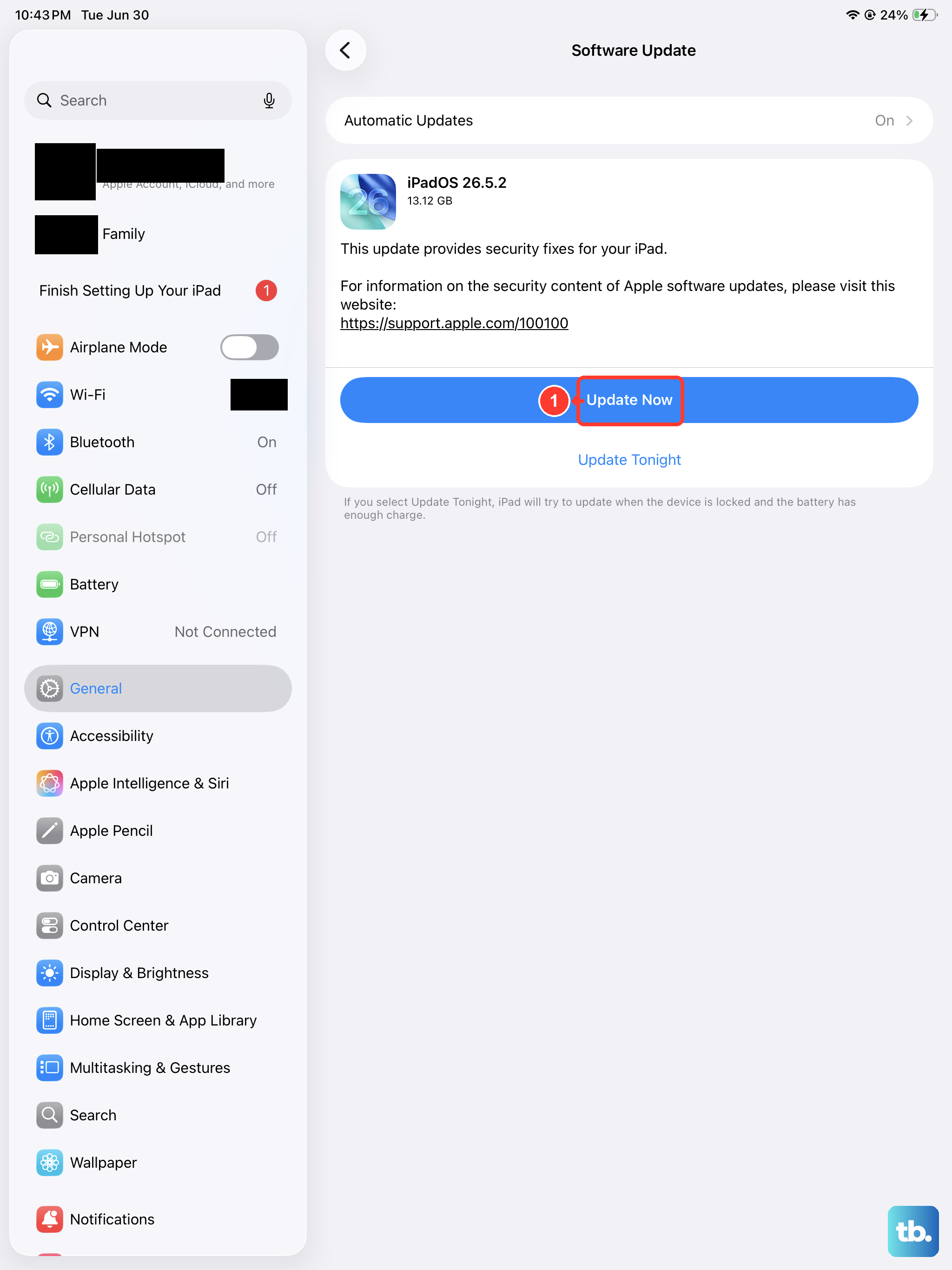
A software bug in iPadOS could be causing the problem. Apple frequently releases updates that fix these kinds of issues. Make sure your iPad is connected to Wi-Fi and, if possible, plugged in with its USB-C charger.
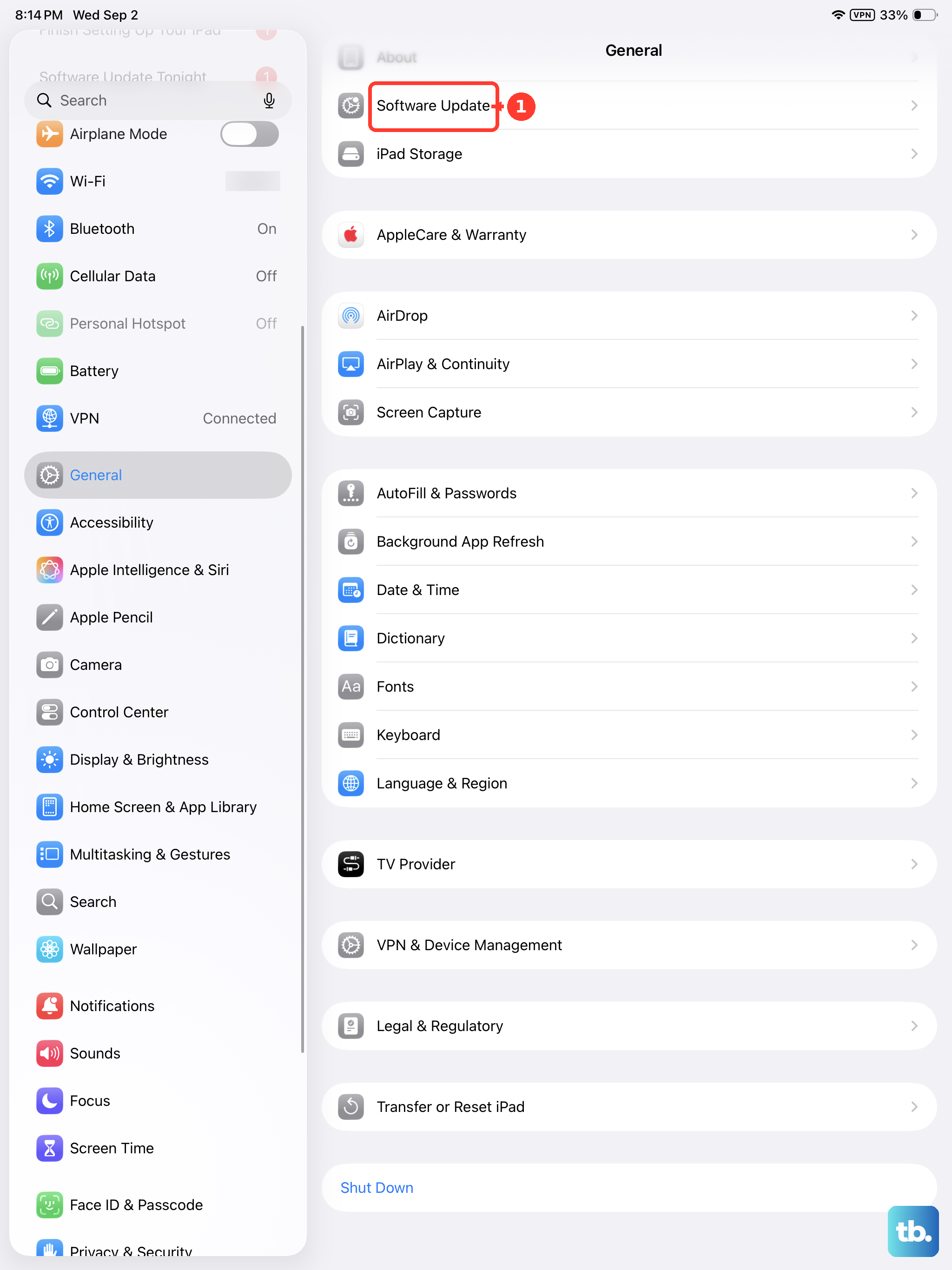
Then, go to Settings > General > Software Update. If an update is available, download and install it. After your iPad restarts, check if the volume buttons are responding.
Reset All Settings
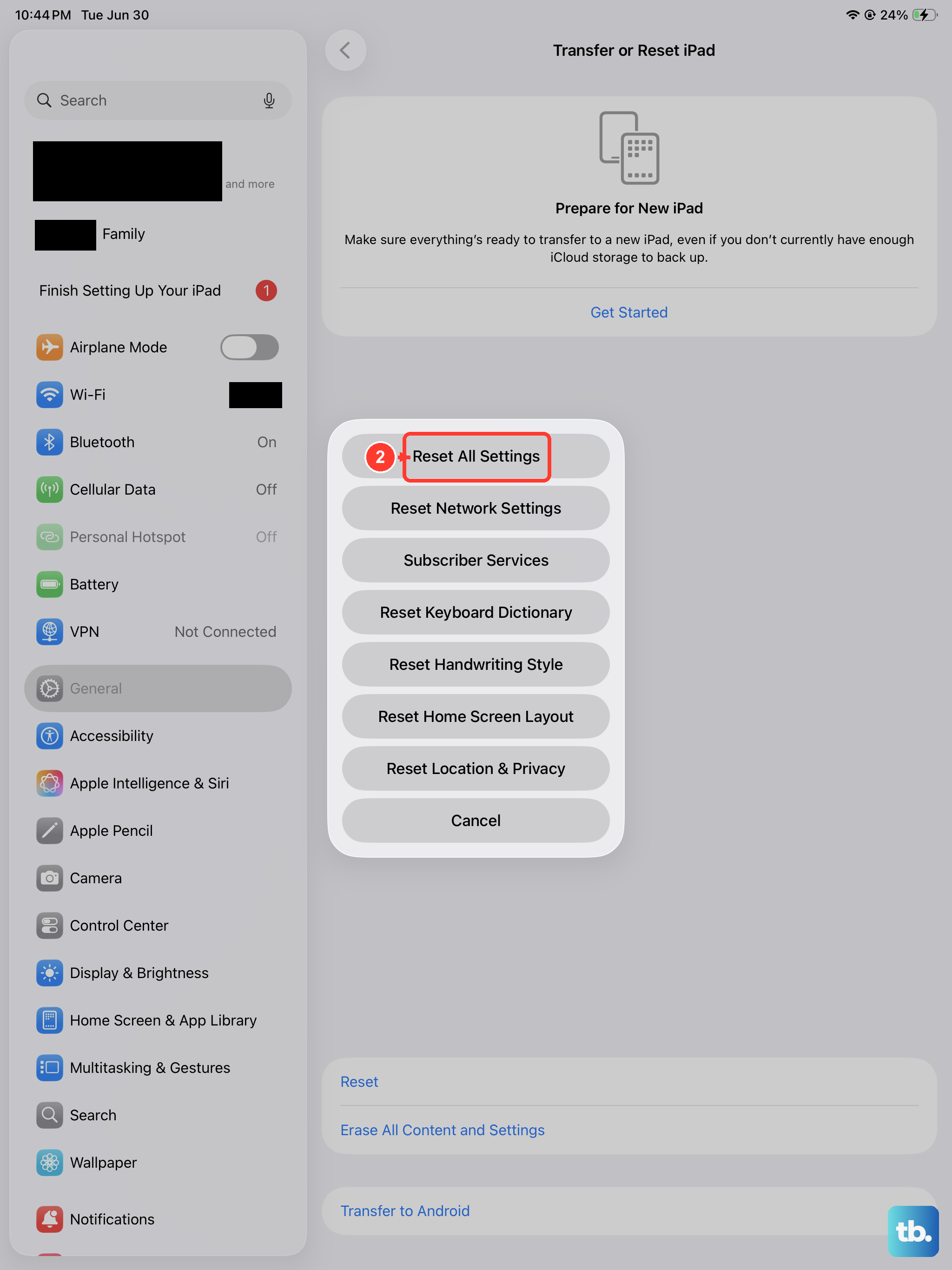
If you're still having trouble, a reset can clear out any corrupted settings that might be interfering. This will not erase your personal data like photos or documents, but it will reset all your preferences (like Wi-Fi passwords, wallpaper, and privacy settings) back to default.
Go to Settings > General > Transfer or Reset iPad. Tap Reset and then choose Reset All Settings. Enter your passcode if asked and confirm. Your iPad will restart, and you'll need to set up your preferences again, but it often resolves stubborn glitches.