
When your iPad mini suddenly goes silent, it can be pretty confusing. You might be watching a video, playing a game, or trying to take a call and realize there's no sound coming out at all. The good news is that most audio problems on the iPad mini are caused by simple software glitches or settings that can be fixed in a minute.
Before changing anything, play a quick left and right speaker test in your browser. It sends a tone to the left and right channels separately, so you immediately know whether the speakers produce any sound at all.
I'd start by checking the most obvious things first. Grab your iPad and swipe down from the top-right corner to open Control Center. Look for the speaker icon and make sure it's not muted. You can also press the volume up button on the side a few times to be sure.
Check the Silent Mode Switch and Volume
This might sound too simple, but it's the most common fix. The iPad mini doesn't have a physical silent switch like older models, but the software mute in Control Center acts the same way. Open Control Center by swiping down from the top-right edge of the screen.
You'll see a bell icon with a line through it if mute is on. Just tap that icon to turn mute off. While you're there, use the volume slider or the physical volume buttons on the side to crank the volume up to maximum.
Also, check the volume within the specific app you're using. Some apps, like video players or games, have their own separate volume controls that can be turned down even if your system volume is high.
Disconnect Bluetooth and Audio Routing
Your iPad might be trying to send sound to a device that isn't there anymore. If you've recently used AirPods, a Bluetooth speaker, or even wired headphones, the audio could still be routed to them.
Go to Control Center again. In the top-right corner of the audio card, you'll see a small triangle icon. Tap it to see a list of available audio outputs. Select your iPad from this list to make sure sound plays through its internal speakers.
For a more thorough check, open the Settings app and tap Bluetooth. If it's on, toggle it off completely. This ensures no hidden connections are stealing your audio.
Restart Your iPad mini
A quick restart clears out temporary software bugs that can cause the speakers to stop working. Press and hold the top button and either volume button until the power off slider appears.
Drag the slider to turn your iPad off completely. Wait about 30 seconds, then press and hold the top button again until you see the Apple logo. This simple step fixes a surprising number of audio issues.
Force Restart Your iPad
If a normal restart doesn't help, try a force restart. This is a slightly more thorough reboot that doesn't erase any of your data. It's a good step for when the iPad is acting unresponsive or the sound cut out during an update.
Here's how to do it on the 7th generation iPad mini. Quickly press and release the Volume Up button. Quickly press and release the Volume Down button. Then, press and hold the Top button.
Keep holding the Top button until you see the Apple logo appear on the screen, then let go. Your iPad will restart. Test the sound again once it's fully back on.
Check Focus Modes and Do Not Disturb
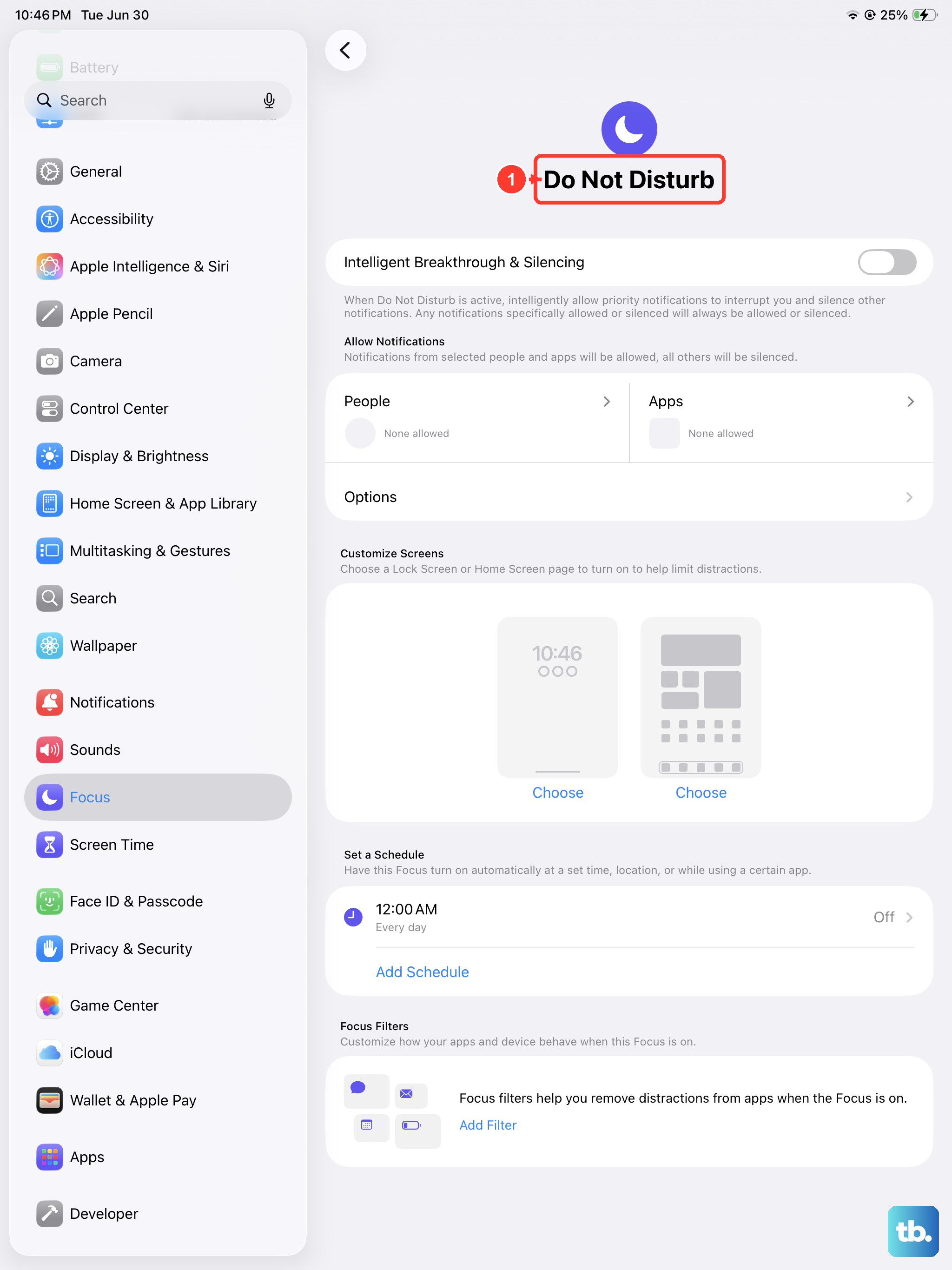
Focus modes in iPadOS 26, like Do Not Disturb or Sleep, can sometimes silence all audio, not just notifications. Swipe down from the top-right to open Control Center and look at the Focus tile.
If any Focus mode is active (it will be highlighted), tap it to turn it off. You can also long-press the tile to see which modes are enabled. For a deeper look, go to Settings, then Focus, and make sure no modes are set to silence all sounds.
Update iPadOS
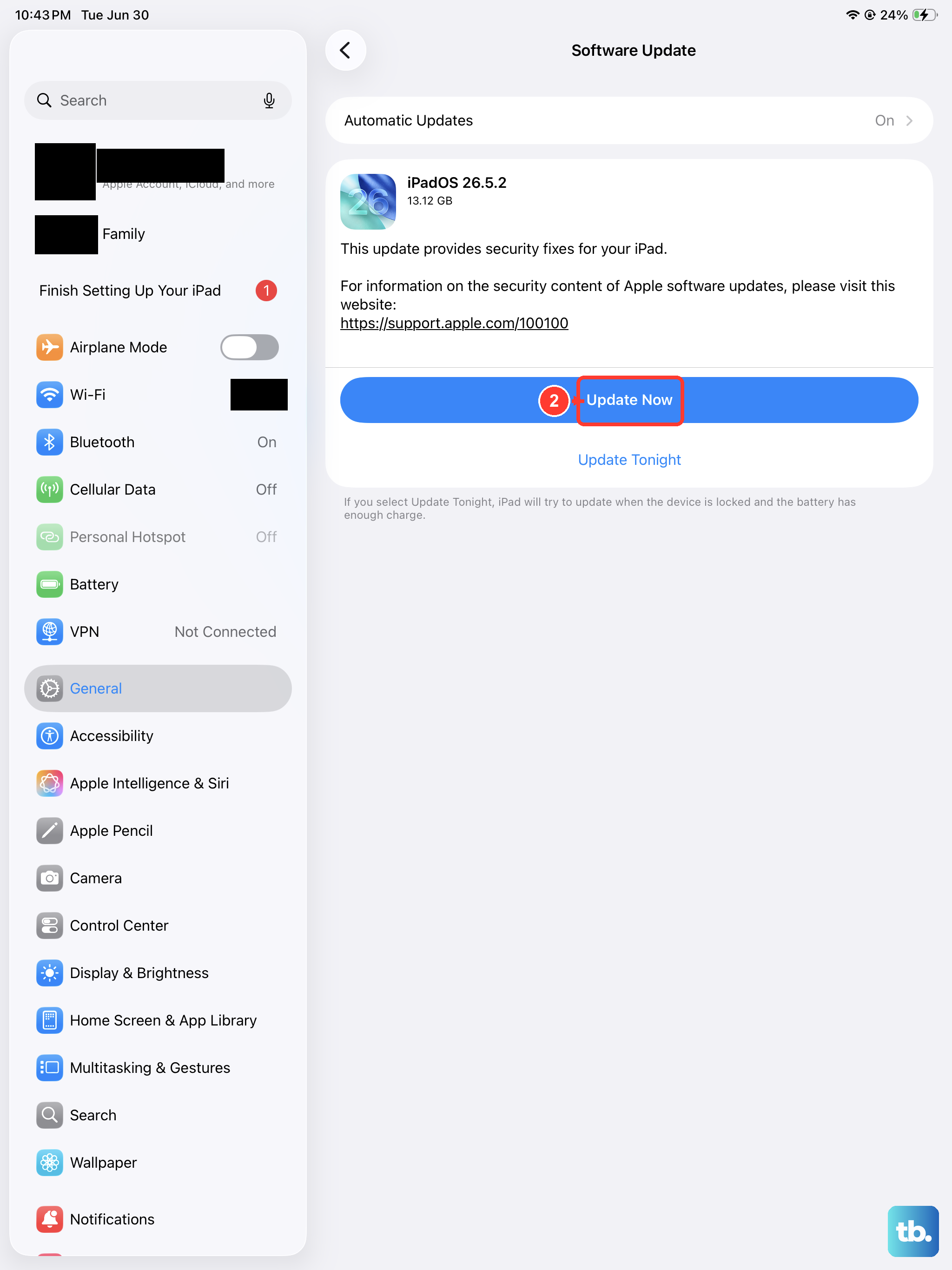
An outdated version of iPadOS can have bugs that affect audio performance. Apple releases updates regularly that include fixes for these kinds of problems.
Open the Settings app and tap General, then Software Update. If an update is available, tap Download and Install. Make sure your iPad is connected to Wi-Fi and has at least 50% battery, or plug it into your official Apple 20W+ USB-C charger.
Installing the latest iPadOS version is one of the best ways to resolve unexplained glitches, including sound issues.
Check for Physical Blockages
Take a close look at the speaker grills on your iPad mini. They're located at the bottom edge of the device. Over time, lint, dust, or pocket debris can get packed in there and muffle the sound.
Use a soft, dry toothbrush or a clean, dry paintbrush to very gently brush across the speaker holes. You can also use a can of compressed air, but hold it upright and use short bursts from a few inches away to avoid forcing moisture into the device.
Be careful not to push any debris further in. Just a light cleaning is often enough to restore clear audio.
Reset All Settings
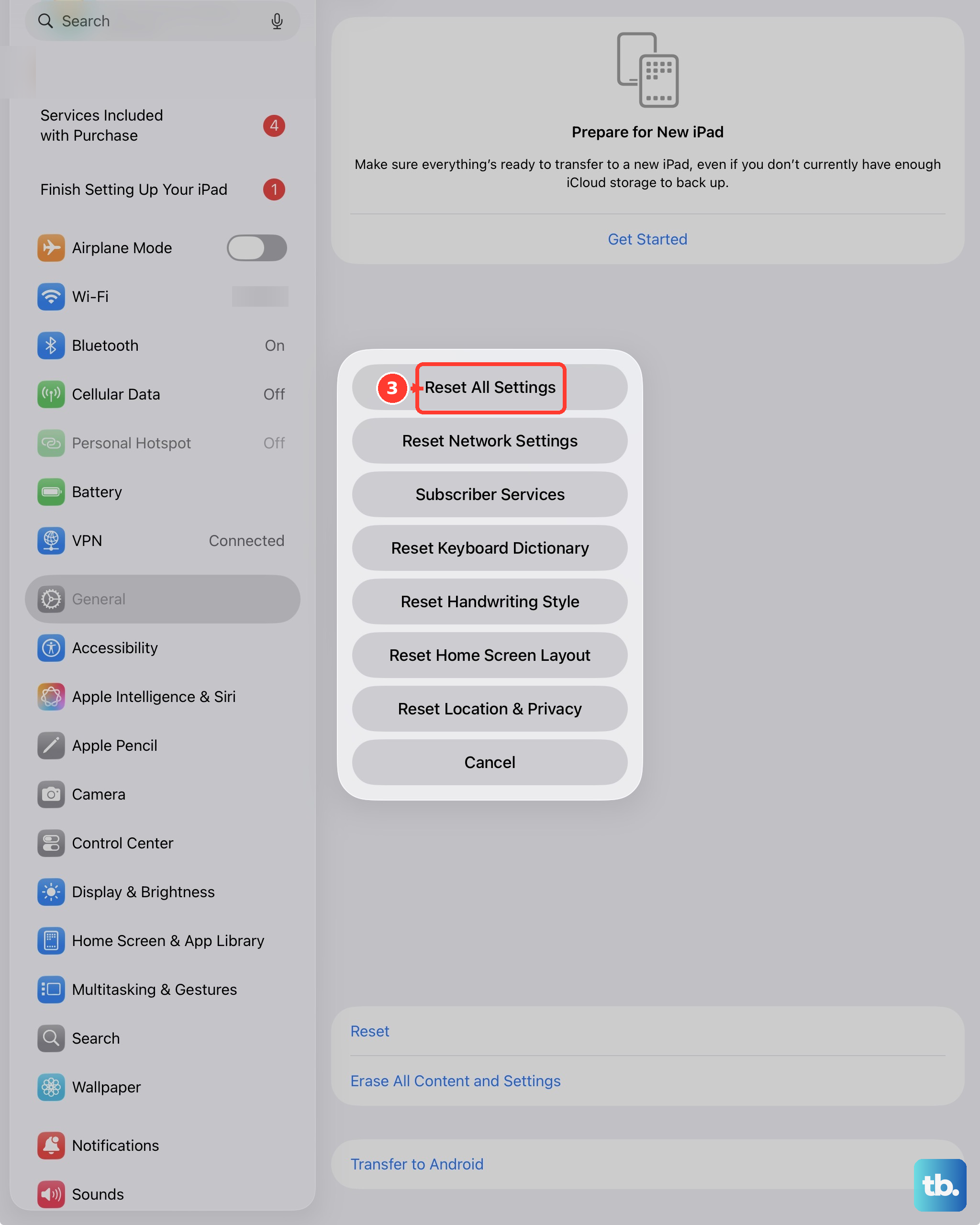
This is a more significant step, but it won't delete your photos, apps, or personal data. It resets all your system settings, like Wi-Fi passwords, wallpaper, and sound preferences, back to their defaults.
This can fix a corrupted setting that's causing the audio to fail. Go to Settings, then General, then tap Transfer or Reset iPad. Tap Reset at the bottom, and choose Reset All Settings.
You'll need to enter your passcode and confirm. Your iPad will restart and when it comes back on, you'll need to reconfigure things like notifications and sounds, but your files will be safe.
Test Sound in Different Apps
Sometimes the problem isn't with the iPad, but with a single app. If you only have no sound in YouTube, for example, but your notifications chime normally, the app itself is likely the culprit.
Try playing a video from the TV app, a song in Apple Music, or a system sound from Settings > Sounds & Haptics. If sound works everywhere except one app, the fix is simpler.
For the problematic app, try force-closing it. Swipe up from the bottom of the screen and pause in the middle to see your open apps. Swipe up on the app's preview to close it, then reopen it. If that doesn't work, check the App Store for an update to that specific app.