
When your iPad mini isn't showing up on your computer, it stops you from transferring photos, syncing files, or doing a local backup. This is a common hiccup, but it's almost always something you can fix yourself with a few checks.
The issue usually comes down to the cable, the port, or a simple software handshake that got confused. I'd start with the cable and port, as those are the most frequent culprits.
Check Your USB-C Cable and Port
Grab a different USB-C cable, preferably an official Apple one or another high-quality cable you know works for data. Plug it into a different USB port on your computer, ideally one directly on the motherboard instead of a hub.
While you're at it, take a close look at the USB-C port on your iPad mini. Shine a light in there and see if you spot any pocket lint or debris. You can gently clean it with a dry, soft-bristled brush or a blast of compressed air.
Avoid using metal objects like paperclips. If the port looks clear and a different cable doesn't work, the problem might be with the computer.
Restart Your iPad and Computer
A simple restart can clear out temporary glitches that prevent the connection. First, restart your computer. Then, restart your iPad mini by holding the top button and either volume button until you see the power slider.
For a more thorough reset, try a force restart. On the iPad mini (7th generation), you press and quickly release the Volume Up button, then quickly press and release the Volume Down button. Finally, press and hold the Top button until the Apple logo appears.
This doesn't erase any data. Once both devices are back on, try connecting the iPad again with your known-good cable.
Check the Connection Prompt on Your iPad
When you plug in your iPad, you should see a prompt on its screen asking if you "Trust This Computer." If you don't tap "Trust," the computer won't be able to access your files. Unlock your iPad and look for this alert when you connect it.
If you accidentally tapped "Don't Trust," the computer will be blocked. To fix this, disconnect the cable, restart your iPad, and then reconnect. The trust prompt should appear again.
This step is easy to miss, especially if your iPad's screen was off or you were distracted. It's always worth double-checking.
Update Software on Both Devices
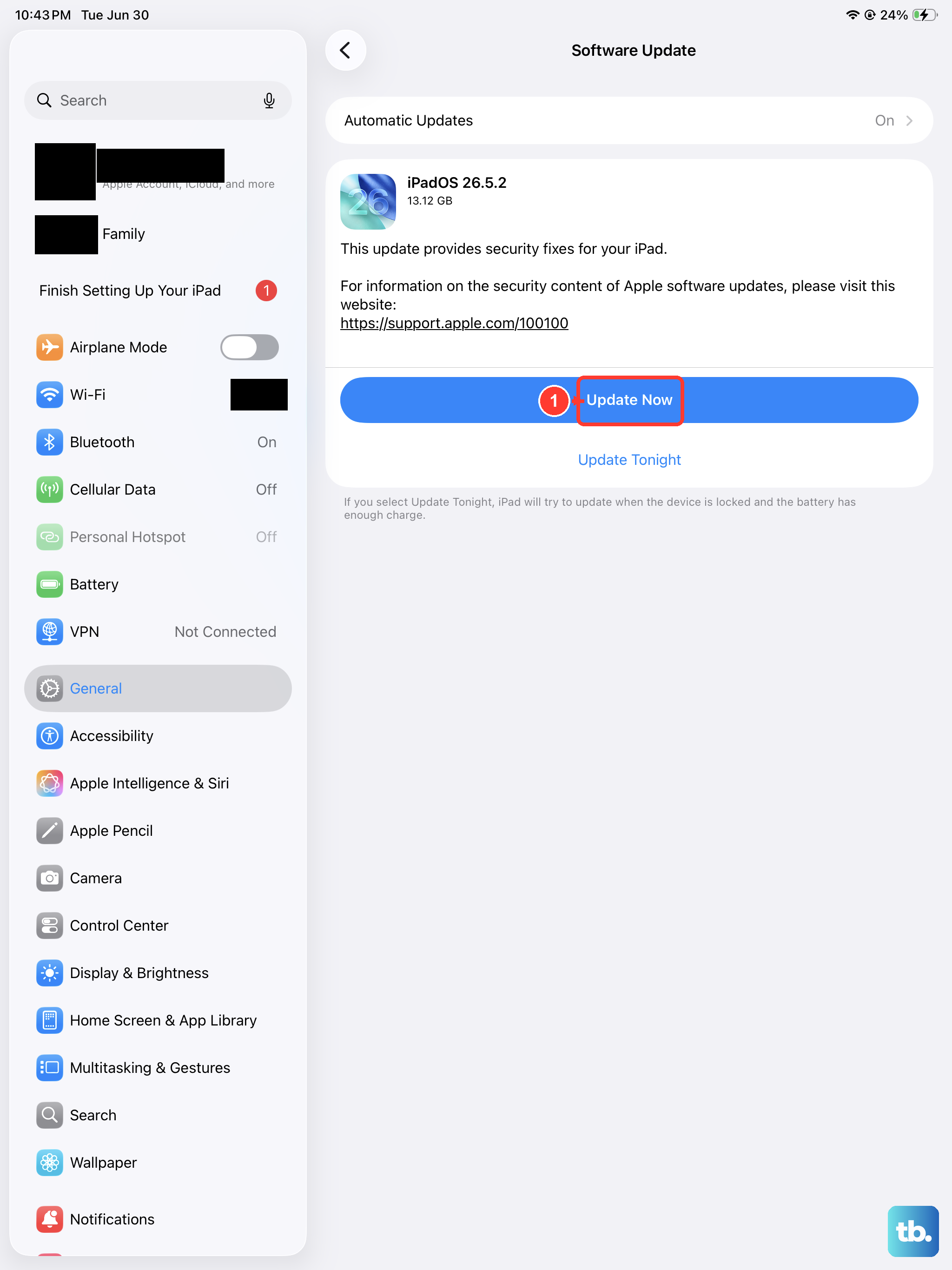
Outdated software can cause compatibility issues. First, make sure your iPad mini is running the latest version of iPadOS. Go to Settings > General > Software Update to check.
On your Mac, ensure macOS is up to date through System Settings. If you're on a Windows PC, run Windows Update. Also, make sure you have the latest version of iTunes if you're using Windows, or that the Apple Devices app is current.
Apple often releases updates that improve connectivity and fix bugs. Installing the latest versions removes that as a potential cause.
Try a Different Computer or User Account
This is a great way to figure out where the problem lies. Try connecting your iPad mini to a different computer. If it works there, the issue is with your primary computer's settings or software.
If you're on a Mac, try creating a new test user account and see if the iPad connects from there. On Windows, try a different local user account. This can tell you if the problem is with your specific user profile.
It sounds like a big step, but it quickly points you toward a computer-side fix versus an iPad hardware problem.
Check Finder or iTunes on Your Computer
On a Mac with macOS Catalina or later, your iPad should appear in the Finder sidebar under "Locations." If you don't see it, make sure your iPad is unlocked and connected. Then, in a Finder window, go to Finder > Settings from the menu bar and click the "Sidebar" tab. Ensure "CDs, DVDs, and iOS Devices" is checked.
On a Windows PC or an older Mac, you'll be using iTunes or the Apple Devices app. Open the application before connecting your iPad. Sometimes, just having the right application open is enough to establish the connection.
If the app opens but doesn't see the iPad, check for updates to the app itself through the Microsoft Store or Apple's website.
Reset Location & Privacy Settings
This resets your trust decisions for computers and other location-based permissions without deleting your personal data. On your iPad, go to Settings > General > Transfer or Reset iPad.
Tap "Reset" and then choose "Reset Location & Privacy." You'll need to enter your passcode. After the reset, reconnect your iPad to the computer and look for the "Trust This Computer" prompt again, tapping "Trust" to re-establish the connection.
This is a useful step if you think the trust relationship between the iPad and your computer has become corrupted.