
When your iPad mini can't download MMS messages, it usually means photos, videos, or group texts from friends with Android phones are stuck. This is a common hiccup on cellular iPad models, and it's almost always something you can fix yourself without a trip to the store.
The problem typically boils down to a setting that got switched off, a temporary software glitch, or your cellular data connection. I'd start with the simplest fixes first, as they often do the trick.
Restart Your iPad mini
This is the universal first step for a reason. A quick restart clears out temporary software bugs that can block MMS downloads. For your iPad mini (7th generation), press and quickly release the Volume Up button, then quickly press and release the Volume Down button. Finally, press and hold the Top button until you see the Apple logo appear on screen.
Give it a moment to boot back up, then open the Messages app to see if the stuck MMS downloads.
Check Your Cellular Data Connection
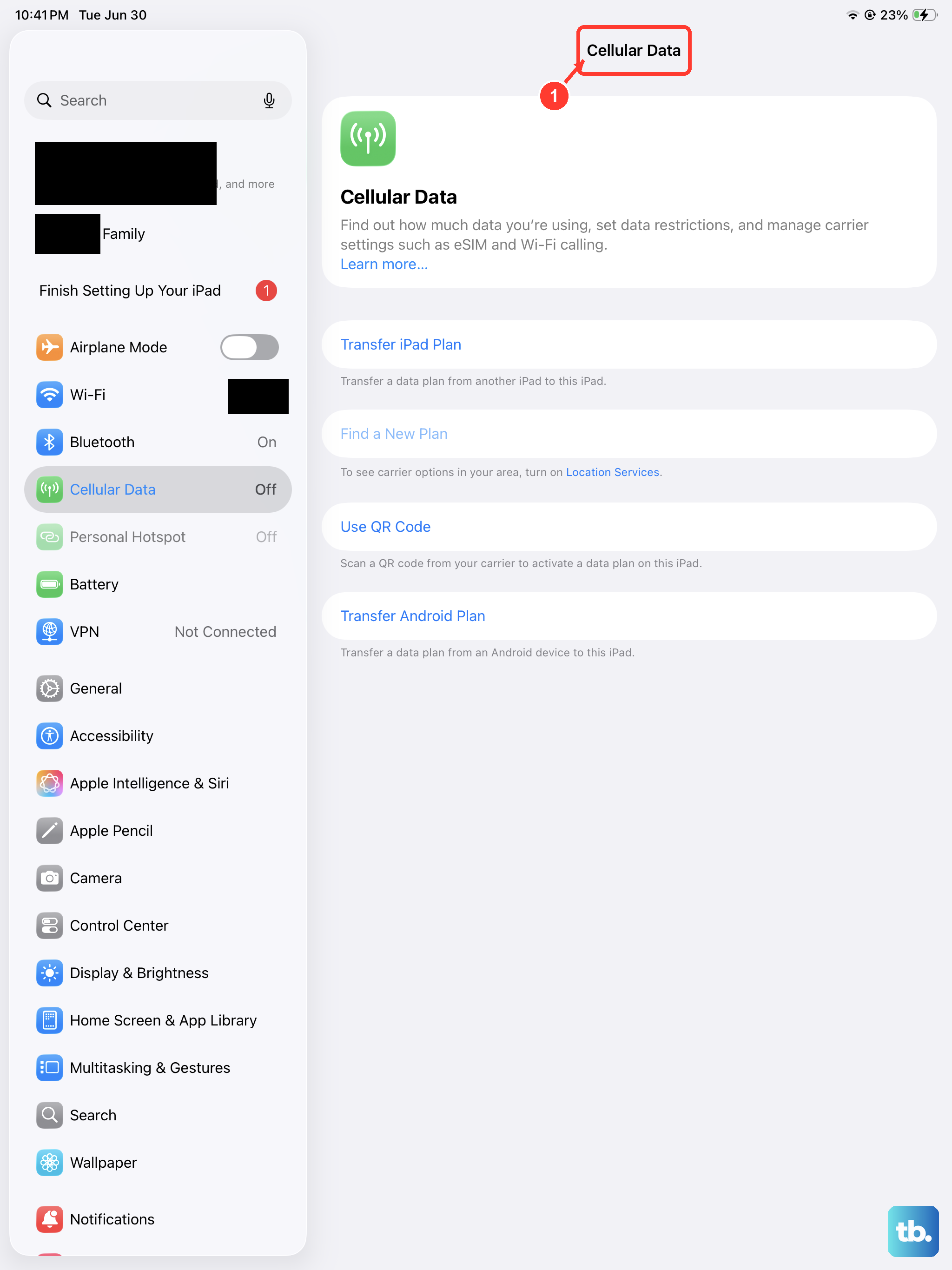
This is the most critical step. Unlike iMessage, which uses Wi-Fi or data, MMS requires an active cellular data connection to download. First, make sure Cellular Data is turned on. Go to Settings > Cellular Data and ensure the main toggle is green.
Next, you need to make sure MMS Messaging is specifically enabled. In the same Cellular Data settings menu, tap Cellular Data Options. Then, tap Data Mode and make sure it's not set to "Low Data Mode," as this can sometimes restrict background data for MMS.
Enable MMS in Your Messages Settings
There's a specific setting inside Messages that allows MMS. If this is off, your iPad won't even try to download them. Open Settings and scroll down to Messages.
Look for the "MMS Messaging" option and toggle it on. While you're here, also make sure "Send as SMS" is enabled. This helps with fallback if iMessage isn't available.
Check for a Carrier Settings Update
Your carrier occasionally sends small updates that fine-tune network features like MMS. These install silently, but sometimes you need to manually trigger a check. Make sure your iPad mini is connected to Wi-Fi.
Then, go to Settings > General > About. If a carrier settings update is available, a pop-up will appear asking you to update. This takes just a few seconds.
Update iPadOS
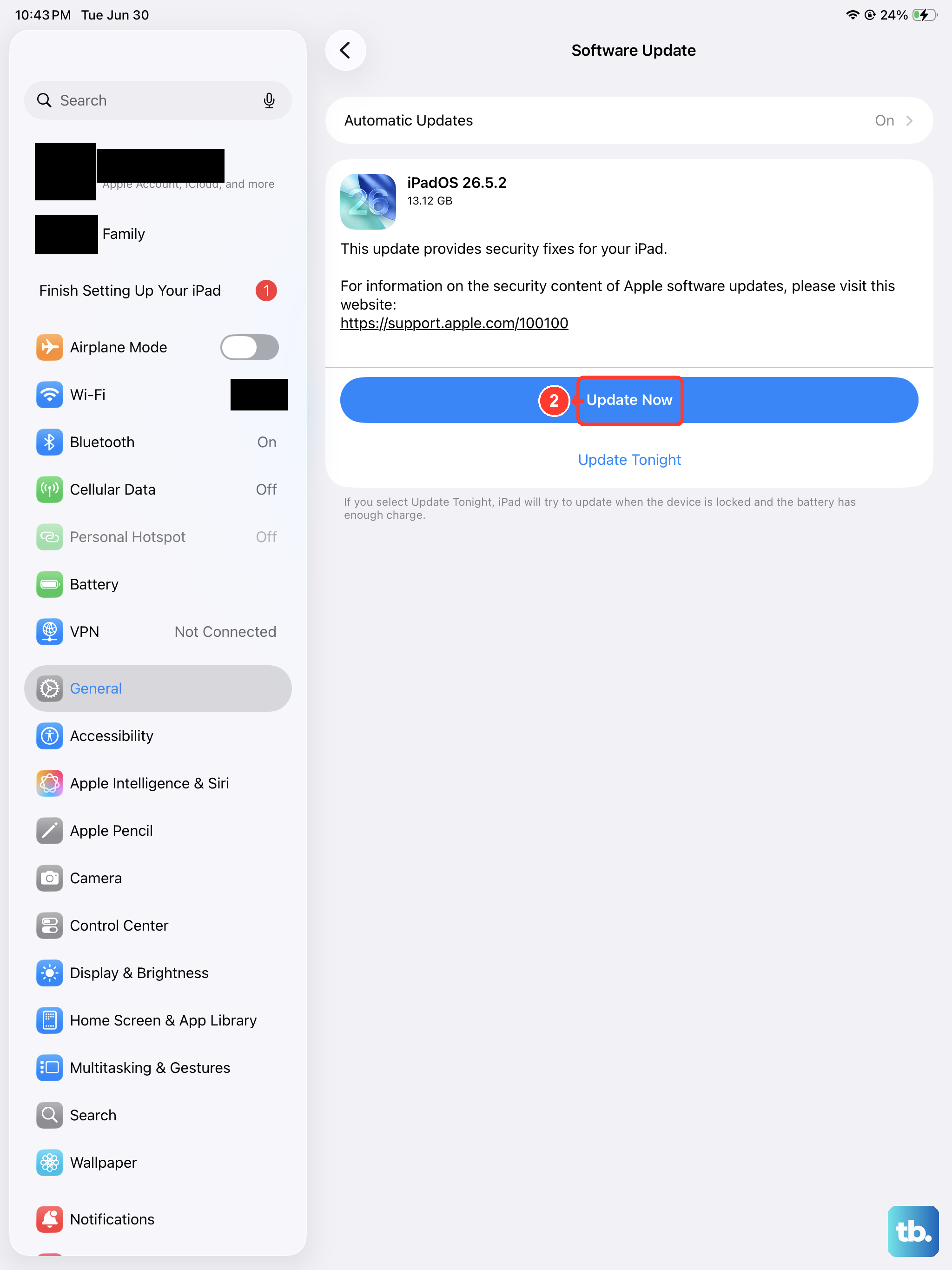
Running an outdated version of iPadOS can lead to all sorts of connectivity bugs, including MMS problems. It's a good habit to keep your iPad mini updated for performance and security anyway.
Go to Settings > General > Software Update. If an update is listed, tap "Download and Install." I'd recommend doing this over Wi-Fi and while your iPad is charging with its official 20W+ USB-C charger.
Reset All Network Settings
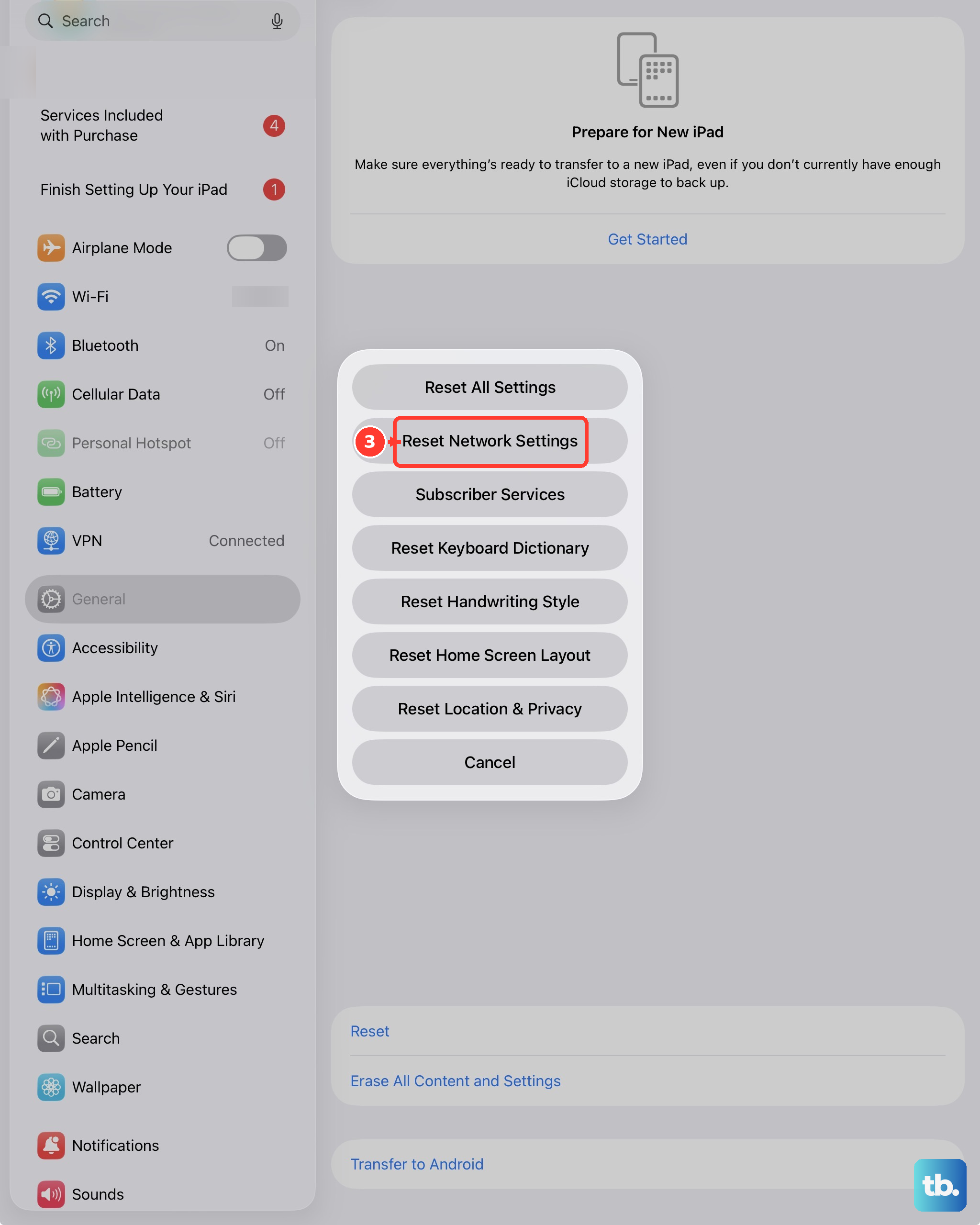
This is a more thorough step that clears all your saved Wi-Fi passwords, Bluetooth pairings, and cellular network configurations. It often resolves persistent MMS and data issues.
You won't lose any personal data like photos or messages. Go to Settings > General > Transfer or Reset iPad. Tap Reset and then choose Reset Network Settings. You'll need to enter your passcode and confirm. After the iPad restarts, you'll have to rejoin Wi-Fi networks.
Check Your Message Thread and Storage
If a particular message thread with an Android user has a very large video or many photos stuck trying to download, it can block new messages. Try deleting the entire conversation thread with that person as a last resort within the app.
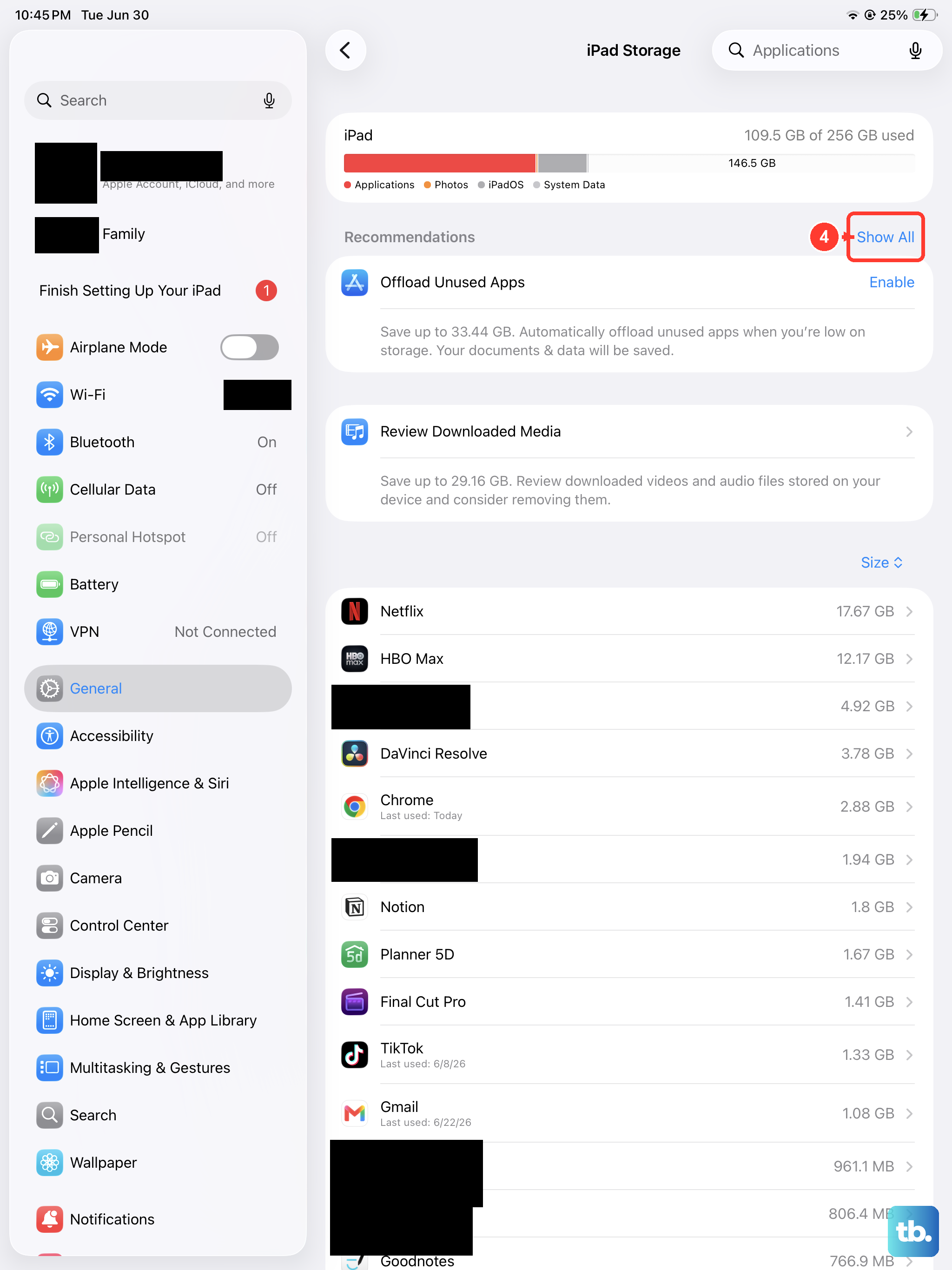
Also, if your iPad's storage is completely full, it may not have space to save incoming MMS files. Check your storage in Settings > General > iPad Storage.
Remove and Reinsert Your SIM Card
For iPad mini models with a physical SIM tray, a slightly loose or dirty SIM card can cause intermittent data issues. Use the SIM eject tool (or a small paperclip) to gently pop out the tray.
Remove the SIM card, give the metal contacts a quick wipe with a soft, dry cloth, and carefully reinsert it. Push the tray back in until it clicks. This can re-establish a clean connection to your carrier's network.
Verify APN Settings with Your Carrier
The Access Point Name (APN) tells your iPad how to connect to your carrier's data and MMS services. These settings are usually configured automatically, but they can sometimes be wrong or get corrupted.
You can view them by going to Settings > Cellular Data > Cellular Data Network. Don't change anything here unless you have the exact settings from your mobile carrier's support site. The fastest way is to contact your carrier's support and ask them to verify or push the correct APN settings to your iPad.
Sign Out and Back Into iMessage
This refreshes your connection to Apple's messaging service, which can sometimes help with cross-platform MMS delivery. Go to Settings > Apps > Messages and tap "Send & Receive." Tap your Apple ID at the top and choose "Sign Out."
Wait a moment, then sign back in with your Apple ID and password. After you're signed in, make sure your correct phone number and email are checked under "You can be reached by iMessage at."