
A blurry camera on your iPad mini makes every photo look soft and out of focus. The blur might affect only the main lens, show up just in video, or make everything look hazy. Before you assume the hardware is broken, there are several things you can try to clear it up.
Clean the Camera Lens
This is the most common fix and the best place to start. Use a soft, lint-free microfiber cloth to gently wipe the camera lens on the back of your iPad mini. Fingerprints, smudges, and dust on the lens are the number one cause of blurry, foggy-looking photos. Avoid using your shirt or paper towels, as they can scratch the delicate lens coating over time.
Remove Your Case or Cover
Some iPad cases, particularly third-party ones, don't have a perfectly aligned cutout for the camera. A case can partially cover the lens or sit so close that it creates a fogging effect. Take your iPad mini out of its case and take a test photo. Also, check that no screen protector or separate camera lens protector is covering the glass.
Tap to Focus in the Camera App
Open the Camera app and tap directly on the subject you want to be sharp. A yellow square will appear, confirming the focus point. If you're shooting something up close, the camera might be focusing on the background instead. Tapping your subject forces the focus where you want it. You can press and hold on the screen to lock focus and exposure.
Close and Reopen the Camera App
Swipe up from the bottom of the screen to go home, then swipe the Camera app away to close it completely. Reopen the app and try taking another photo. The camera software can occasionally glitch, causing the autofocus to malfunction or the image processing to produce blurry results. A fresh start often clears it right up.
Restart Your iPad mini
If the app restart didn't help, a full device restart is the next step. Press and quickly release the Volume Up button, then press and quickly release the Volume Down button. Finally, press and hold the Top button until you see the Apple logo appear. This resets the entire camera software stack and clears any stuck processes that could be affecting image quality.
Check for Moisture or Condensation
Moving your iPad from a cold environment to a warm one can cause condensation to form inside the camera lens or on the sensor. This leads to persistently foggy, blurry images. Let the device sit and acclimate to room temperature for 15-20 minutes. Don't try to blow on the lens, as that just adds more moisture.
Update iPadOS
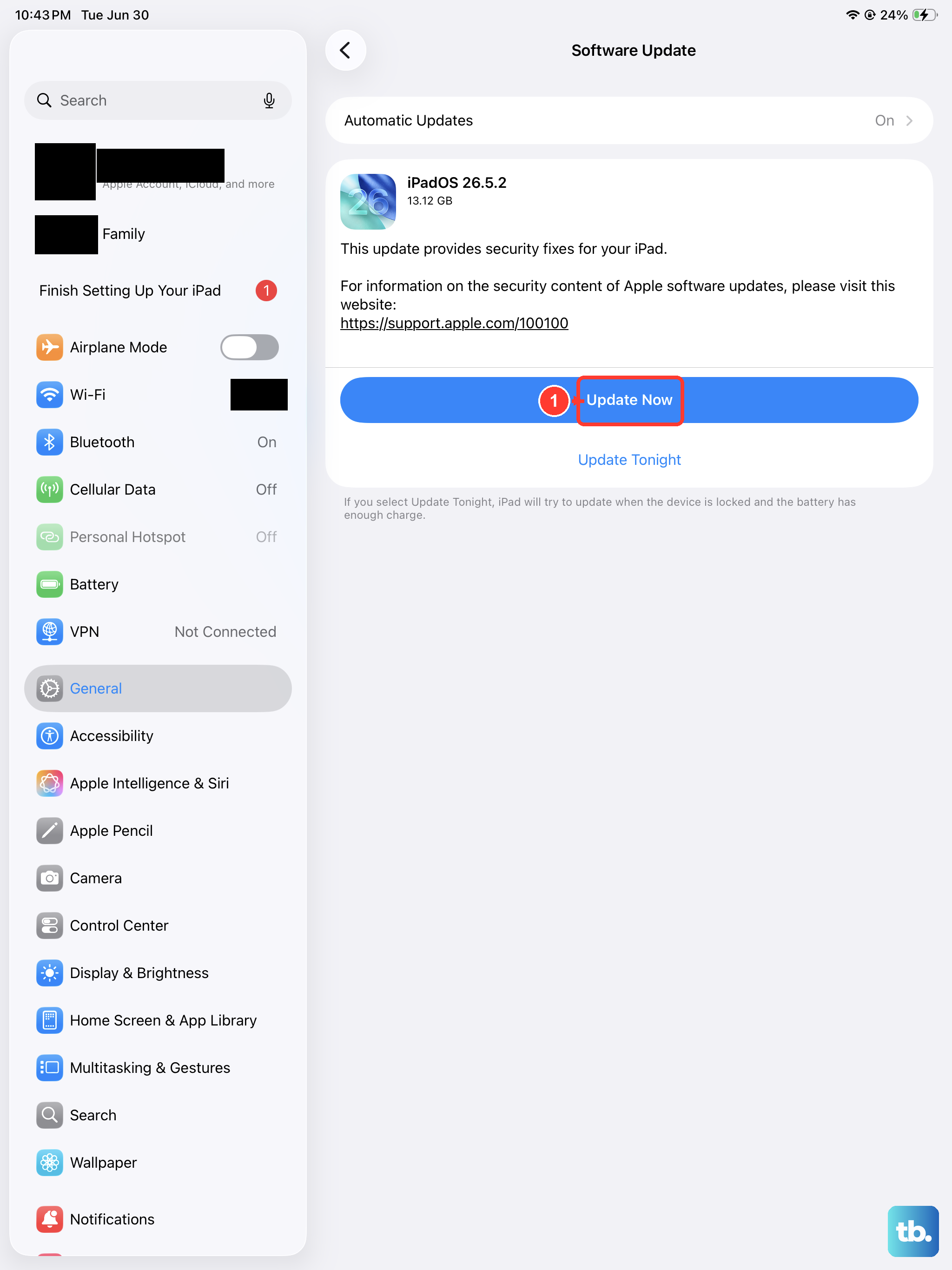
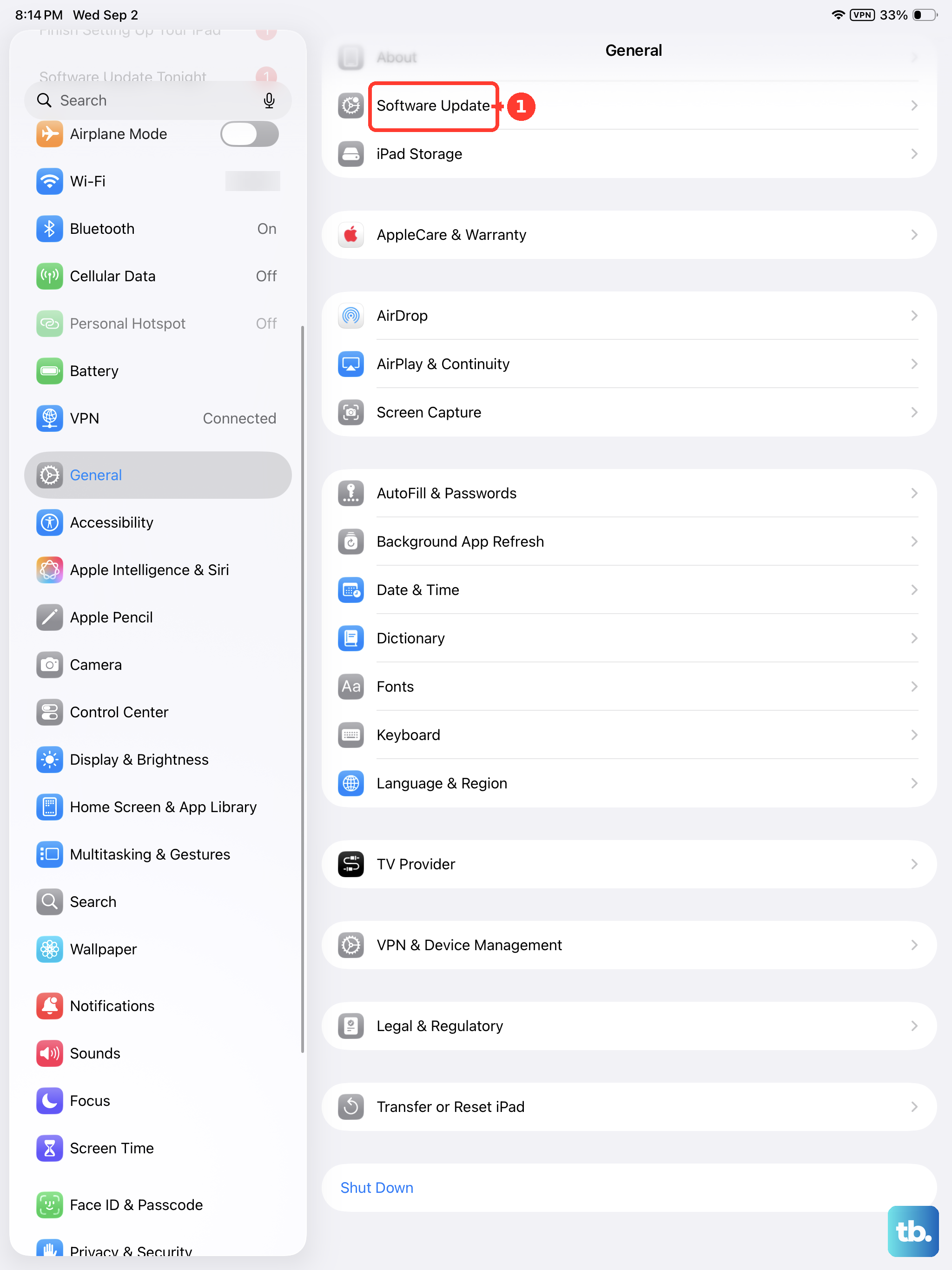
Go to Settings > General > Software Update. Apple frequently includes camera processing and autofocus improvements in system updates. A known bug causing blur in specific shooting modes might already have a fix waiting for you. I'd make sure you're on the latest version of iPadOS 26.
Reset All Camera Settings
If you've customized a lot of camera options, one of them might be interfering. Go to Settings > Camera > Preserve Settings and toggle everything off. This resets the Camera app to its default state each time you open it, which can eliminate any problematic custom configurations.
Check for Lens Cleaning Hints
On iPadOS 26, your iPad mini can automatically detect smudges or debris on the lens. If you see a small notification pop up suggesting you clean the lens, that's your cue. Wipe it down with a microfiber cloth and the blur should be gone. This feature works in the background and can save you from capturing a whole batch of hazy photos.
Test in Different Lighting
Camera performance can vary dramatically with light. Try taking a photo in bright, natural light and see if the blur persists. In low light, the camera uses a slower shutter speed, which can cause motion blur if your hand isn't perfectly steady. If photos are only blurry in dim conditions, that's likely the cause.