
Is your iPad starting to feel sluggish, with apps taking longer to open or animations stuttering? It's a common issue, especially as the device gets older or fills up with data. The good news is there are several straightforward things you can do to get it running smoothly again.
Performance lag on an iPad usually comes down to a few key areas. Storage space running low, too many apps refreshing in the background, or an iPadOS update that needs a fresh start can all be culprits. Start with a simple restart, as it clears out temporary system files that might be causing the slowdown.
Perform a Force Restart
If a normal restart doesn't help, or the iPad is unresponsive, try a force restart. The steps are different for models with and without a Home button.
For iPads without a Home button, press and quickly release the volume button closest to the top button, then press and quickly release the volume button farthest from the top button. Finally, press and hold the top button until you see the Apple logo, then let go.
For iPads with a Home button, press and hold both the Home button and the top button at the same time. Keep holding them until the Apple logo shows up on the screen.
Check Your Available Storage
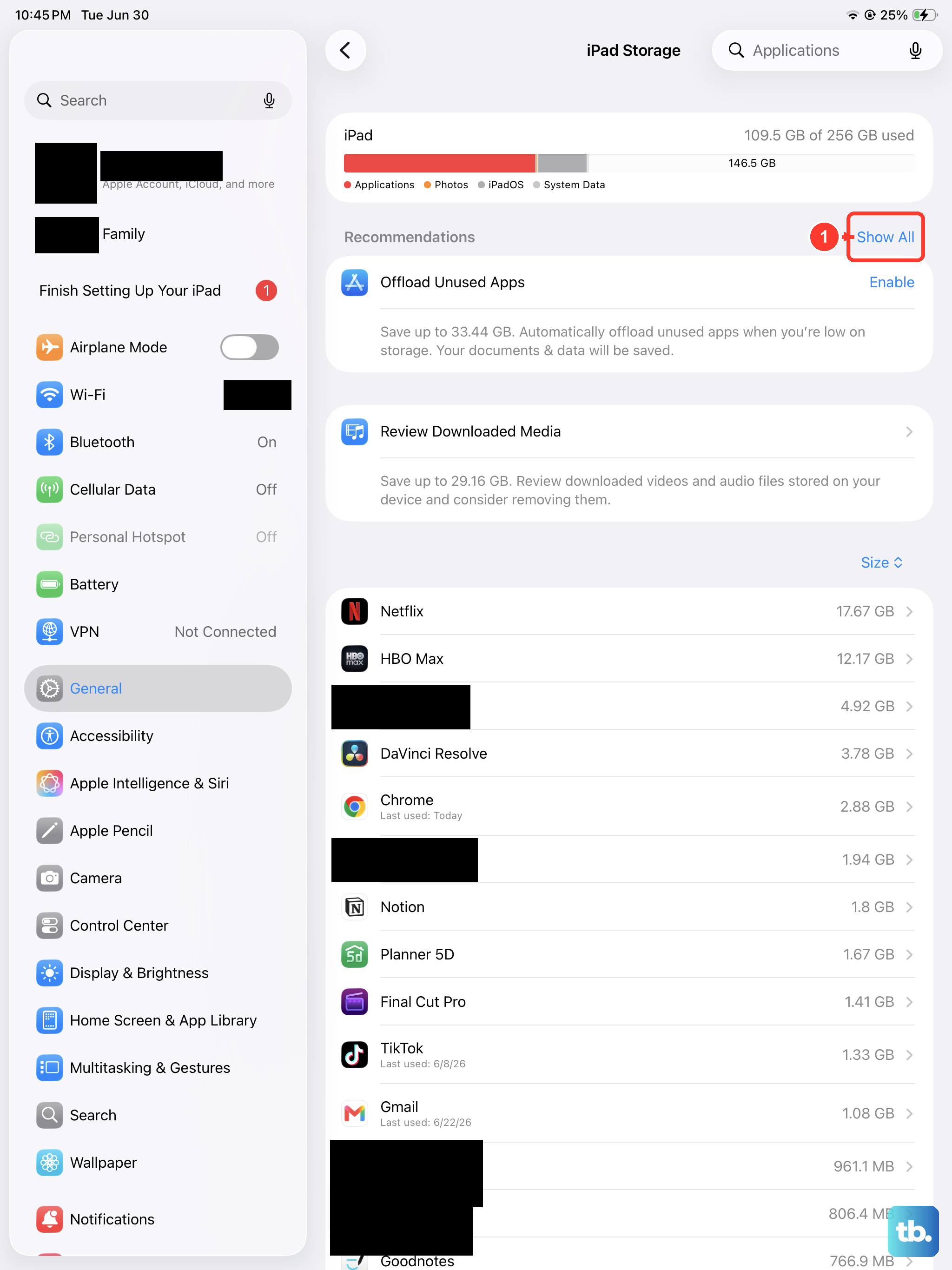
Low storage is one of the most common reasons for an iPad to slow down. When your storage is nearly full, the system has less room to operate efficiently. Head to Settings > General > iPad Storage to see how much space is left and which apps use the most.
Tap an app's name and choose Offload App to remove the app while keeping its documents and data. Tap Show All to see the system's recommendations, such as reviewing large videos or old downloads you no longer need.
To have unused apps offloaded automatically when storage runs low, go to Settings > Apps > App Store and turn on Offload Unused Apps. An offloaded app stays on your Home Screen with a cloud symbol, and tapping it reinstalls the app.
Update iPadOS and Your Apps
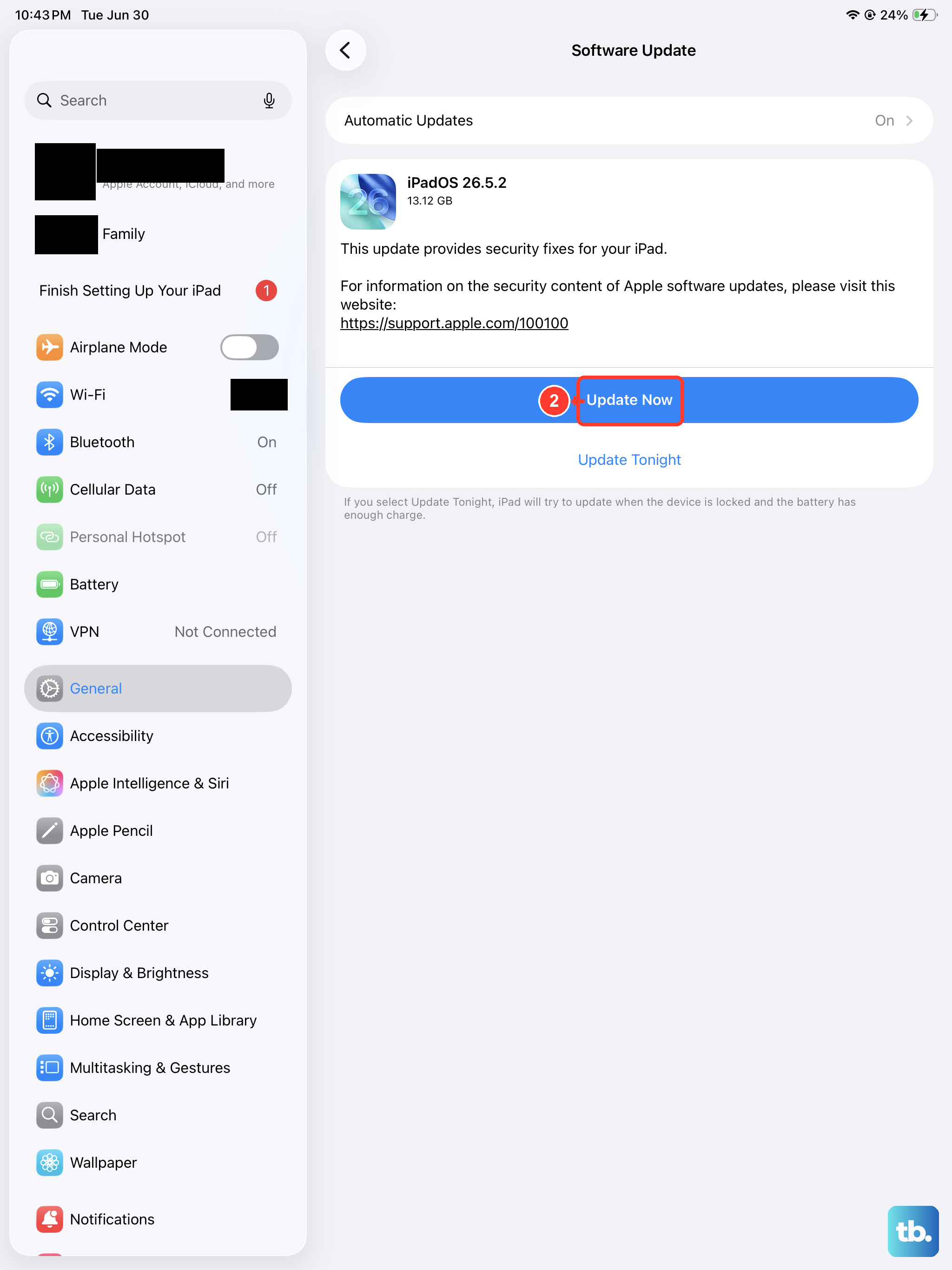
Running outdated software can lead to compatibility issues and performance bugs. iPadOS 27 became available on September 14, 2026, and Apple says apps launch up to 30 percent faster on it, with faster file browsing and transfers to USB drives.
Go to Settings > General > Software Update to install the latest version your iPad supports. For your apps, open the App Store, tap your picture or the My Account button at the top right, tap App Updates, then tap Update next to an app or Update All.
Manage Background App Refresh
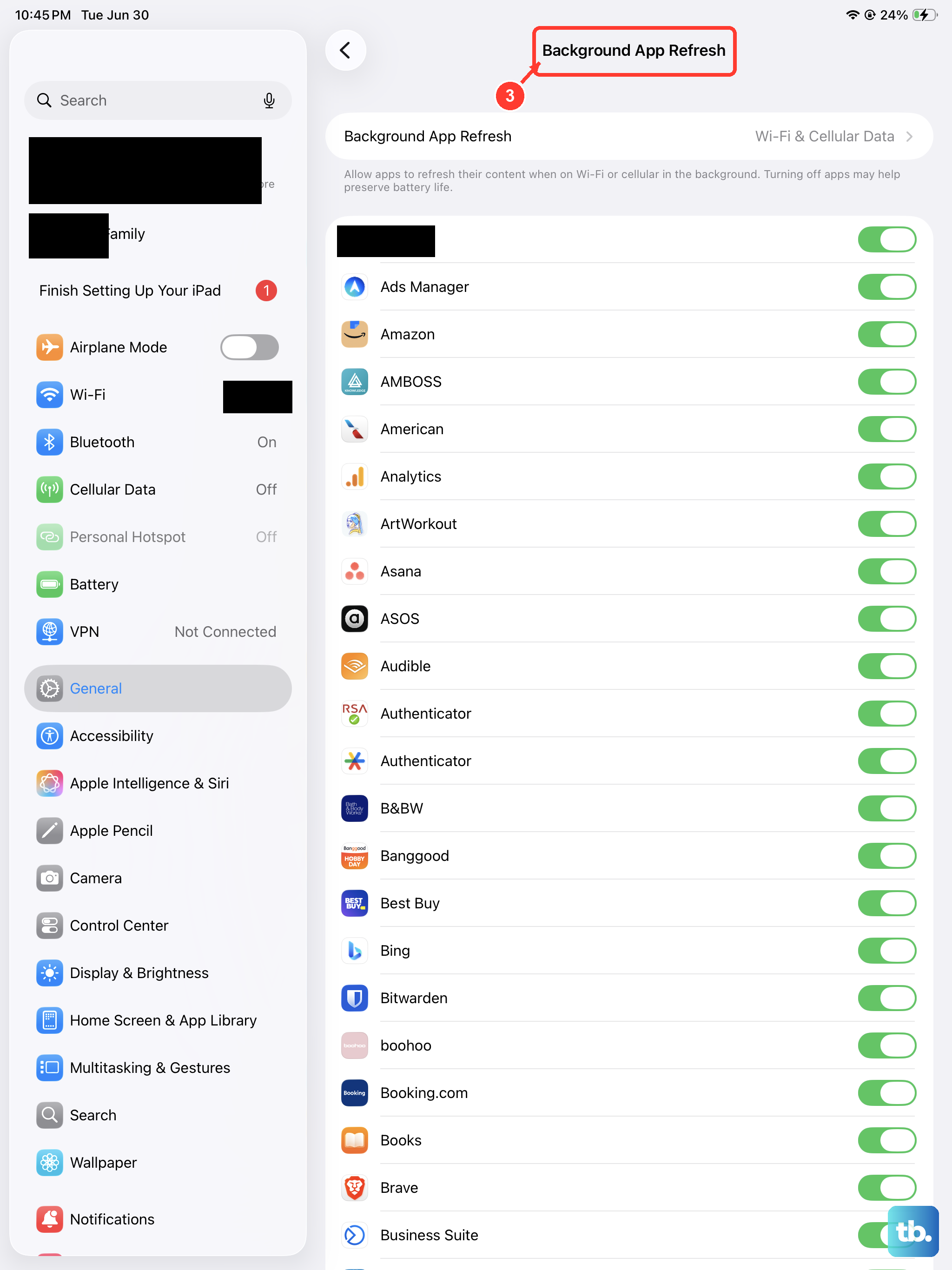
Background App Refresh lets suspended apps check for new content even when you're not using them. That activity uses battery and can add to the load on an older iPad.
Go to Settings > General > Background App Refresh. Tap Background App Refresh again to turn it off entirely or limit it to Wi-Fi, or turn it off for individual apps that don't need live updates, like games or utility tools.
Close Apps That Stop Responding
iPadOS manages apps in the background on its own, and Apple says closing all your apps doesn't improve overall performance. Suspended apps don't use system resources, so close an app only when it freezes or stops responding.
On iPads without a Home button, swipe up from the bottom edge of the screen and hold, then release to see your open apps. On iPads with a Home button, double-click the Home button. Swipe up on the frozen app to close it. If the app is in a window, you can also tap the window controls at the top of the app and tap the close button.
Reduce Motion and Transparency
The visual effects in iPadOS, like the parallax motion on the Home Screen, zoom transitions and translucent Liquid Glass backgrounds, take graphics work to draw. Turning these down can make an older iPad feel snappier.
Go to Settings > Accessibility > Motion and turn on Reduce Motion. Then go to Settings > Accessibility > Display & Text Size and turn on Reduce Transparency.
Clear Safari's Website Data
Over months of browsing, Safari builds up a large store of website data, images and cookies. Clearing it out can speed up web browsing and free up storage.
Open Settings, tap Apps, then tap Safari. Scroll down and tap Clear History and Website Data, choose a timeframe, then tap Clear History. This also signs you out of websites but doesn't change your AutoFill information.
Review Your Battery Health
Newer iPads show battery health under Settings > Battery > Battery Health, including maximum capacity and cycle count. This works on iPad Pro (M4 and M5), iPad Air (M2, M3 and M4), iPad mini (A17 Pro) and iPad (A16). If you don't see Battery Health, your model doesn't support it.
All batteries lose capacity over time. If your iPad is several years old, has very short battery life and feels consistently slow, the battery may be worth checking. Visit Apple's iPad repair page to have it checked and replaced if necessary.
Disable Automatic Downloads
Having your iPad automatically download app updates and purchases from your other devices can cause slowdowns while it works in the background. You can update manually when you're not using the device instead.
Go to Settings > Apps > App Store. Turn off App Updates, and turn off App Downloads and In-App Content too if you don't want anything downloading without your say-so. The App Store will then notify you when updates are available.
Reset All Settings
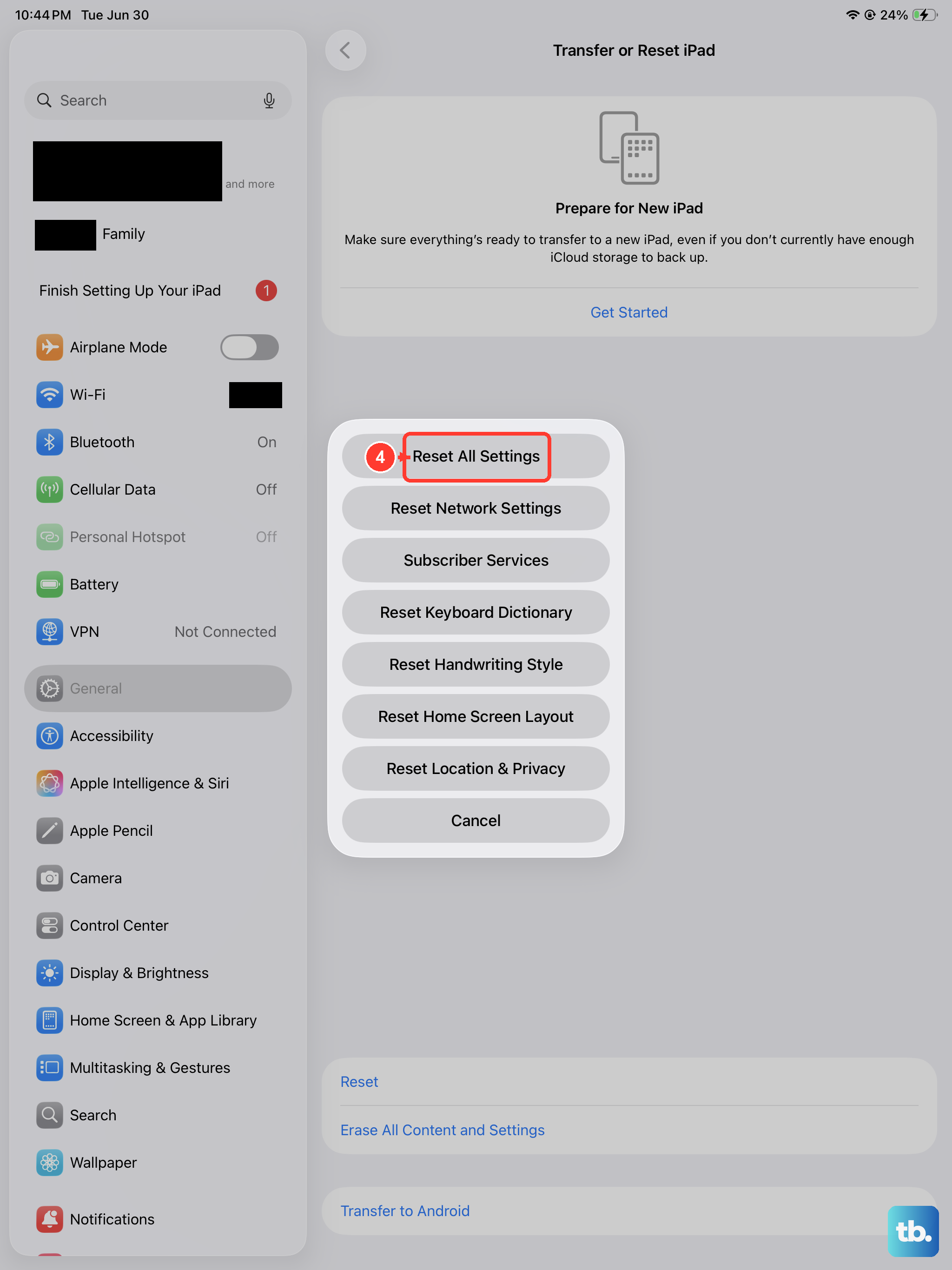
If you've tried everything else and your iPad is still slow, this is a more thorough step. It resets your system settings (like saved Wi-Fi networks, wallpaper, Home Screen layout and privacy permissions) back to default without deleting your data, photos or apps.
Go to Settings > General > Transfer or Reset iPad. Tap Reset and then choose Reset All Settings. Enter your passcode to confirm. Don't tap Erase All Content and Settings, which deletes everything. After the iPad restarts, you'll need to set your preferences again, but this often clears up deeper software glitches.