When your headphones stop working with your iPad, it can ruin everything from movie nights to video calls. Whether they're wired or Bluetooth, the problem usually comes down to the iPad not detecting them, sending sound to the speakers instead, or playing audio that's crackly and distorted. Let's get it sorted.
If you suspect one side has failed, an online left and right audio test can help check it. Play each channel on its own, then try the headphones with another device to help narrow down whether the problem is the headphones or the source.
Restart Your iPad
Restarting can help with temporary audio glitches. Go to Settings > General > Shut Down, drag the slider, then hold the top button to turn your iPad back on. If it isn't responding, force restart it: without a Home button, quickly press and release the volume button nearest the top button, then the one farthest from it, then hold the top button until the Apple logo appears. With a Home button, hold the Home and top buttons together until the Apple logo appears, then release both.
Check the Physical Connection and Volume
If you're using wired headphones, make sure the plug or adapter is fully seated in the appropriate port: USB-C, Lightning, or the headphone jack, depending on your iPad and headphones. For Bluetooth headphones, ensure they have enough charge. Then, play some audio and press the volume button that raises the volume to make sure the sound isn't muted or turned all the way down.
Clean the Headphone or Charging Port
Lint and pocket debris love to get packed into the headphone or charging port, and that can stop a plug or adapter from making a proper connection. Gently brush away loose debris using a soft, dry brush. Avoid using anything metal, don't use compressed air, and keep moisture out of the opening.
Forget and Re-Pair Your Bluetooth Headphones
Head to Settings > Bluetooth and find your headphones in the "My Devices" list. Tap the info button (the little i in a circle) next to them, then select Forget This Device and tap Forget Device to confirm. Put your headphones back into discovery mode, following their instructions, then tap their name when it appears in Settings > Bluetooth. Re-pairing can help with connection issues.
Check and Change the Audio Output
Sometimes your iPad sends sound to the wrong place. Play an item in an audio app, then open Control Center by swiping down from the top-right corner. Open the playback controls and tap the playback destination button, then choose your Bluetooth headphones. Keep them nearby, since playback returns to your iPad if the accessory moves out of range.
Toggle Bluetooth Off and On
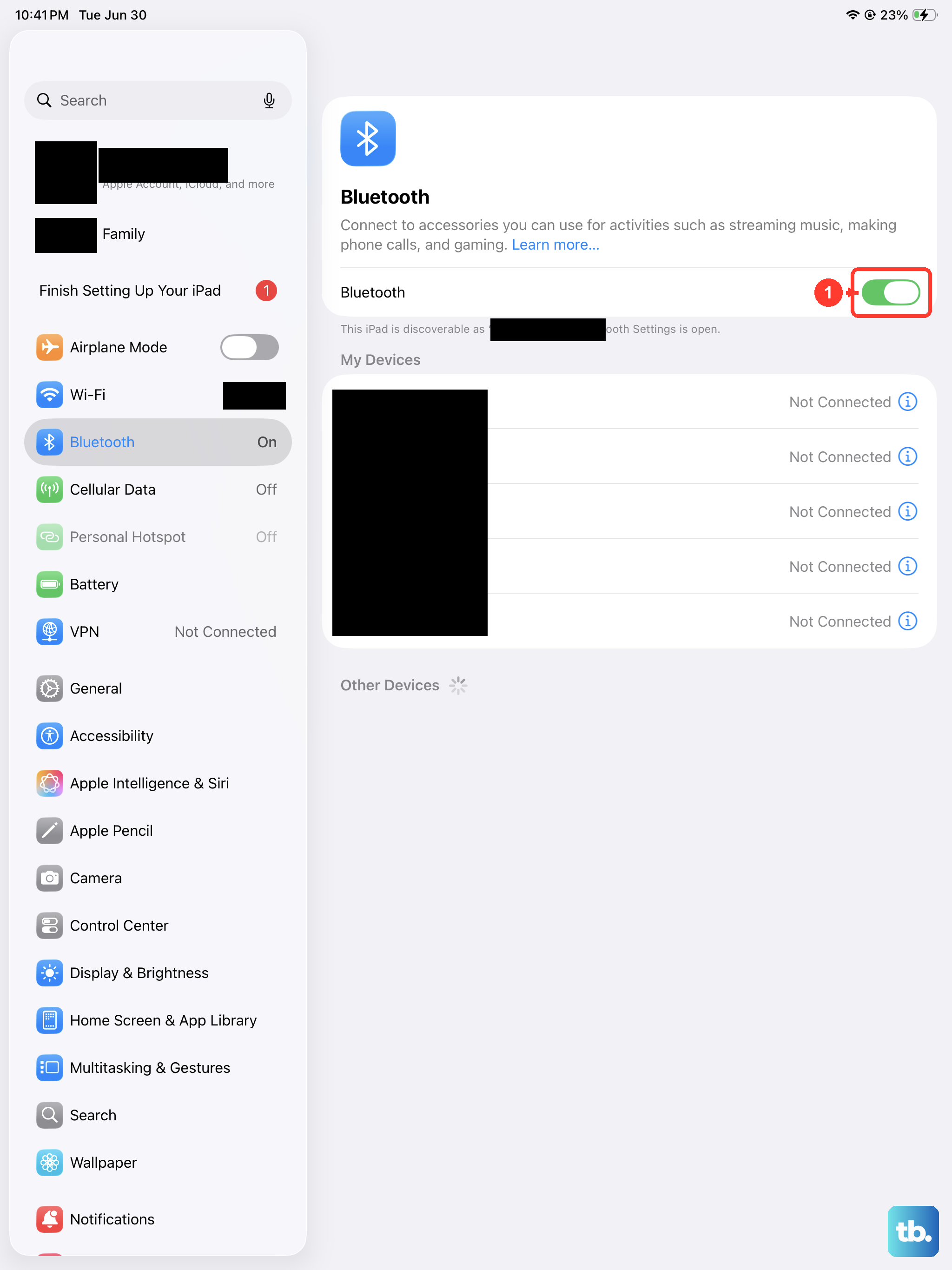
Go into Settings > Bluetooth and tap the toggle to turn it off, then turn it back on. Make sure Bluetooth is on before reconnecting your headphones. Also turn your headphones off and back on, and check that they're fully charged and close to your iPad.
Check for a Stuck Headphone Mode
Occasionally, the iPad gets confused and thinks headphones are plugged in when they aren't. You might see a headphone icon on the volume indicator. Check the headphone or charging port for debris as described earlier, then try disconnecting and reconnecting your wired headphones or adapter. If that doesn't work, restart your iPad and check the audio output again.
Disconnect Other USB-C Accessories
If you have a USB-C hub, external drive, or even a keyboard case connected, try unplugging it. Some accessories can draw power or interfere with the audio signal path through the port. I'd start by charging and using your headphones with nothing else plugged into the iPad.
Update iPadOS
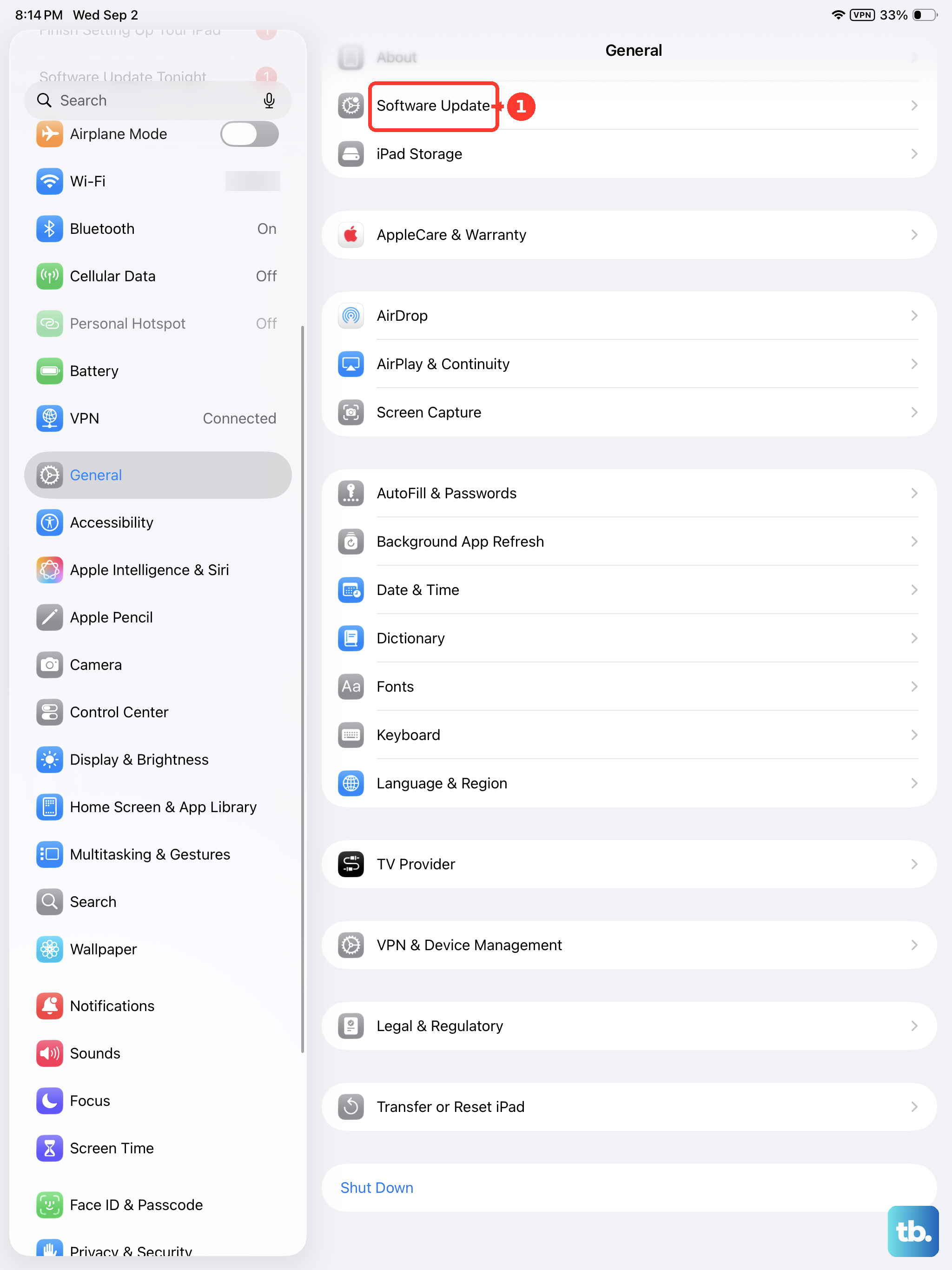
Software updates can help with audio and Bluetooth issues. Open Settings > General > Software Update to see if a newer version of iPadOS is available. Back up your iPad first. If an update is available, tap Download and Install and follow the onscreen instructions.
Reset All Settings
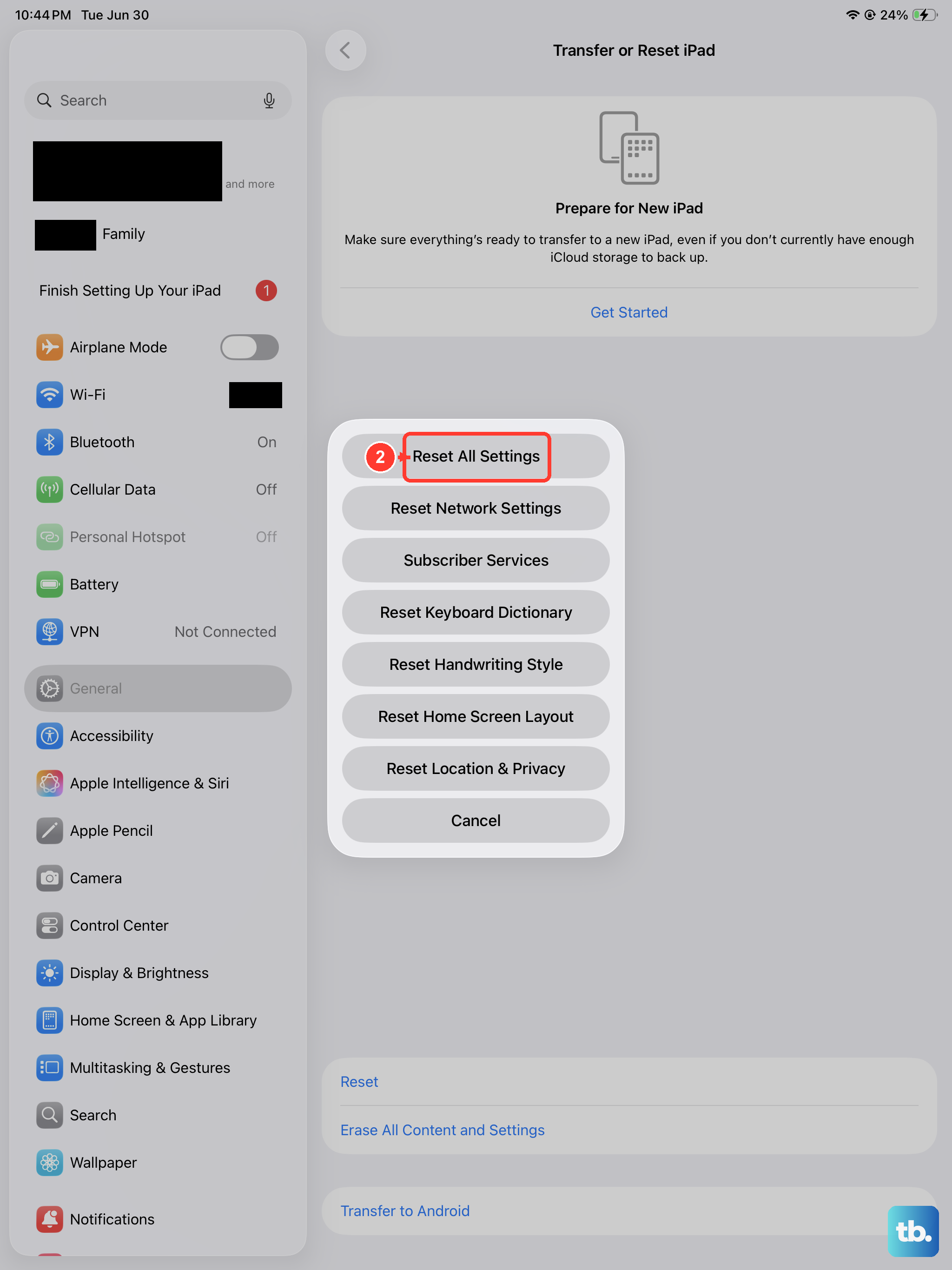
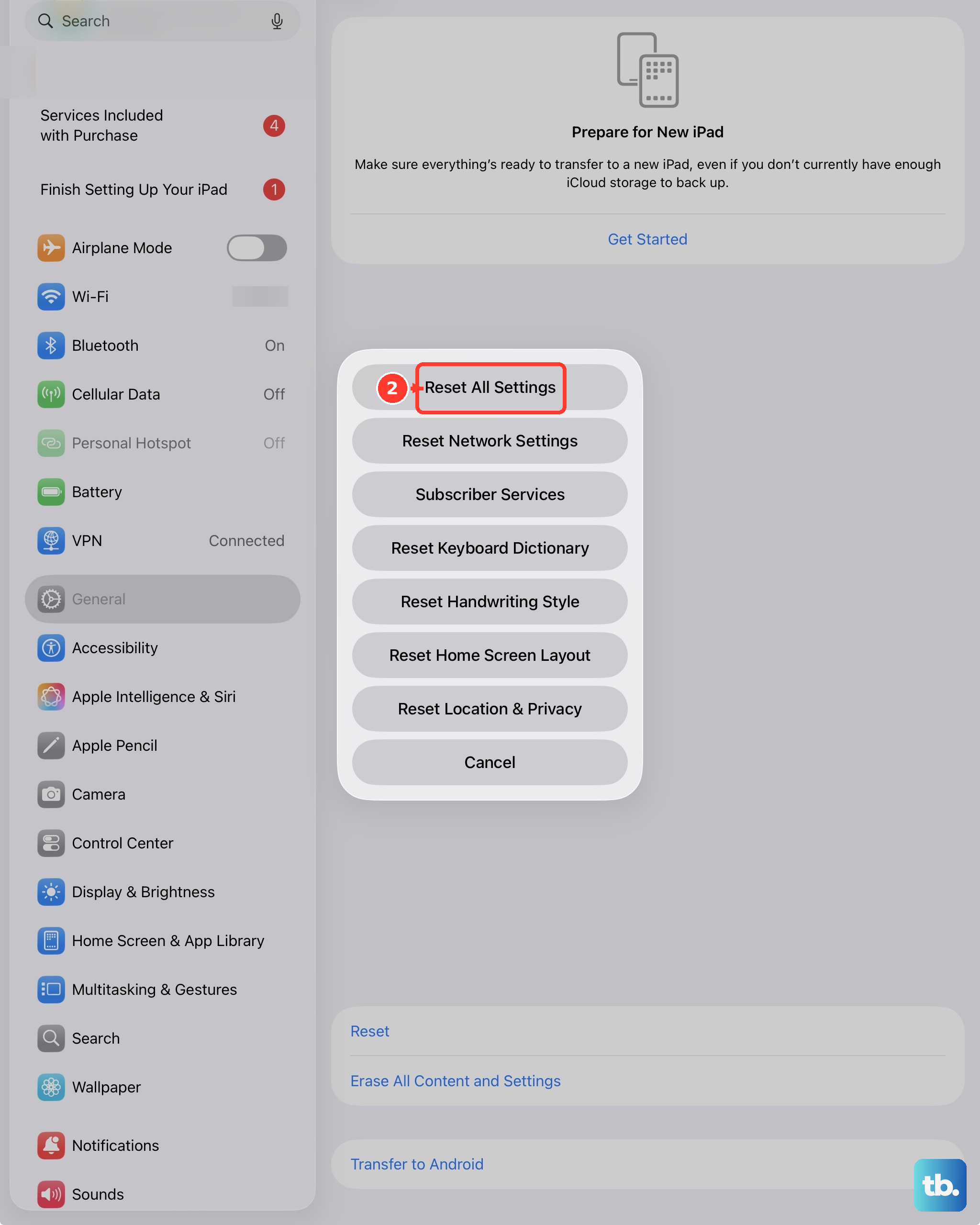
If you're still stuck, this nuclear option for settings can work. Go to Settings > General > Transfer or Reset iPad, tap Reset, and choose Reset All Settings. This will revert all your preferences, like Wi-Fi passwords, wallpaper, and privacy settings, back to default and will erase all your Bluetooth pairings. You'll have to re-pair your headphones and reconfigure some things, then test whether the audio works.