
A blurry camera on your iPad can ruin photos and make video calls look terrible. The blur might be constant, only happen in certain apps, or make everything look soft and out of focus. Before you assume the hardware is broken, there are several things you can try to fix it.
Clean the Camera Lens
Start with the simplest fix. Grab a soft, lint-free microfiber cloth and gently wipe the camera lens on the back of your iPad. Fingerprints, dust, and smudges are the most common cause of hazy, blurry photos. Avoid using your shirt or paper towels, as they can scratch the delicate lens coating over time.
Remove Your Case or Cover
If you use a case, especially a folio-style cover, it might be interfering with the camera. The cover flap can sometimes rest against the lens or the case's cutout might not be perfectly aligned. Take the iPad out of its case and take a test photo. Also, check that no screen protector or camera lens protector is covering the glass.
Tap to Focus in the Camera App
Open the Camera app and tap directly on the subject you want to be sharp. A yellow square will appear, confirming the focus point. The iPad's autofocus can sometimes choose the background, especially in busy scenes. Tapping your subject forces it to focus there. You can press and hold on the screen to lock focus and exposure (AE/AF Lock).
Check Which Camera You're Using
If the front-facing (FaceTime) camera is blurry but the back one is fine, or vice versa, the issue is isolated. Open the Camera app and switch between the front and rear cameras using the flip button. This helps you figure out if the problem is with a specific camera module.
Force Close and Reopen the Camera App
Swipe up from the bottom of the screen (or double-press the Home button on older iPads) to enter the app switcher. Swipe the Camera app preview up and off the screen to close it completely. Then, reopen it and try taking a photo again. A temporary software glitch in the app can cause focus to fail.
Restart Your iPad
A full restart clears out any stuck processes affecting the camera system. For iPads without a Home button, quickly press and release the Volume Up button, then the Volume Down button, then press and hold the Top button until the Apple logo appears. For iPads with a Home button, press and hold the Home and Top buttons together until you see the logo.
Check for App-Specific Issues
Is the camera blurry only in Zoom, FaceTime, or another app? Try taking a photo in the native Camera app. If it's sharp there, the problem is with the third-party app's camera settings or permissions. I'd check the app's settings for video quality options or try reinstalling the problematic app.
Look for Moisture or Condensation
Moving your iPad from a cold car into a warm house can cause condensation to form on or inside the camera lens, creating a foggy blur. Let the iPad sit and acclimate to room temperature for 15-20 minutes. Don't try to blow on the lens or use heat, as that can push moisture inside or damage components.
Update iPadOS
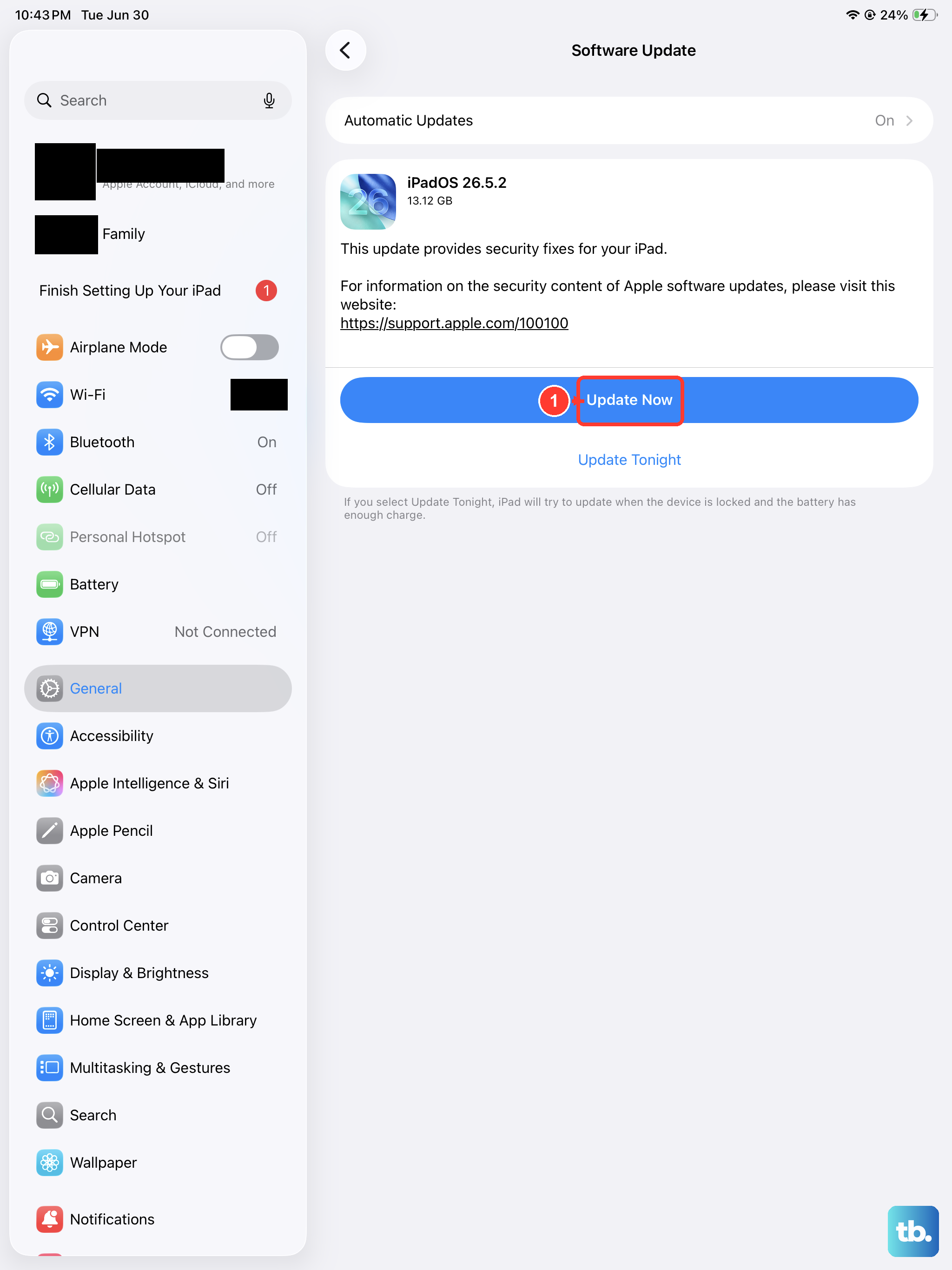
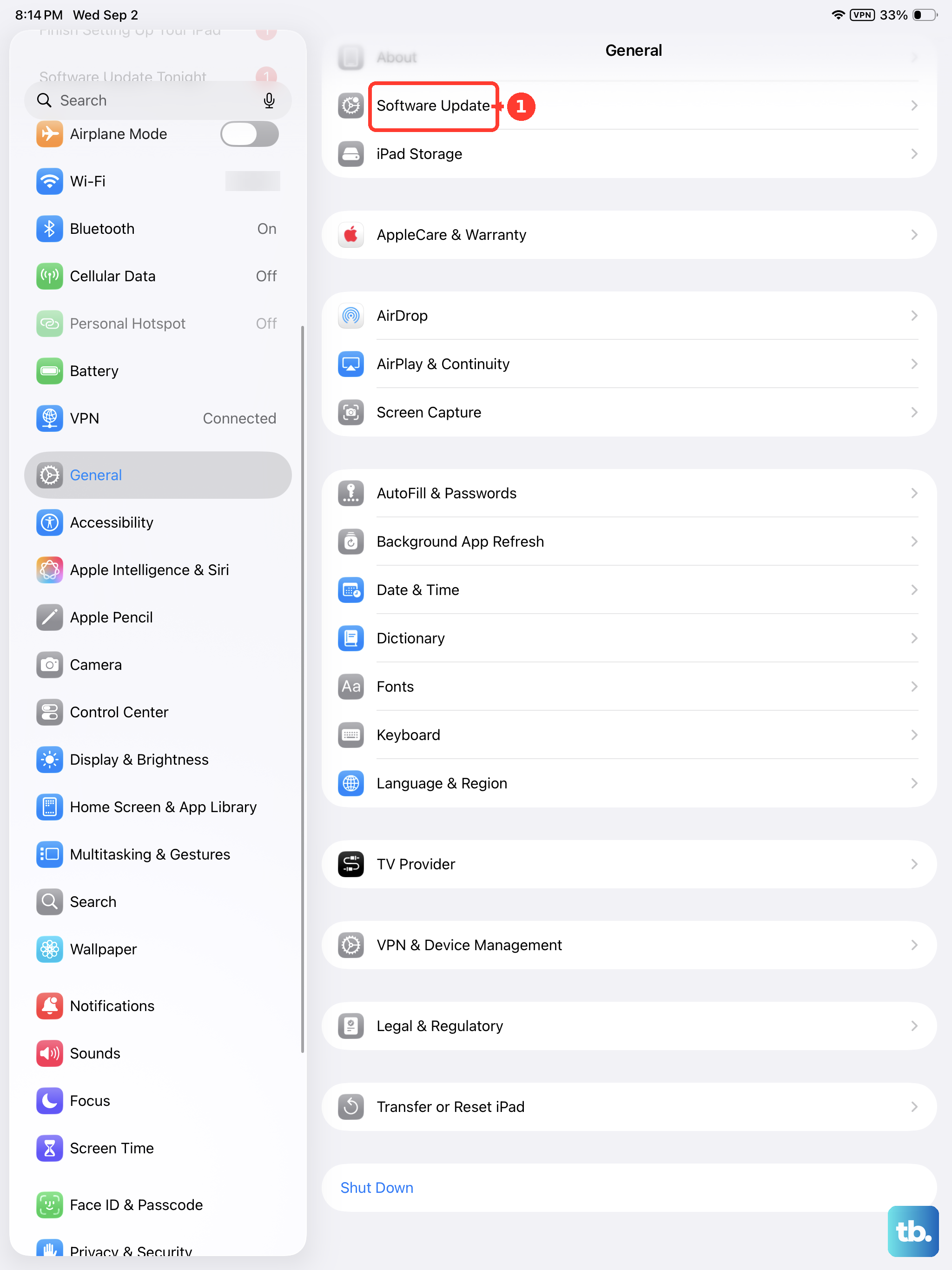
Go to Settings > General > Software Update. Apple frequently releases updates that include camera improvements and bug fixes. A known autofocus or image processing issue in your current version of iPadOS might already have a patch available.
Reset All Settings
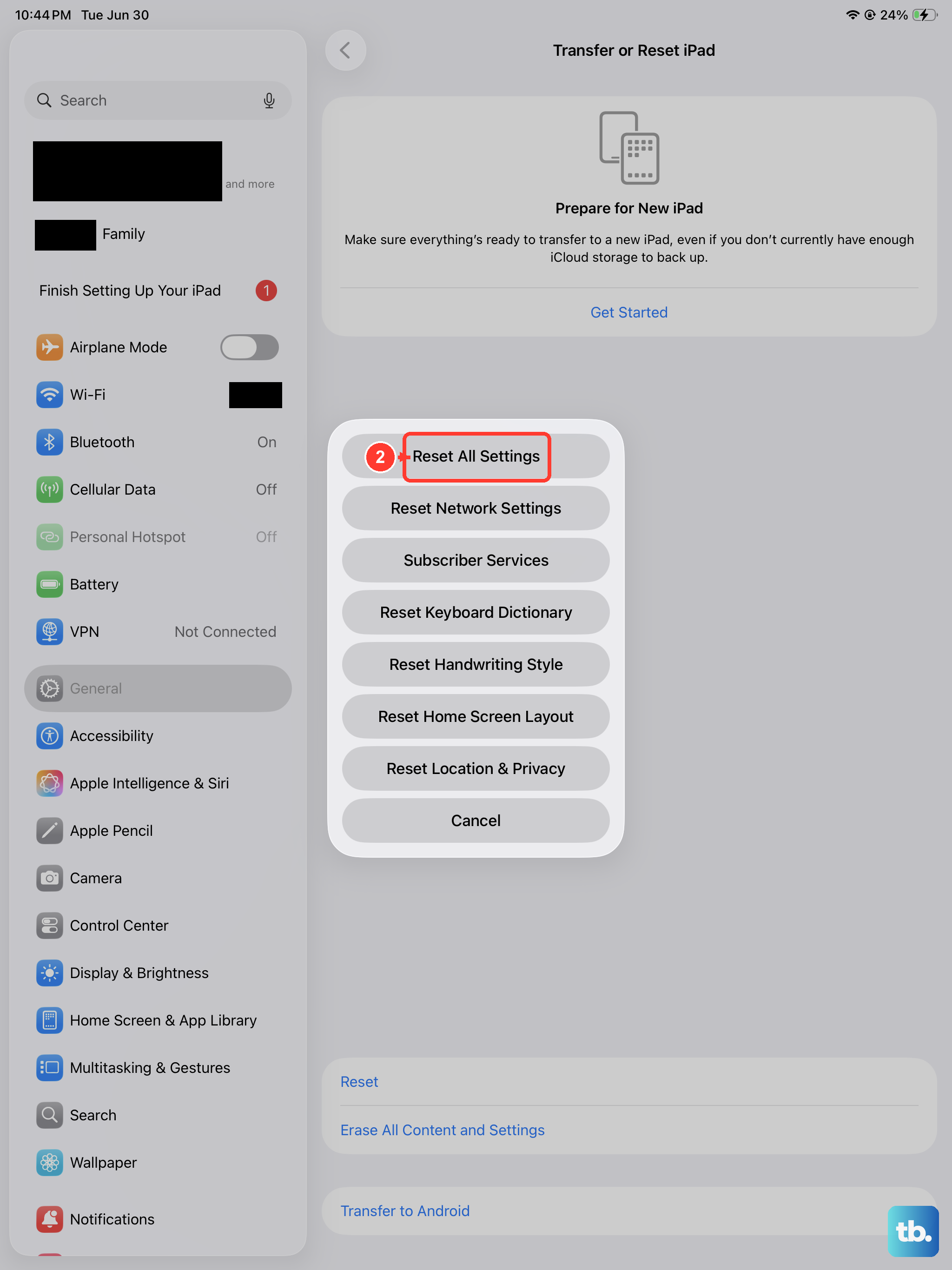
If nothing else works, you can reset all settings. This won't delete your data, but it will revert all preferences to default. Go to Settings > General > Transfer or Reset iPad > Reset > Reset All Settings. This can fix deeper software conflicts that might be impacting the camera's performance.