
Is your iPad screen stuck in one orientation and refusing to flip when you turn it? This is a common hiccup where the auto-rotate feature, which relies on the iPad's internal sensors, stops responding correctly.
The fix is usually straightforward, ranging from a quick settings check to a software refresh. Let's run through the most effective solutions to get your iPad rotating smoothly again.
Check the Rotation Lock
The absolute first thing to check is the Rotation Lock. It's incredibly easy to toggle this on by accident, especially if you use the Control Center frequently. When Rotation Lock is enabled, you'll see a small lock icon inside the rotation button in Control Center.
To turn it off, swipe down from the top-right corner of your screen to open Control Center. Tap the button that looks like a circular arrow with a lock around it. The lock should disappear, indicating rotation is now unlocked.
On older iPads with a physical side switch, you can set its function in Settings > General > Lock Rotation. Make sure it's not set to lock the screen orientation.
Restart Your iPad
If the lock wasn't on, a simple restart is the next best step. This clears out any minor software glitches that might be confusing the accelerometer. Just hold the top button (and the Home button if your iPad has one) until the power slider appears, slide to power off, then turn it back on after a moment.
I've found this resolves the issue more often than not, especially if the problem started suddenly after using a particular app.
Force Restart Your iPad
When a normal restart doesn't cut it, a force restart is a stronger refresh that doesn't delete any data. The steps depend on your iPad model.
For iPads without a Home button, quickly press and release the Volume Up button, then quickly press and release the Volume Down button. Finally, press and hold the Top button until you see the Apple logo appear.
For iPads with a Home button, just press and hold both the Home button and the Top button together until the Apple logo shows up.
Test Rotation in Different Apps
Before digging deeper, see if the problem is app-specific. Open a few different apps, like Safari, Photos, and Notes, and try rotating your iPad in each one.
If rotation works in some apps but not others, the issue is likely with that particular app, not your iPad's system. Some apps, especially games or video players, are designed to lock to a specific orientation.
Update iPadOS
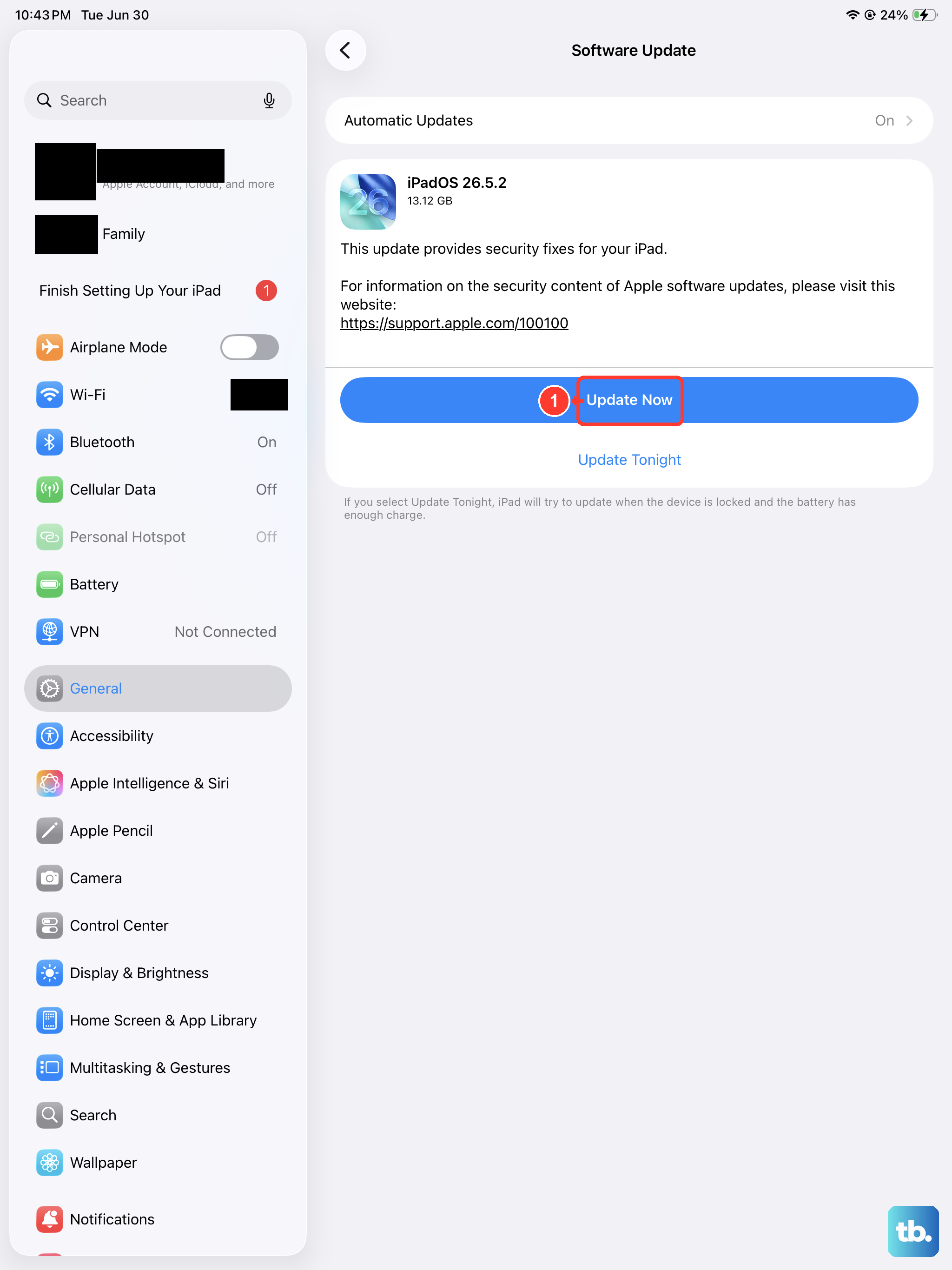
Occasionally, a bug in the system software can affect sensor performance. Apple regularly releases updates that fix these kinds of issues. Go to Settings > General > Software Update and install any available update.
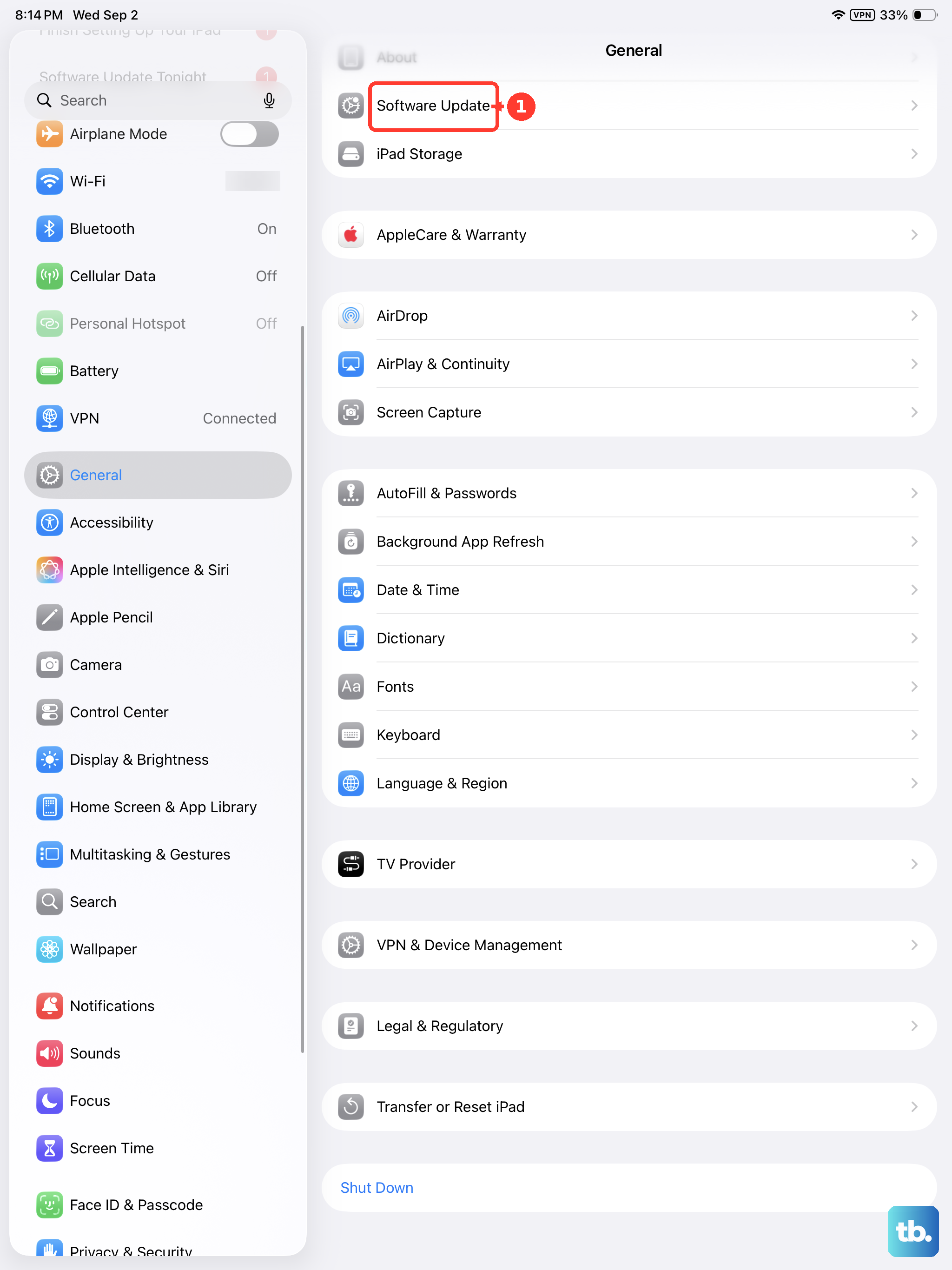
It's a good habit to keep your iPad updated, as these updates often include patches for minor, sensor-related bugs that can interfere with auto-rotate.
Check for Physical Obstructions or Cases
Take a look at your iPad case, particularly if it's a folio or keyboard case like the Magic Keyboard. Some cases have magnets or designs that can inadvertently trigger the iPad's smart cover sensor, telling the iPad it's in a fixed position.
Try taking your iPad out of its case and test the rotation. If it works fine without the case, you've found the culprit. Also, ensure nothing is blocking or putting pressure on the edges of the iPad, which could affect the sensors.
Reset All Settings
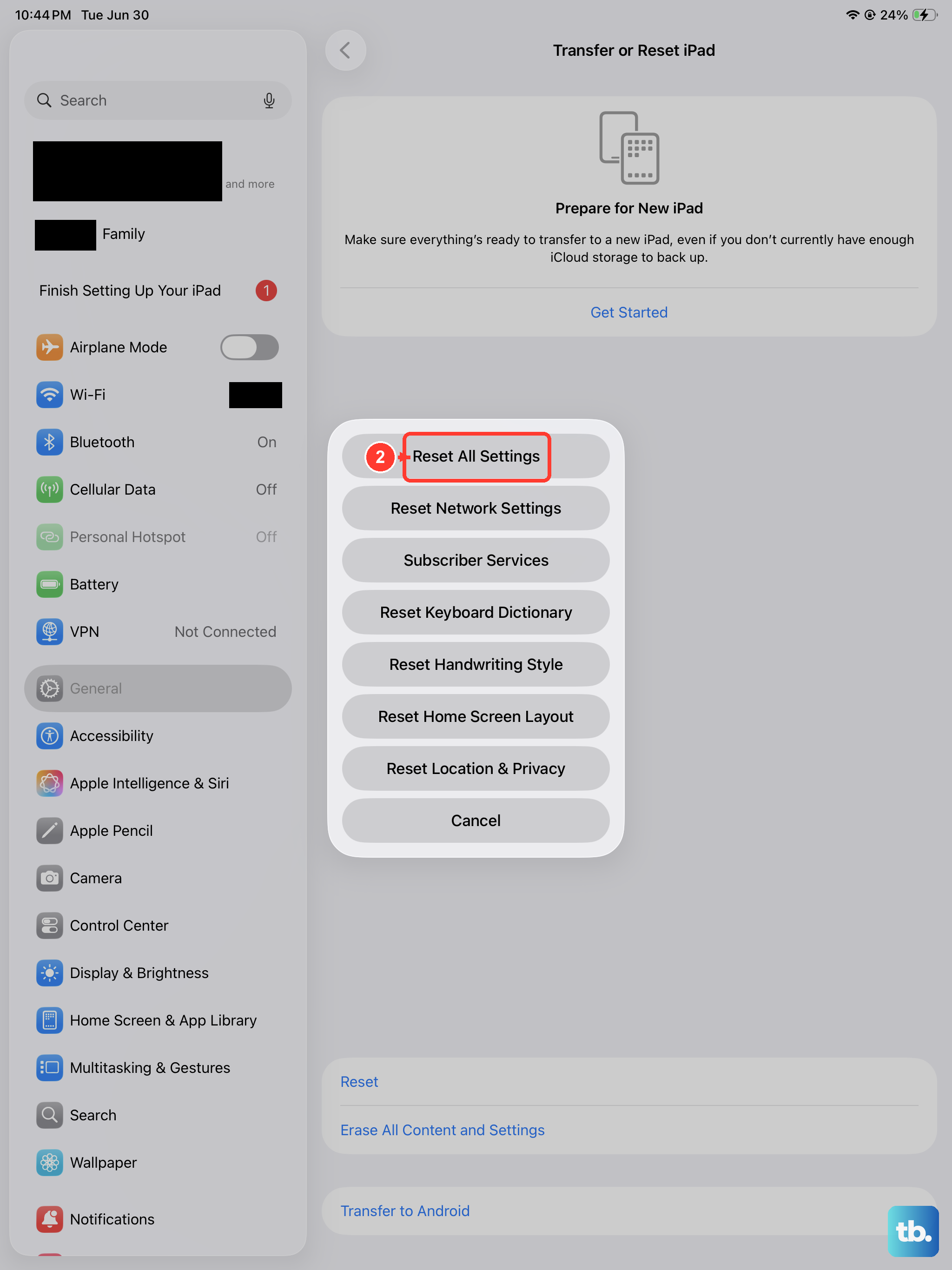
This is a more significant step, but it won't touch your personal data like photos or apps. It will reset all your system settings, Wi-Fi passwords, wallpaper, privacy permissions, back to their defaults, which can clear out any corrupted settings causing the problem.
Go to Settings > General > Transfer or Reset iPad > Reset. Then, tap Reset All Settings. You'll need to re-enter your passcode and reconfigure preferences like Wi-Fi afterward, but it often resolves persistent software quirks.
Consider a Hardware Check
If you've tried all the software fixes and your iPad still won't rotate, the internal accelerometer or gyroscope might have a hardware fault. This is rare but can happen after a significant drop.
Since these sensors are built into the logic board, a repair would require professional service. You can use the Apple Support app to start a diagnostic or schedule an appointment at an Apple Store or Authorized Service Provider.