
When an app download gets stuck on your iPad, it's like hitting a digital wall. You tap the cloud icon or the "Get" button, and nothing happens, or you just see that spinning circle forever. This can happen for a bunch of reasons, from a simple network hiccup to a deeper software glitch.
Let's go through the most reliable ways to get things moving again, starting with the quickest fixes you can try right now.
Check Your Internet Connection First
This is the most common culprit. The App Store needs a stable connection to talk to Apple's servers. If you're on Wi-Fi, try opening a webpage in Safari to see if it loads. Sometimes, toggling Wi-Fi off and back on can shake loose a bad connection.
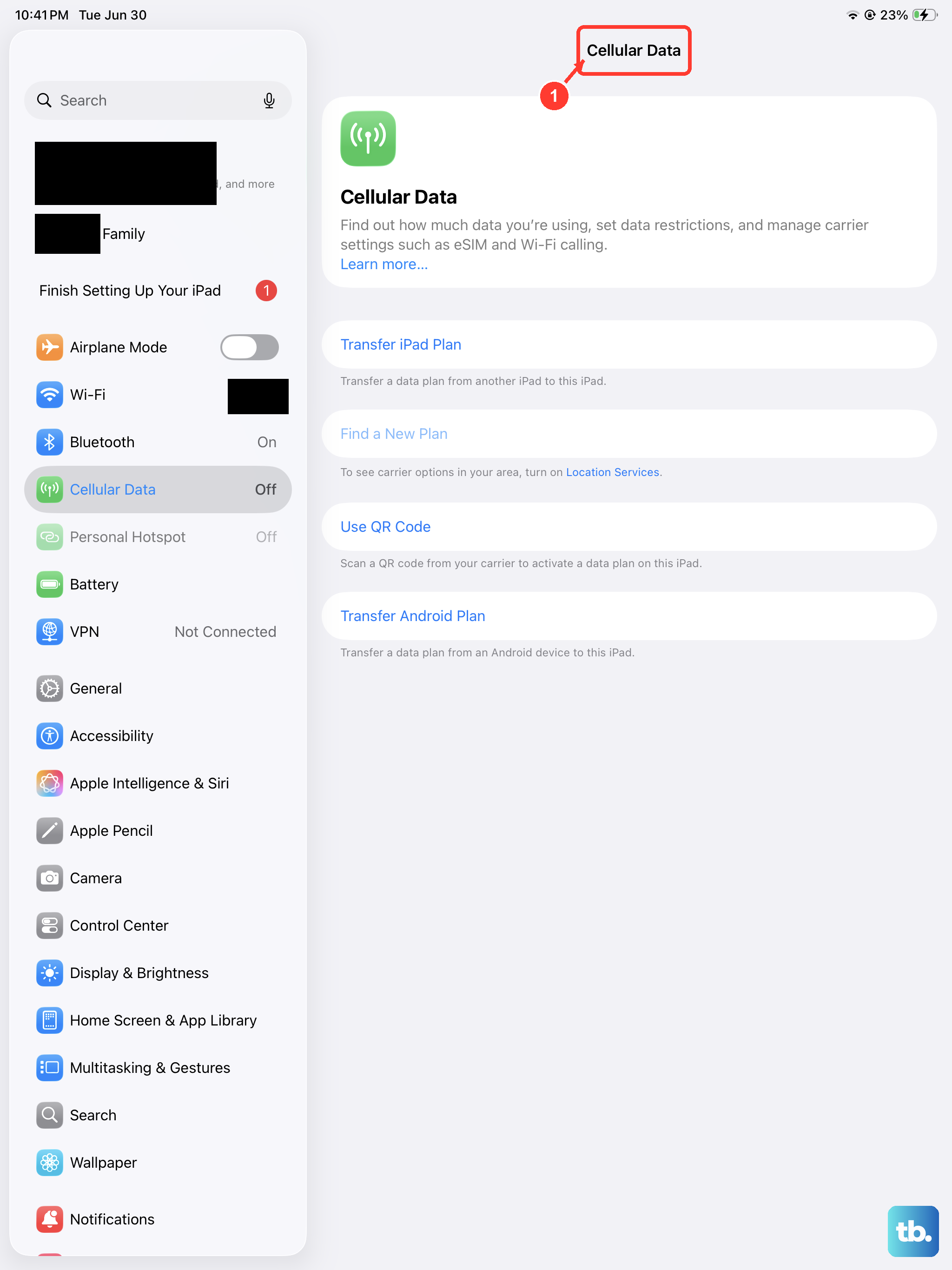
You can also try switching to cellular data if your iPad model supports it. Go to Settings > Cellular Data and make sure it's turned on, then temporarily turn off Wi-Fi. Try the download again to see if it was a problem with your local network.
Restart Your iPad
A quick restart clears out temporary system glitches that can freeze the App Store. It's my go-to second step for almost any odd iPad behavior.
For iPads without a Home button, press and quickly release the Volume Up button, then the Volume Down button, then press and hold the Top button until you see the Apple logo. For older iPads with a Home button, just press and hold both the Home and the Top button until the logo appears.
Pause and Resume the Download
Sometimes a download just needs a nudge. If you see the app icon on your Home Screen with a progress circle, press and hold it lightly. A menu should pop up giving you the option to "Pause Download." Tap that, wait a few seconds, then tap the icon again to resume.
This forces the iPad to re-check the connection to the download server, which can often kick-start a stalled transfer.
Check Your Date and Time Settings
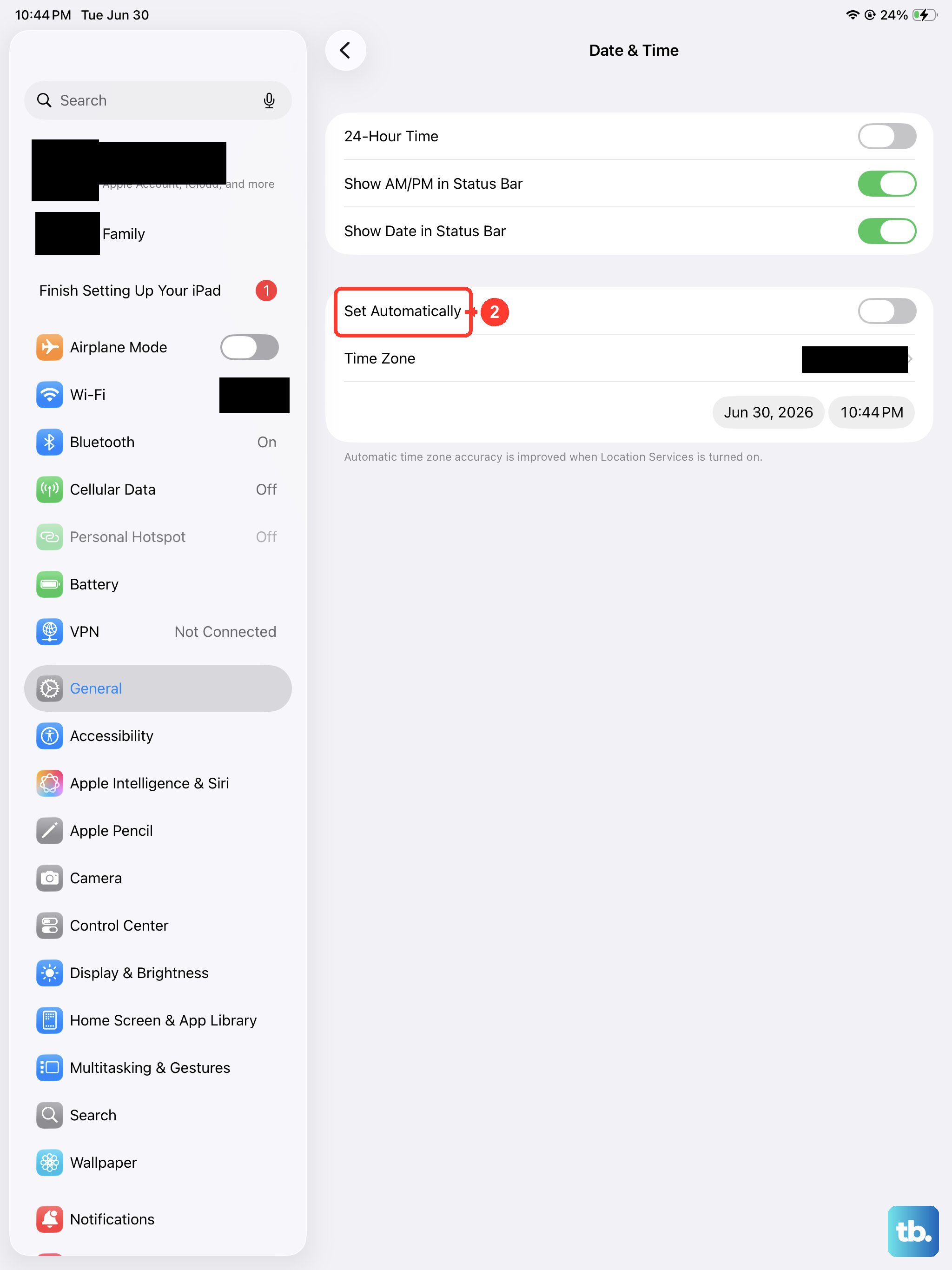
This one sounds odd, but it's important. If your iPad's clock is wrong, it can cause secure connections (like the one to the App Store) to fail. The fix is automatic.
Head to Settings > General > Date & Time. Make sure "Set Automatically" is switched on. If it was already on, try turning it off for a moment, then turn it back on to refresh the setting.
Sign Out and Back Into the App Store
A problem with your Apple ID session can block downloads. Signing out refreshes that connection. Open the App Store, tap your profile picture or initials in the top right, then scroll down and tap "Sign Out."
After a moment, sign back in with your Apple ID and password. Then, immediately try downloading your app again. I've seen this resolve more stubborn download hangs.
Check Your Available Storage Space
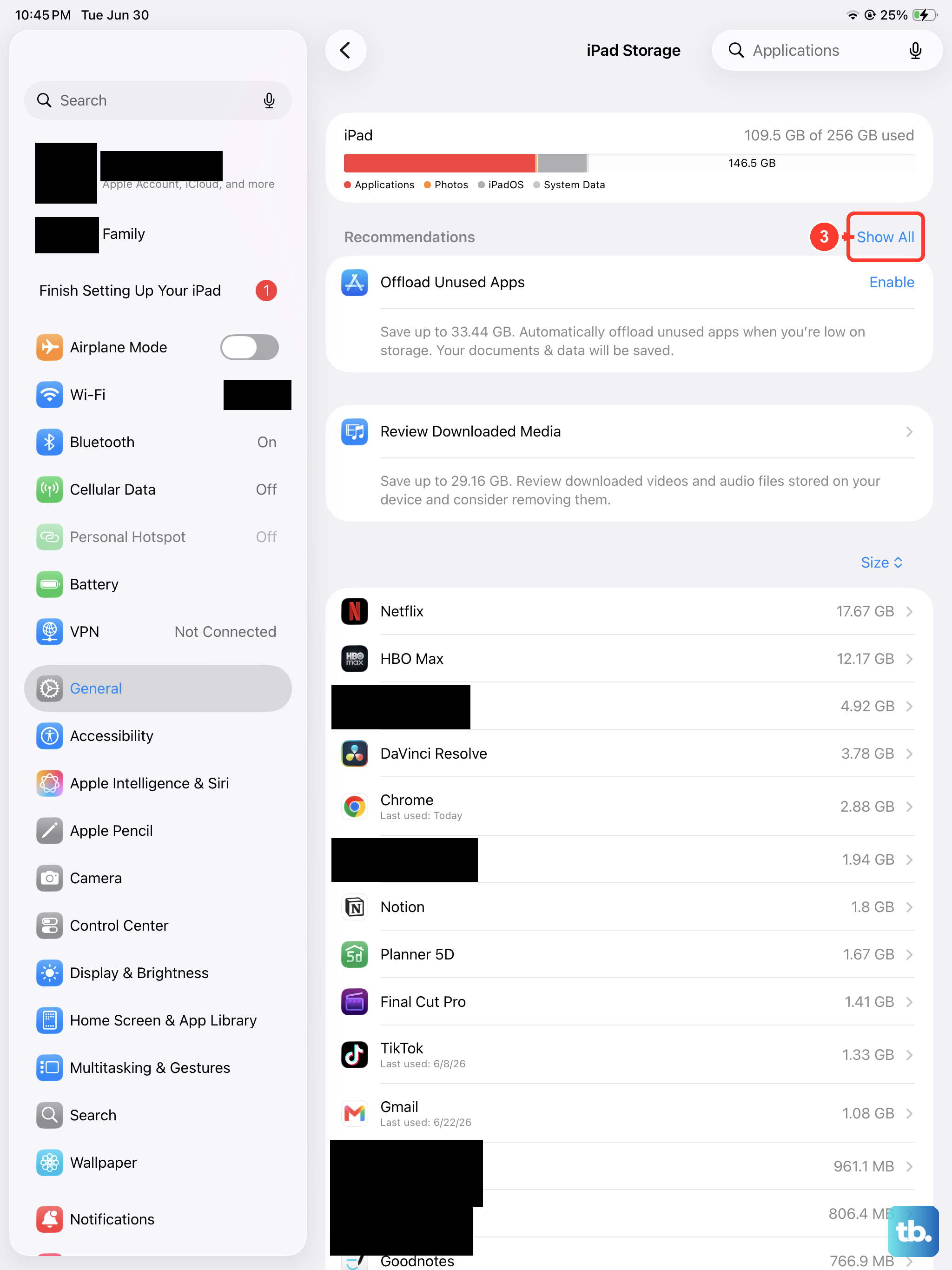
The App Store will prevent a download if there isn't enough room. Go to Settings > General > iPad Storage. At the top, you'll see how much space is free.
If you're low, the system might offer recommendations to clear space. You can offload unused apps (which removes the app but keeps its documents and data) or review large files like videos in your Photos library.
Update iPadOS
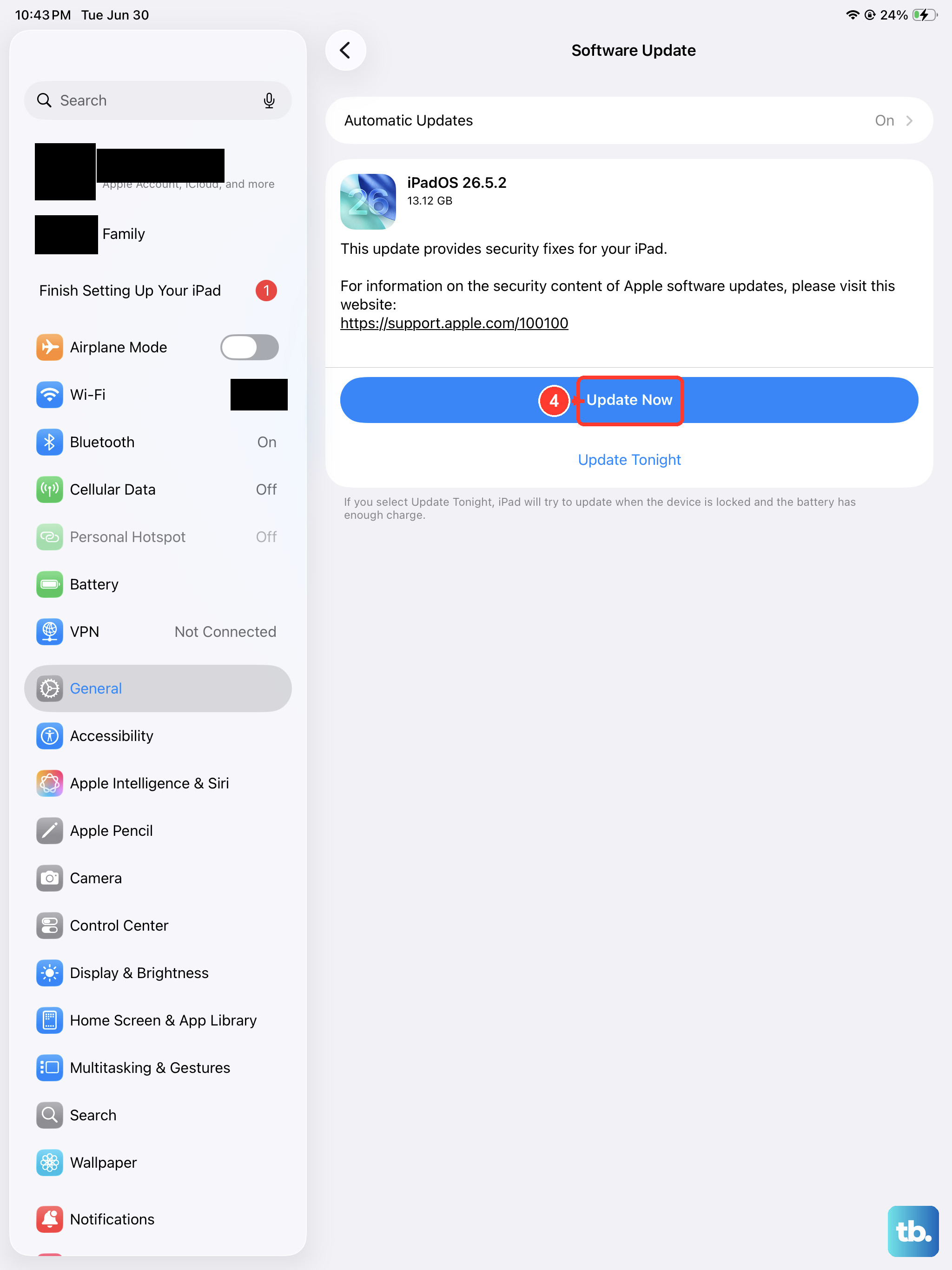
An outdated version of iPadOS can have bugs that affect the App Store. Apple frequently releases updates that include fixes for these kinds of issues.
Go to Settings > General > Software Update. If an update is available, I'd recommend installing it. It's a good idea to plug your iPad into power during the update process.
Force Quit and Reopen the App Store
If the App Store app itself is frozen, force quitting it can help. On iPads without a Home button, swipe up from the bottom of the screen and pause in the middle to enter the App Switcher. Find the App Store card and swipe it up to close it.
On iPads with a Home button, double-press the Home button to see the App Switcher, then swipe the App Store preview up. Wait a few seconds, then tap the App Store icon to reopen it fresh.
Reset Your Network Settings
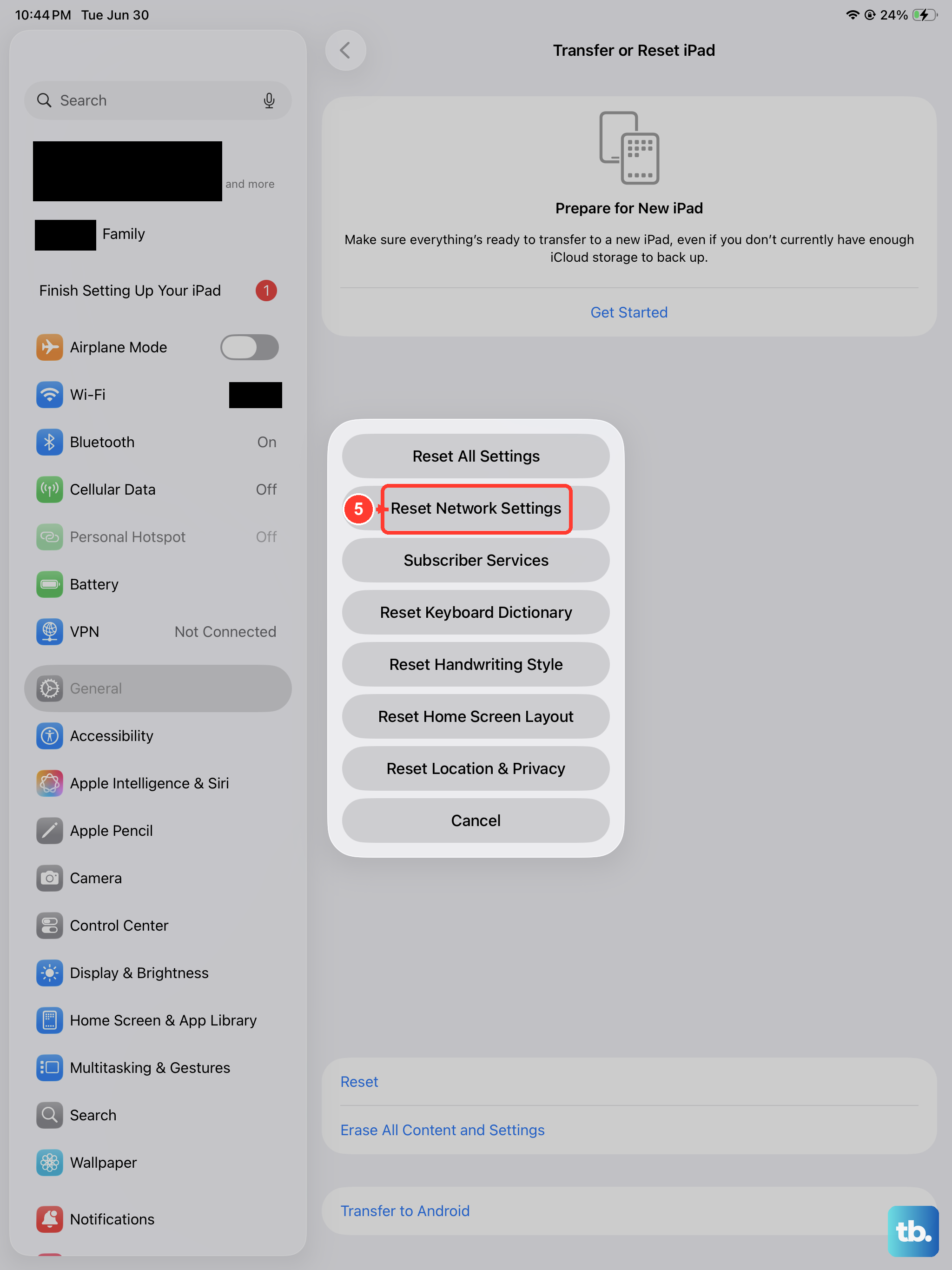
This is a stronger step for persistent network-related download issues. It will erase all your saved Wi-Fi passwords, so make sure you know them before proceeding.
Go to Settings > General > Transfer or Reset iPad > Reset. Then, tap "Reset Network Settings." Your iPad will restart. After it boots up, you'll need to reconnect to your Wi-Fi network and try the download again.
Check Screen Time and Content Restrictions
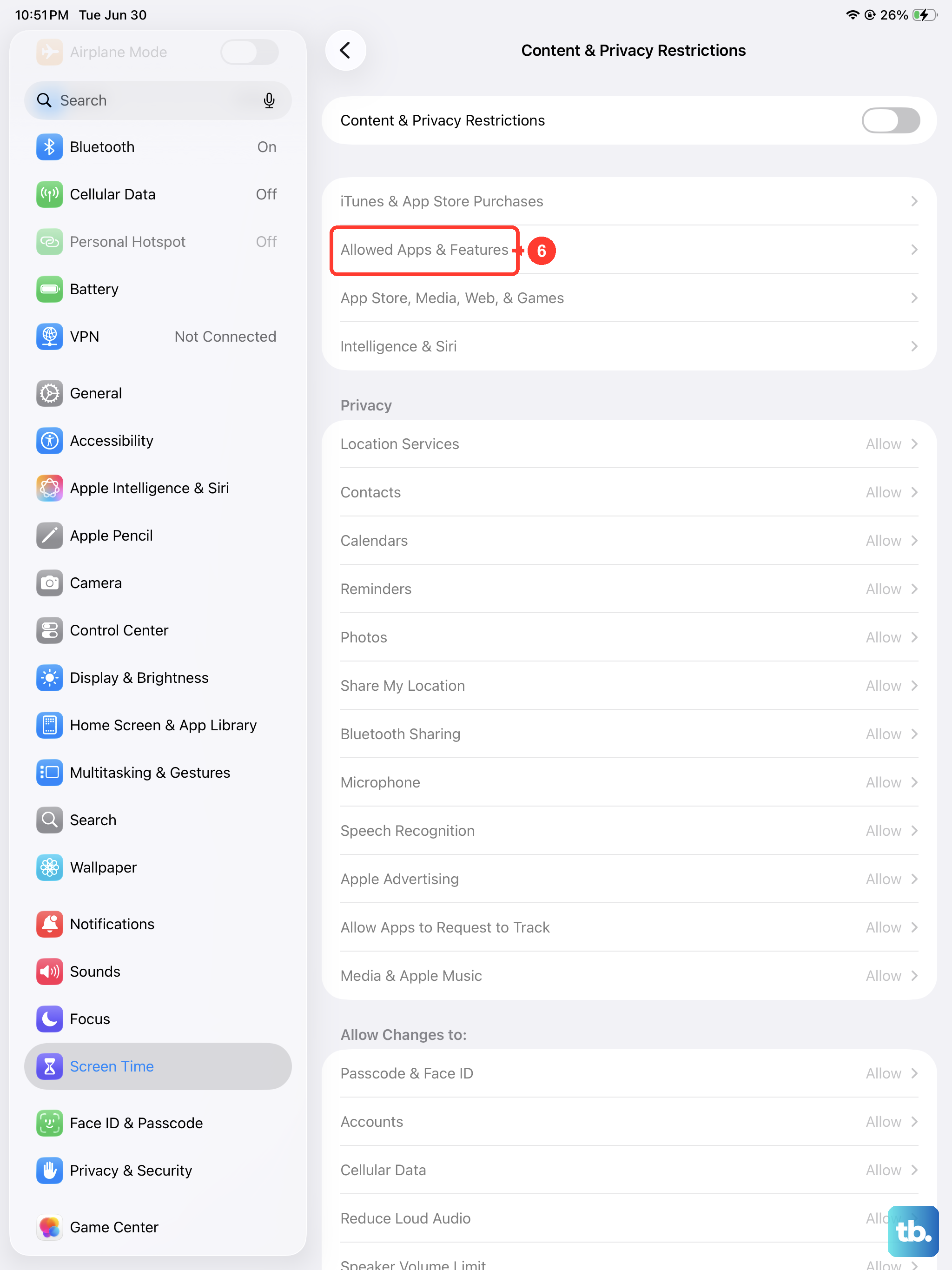
If you or someone else has set up Screen Time restrictions, it could be blocking app downloads or purchases. Go to Settings > Screen Time.
Tap "Content & Privacy Restrictions." If it's on, tap "iTunes & App Store Purchases." Make sure "Installing Apps" is set to "Allow." Also, check under "Content Restrictions" > "Apps" to ensure the age setting isn't blocking the app you're trying to get.











