
When an app on your iPad suddenly quits or freezes, it can really interrupt your workflow or entertainment. This happens for a few common reasons, usually tied to software conflicts or storage issues. The quickest fix is often just restarting the app or your iPad, which clears out temporary glitches.
Force Quit the Problem App
If an app is frozen or just closed unexpectedly, force quitting it gives it a fresh start. On an iPad without a Home button, swipe up from the bottom of the screen and pause in the middle. Find the app's preview and swipe it up and off the top of the screen to close it.
For iPads with a Home button, double-press the Home button to see your recent apps. Swipe up on the app's preview to close it. After you've done this, just tap the app icon again to reopen it.
Update the App and iPadOS
Developers release updates to squash bugs that cause crashes. Open the App Store and tap your profile icon in the top right corner. Tap "App Updates" to see if the problematic app has an update available. Tap "Update" next to it.
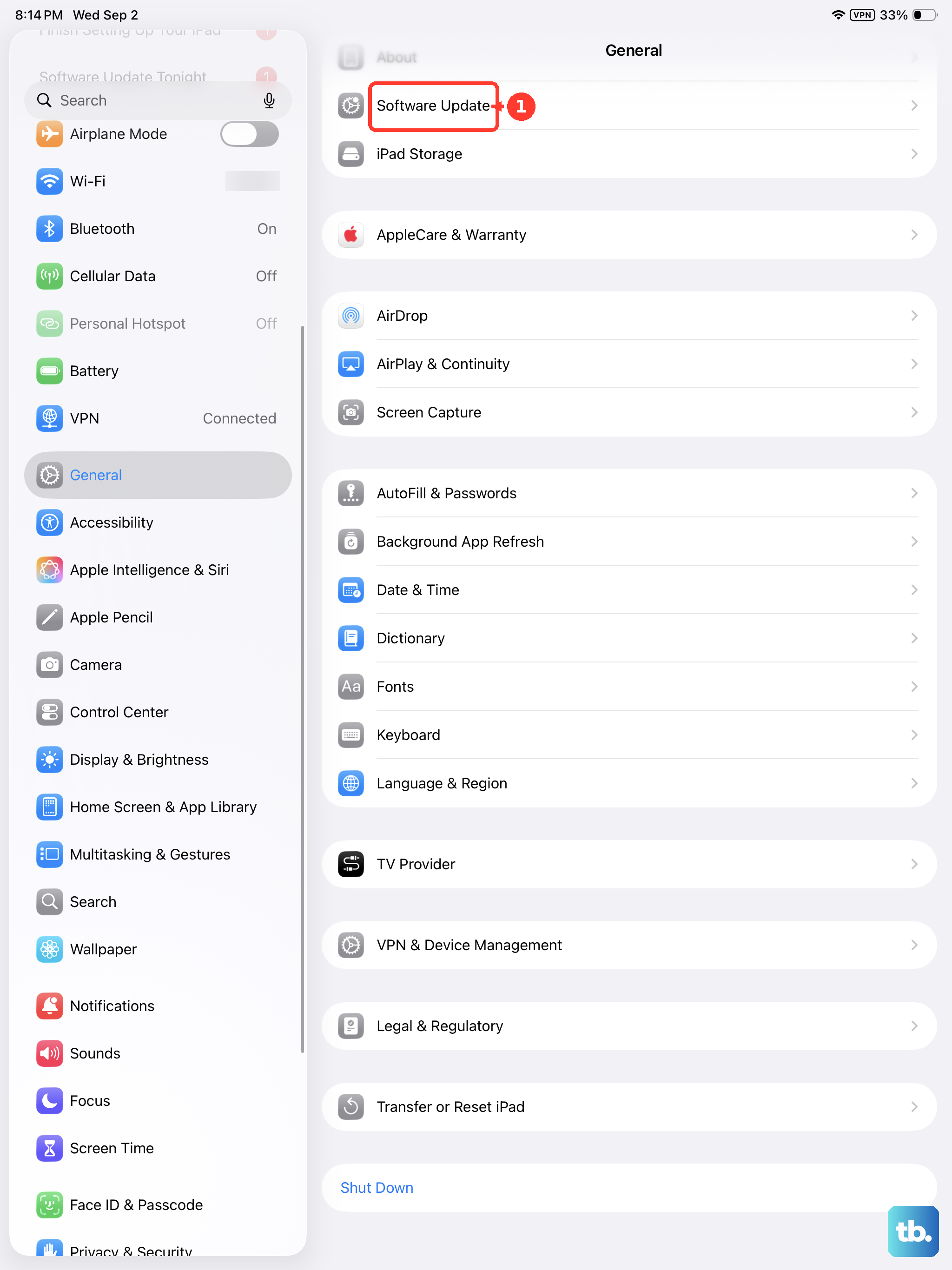
It's also crucial to keep iPadOS itself updated. Go to Settings > General > Software Update. If an update is available, plug your iPad into power and connect to Wi-Fi to download and install it. New iPadOS versions often include stability fixes.
Restart Your iPad
Restart your iPad, then reopen the app to see if it works. For iPads without a Home button, press and hold the top button and either volume button until the Power Off slider appears. Drag the slider, then press and hold the top button until the Apple logo appears to turn it back on.
If your iPad has a Home button, press and hold the top button until the Power Off slider appears. Drag the slider, then press and hold the top button until the Apple logo appears to turn it back on. This is a good step to try after updating apps.
If your iPad isn't responding, force restart it instead. On models without a Home button, press and quickly release the volume button nearest the top button, press and quickly release the volume button farthest from the top button, then press and hold the top button until the Apple logo appears. On models with a Home button, press and hold the top button and the Home button at the same time, then release both when the Apple logo appears.
Check Your iPad's Storage
When your iPad's storage is nearly full, apps don't have room to create temporary files or download new data, which can lead to crashes. Go to Settings > General > iPad Storage.
Look at the available space. If storage is nearly full, review the recommendations or remove content you no longer need. The storage settings will show recommendations, like offloading unused apps or reviewing large attachments in Messages. Deleting old videos or unused apps usually helps the most.
Offload and Reinstall the App
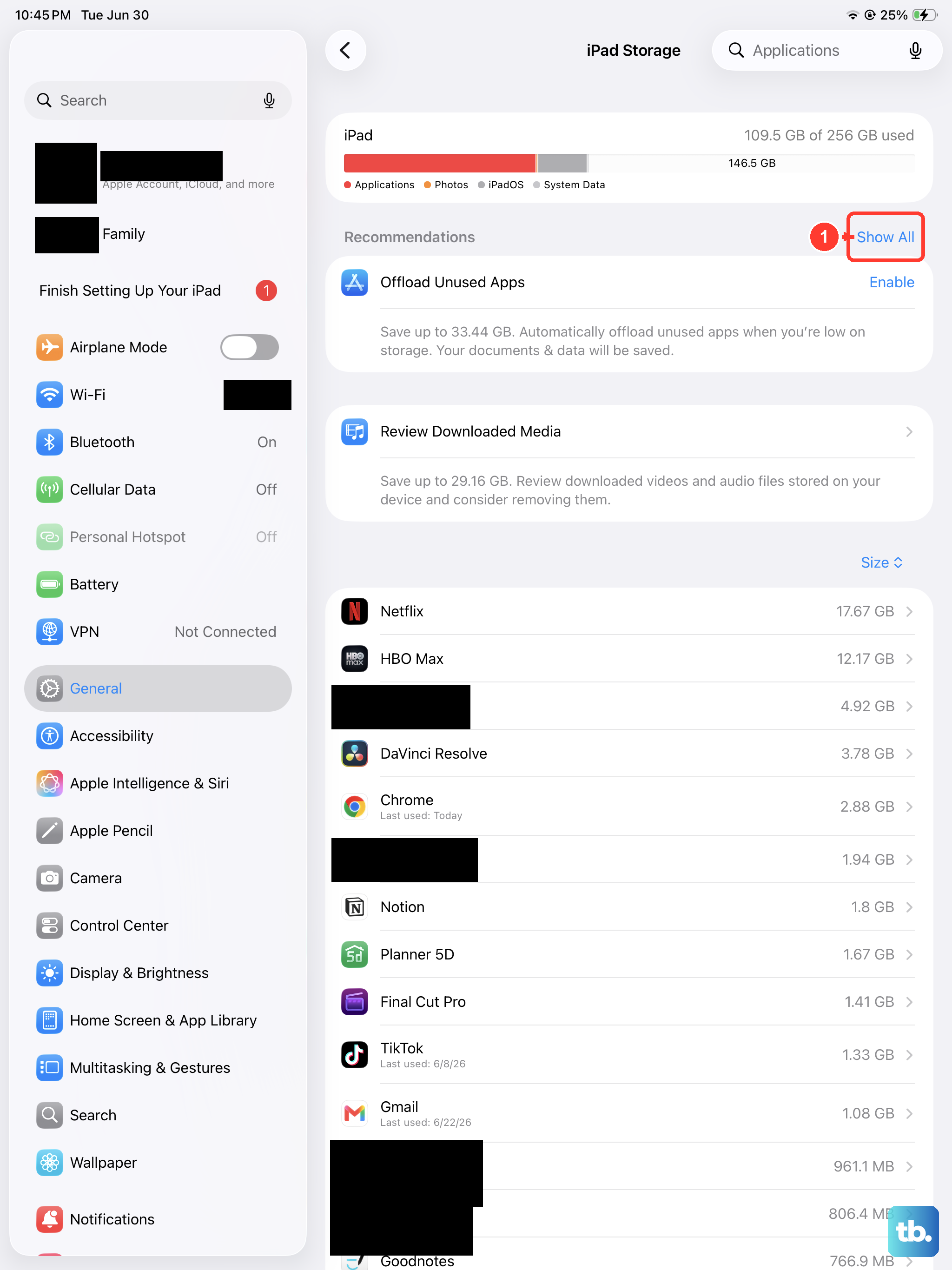
This is a handy iPad feature that removes the app but keeps its documents and data. If it still crashes after reinstalling, delete it and redownload it from the App Store; deleting it may remove data stored in the app. Go to Settings > General > iPad Storage.
Tap on the crashing app from the list. Choose "Offload App" and confirm. The icon will turn gray with a cloud on it. Then, just tap the icon again to re-download it from the App Store. Your data will be restored.
Reset All Settings
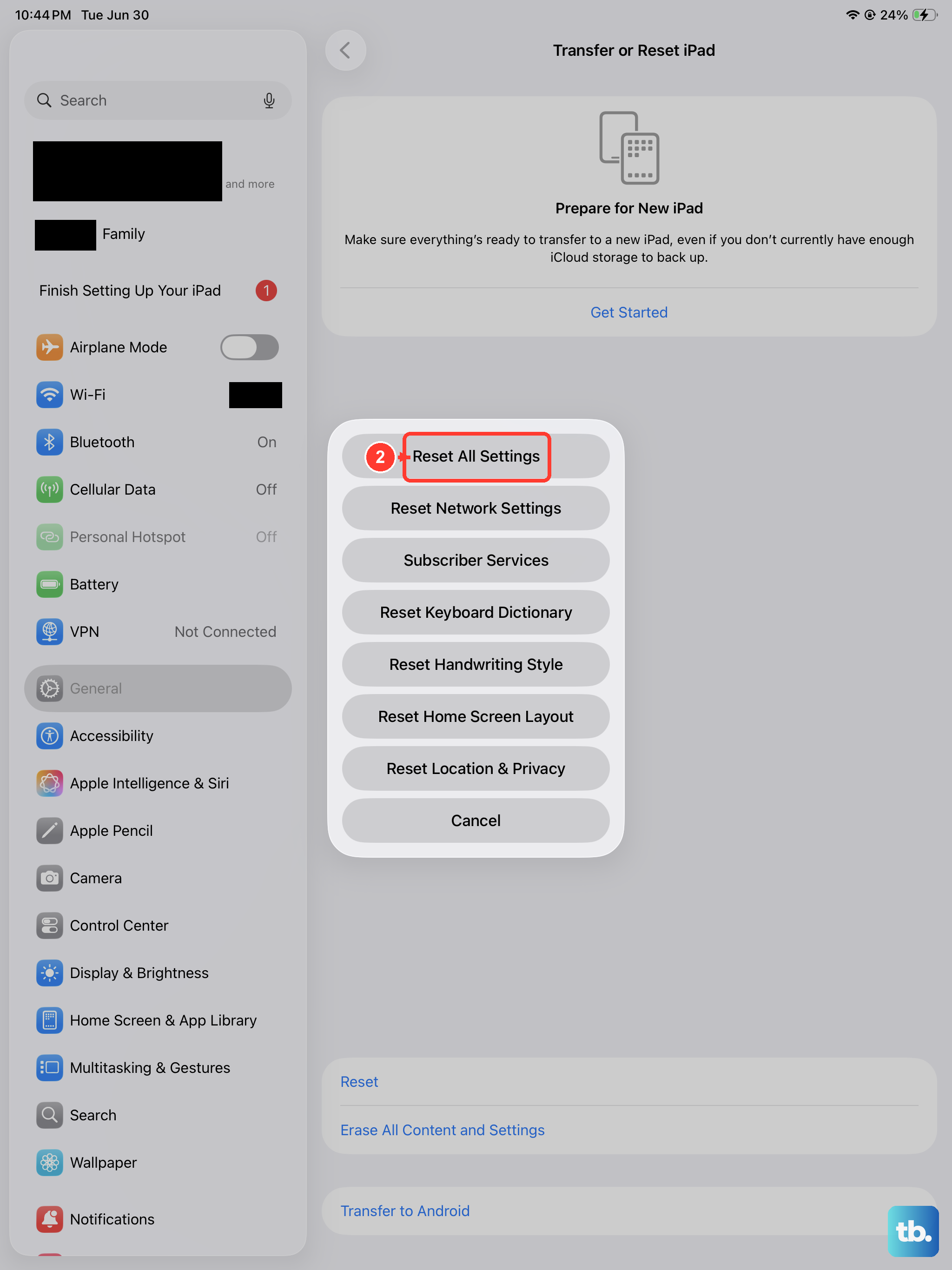
If multiple apps are crashing and nothing else has worked, this can help. It resets all your preferences, like Wi-Fi passwords, wallpaper, and privacy settings, back to default without erasing your personal data.
Go to Settings > General > Transfer or Reset iPad. Tap "Reset" and then choose "Reset All Settings." You'll need to enter your passcode. After it completes, you'll have to reconnect to Wi-Fi and re-setup some preferences, but your apps and files remain.
Check for Problematic Accessories
If you're using a USB-C hub, external drive, or a keyboard case like the Magic Keyboard, try disconnecting it. An accessory may be involved if the crashes started when you connected it.
This is especially worth testing if the crashes started around the time you began using a new dongle or case. Charge your iPad directly with its USB-C or Lightning cable, depending on the model, and see if the app behavior improves.