
So your iPad Air M3 is refusing to download that latest iPadOS update. The download bar sits at zero, it says "Unable to Check for Update," or the install just fails for no obvious reason. Let's walk through the fixes that actually get this moving.
Check your internet connection
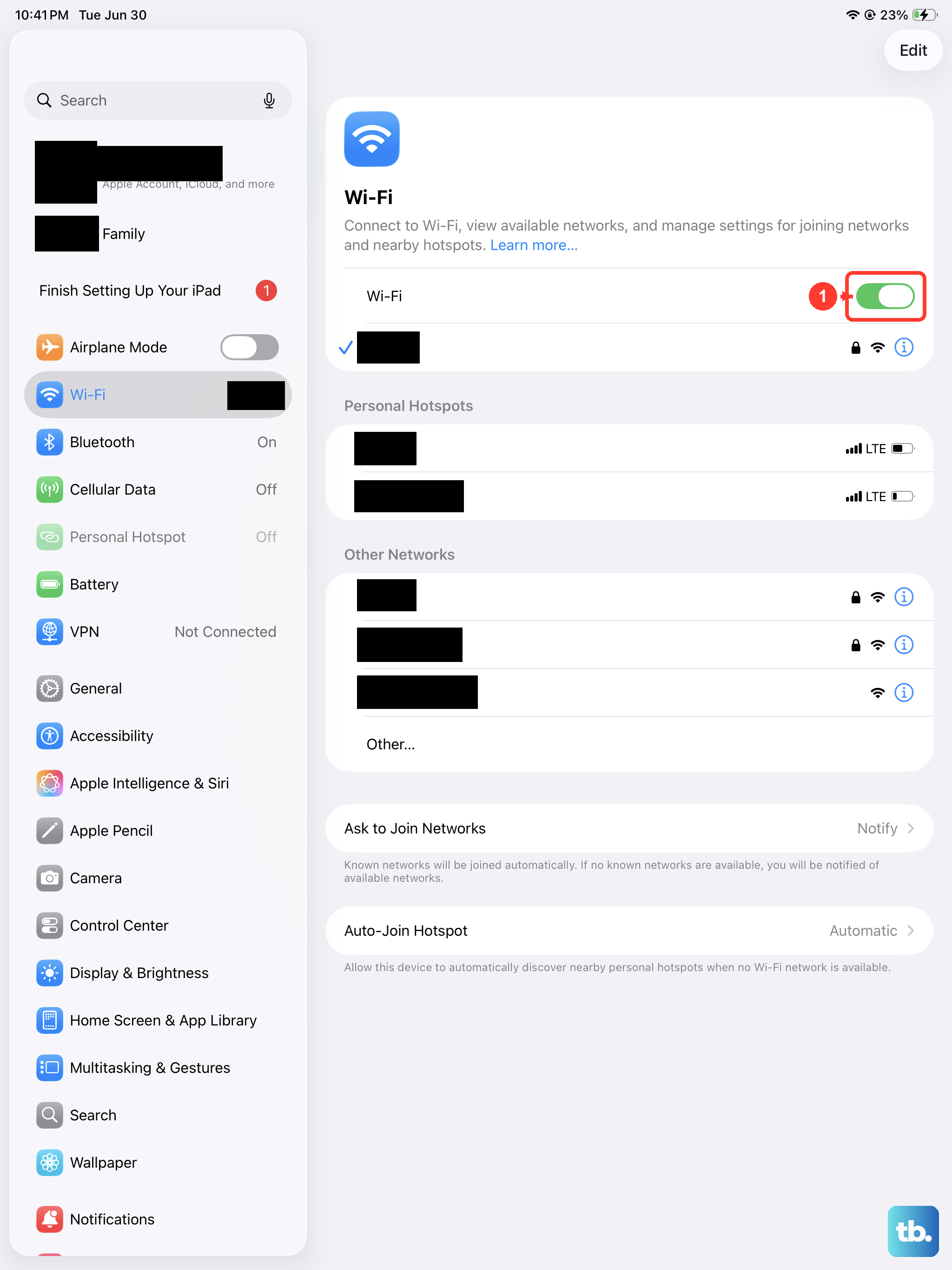
Start with the obvious one. Go to Settings > Wi-Fi and make sure you're on a stable network. iPadOS downloads are big files, and spotty connections will kill the download every time. If your Wi-Fi feels slow, restart your router by unplugging it for 30 seconds.
Free up some storage space
Major iPadOS updates can need 5 to 10 GB of free space to download and unpack. Head to Settings > General > iPad Storage and look at that top bar. If you're low, offload some large apps or delete old videos to free up breathing room.
Delete that corrupted update file
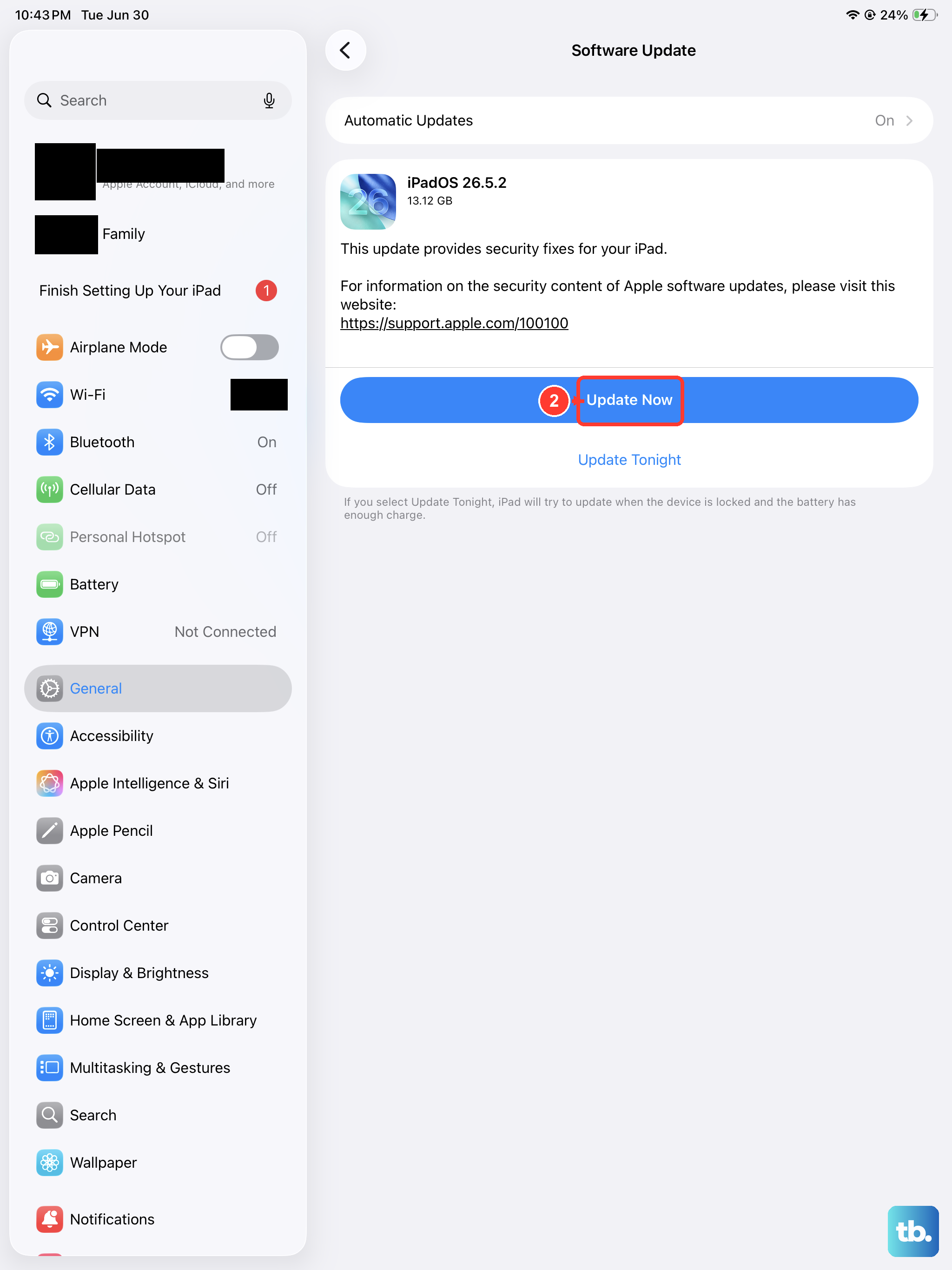
If the download started but got interrupted, a corrupted file is probably sitting in your iPad's storage and blocking the new one. Go to Settings > General > iPad Storage, scroll down the list of apps, and find the iPadOS update file. Tap it and hit Delete Update, then head back to Software Update and try fresh.
Give your iPad a fresh restart
A simple restart clears out the background processes that sometimes interfere with downloads. Hold the Top button and a Volume button until you see the power slider. Slide to turn off, wait 30 seconds, then turn it back on.
If that doesn't help, try a force restart. Press and quickly release Volume Up, then Volume Down, then press and hold the Top button until the Apple logo shows up. This doesn't wipe any data, it just forces a clean reboot and can clear up stubborn update blocks.
Reset the network settings
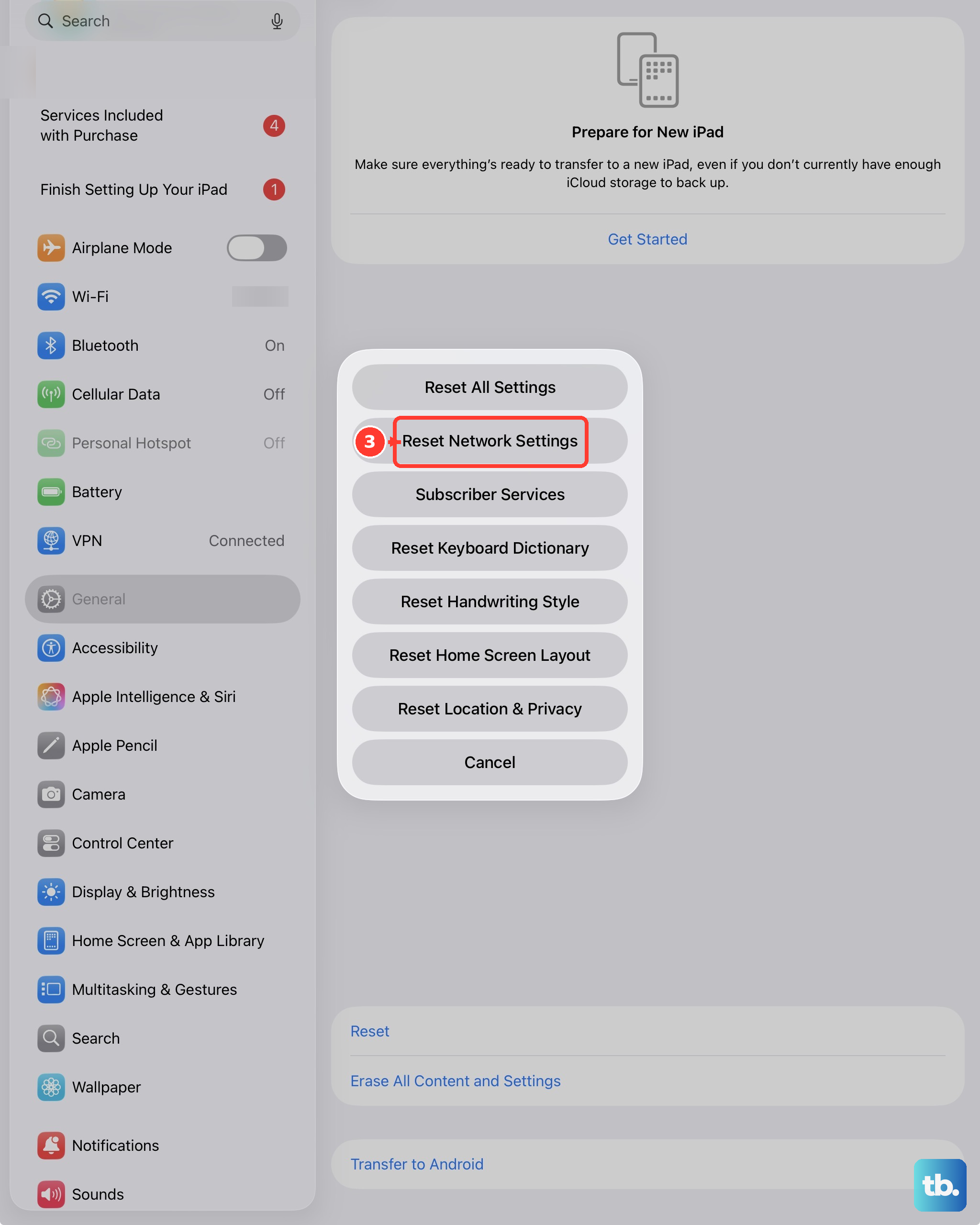
If your Wi-Fi connection looks fine but the update still won't download, your network configuration might be stuck. Go to Settings > General > Transfer or Reset iPad > Reset > Reset Network Settings. This clears your saved Wi-Fi passwords, so you'll need to rejoin your network afterward. It usually clears up whatever is blocking the connection to Apple's update servers.
Use a computer to force the update
When the over-the-air method just won't cooperate, a computer is your best backup. Connect your iPad Air M3 to a Mac or PC using the USB-C cable. Open Finder on a Mac or the Apple Devices app on a Windows PC. Select your iPad, click Check for Update, then Download and Update. The computer streams the update directly to the iPad, which bypasses most of the local issues causing the failure.
Check Apple's servers
Sometimes the problem is bigger than your iPad. When a new version of iPadOS drops, millions of people hit the update button at once. Check Apple's System Status page in a browser to see if the Software Update service is down or overloaded. If it is, just wait a few hours and try again.
Look for a beta profile
If you're running a beta version of iPadOS or have an old beta profile installed, it can block the public update from showing up. Go to Settings > General > VPN & Device Management. If you see a beta profile in there, tap it and select Remove Profile. Restart your iPad and check for the update again.
Check your date and time settings
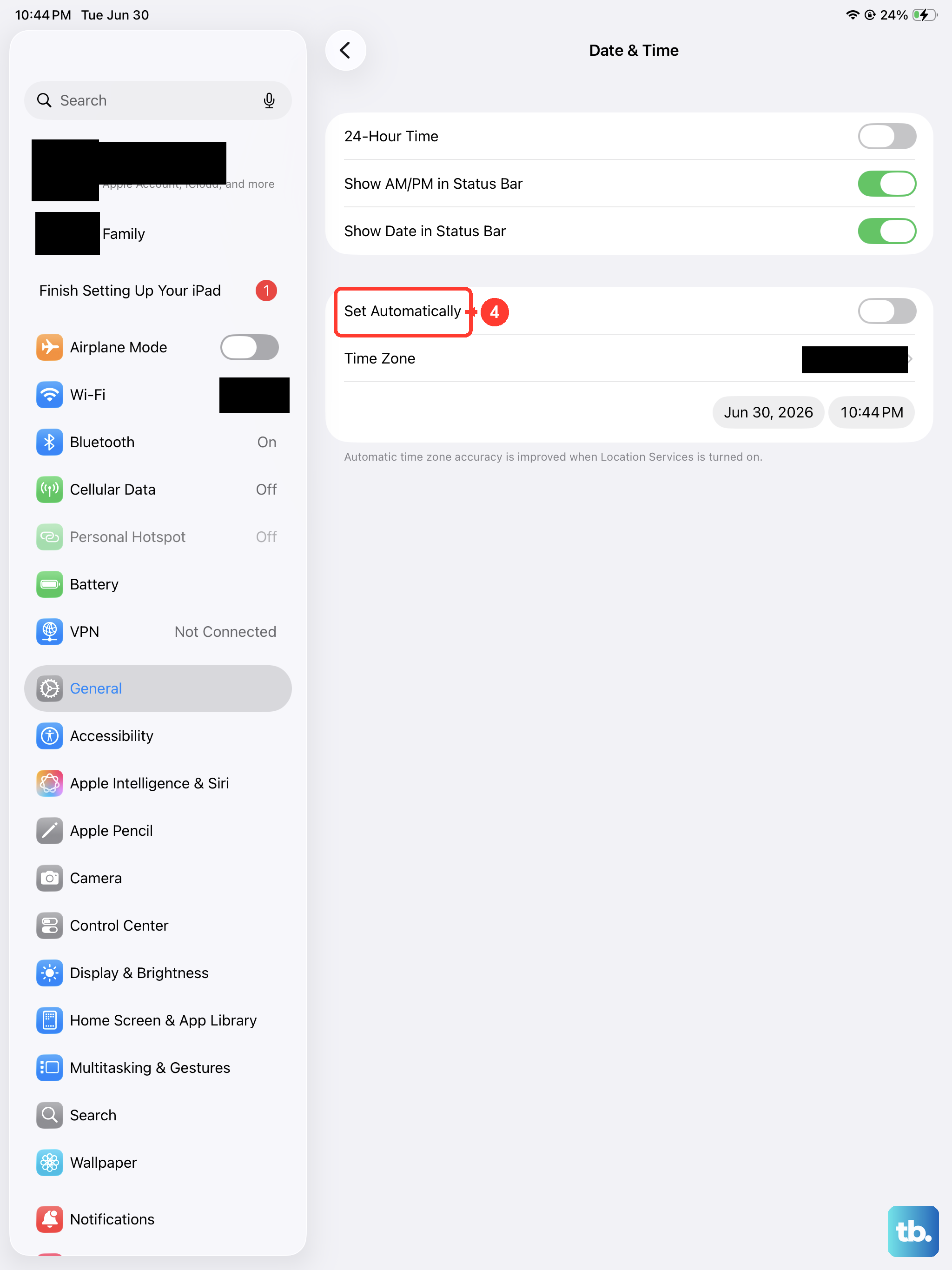
This one sounds weird, but incorrect date and time settings can mess with Apple's security checks during an update. Go to Settings > General > Date & Time and make sure Set Automatically is toggled on. If it's already on, toggle it off, wait a few seconds, and toggle it back on to force a refresh.