
Your iPad Air M3 connects to Wi-Fi one minute and drops it the next, or maybe it won't join a network at all. This is a common headache on iPadOS 18, but most of the time it's a quick software fix, not a hardware problem. Let's walk through what usually works.
Quick Fix: Toggle Wi-Fi and Restart
Start with the easiest thing. Open Control Center (swipe down from the top-right corner), tap the Wi-Fi icon to turn it off, wait five seconds, then tap it back on. This forces the iPad to re-scan for networks and often clears things up instantly.
If that didn't do it, try a force restart. Press and quickly release Volume Up, then Volume Down, then press and hold the Top button until the Apple logo appears. This is different from a normal restart and clears out deeper software glitches that can mess with Wi-Fi.
Turn Airplane Mode On and Off
This trick has been around forever because it works. Swipe into Control Center and tap the airplane icon to enable Airplane Mode. Leave it on for about 15 seconds, then tap it again to turn it off. Every wireless radio on the iPad resets during that cycle, which can fix a stubborn connection.
Forget the Network and Reconnect
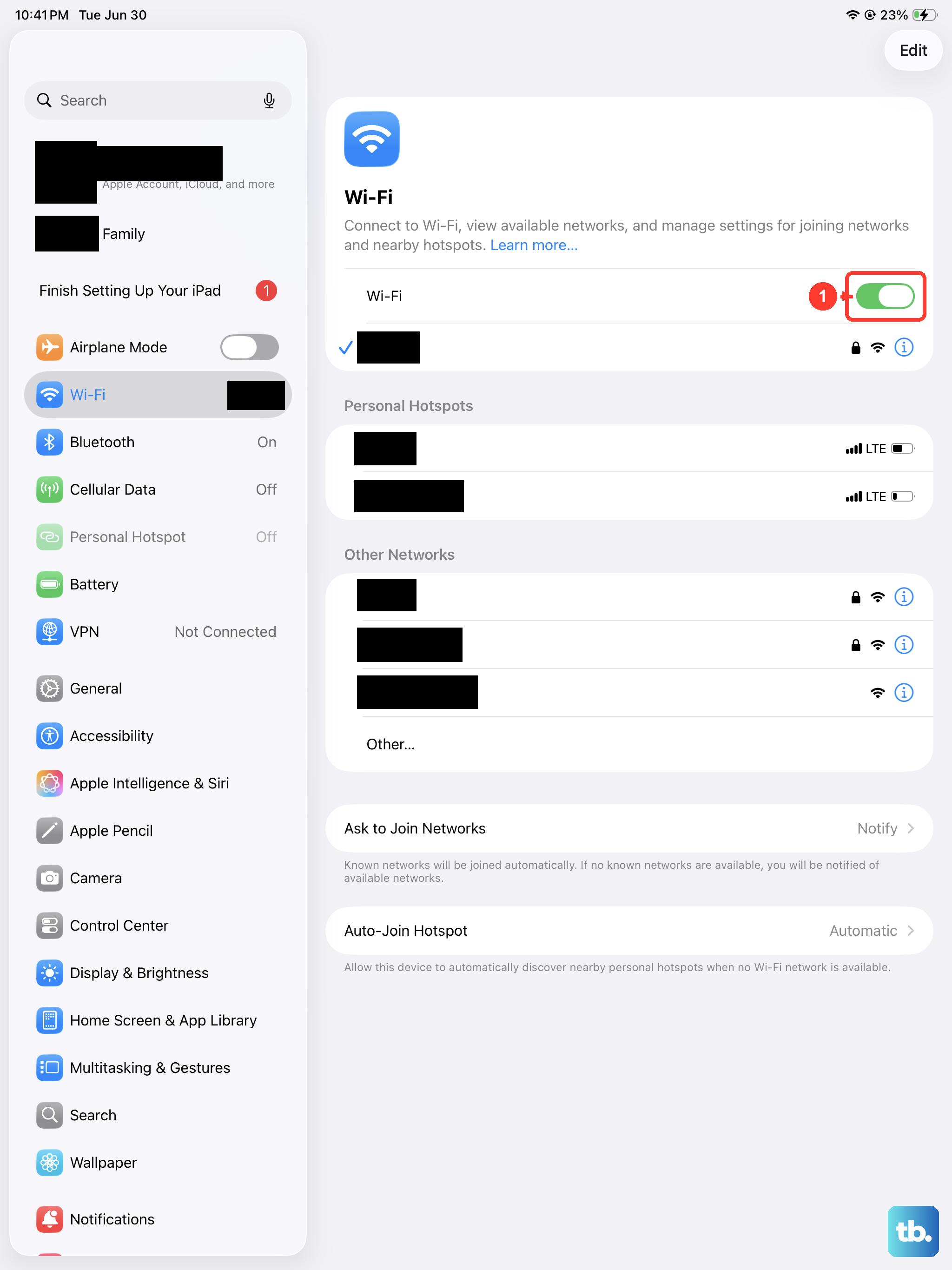
Sometimes the iPad holds onto corrupted credentials for a network. Go to Settings > Wi-Fi, tap the blue info icon (the i) next to your network, and choose Forget This Network. Then tap the network again and re-enter the password. This is especially useful if you recently changed your router's password or swapped to a new internet provider.
Check Your Password and Network Name
It sounds basic, but make sure you're connecting to the right network. If your neighbor has a similar SSID, your iPad might be trying to join theirs. Also check that caps lock isn't on when typing the password, Wi-Fi passwords are case-sensitive, and iPadOS doesn't always make that obvious.
Turn Off Bluetooth Temporarily
Bluetooth and Wi-Fi both use the 2.4GHz band on many routers, and they can interfere. Open Control Center and tap the Bluetooth icon to shut it off, then try connecting to Wi-Fi. If it works, you've found the conflict. You can leave Bluetooth off or look for a less congested Wi-Fi channel on your router.
Wi-Fi Assist Could Be the Problem
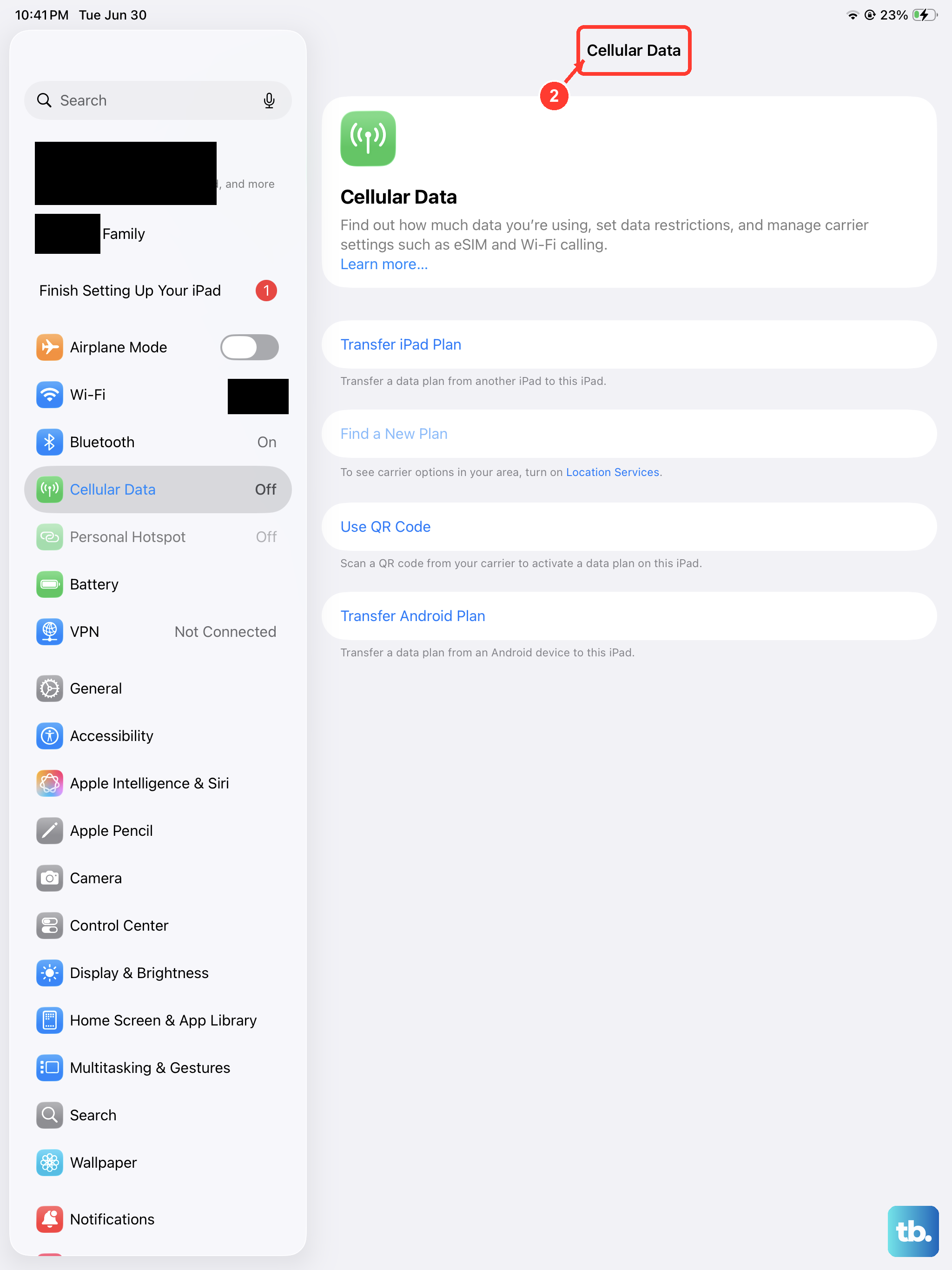
iPadOS has a feature called Wi-Fi Assist that automatically switches to cellular data when your Wi-Fi signal is weak. On a Wi‑Fi only iPad Air M3 that trick doesn't apply, but the feature can still cause confusion on the cellular model. Go to Settings > Cellular (or Mobile Data) and scroll down to toggle Wi-Fi Assist off. Even on a Wi‑Fi only model, turning off related toggles in that section can help.
Is Low Power Mode On?
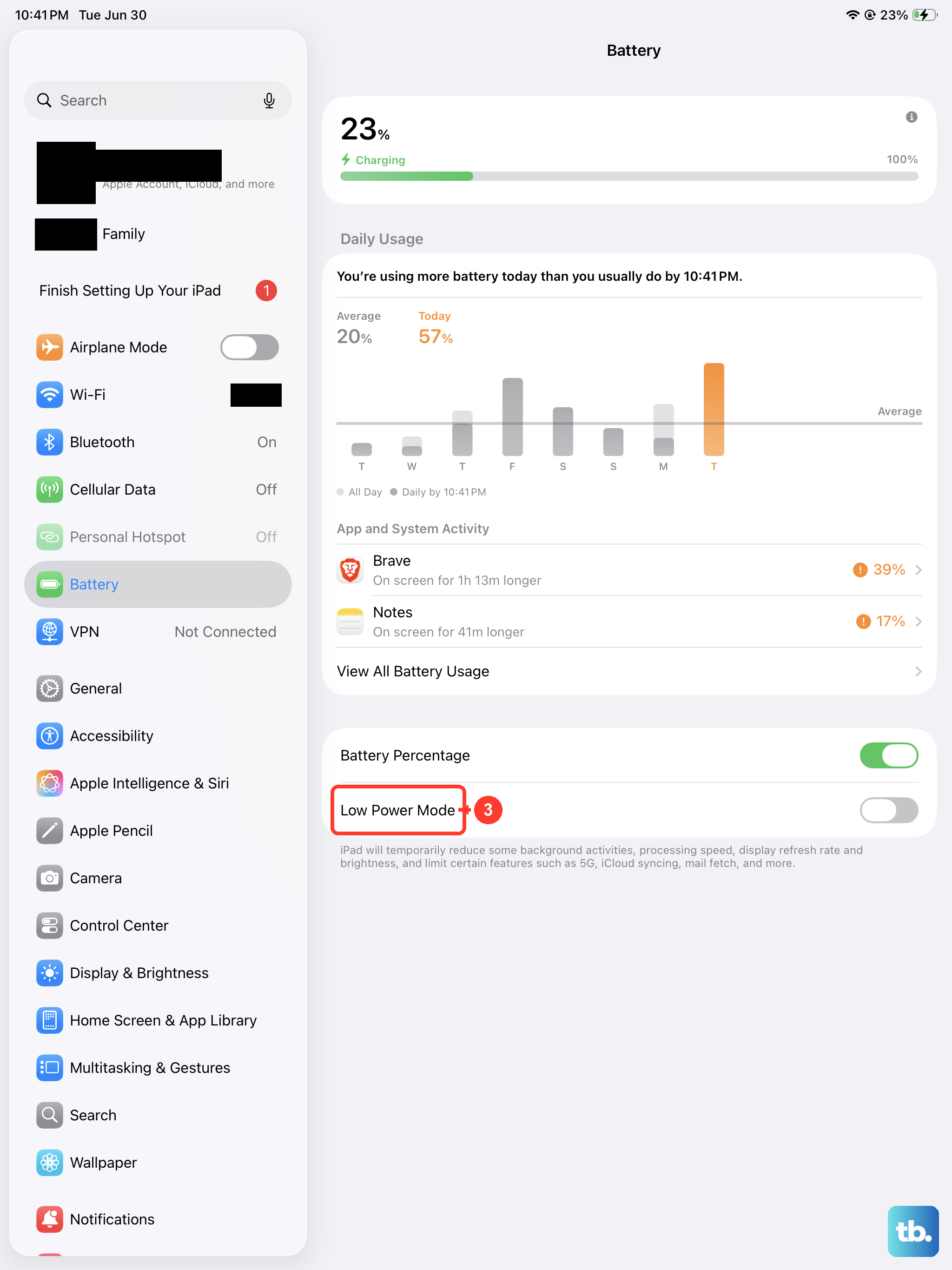
Low Power Mode can throttle background network activity to save battery. If you've got it enabled, go to Settings > Battery and turn Low Power Mode off. Your Wi-Fi connection should stabilize almost immediately. This is one of those easy-to-miss culprits that catches a lot of people off guard.
Update to the Latest iPadOS
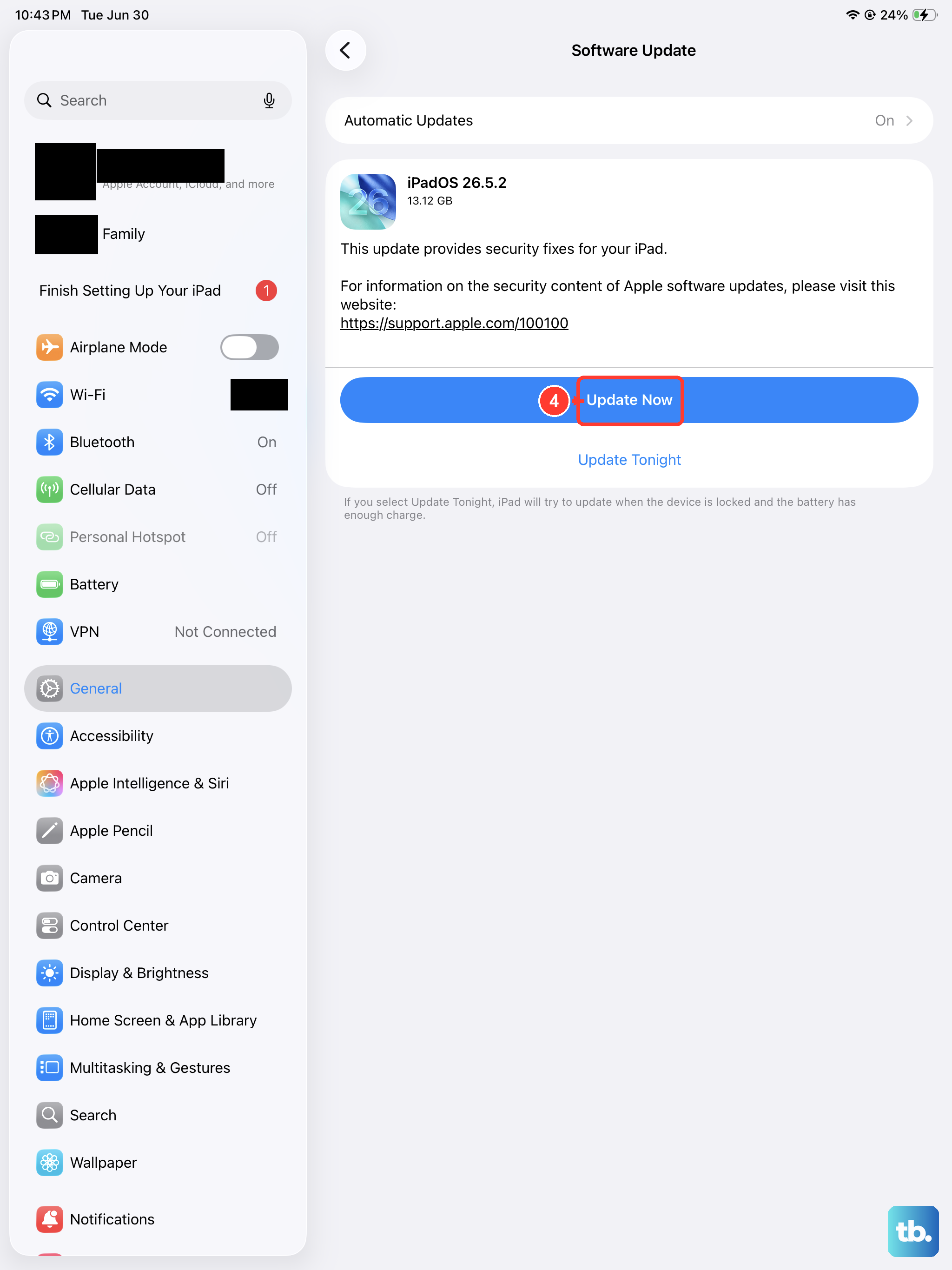
Apple regularly releases iPadOS updates that fix Wi-Fi bugs. Go to Settings > General > Software Update and install anything that's available. iPadOS 18 has had a few point releases specifically targeting connectivity issues, so make sure you're on the latest version.
Fix Your Date and Time Settings
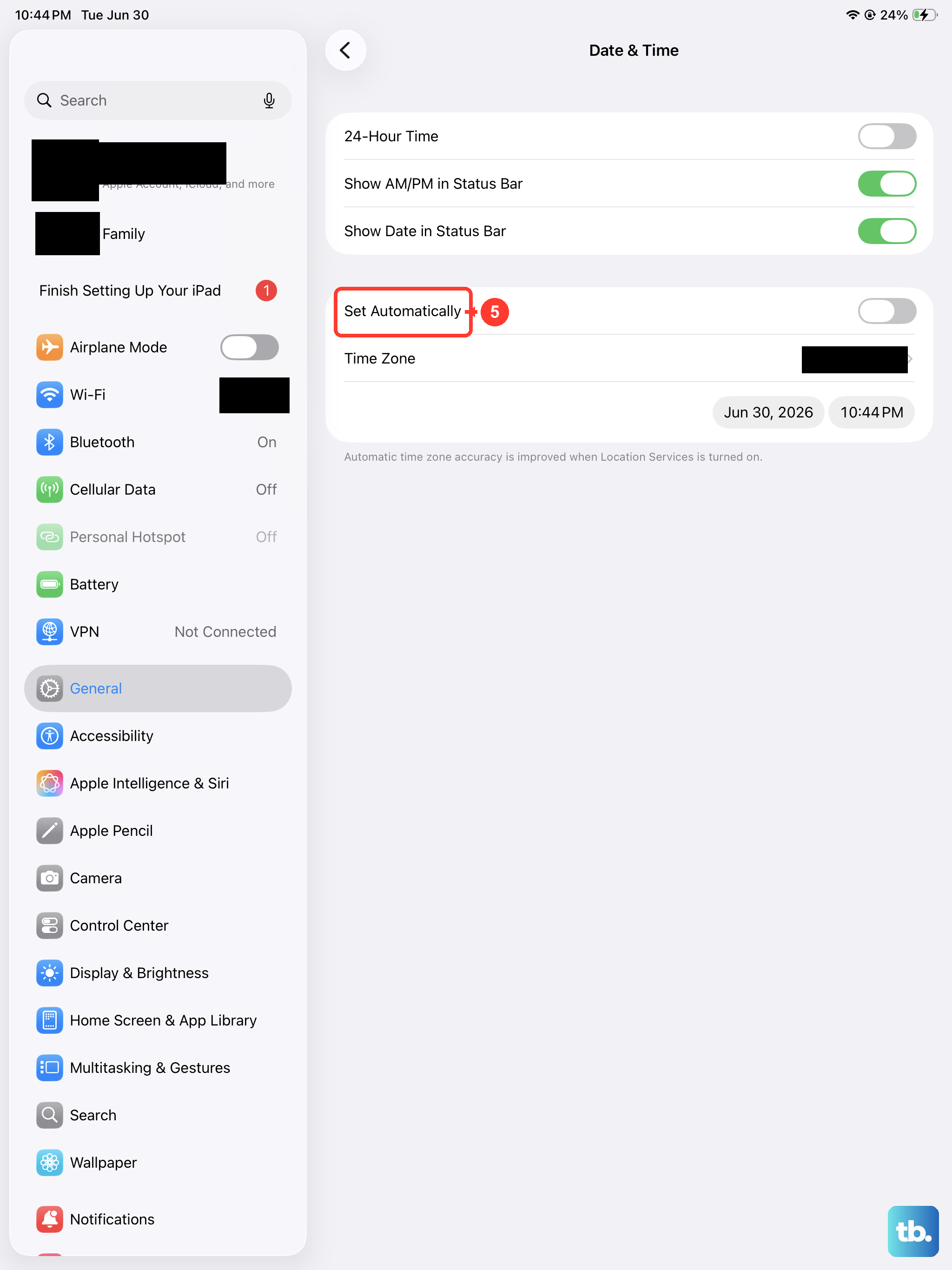
This one is easy to overlook. If the date or time on your iPad Air M3 is wrong, Wi-Fi security certificates can fail to validate. Head to Settings > General > Date & Time and make sure Set Automatically is turned on. Give it a few seconds to sync before trying to connect again.
Reset Network Settings
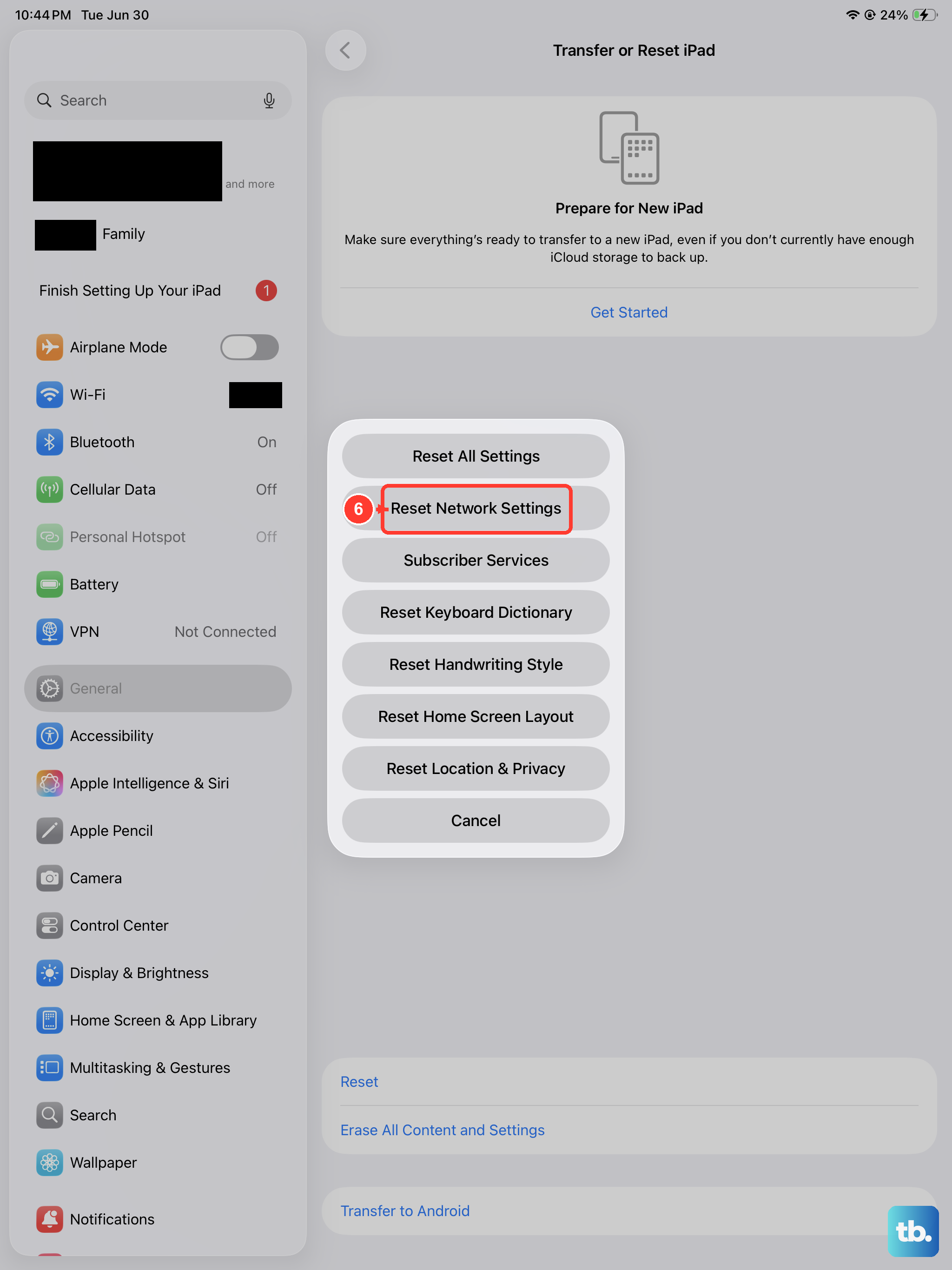
If none of the above worked, it's time to reset the network settings specifically. This clears out saved Wi-Fi networks, Bluetooth pairings, and VPN configurations, it won't erase your photos, apps, or other data. Go to Settings > General > Transfer or Reset iPad > Reset > Reset Network Settings. You'll need to re-enter Wi-Fi passwords afterward, but it's a small price to pay for a working connection.
Restart Your Router
The problem might not be your iPad at all. Unplug your router from power, wait a full 60 seconds, then plug it back in. If other devices in your home are also struggling with Wi-Fi, the router is almost certainly the issue. While you're at it, check if the router's firmware needs an update, most routers have a companion app or admin page for that.
Check for Problem Apps
Some third-party apps, especially VPNs, ad blockers, and network utilities, can interfere with Wi-Fi on iPadOS. Try closing all your apps by swiping up from the bottom and pausing in the middle, then swiping away each app card. If Wi-Fi starts working after that, one of those apps was the troublemaker. You can also check Settings > VPN & Device Management and disable any active VPN profiles temporarily.
Factory Reset (Last Resort)
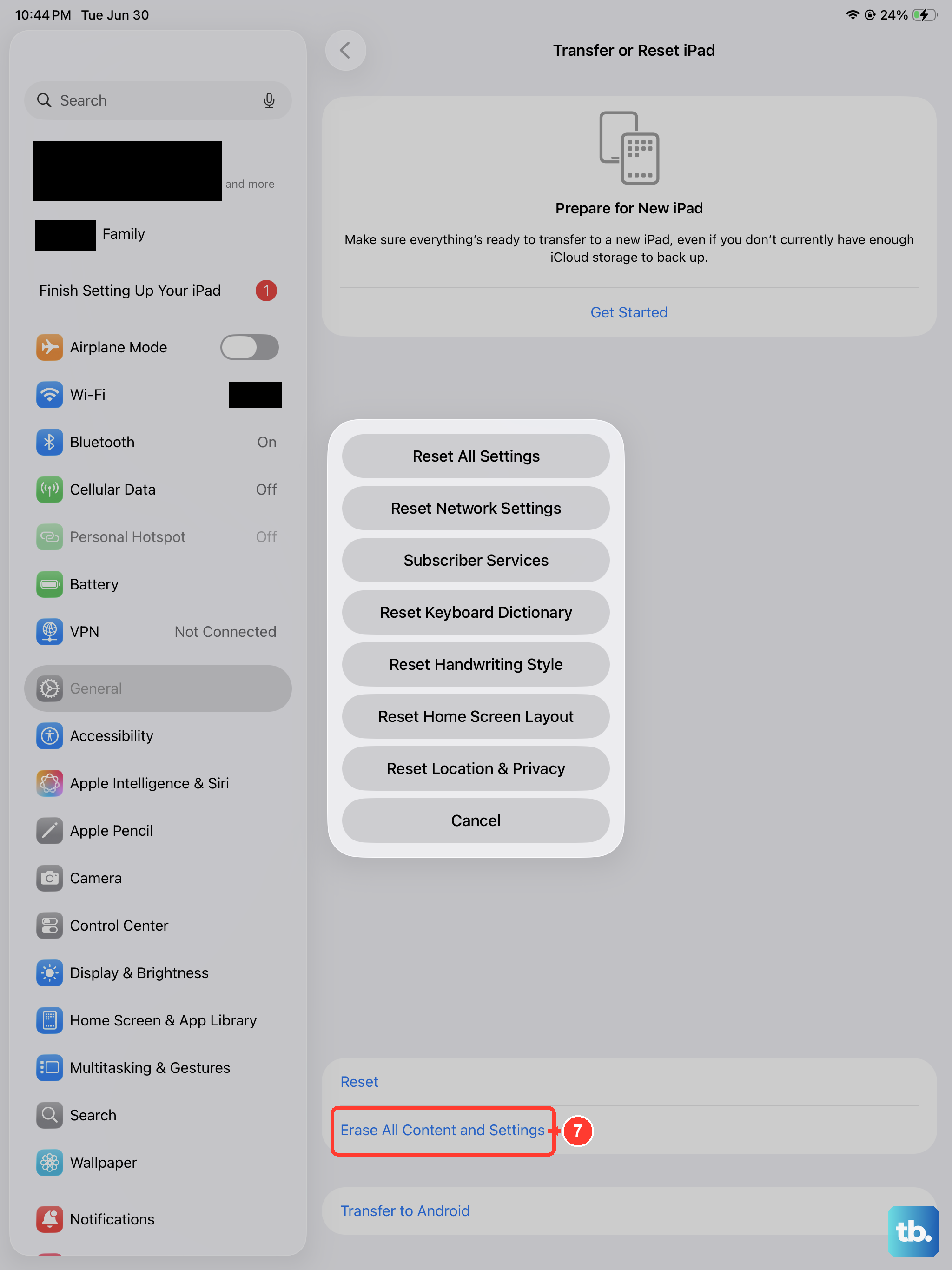
If you've tried everything and Wi-Fi still won't connect, a factory reset will return the iPad to its out-of-the-box state. Back up your data first, iCloud or a computer, because this erases everything. Go to Settings > General > Transfer or Reset iPad > Erase All Content and Settings. Only do this as a last resort; in most cases, a simpler fix on this list will get your Wi-Fi back.