
The iPad Air M3 uses haptic feedback for system sounds, keyboard taps, and app notifications. When that feedback stops working, it usually comes down to a setting, a mute switch, or a temporary software hiccup. Let's walk through the fixes.
Check the Mute Switch First
The physical mute switch on the left edge of the iPad Air M3 can disable system sounds and haptics entirely. If it's showing orange, flip it toward the screen so the orange is hidden. Try triggering a system sound or a keyboard tap afterward to see if the haptics come back.
Force Restart Your iPad Air M3
A quick force restart clears out temporary glitches that could be blocking vibration and haptic feedback. Press and quickly release the Volume Up button, then press and quickly release the Volume Down button. Immediately press and hold the Top button until the Apple logo appears. Let the iPad restart fully and test the haptic feedback again.
Check Haptic Feedback in Settings
iPadOS 18 has a dedicated setting for system haptics. Go to Settings > Sounds and make sure System Haptics is turned on. This setting controls the subtle vibrations you feel when you long-press an icon, use the Control Center, or interact with other system elements. If it was already on, toggle it off and back on to refresh the connection.
Adjust Keyboard Haptics
If you're only missing vibration when typing, the keyboard haptic setting might be off. Open Settings > Sounds > Keyboard Feedback and enable Haptic. The iPad Air M3 produces a crisp tap feeling with each keystroke when this is on. Try typing in Notes to confirm it's working.
Turn Off the Mute Switch in Control Center
The mute switch can also be controlled through software. Swipe down from the top-right corner to open Control Center and check the bell icon. If it has a line through it, tap it to unmute. This overrides the physical switch in some cases and restores haptic feedback for system sounds.
Check Do Not Disturb and Focus Modes
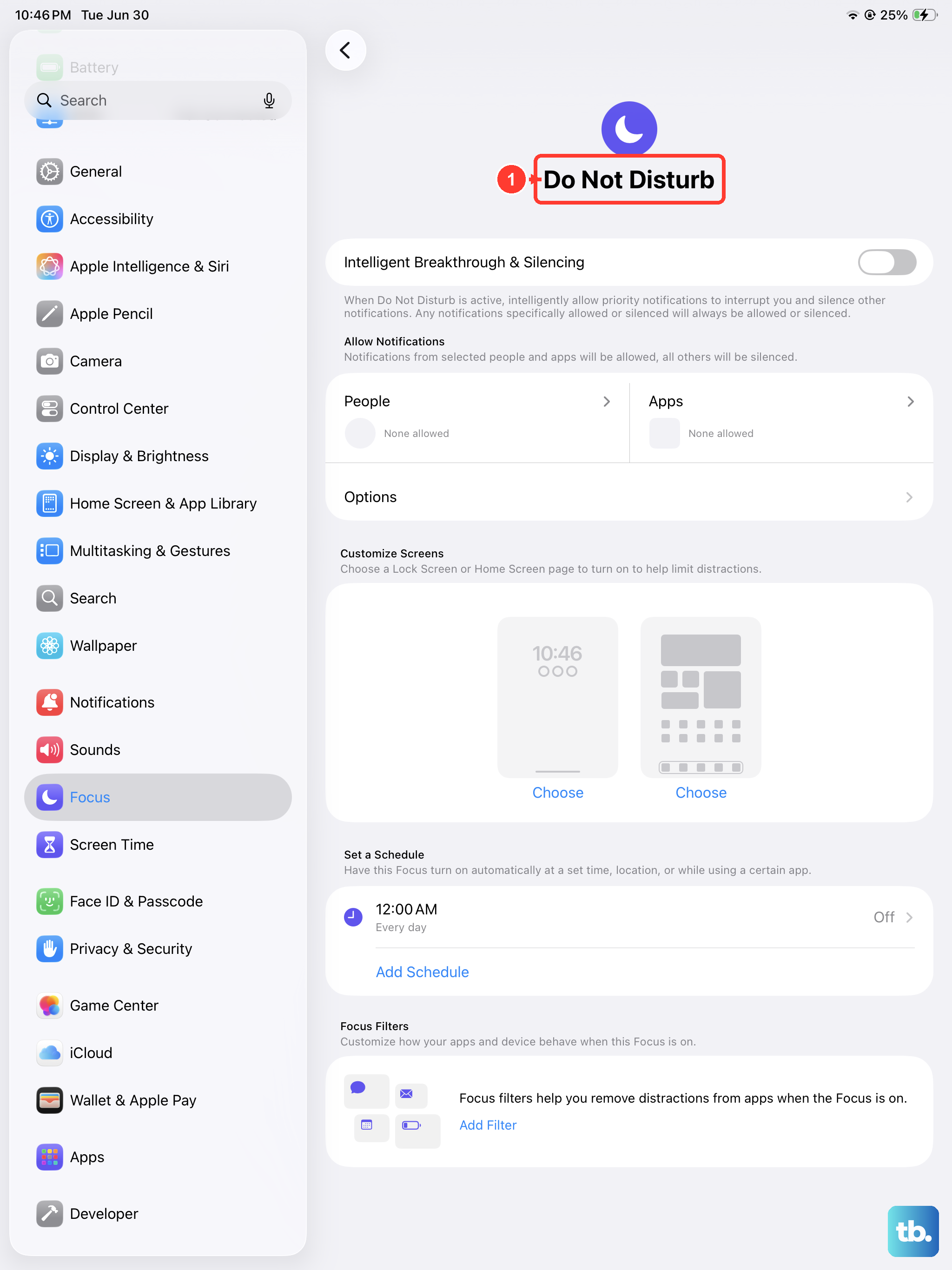
Focus modes like Do Not Disturb can suppress haptic feedback along with notifications. Open Settings > Focus and look at which mode is active. If one is enabled, try turning it off temporarily to see if haptics return. You can also customize a Focus mode to allow haptic feedback under its notification settings.
Update iPadOS
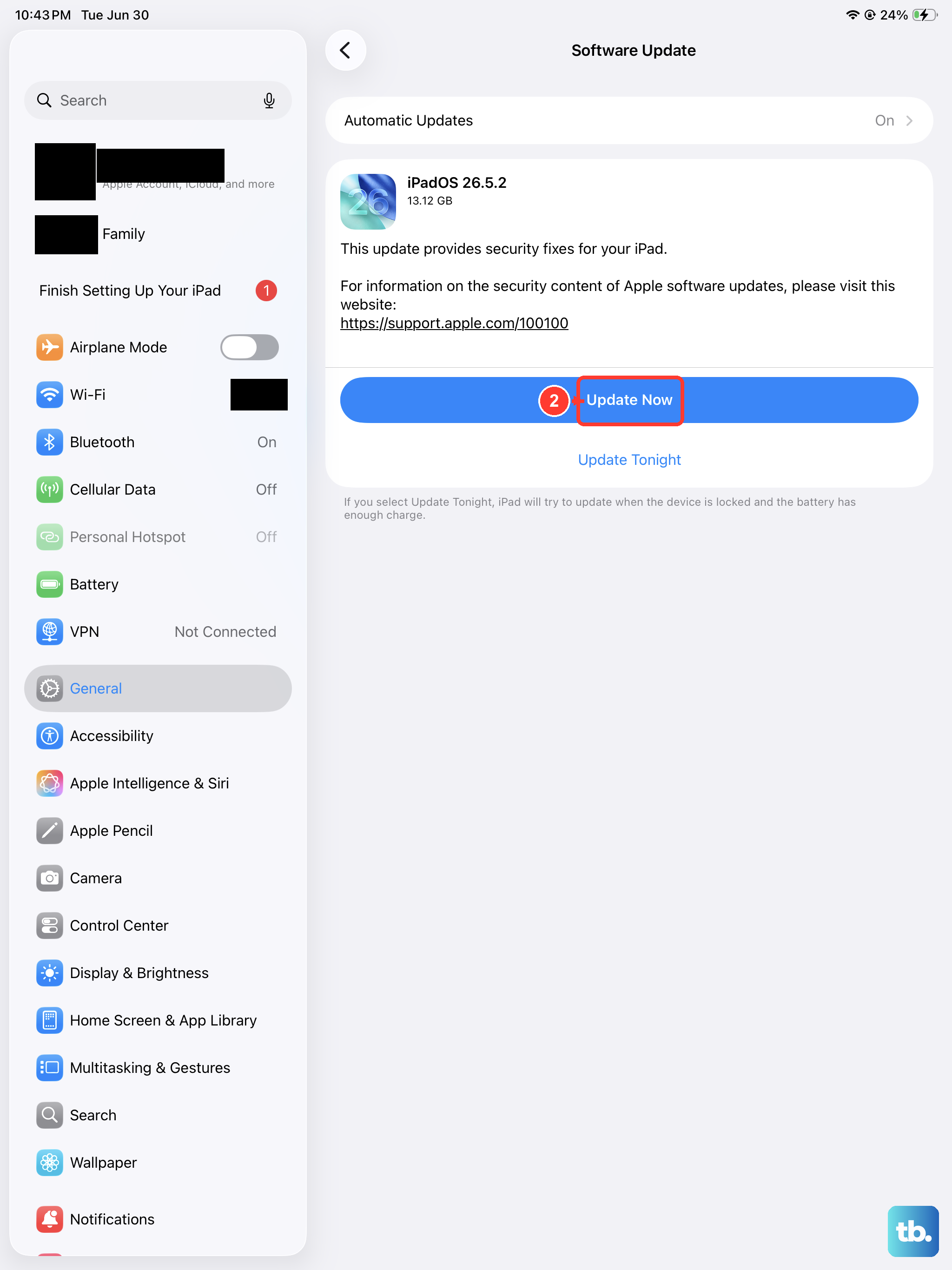
Apple regularly releases software updates that fix bugs related to system sounds and haptics. Go to Settings > General > Software Update and install any available updates. The iPad Air M3 shipped with iPadOS 18, so if you're on an older build, an update could resolve the issue directly.
Reset All Settings
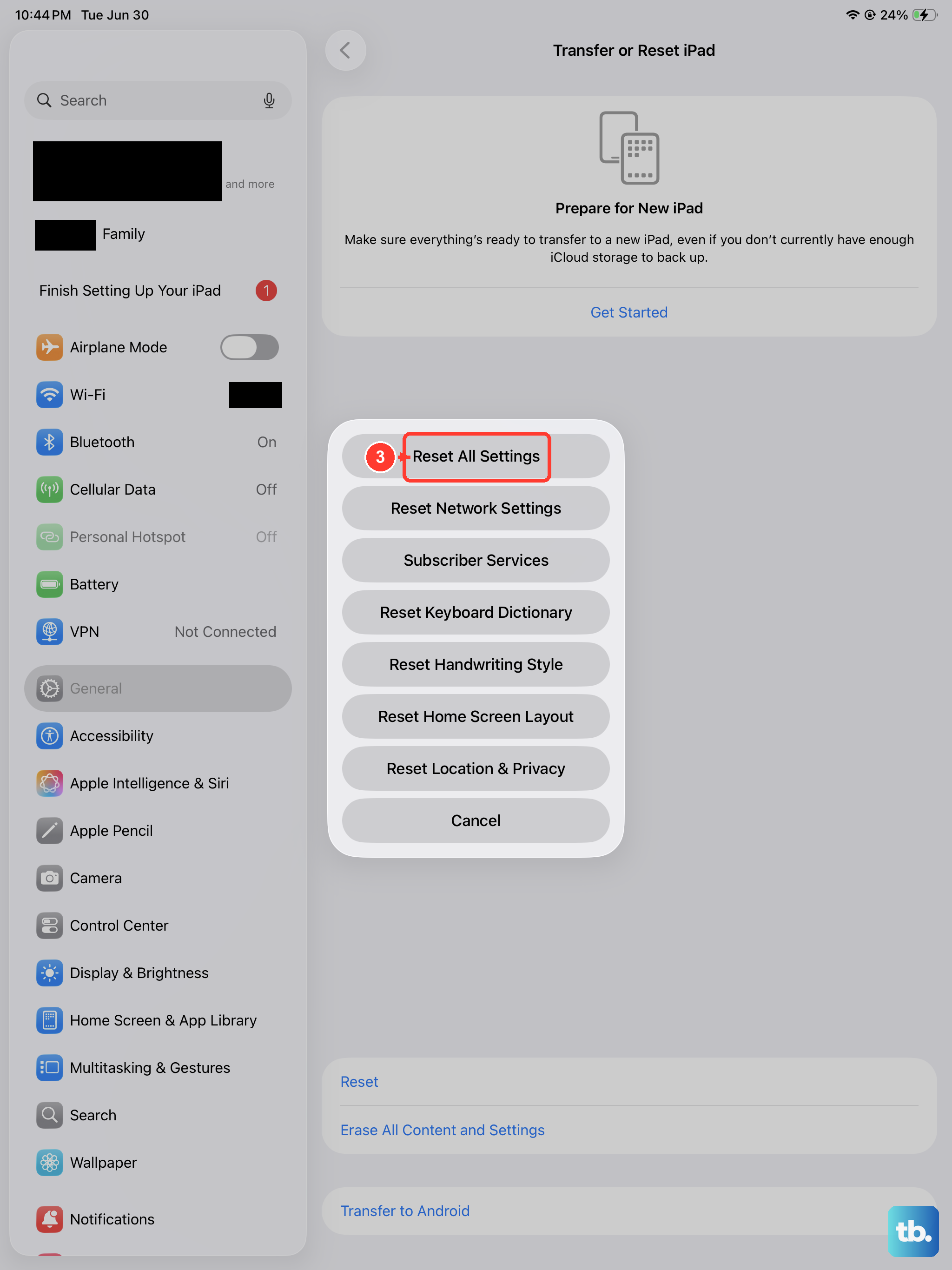
If none of the above works, resetting your settings can wipe out a corrupted configuration without deleting your data. Open Settings > General > Transfer or Reset iPad > Reset and choose Reset All Settings. This will return sound, display, and haptic preferences to their defaults but won't affect your apps or files. You'll need to re‑enable System Haptics and Keyboard Haptics afterward.
Test With Different Apps
Haptic feedback failing in one app but working in another points to an app‑specific issue. Open a game, a typing app, or anything that triggers vibrations. If haptics work in some apps but not others, check the problematic app's notification settings. Go to Settings > Notifications, select the app, and make sure sounds and haptics are allowed.
Restore in Recovery Mode
This is a last resort, but a full restore can fix persistent software‑level problems that settings resets miss. Back up your iPad first. Connect it to a computer, put it into recovery mode (force restart but keep holding the Top button until the recovery mode screen appears), and restore using Finder or iTunes. This reinstalls a clean copy of iPadOS 18 and eliminates any corrupted system files that could be blocking haptics.