
Missing calls because your iPad Air M3 won't ring is frustrating, especially when you know the volume is up and Do Not Disturb isn't on. The iPad Air M3 supports cellular calling, so when it stays silent during an incoming call, it feels like a major glitch. This guide covers the most common reasons and the fixes that actually work.
Check the Physical Mute or Side Switch
On the iPad Air M3, the physical switch on the top-left edge controls the ringer and alerts. If you see an orange strip next to the switch, your iPad is muted. Flick it toward the front of the iPad to disable silent mode.
This is the easiest thing to overlook, especially if you carry your iPad in a bag or case. Give it a quick toggle and test with a call or alarm.
Turn Off Do Not Disturb and Focus Modes
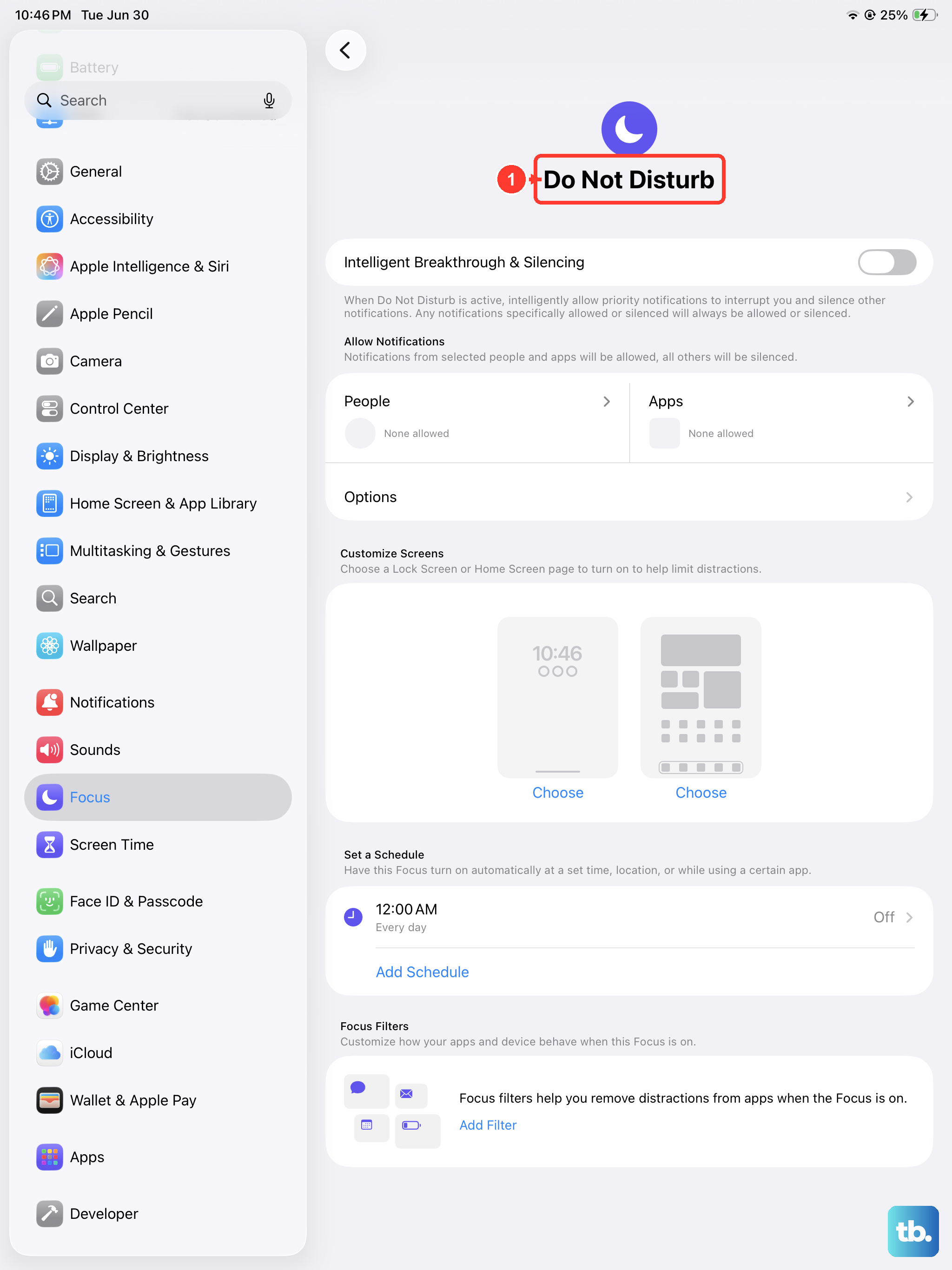
iPadOS 18 has Focus modes that can silence calls while still showing them as missed. Do Not Disturb, Sleep, Work, and Personal modes can all prevent the ringer from sounding.
Swipe down from the top-right corner to open Control Center. Look for the moon icon, if it's highlighted, Do Not Disturb is active. Tap it to turn it off.
You can also check through Settings > Focus. Review each profile and make sure none are turned on. Also check the "Turn on Automatically" sections to ensure no schedules or locations are triggering them.
Make Sure Your Ringer Volume Isn't Turned All the Way Down
Your iPad can have low ringer volume even if the media volume seems fine. Unlock your iPad, then press the volume up button on the right side until it reaches maximum. Test the ringer with a call or by going to Settings > Sounds and dragging the Ringer and Alerts slider to the right.
I've seen many cases where the ringer volume was accidentally lowered in a bag or pocket. It's a quick check that often solves the whole problem.
Try a Different Ringtone
Sometimes a corrupted ringtone file can cause the iPad to stay silent. Go to Settings > Sounds > Ringtone and pick a new default tone. Give it a test by asking someone to call you or by playing a sample.
If the new ringtone works, the old one may have an issue. You can always set it back later if you prefer the original sound.
Disconnect Bluetooth Devices
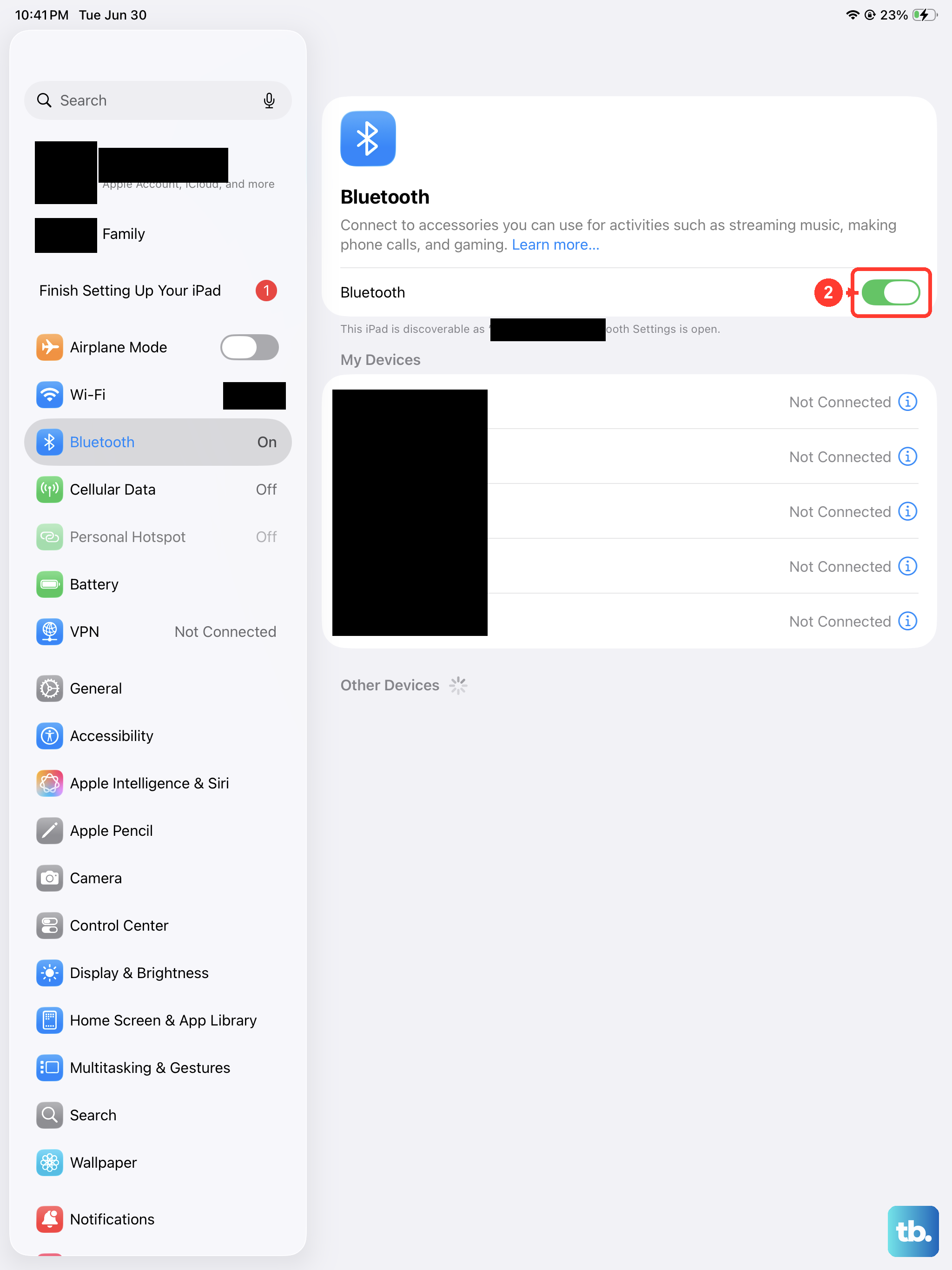
If your iPad Air M3 is connected to Bluetooth headphones, speakers, or even a car kit, incoming calls might ring through those devices instead of the iPad's speakers. Go to Settings > Bluetooth and toggle Bluetooth off. Then have someone call you to see if the iPad rings through its own speakers.
This is especially common if you frequently use AirPods or other wireless earbuds with your iPad. The iPad may route the call audio there even if the earbuds aren't in your ears.
Turn Off Silence Unknown Callers
iPadOS includes a feature called Silence Unknown Callers that sends calls from numbers not in your contacts straight to voicemail. If this is on, the iPad won't ring for those callers.
Go to Settings > Apps > Phone (or FaceTime if you use that for calls) and tap Silence Unknown Callers. Make sure it's turned off. This feature is useful for spam, but it can also block calls you actually want to receive.
Check for Blocked Contacts
It's possible that the person calling you is accidentally blocked. Go to Settings > Apps > Phone > Blocked Contacts (or FaceTime > Blocked Contacts). Scroll through the list and see if the contact is there. If so, tap "Edit" and unblock them.
This doesn't happen often, but when it does, it's an easy fix that takes seconds.
Disable Call Forwarding
If you use call forwarding through your carrier, incoming calls get redirected to another number and your iPad won't ring. Go to Settings > Apps > Phone > Call Forwarding and make sure it's off.
If you use Wi-Fi Calling or have multiple Apple devices, also check that your call routing settings are correct. You can do this in Settings > Apps > Phone > Wi-Fi Calling and Settings > Apps > Phone > Calls on Other Devices.
Force Restart Your iPad Air M3
A force restart clears temporary software glitches without erasing your data. This is a good next step if you've checked the basics and nothing has changed.
Press and quickly release Volume Up, then Volume Down, then press and hold the Top button until the Apple logo appears. This takes about 10 seconds. Let the iPad restart completely, then test the ringer.
Update to the Latest iPadOS
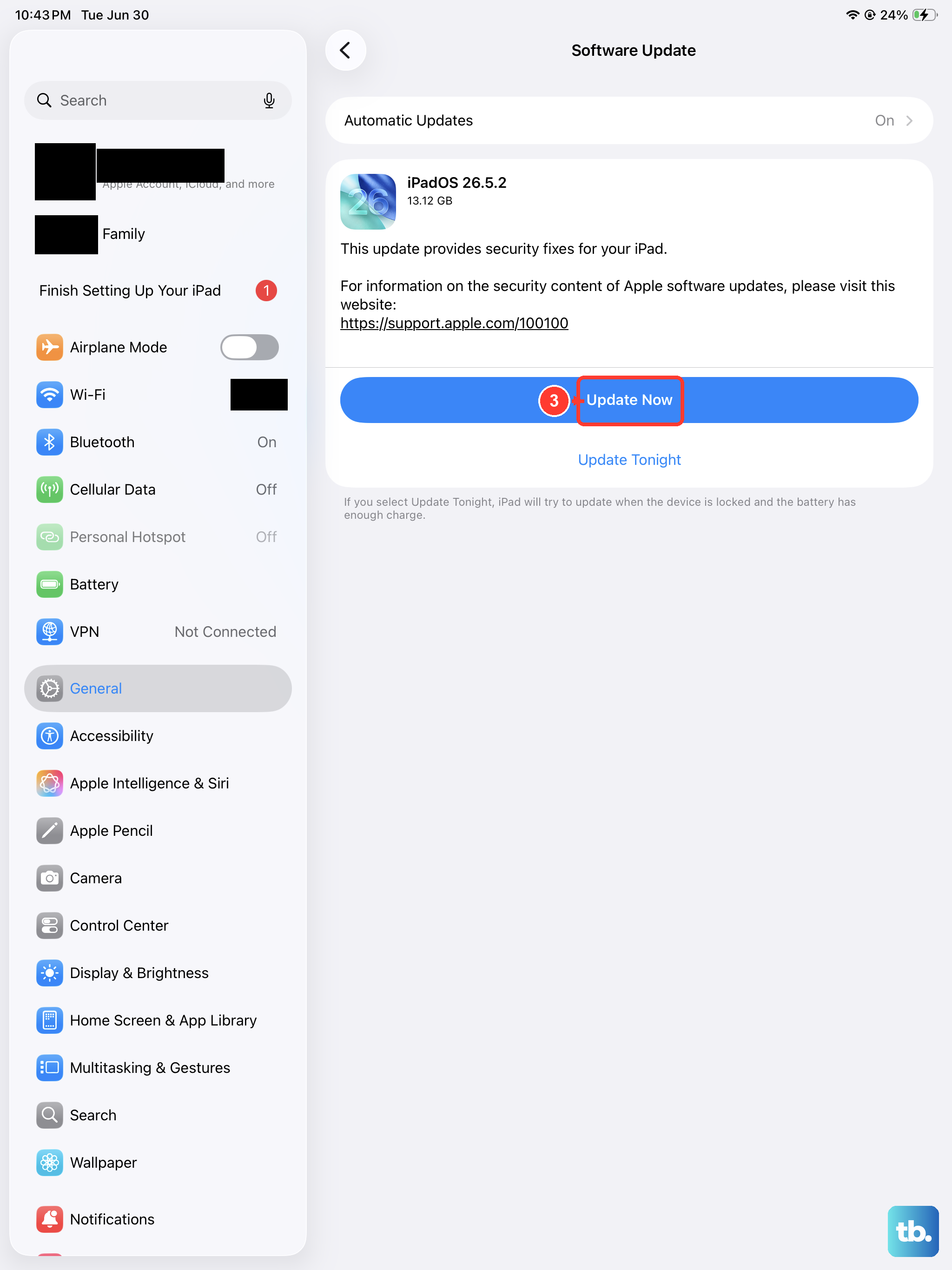
Software updates often include bug fixes for audio and calling issues. Go to Settings > General > Software Update. If an update is available, download and install it. Make sure your iPad has at least 50% battery and is connected to Wi-Fi before starting the update.
The iPad Air M3 runs iPadOS 18 out of the box, but Apple releases patches regularly. Keeping your iPad updated can prevent all sorts of weird audio behavior.
Reset All Settings
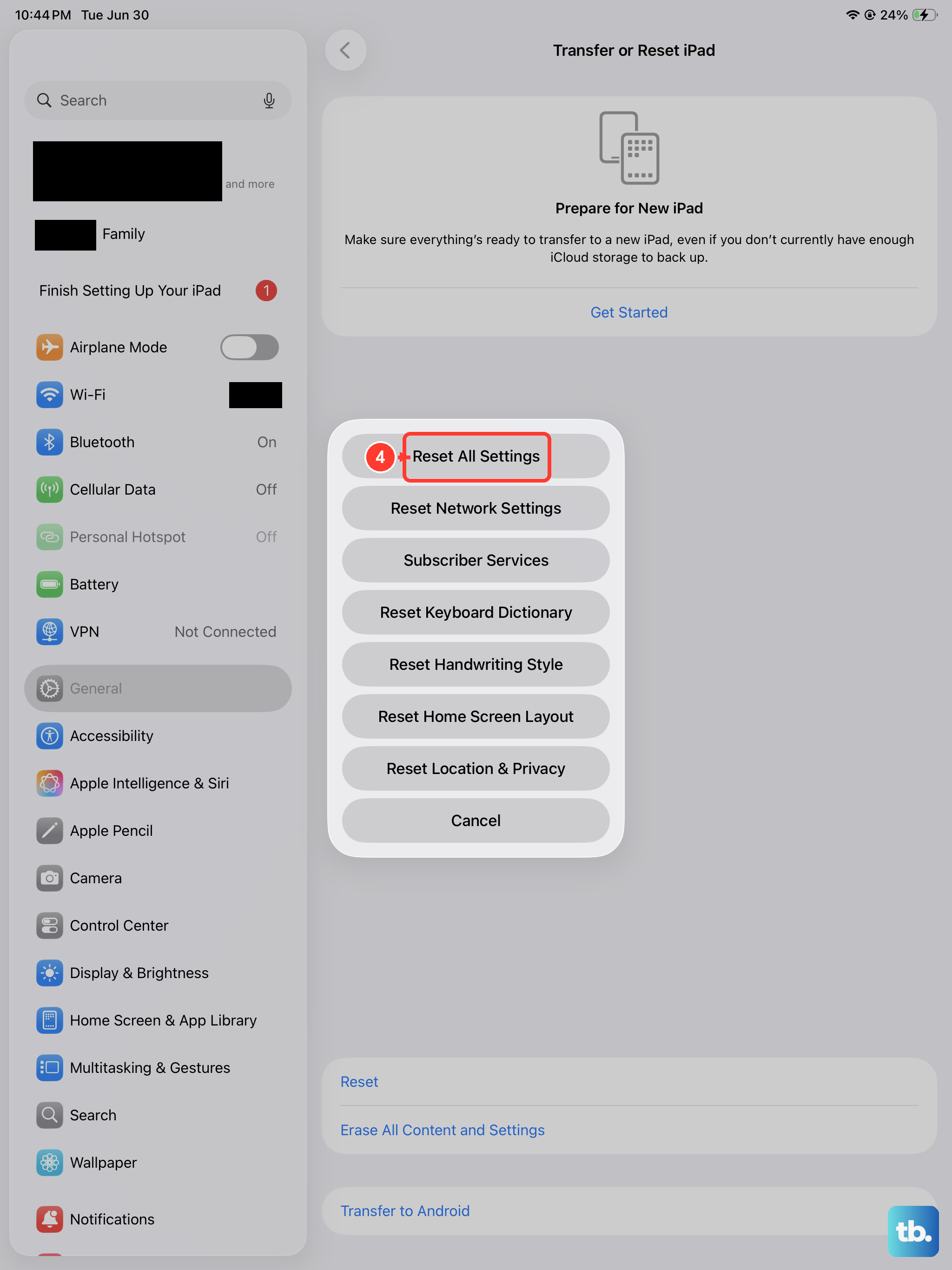
This option resets your customized settings, like Wi-Fi passwords, wallpaper, and accessibility preferences, but doesn't delete your apps, photos, or data. It often fixes ringing issues caused by corrupted settings.
Go to Settings > General > Transfer or Reset iPad > Reset > Reset All Settings. Enter your passcode when prompted and confirm. The iPad will restart, and you'll need to set up a few things like Wi-Fi and your wallpaper again.
Reset Network Settings
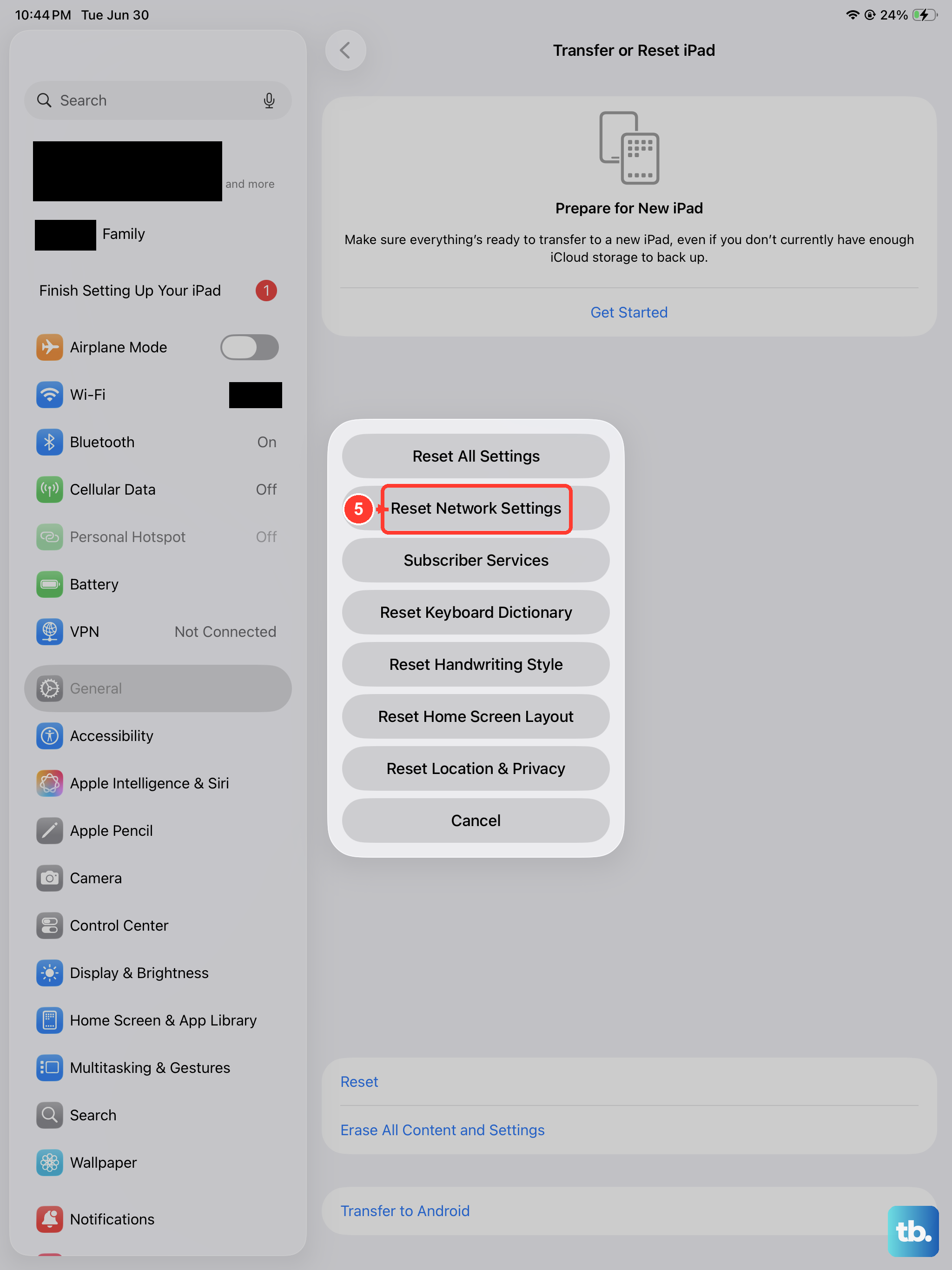
If the ringer works for built-in calls but not for FaceTime or third-party calling apps like WhatsApp and Skype, a network settings reset can help. Go to Settings > General > Transfer or Reset iPad > Reset > Reset Network Settings.
This clears saved Wi-Fi networks, Bluetooth pairings, and cellular settings. You'll have to reconnect to Wi-Fi and pair your Bluetooth devices again, so keep that in mind before doing this.
Erase All Content and Settings
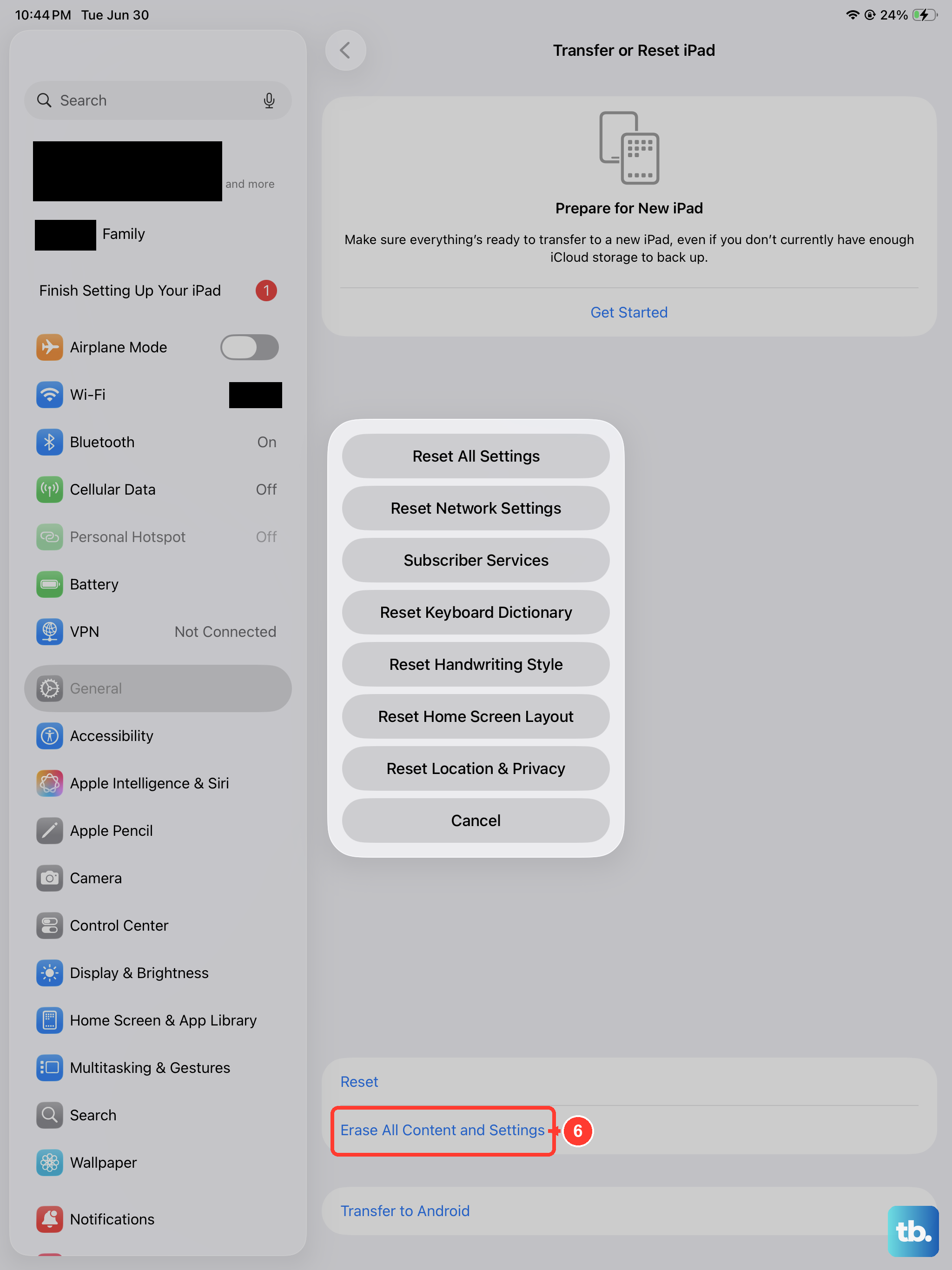
This is the nuclear option. Back up your iPad to iCloud or a computer first. Then go to Settings > General > Transfer or Reset iPad > Erase All Content and Settings. Enter your passcode and confirm.
After the reset, set up your iPad as new (don't restore from a backup right away) and test the ringer. If it works, the issue was in your backup data. You can then restore selectively.
Check App-Specific Notification Settings
For calls through FaceTime, WhatsApp, Skype, or other apps, the ringer depends on that app's notification settings. Go to Settings > Notifications, tap the app, and make sure sounds are enabled. Check that the alert style is set to "Lock Screen" or "Banners" instead of "None."
Each app can be individually silenced, so if calls from one app work but another doesn't, the problem is almost certainly in that app's notification settings. This is a common cause that's easy to overlook.