
So your iPad Air M3 won't charge. You've plugged it in, tried different cables, and maybe even restarted it once or twice. This is a common problem with iPads, and most of the time you can fix it yourself without a trip to the Apple Store.
The iPad Air M3 uses a USB-C port for charging, and it can pull up to 30W with the right adapter. But a bunch of little things can get in the way, from lint in the port to a finicky software setting. Let's walk through the fixes starting with the quickest.
Force Restart the iPad
This is the first thing to try. A force restart clears out temporary software glitches that could be blocking the charging connection. It takes about 30 seconds and fixes the problem more often than you'd think.
Press and quickly release the volume button closest to the Top button, then the one farthest from it, then press and hold the Top button until the Apple logo appears. Once it boots back up, plug it in and see if the charging indicator shows up.
Clean the USB-C Port
Lint and pocket debris love to pack into the USB-C port on the iPad Air M3. Over time, that gunk can prevent the cable from making a solid connection. Grab a flashlight and take a close look inside the port.
If you see lint or dirt, turn the iPad off first. Use a wooden toothpick or a plastic pick to gently scrape out the debris. Don't use anything metal, it can damage the contacts inside. You can also try a quick blast of compressed air from a safe distance. Tap the iPad gently with the port facing down to shake loose any particles.
After cleaning, plug in your charger. If the cable still feels loose or the connection is intermittent, the port might need a professional repair.
Try a Different USB-C Cable and Power Adapter
The iPad Air M3 ships with a 20W USB-C power adapter, and it can charge at up to 30W with a compatible PD charger. But not all cables and adapters are created equal. Cheap, non-certified accessories are a known cause of charging issues on this model.
Start by swapping out just the cable. Use an Apple-certified cable or a known good USB-C cable. Then try a different wall adapter, ideally one that supports USB-C Power Delivery at 20W or higher. Plug into a different wall outlet, or try a computer's USB-C port to rule out the power source. Also remove any thick or magnetic cases that might interfere with the connection.
If your iPad charges fine with a different cable and adapter, you've found the problem. Ditch the old ones.
Check Your Charging Settings
The iPad Air M3 has a feature called Schedule Charging that's designed to reduce battery aging. It can sometimes cause confusion if you plug your iPad in at night and expect it to charge immediately. The iPad might pause charging at 80% and finish up later based on your routine.
Go to Settings > Battery > Charging and take a look at the schedule. If you need a full charge right away, you can disable Schedule Charging here. Just keep in mind that it's a useful feature for long-term battery health. If you notice the charge doesn't start at all after plugging in, leave the iPad connected for 10 to 20 minutes and see if it wakes up.
Wait After a Deep Battery Discharge
If your iPad Air M3 ran its battery completely dead, it won't show any signs of life immediately when you plug it in. That's normal. Leave it connected to a wall charger (not a computer USB port) for at least 15 to 30 minutes. You should eventually see the battery icon or the charging indicator appear on the screen.
After deep discharge, the battery percentage displayed might be wrong for a little while. Give it some time to recalibrate. If nothing shows up after 30 minutes, try the force restart again while it's still plugged in.
Charge With the iPad Turned Off
Sometimes a background process or an app that's stuck is interfering with charging. Turn your iPad Air M3 completely off, then plug it in. If it starts charging normally, you know it's a software issue. This is also the fastest way to charge when you're short on time, no screen, no apps running, just pure power going into the battery.
Update iPadOS 18
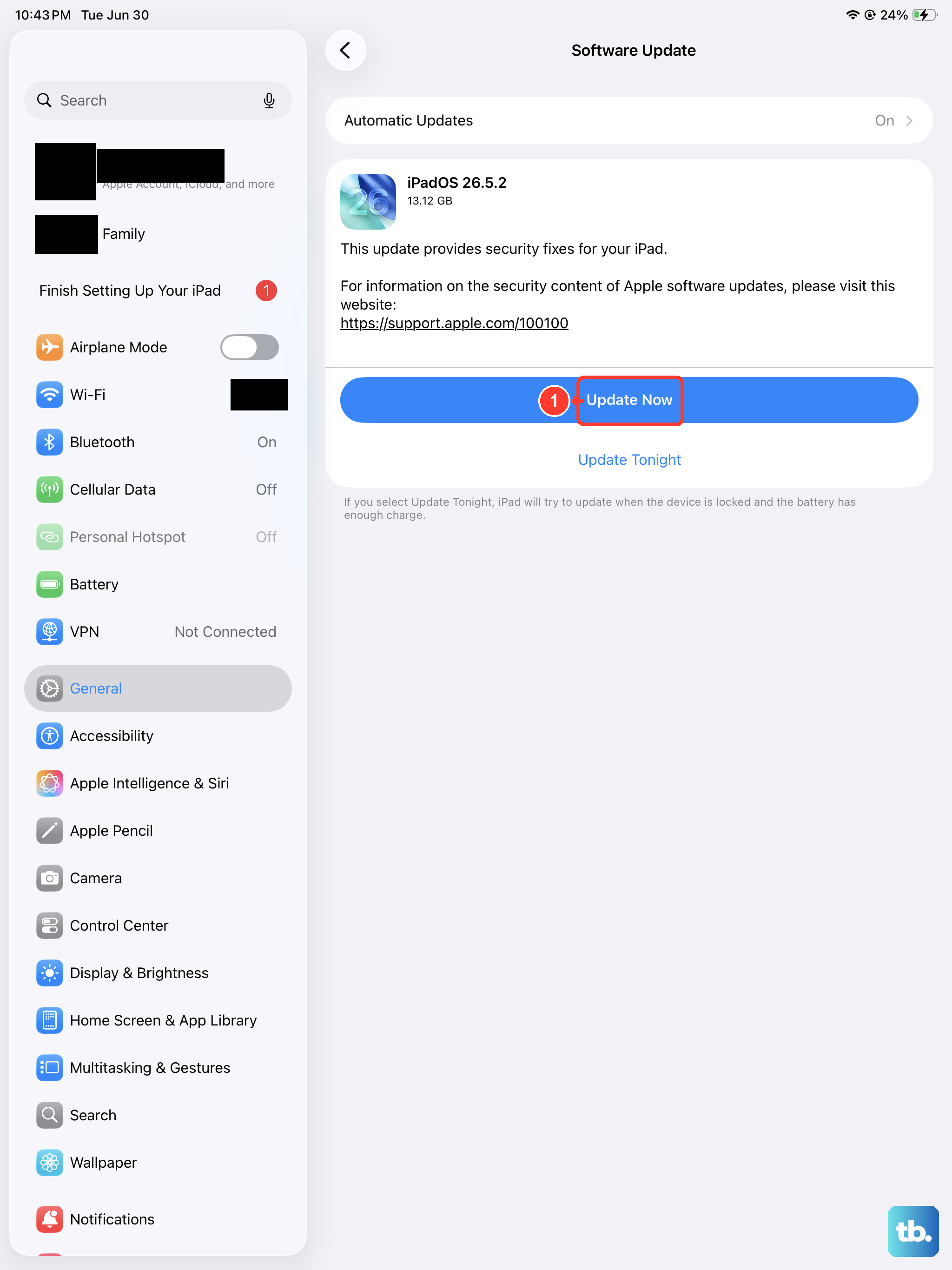
Apple regularly patches charging bugs in iPadOS updates. If you haven't installed the latest version, an older build might be the reason your iPad refuses to charge.
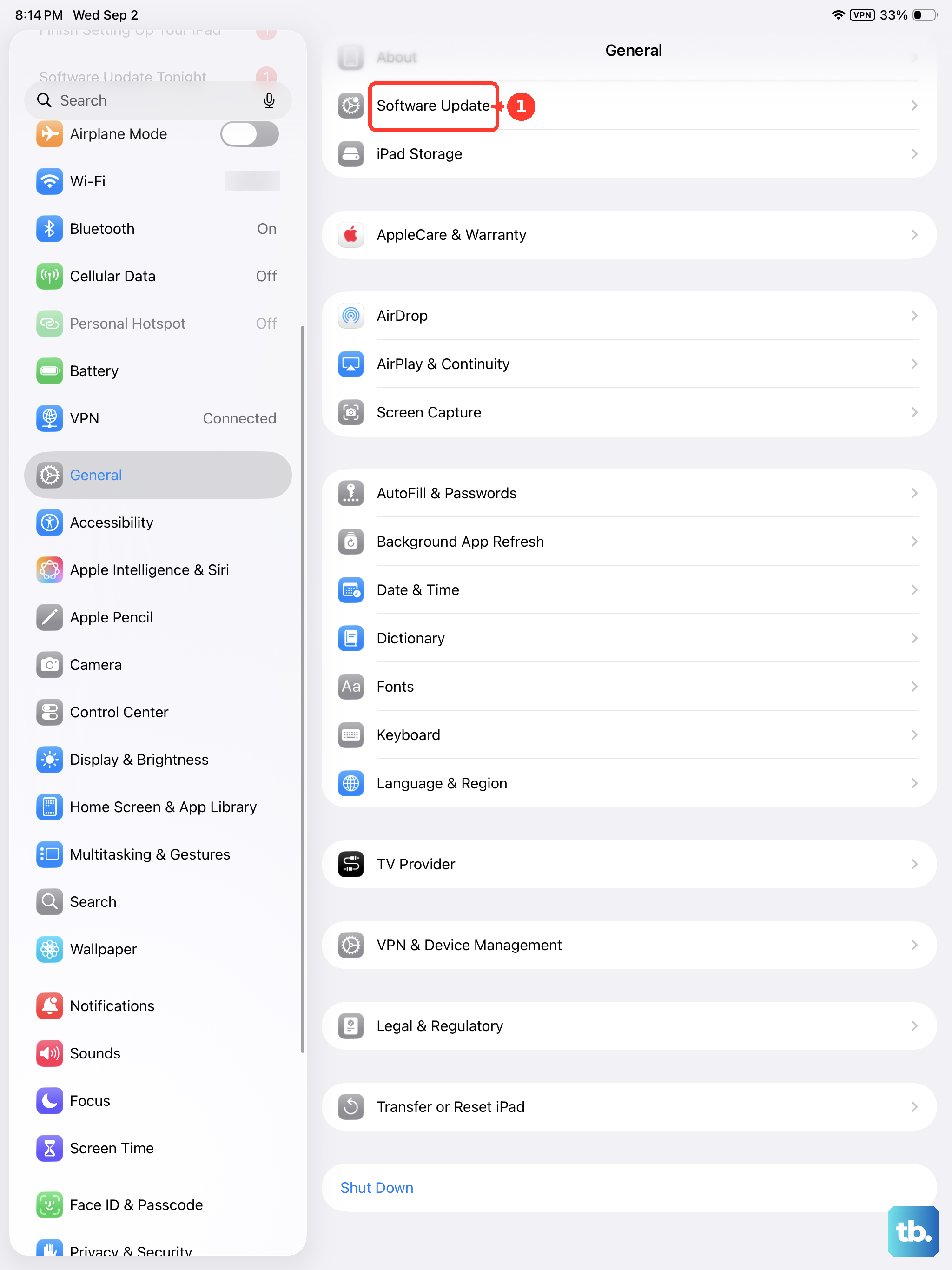
Go to Settings > General > Software Update and install any available updates. If the iPad won't turn on, you can update through a computer instead. Connect it to a Mac (Finder) or a PC with Apple Devices installed, and click Check for Update. You'll need a USB-C cable that supports data transfer, not just charging.
Restore the iPad as a Last Resort
If you've tried everything else and the iPad Air M3 still won't charge properly, a full restore can wipe out deep software corruption. Back up your data first because this erases everything.
To restore using Recovery Mode, turn off the iPad. Connect it to your computer with a USB-C cable. Press and quickly release the volume button closest to the Top button, then the one farthest from it, then press and hold the Top button. Keep holding the Top button until the recovery mode screen appears (a computer icon with a cable). In Finder or iTunes, choose Restore.
After the restore, test charging again. If it still doesn't work, you're looking at a hardware problem. The port or internal charging circuit might need service.