
GPS issues on the iPad Air M3 are almost always a software settings problem rather than a hardware failure. Before you assume the module is broken, run through these fixes in order. Most people find the solution in the first few steps.
Quick Fixes That Usually Do the Trick
Start with the basics. Open Settings > Privacy & Security > Location Services and make sure the toggle is green. If it's already on, turn it off, wait ten seconds, and flip it back on.
Restart the iPad. A standard restart clears temporary glitches that can confuse the GPS receiver. Press and hold the Top button and either volume button, then slide to power off. Wait 30 seconds, then press the Top button again to turn it back on.
If a normal restart doesn't help, do a force restart. Press and quickly release Volume Up, then Volume Down, then press and hold the Top button until the Apple logo appears. This is safe to do anytime and doesn't erase your data.
While you're at it, swipe down from the top-right corner to open Control Center and check that Airplane Mode is turned off. Airplane Mode disables all wireless radios, including GPS.
Check Which Apps Can See Your Location
iPadOS lets you control location access per app. Go to Settings > Privacy & Security > Location Services. Scroll through the list and tap the app that's having trouble (Maps, Google Maps, a navigation app, etc.). Make sure it's set to While Using the App or Always, depending on what the app needs.
For each app, you'll also see a Precise Location toggle. If it's off, the app can only see your approximate area. Turn it on for navigation and ride-sharing apps.
Disable Low Power Mode
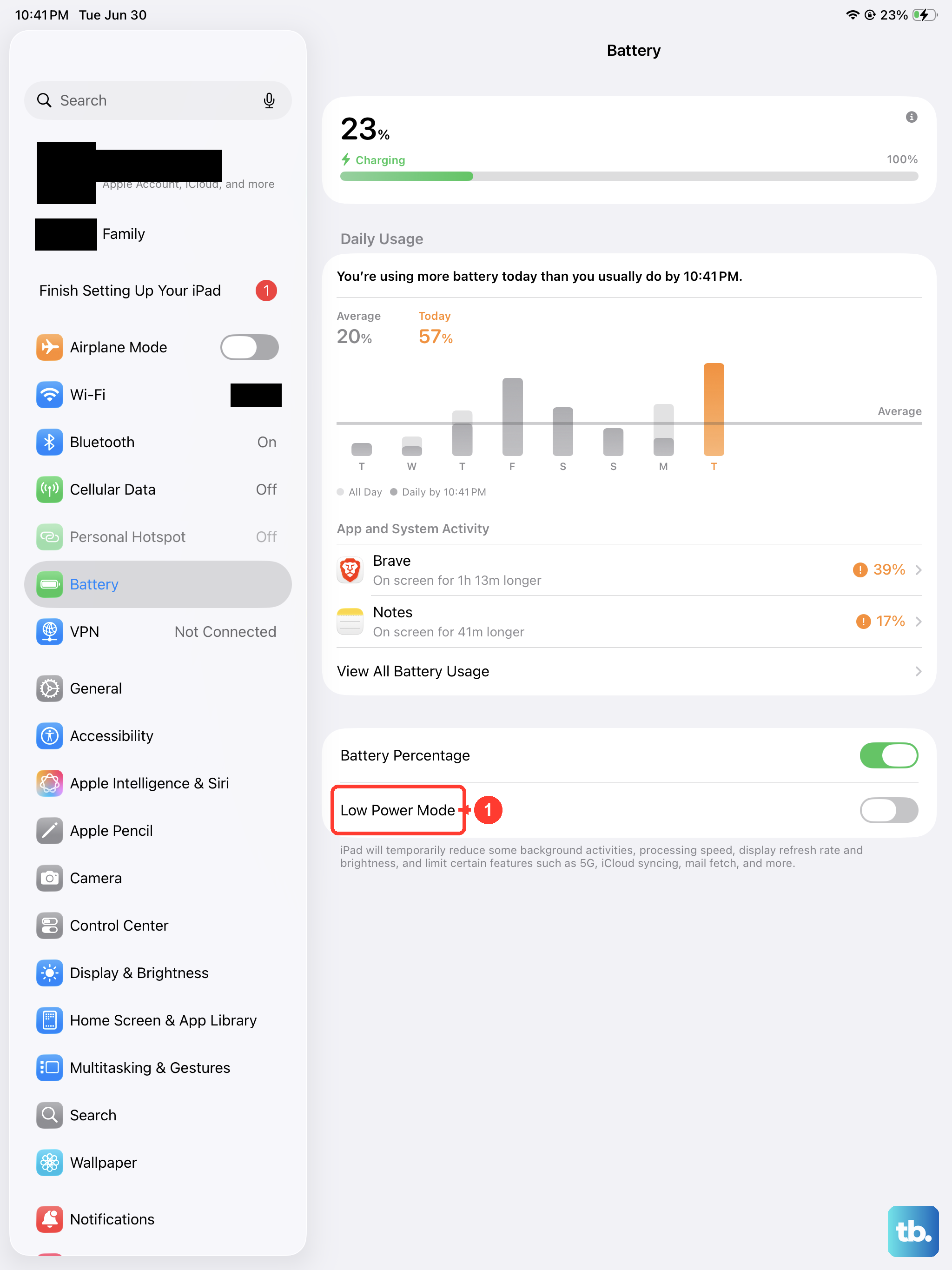
Low Power Mode reduces background activity to save battery, and that can slow down GPS acquisition. It doesn't turn off GPS entirely, but it can make the signal feel sluggish or inaccurate.
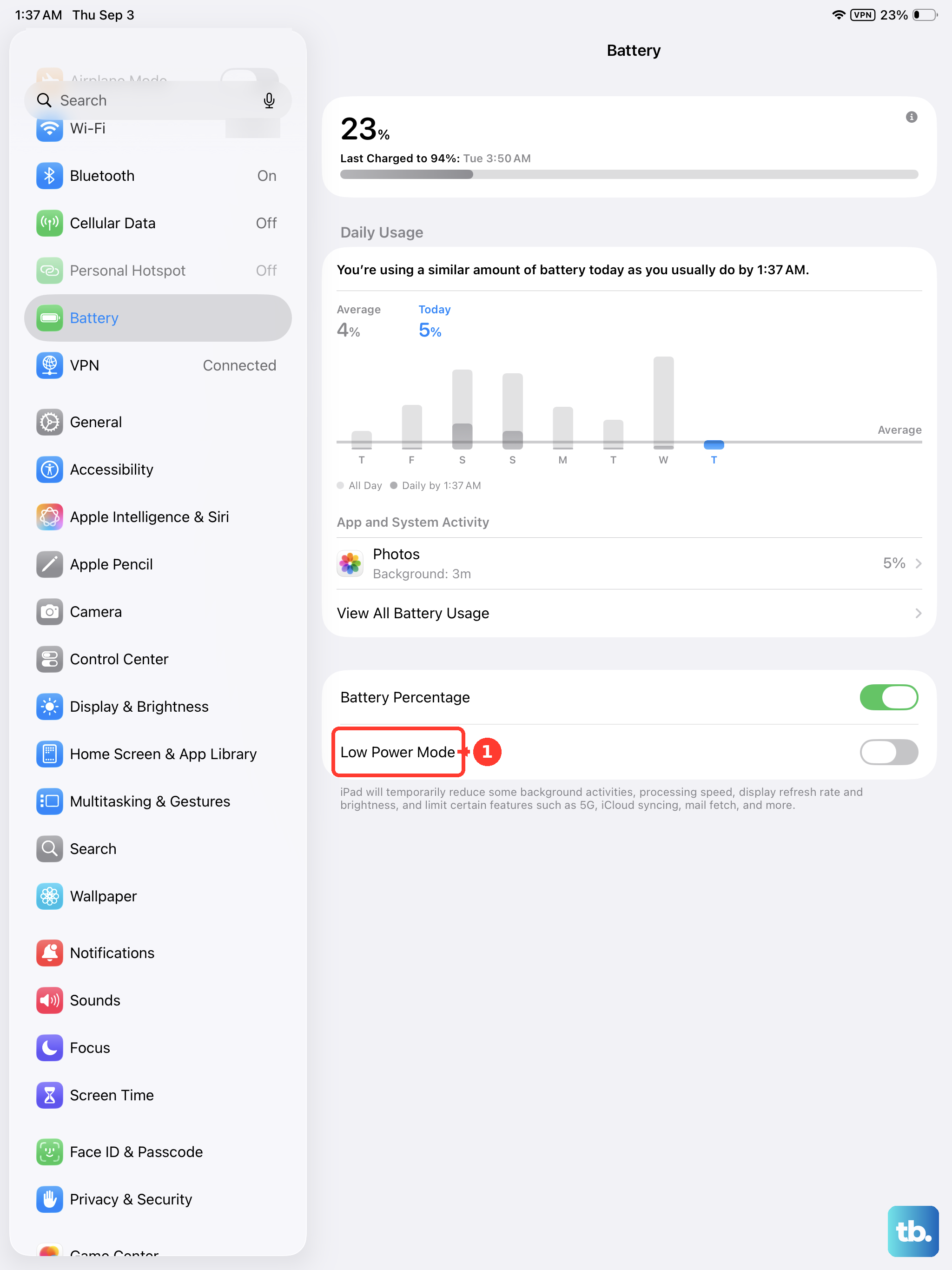
Go to Settings > Battery and toggle off Low Power Mode if it's on. Then try using a navigation app again. You'll see a noticeable difference in how fast the iPad locks onto satellites.
Update iPadOS and Your Apps
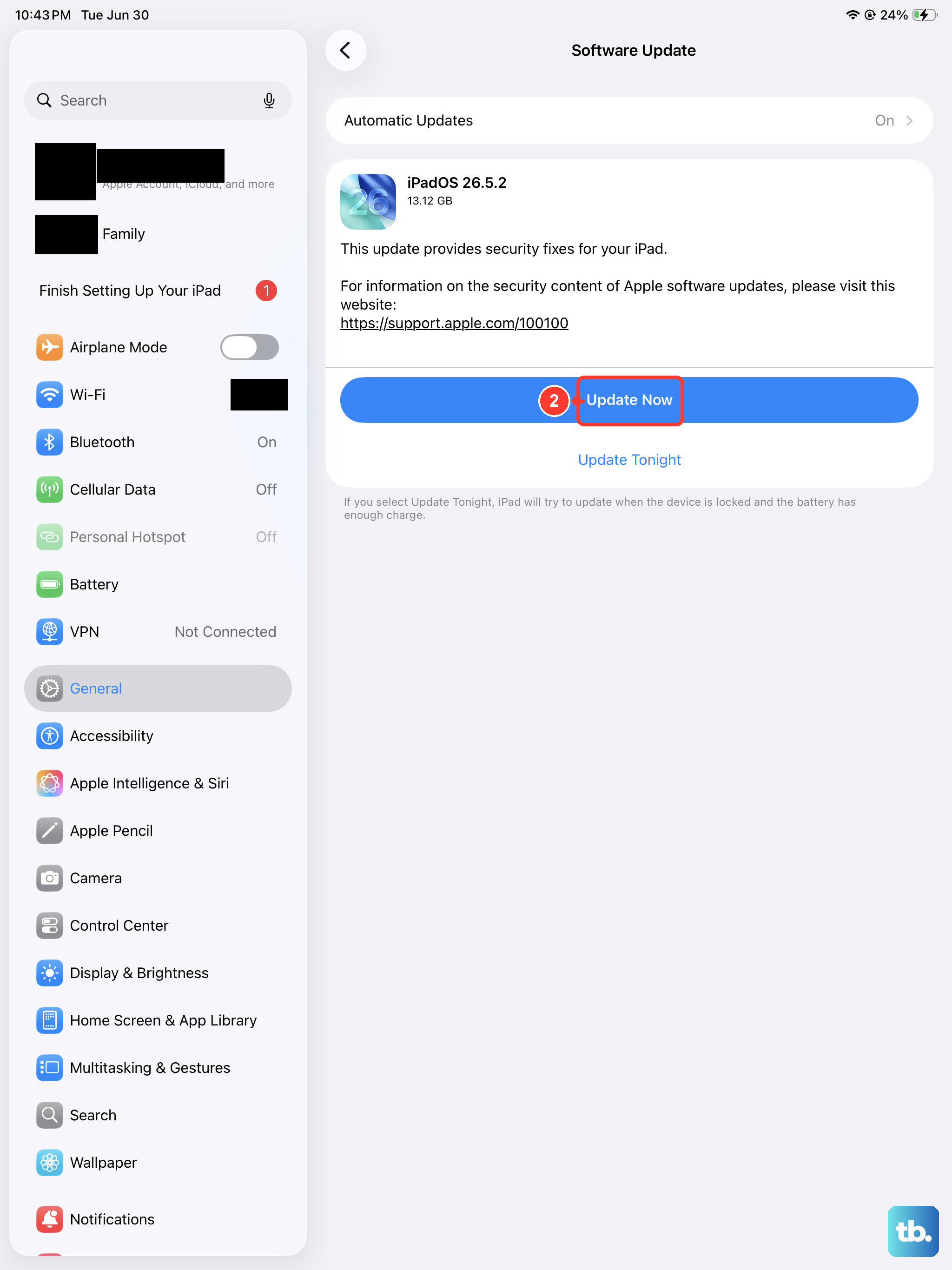
Apple frequently releases iPadOS updates that include GPS and location service fixes. Go to Settings > General > Software Update and install any pending update. The iPad Air M3 runs iPadOS 18, so make sure you're on the latest sub-version.
Also open the App Store, tap your profile icon, and scroll down to update any mapping or location-based apps. Outdated apps can have compatibility issues with the GPS hardware.
Reset Location & Privacy Settings
If you've been messing with location permissions for a while, resetting them to defaults can clear up hidden conflicts. Go to Settings > General > Transfer or Reset iPad > Reset > Reset Location & Privacy. This doesn't erase your data, it just resets all location and privacy preferences to factory defaults.
After the reset, you'll need to re-grant location access to your apps the next time they ask. It's a minor inconvenience for a clean slate.
Check GPS Diagnostics with a Third-Party App
Download a free GPS status app from the App Store, like "GPS Status & Toolbox" or "Satellite Tracker". Open it and look for a satellites screen. If the app shows zero satellites and can't see any, your GPS receiver may have a hardware problem. If it shows several satellites but the location is still off, the issue is likely software.
This test is the fastest way to separate a hardware fault from a settings issue.
Physical Obstructions and Cases
The iPad Air M3's GPS antenna is built into the casing. Thick cases, especially those with metal backs or magnetic mounts, can block the signal. Pop the iPad out of its case and try navigating outdoors with a clear view of the sky.
Avoid using GPS inside concrete buildings, underground parking garages, or near large metal structures. Even the best GPS receiver struggles in those environments.
Calibrate the Compass
Inaccurate GPS can sometimes be caused by an uncalibrated compass. Open the Compass app (it's built into iPadOS). If it asks you to tilt the screen to calibrate, follow the on-screen instructions. Move the iPad in a figure-eight motion a couple of times.
This doesn't directly fix GPS lock, but it improves the accuracy of the location data when combining GPS with other sensors.
Factory Reset as a Last Resort
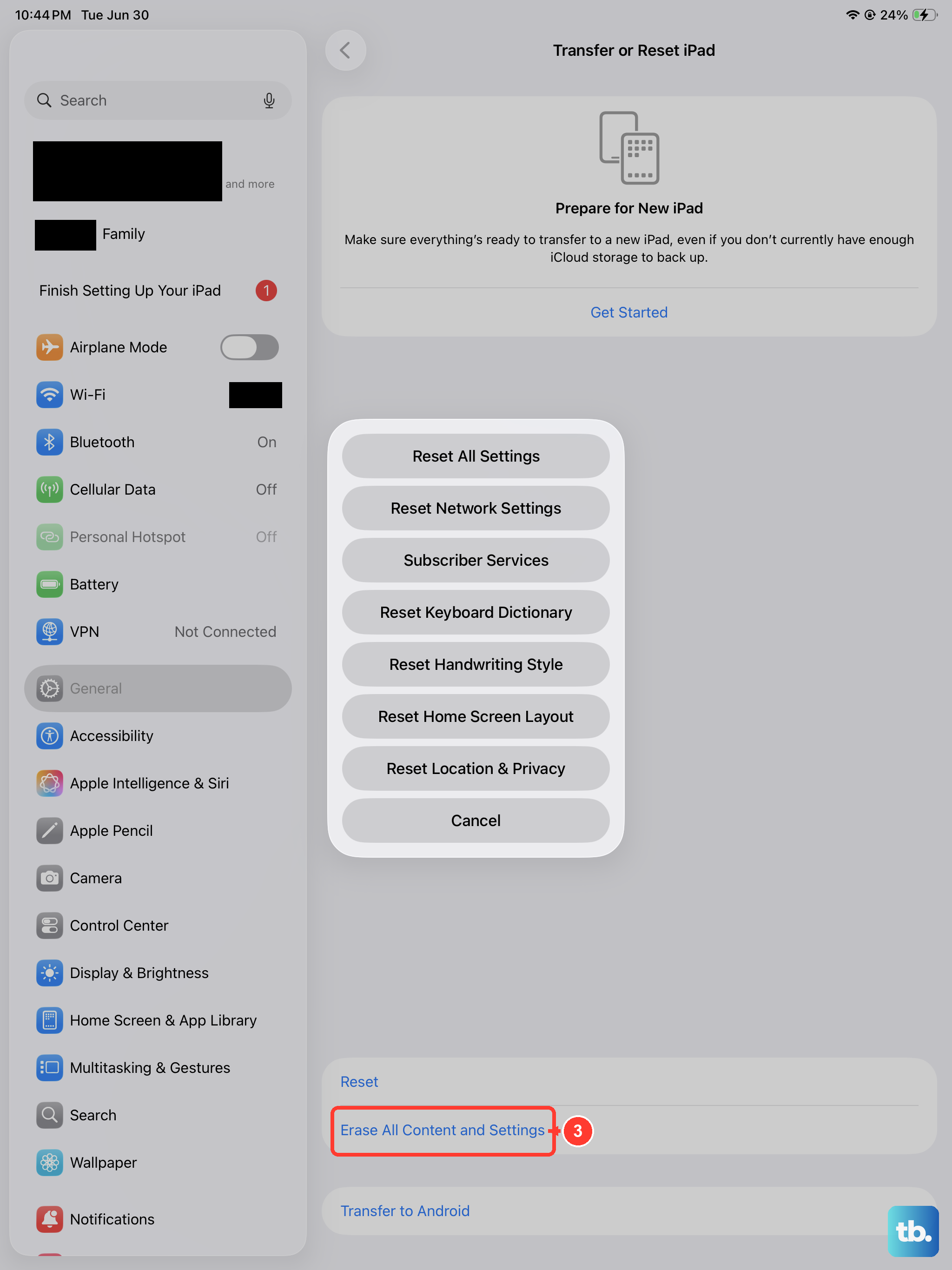
If nothing else works, a factory reset will wipe out any deeply buried software corruption. Back up your iPad first using iCloud or a computer. Then go to Settings > General > Transfer or Reset iPad > Erase All Content and Settings. Set it up as a new iPad and test GPS before restoring your backup, if GPS works clean but breaks after the restore, the problem is in your backup data.
One important note: the iPad Air M3 only has GPS hardware on cellular models. If you're using a Wi‑Fi only model, your iPad determines location through Wi‑Fi and Bluetooth, not true GPS. It will never show your location as accurately as a cellular model. Check your model number in Settings > General > About. If it doesn't have "Cellular" in the name, GPS isn't available.