
A frozen screen on your iPad Air M3 stops everything. Touches do nothing, buttons feel dead, and you're staring at a static image. It's almost always a software issue with iPadOS 18, and usually fixable without losing your stuff.
Force Restart Your iPad Air M3 (The Quick Fix)
This should be your first attempt. It's the iPad Air M3's hard reboot and it clears most temporary glitches. Press and quickly release Volume Up, then press and quickly release Volume Down, then press and hold the Top button until the Apple logo appears.
Don't let go early if the screen stays black for a moment. Keep holding the Top button for a solid 15-20 seconds. The iPad will restart normally and all your data remains untouched.
Let the iPad Finish What It Started
Sometimes the system is just overwhelmed. Processing a large file in an app, syncing a lot of photos, or a freshly installed iPadOS update can bog things down for a few minutes. If the screen isn't black and the back feels slightly warm, give it some time.
Interrupting this process with a force restart won't usually cause data loss, but letting it finish naturally is always the cleaner option. Patience here can save you from a headache.
Check the Charging Situation
The iPad Air M3 charges exclusively through its USB-C port. A deeply discharged battery is a common reason for the screen to stay black or the device to feel completely dead. Plug it into a power source, but make sure it's a good one.
This model can pull up to 30W of power. Using a small 5W or 12W charger meant for an iPhone might not provide enough juice to wake it up. If the battery was critically low, you might see a black screen for 10-20 minutes before any signs of life appear.
If you see Not Charging on the lock screen, that's a red flag for a bad cable or a weak adapter. Stick with a 20W or higher USB-C PD adapter and a certified cable. Cheap third-party accessories are a known source of headaches for the Air M3.
Close a Stuck App on the iPad Air M3
If you can still pull down the Control Center or switch between apps, the whole system isn't frozen, just one misbehaving app. Swipe up from the bottom of the screen and pause in the middle to open the App Switcher.
Swipe up on the problematic app to close it. Reopening it fresh usually clears the glitch. If that specific app keeps freezing, check for an update in the App Store or delete and reinstall it entirely.
Free Up iPad Storage
Low storage space is a common system-wide freeze trigger. iPadOS needs free room for cache files and memory management. If you can navigate the menus, go to Settings > General > iPad Storage to see what's taking up space.
If storage is down to 1 GB or less, offloading unused apps or clearing out large files can immediately improve stability. Aim to keep at least 2-3 GB free for reliable performance.
Update iPadOS on the Air M3
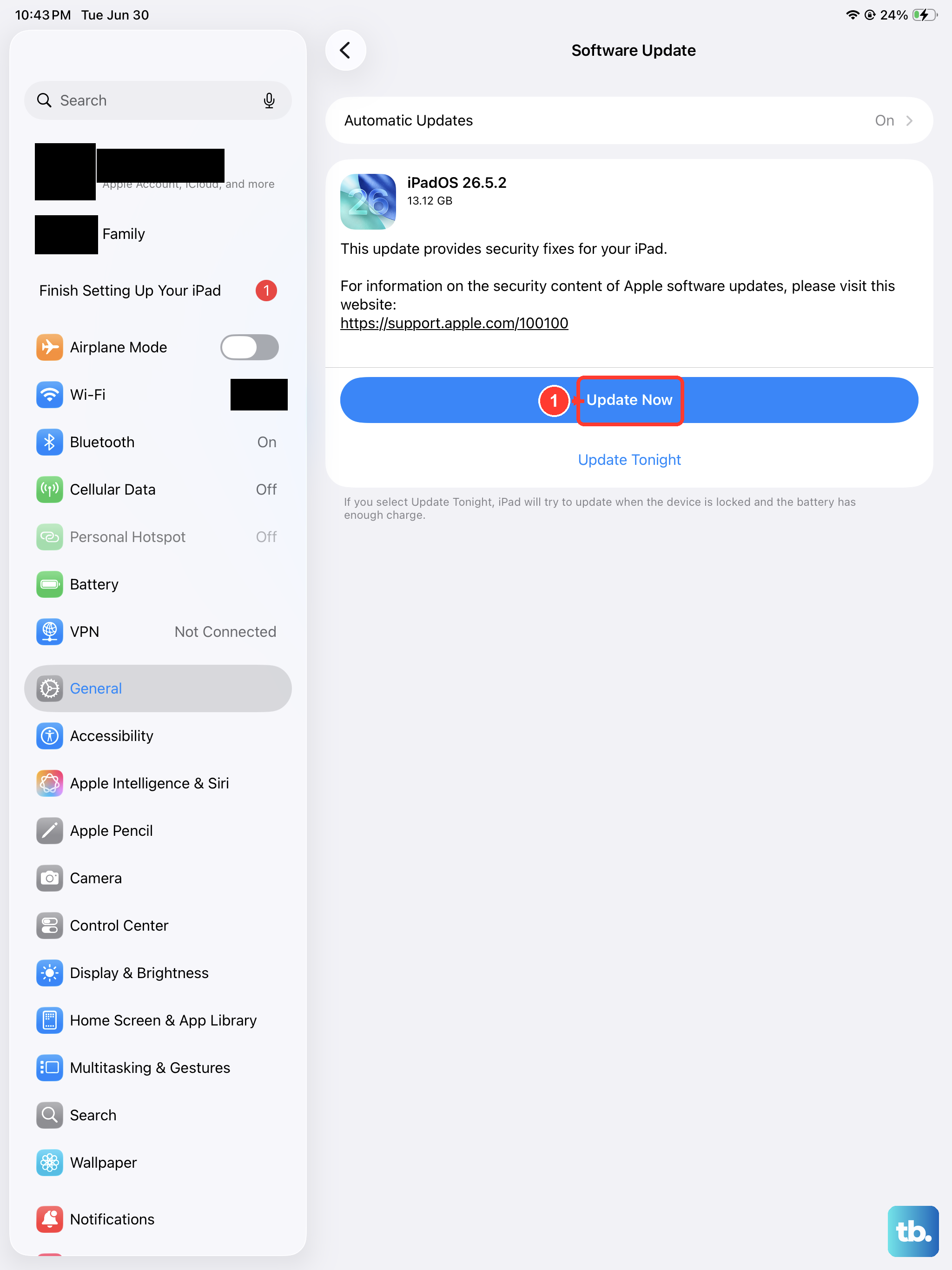
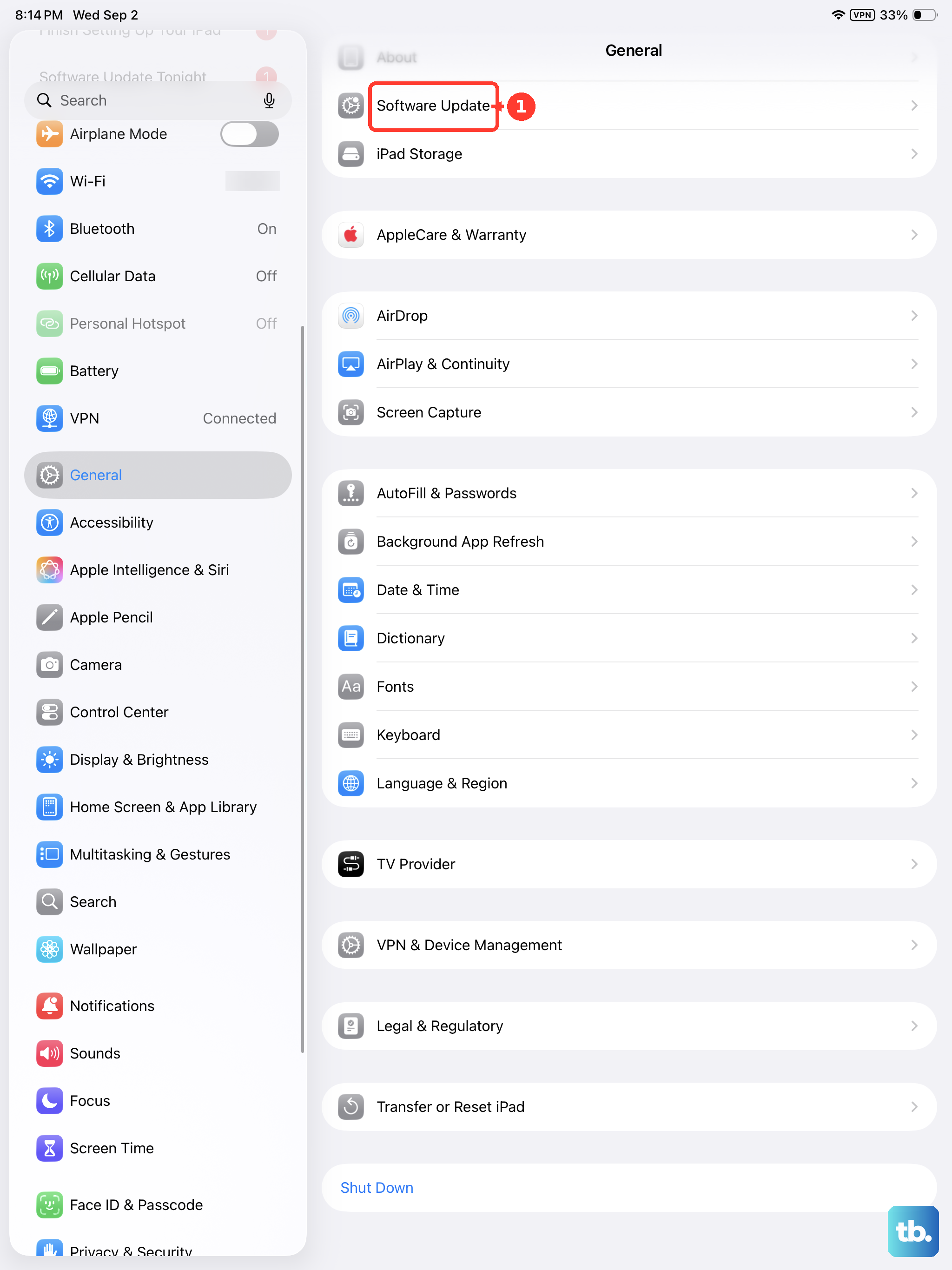
Bugs in iPadOS 18 can cause random freezing. Apple regularly pushes updates to fix these stability issues. If you can get the iPad running long enough, check Settings > General > Software Update.
If the iPad is too unstable to update normally, or the update itself froze halfway, use a computer. Connect the USB-C cable to a Mac or PC, force restart the iPad to enter recovery mode, and select Update from Finder or iTunes.
Reset Settings Without Erasing Data
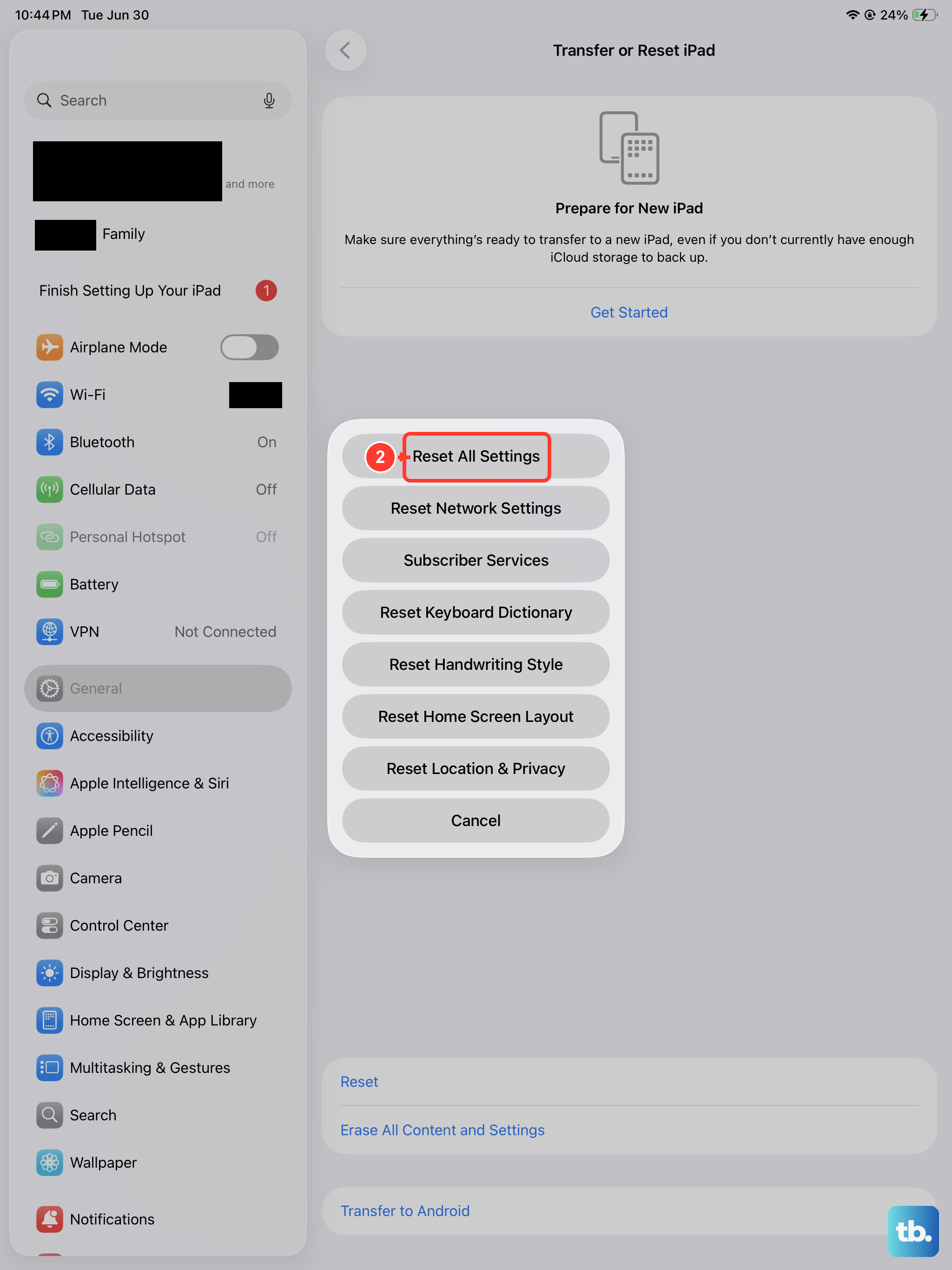
Corrupted settings files can build up over time and cause weird behavior like freezing. Reset All Settings is a powerful middle ground. It clears network preferences, wallpaper, and privacy settings.
It does not delete your apps, photos, or documents. Go to Settings > General > Transfer or Reset iPad > Reset > Reset All Settings to give the system a clean slate without a full wipe.
Use a Computer to Restore the iPad Air M3
For a screen that stays black no matter what you press, recovery mode is your next step. Connect the USB-C cable to a computer and put the iPad into recovery mode. Press and quickly release Volume Up, then Volume Down, then press and hold the Top button until you see a computer icon on the screen.
In Finder or iTunes, choose Update first. This reinstalls iPadOS but keeps your personal data intact. Only choose Restore if Update fails, since that erases everything on the iPad.
Watch for Overheating
The iPad Air M3's aluminum body can get warm during gaming, streaming, or charging. If it gets too hot, the screen may freeze as a protective measure. Remove it from its case and get it out of direct sunlight immediately.
Let it cool down on a table for 15-20 minutes before trying to use or charge it. Once it's back to a normal temperature, the touchscreen should start responding again.