
Is your iPad Air M3 stuck in portrait mode and refusing to rotate when you tilt it? This is a common hiccup on iPadOS 18, and it usually comes down to a setting that got flipped by accident or a temporary software glitch.
The fixes here are sorted from the quickest check to the deeper resets. Start at the top and work your way down. In my experience, most people solve it within the first two steps.
Check the Rotation Lock in Control Center
The rotation lock is the number one culprit. iPadOS 18 puts a toggle for it right in Control Center, and it's easy to bump while swiping.
Swipe down from the top-right corner of the screen to open Control Center. Look for the padlock icon with a curved arrow around it (that's the Rotation Lock button). If it's highlighted or filled in, tap it to turn it off. You'll see the icon change to an unlocked state, and your screen should immediately start rotating as you tilt the iPad.
If you don't see the lock icon, tap the plus button in the top-left corner of Control Center, then add the Rotation Lock control to your panel so it's always visible.
Turn On Home Screen Rotation
Even with rotation lock off, your iPad's Home Screen might refuse to rotate if you haven't told it to. iPadOS keeps this setting separate from the general rotation lock.
Open Settings > Display & Brightness. Scroll down and make sure the switch for Rotate Home Screen is turned on (green). If it's off, your Home Screen will stay in portrait no matter what, even though apps will rotate normally. Toggle it on and test the Home Screen by turning the iPad sideways.
Restart the iPad Air M3
A quick restart clears out minor software hiccups that can mess with the accelerometer and rotation logic. Don't skip this step even if it sounds basic.
Press and hold the Top button and either volume button until the power-off slider appears. Drag the slider to turn off, wait about 30 seconds, then press and hold the Top button again until the Apple logo shows up.
Force Restart (No Data Loss)
If a normal restart doesn't do it, a force restart is the next step. This doesn't erase any data, it just forces the hardware to power cycle completely.
Press and quickly release Volume Up, then Volume Down, then press and hold the Top button until the Apple logo appears. Let go when you see the logo. Wait for the iPad to boot back up and test rotation in an app like Safari or Notes.
Test Auto-Rotate in Different Apps
Not every app supports landscape mode. If auto-rotate works in Safari but not in your reading app or game, the app itself might be locked to portrait.
Open a few built-in apps: Safari, Photos, Settings. Tilt the iPad. If those rotate fine but a third-party app doesn't, check that app's settings (some have their own orientation lock). If the problem started after installing a new app, try uninstalling it to see if that fixes things.
Update iPadOS
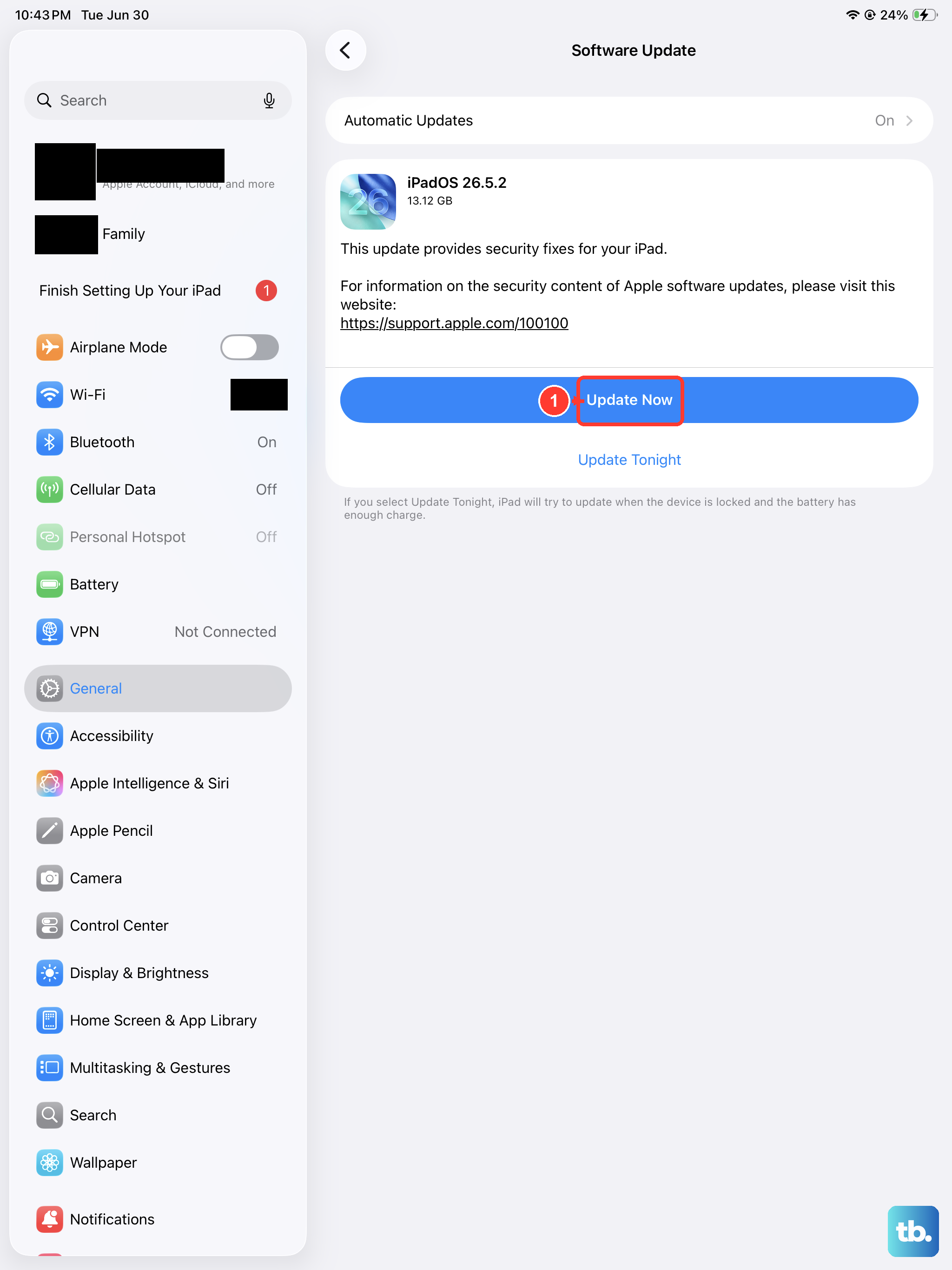
Apple regularly pushes updates that squash rotation-related bugs. If your iPad Air M3 is running an older version of iPadOS 18, a software update might be all you need.
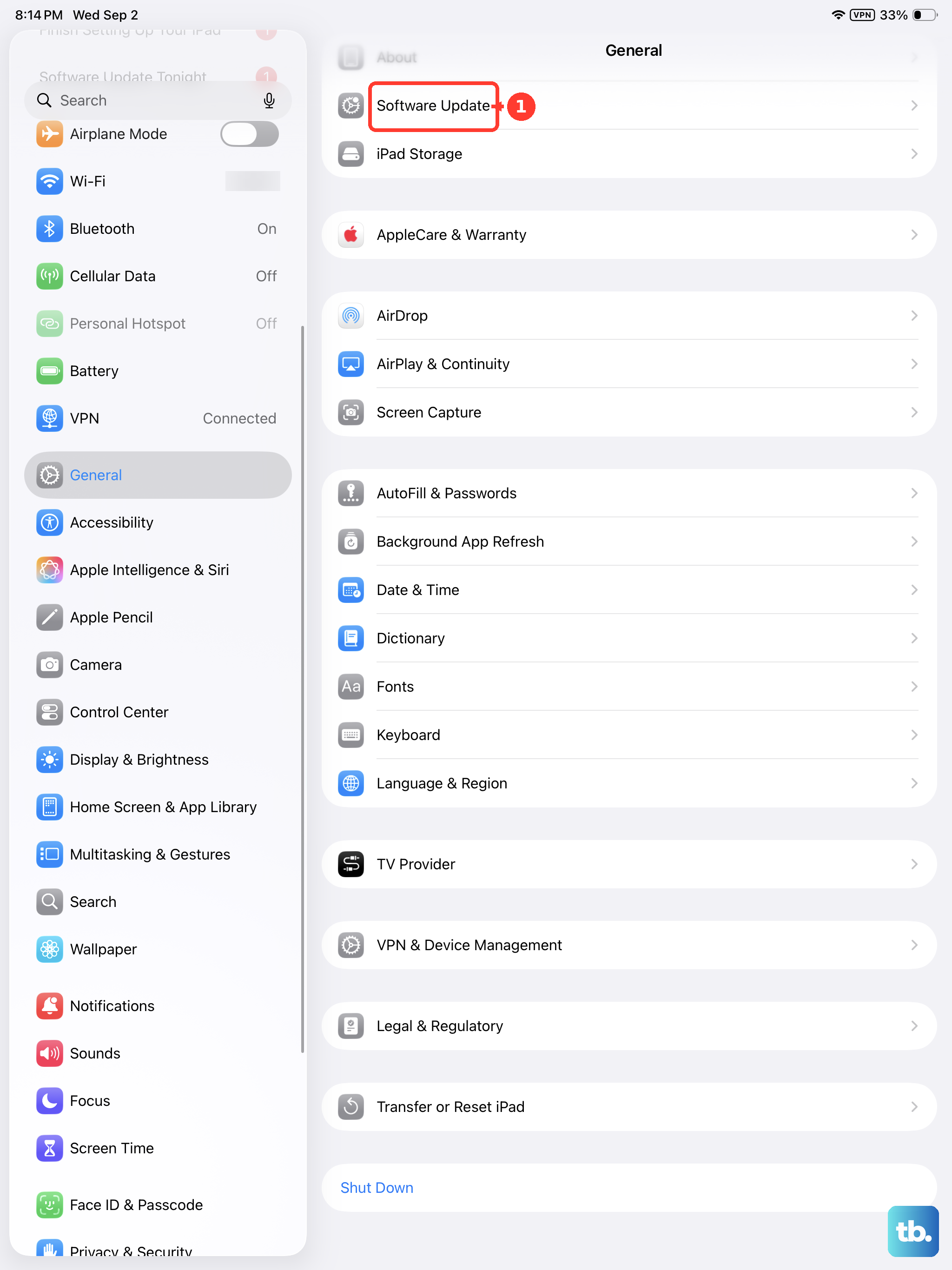
Go to Settings > General > Software Update. If an update is available, tap Download and Install. Make sure your iPad is plugged into power and connected to Wi-Fi during the process. After the update completes, test rotation again.
Reset All Settings
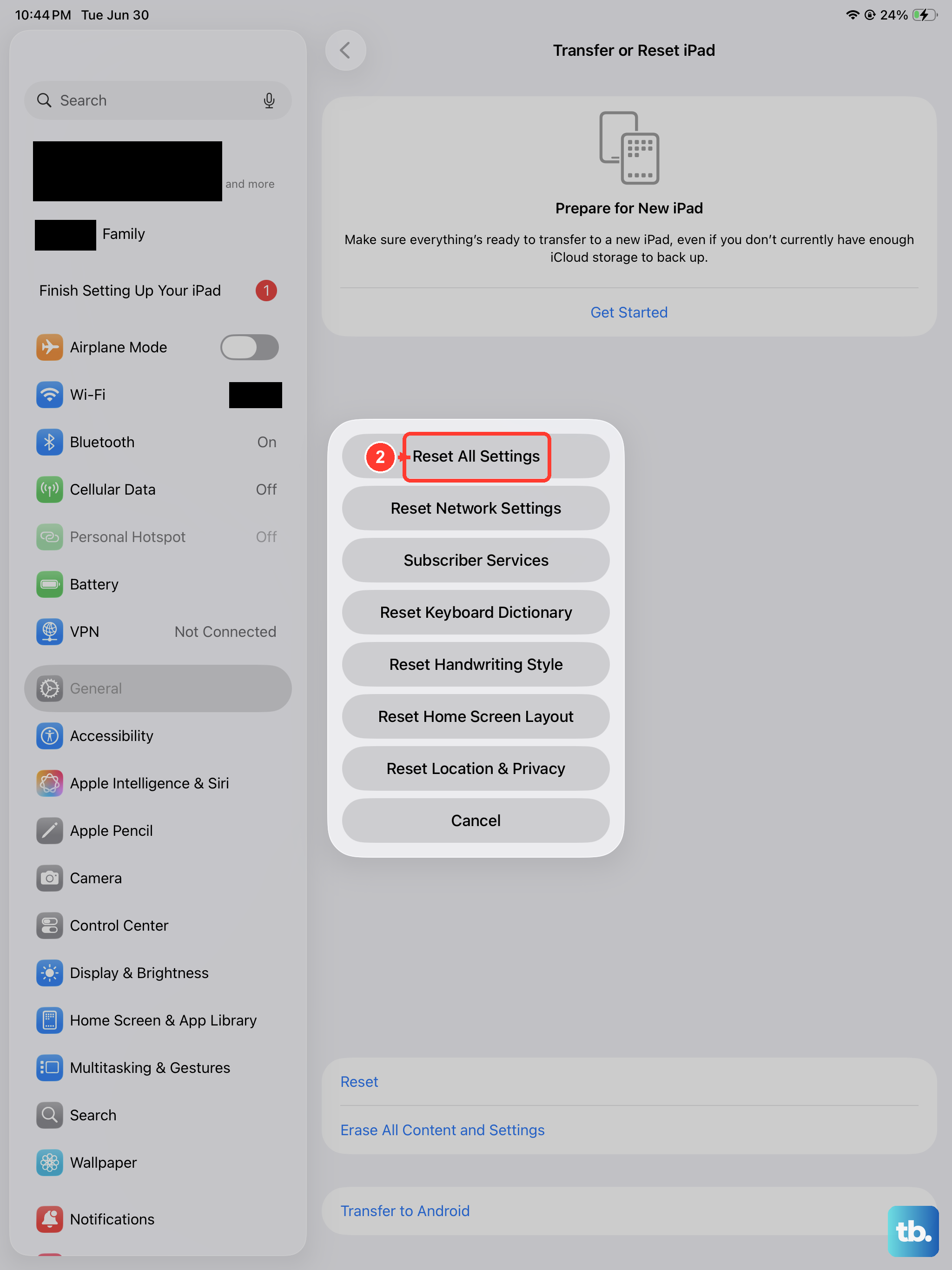
This one is a bit more involved but won't delete your apps, photos, or data. It resets system preferences like Wi-Fi passwords, wallpaper, and orientation-related settings back to their defaults.
Open Settings > General > Transfer or Reset iPad > Reset > Reset All Settings. Your iPad will restart and you'll need to re-enter Wi-Fi passwords, but your files and apps stay put. After the restart, check Control Center to make sure rotation lock is off and test rotation.
Remove Magnetic Cases or Accessories
The iPad Air M3 uses magnets for accessories like the Magic Keyboard and smart covers. Strong magnets near the sides can sometimes confuse the orientation sensor, making the iPad think it's in a specific position.
Take your iPad out of its case or detach any magnetic accessory. Try rotating the bare iPad. If it works, the case or accessory is interfering. You may need a different case that doesn't cover the side magnets as tightly, or make sure the accessory isn't folded into a position that triggers a portrait lock.