
You're trying to stream a show or get some work done on your iPad Air, and the Wi-Fi keeps dropping out. It's incredibly frustrating, especially on a brand-new 2026 model. This is a common issue across iPadOS, but the good news is there are several straightforward things you can try to get a stable connection again.
Toggle Wi-Fi and Restart Your iPad
Let's start with the simplest fix. Swipe down from the top right corner of your screen to open Control Center. Tap the Wi-Fi icon to turn it off, wait about ten seconds, then tap it again to turn it back on. This forces your iPad to drop the current connection and re-scan for networks, which often clears up a temporary glitch.
If that doesn't help, restart your iPad Air. The process is a bit different since there's no Home button. Press and quickly release the Volume Up button, then press and quickly release the Volume Down button. Finally, press and hold the Top button until you see the Apple logo appear on the screen.
Forget the Network and Rejoin
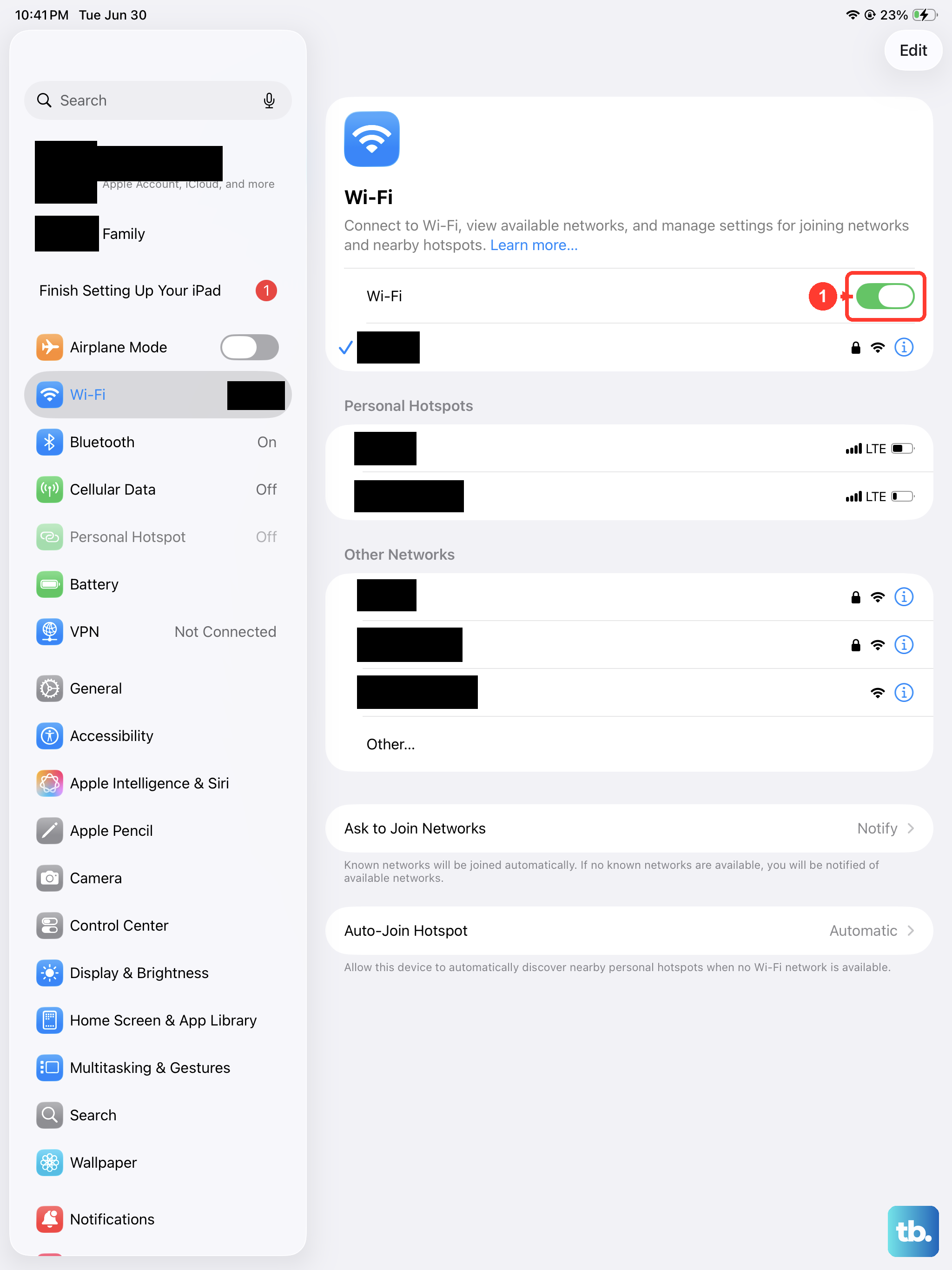
Your iPad might be holding onto outdated or slightly corrupted information for your home network. To clear this out, go to Settings > Wi-Fi. Tap the blue information icon (i) next to your network's name. Then, tap Forget This Network and confirm.
Now, go back to the list of available networks, select yours again, and re-enter the password. I've seen this fix work when a router password was changed but the iPad didn't get the memo, causing it to fail silently.
Check for iPadOS Updates
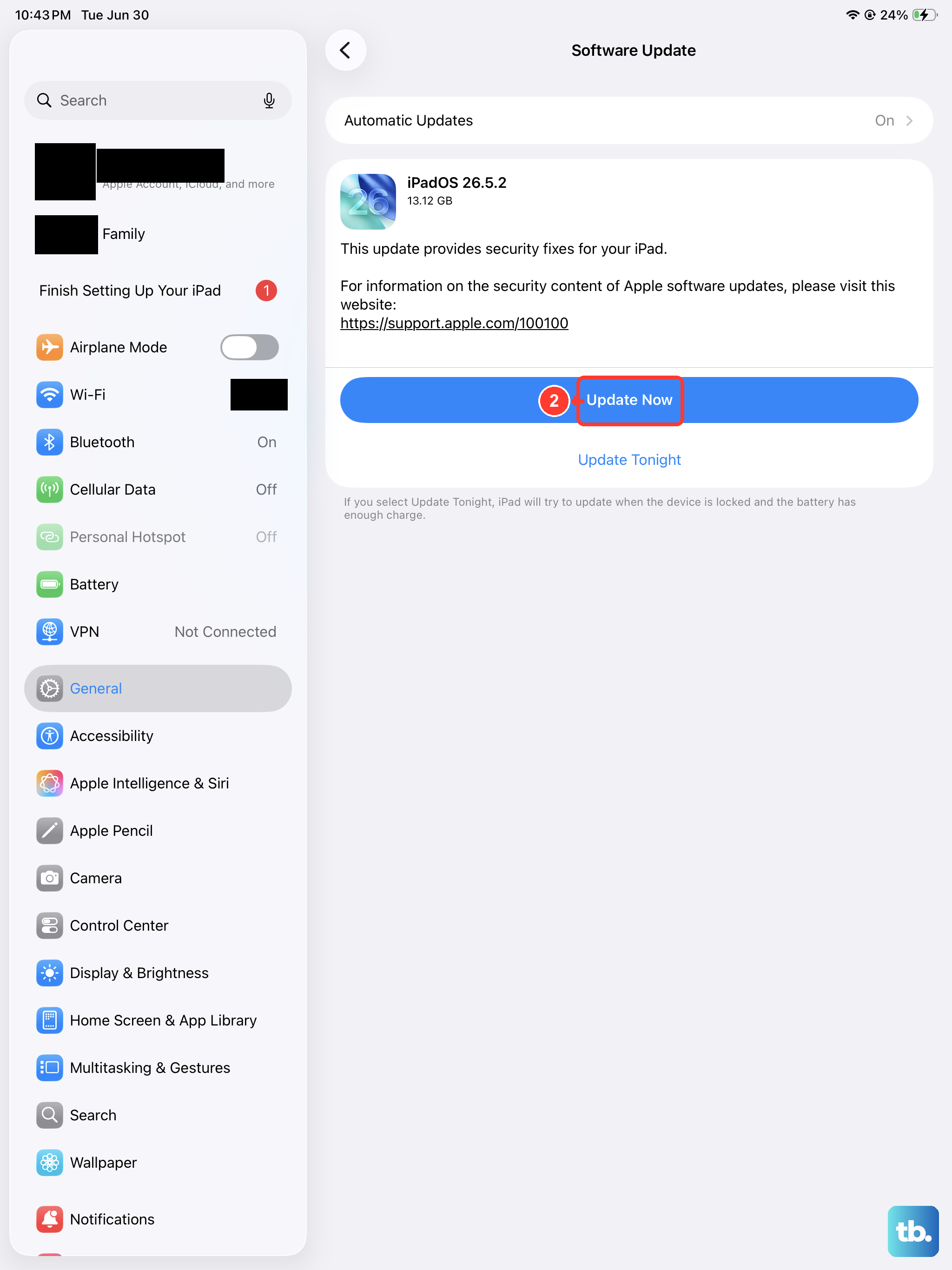
Apple regularly releases updates for iPadOS that include bug fixes for connectivity issues. Since you're on a 2026 model running iPadOS 26, it's a good idea to make sure you have the latest version installed.
Head to Settings > General > Software Update. If an update is available, install it. These updates often contain patches specifically for Wi-Fi stability, so this is a step you shouldn't skip.
Disable Wi-Fi Networking Services
iPadOS has some background features designed to improve location accuracy and connectivity, but they can sometimes cause problems. It's worth turning them off to see if your connection stabilizes.
Go to Settings > Privacy & Security > Location Services. Scroll all the way to the bottom and tap System Services. Here, turn off the switch for Networking & Wireless. This stops your iPad from using Wi-Fi hotspots for location data, which can eliminate a source of interference.
Reset Your Network Settings
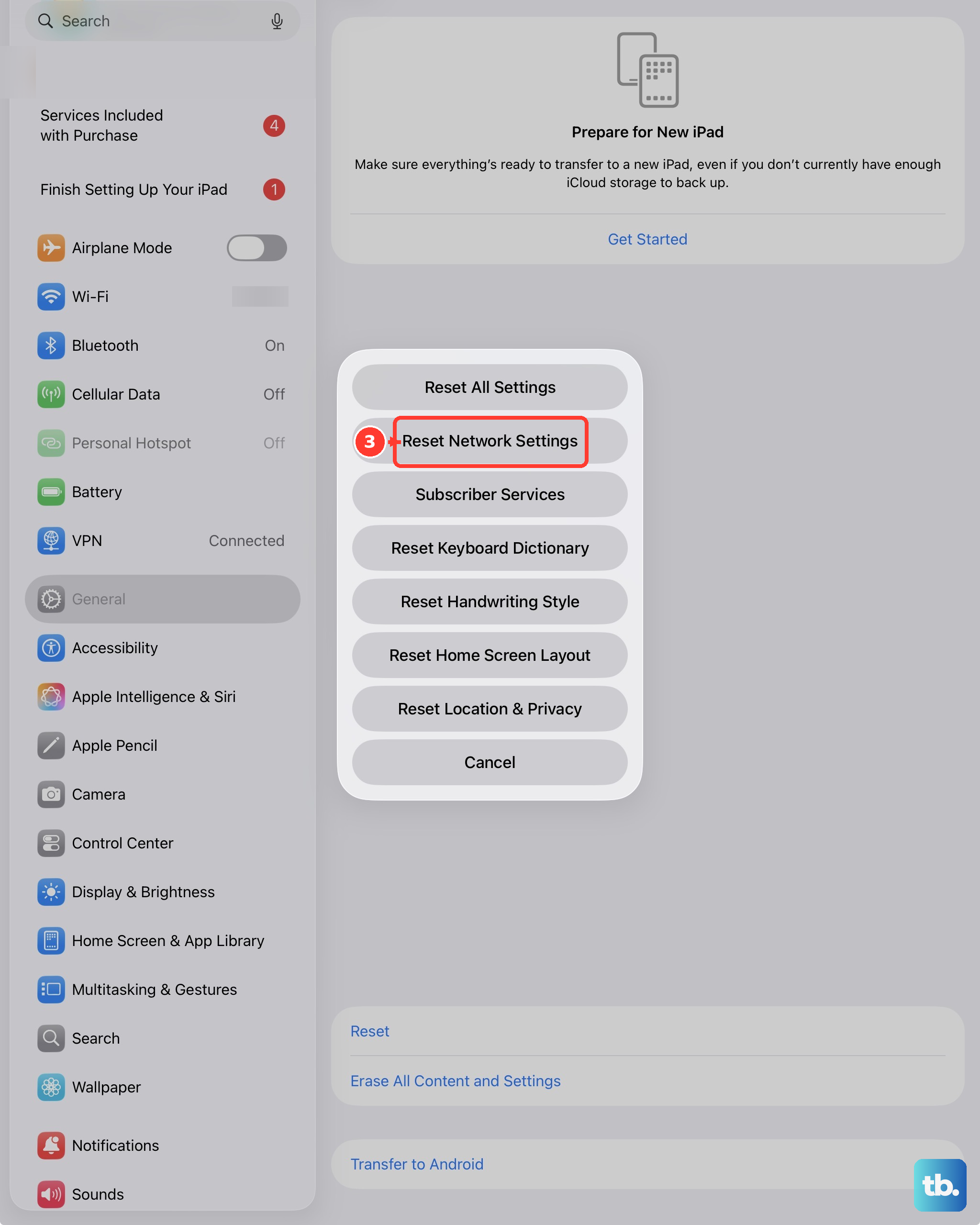
This is a more thorough step that resets all network-related configurations back to their defaults. It will erase all saved Wi-Fi networks and passwords, Bluetooth pairings, and any custom VPN or APN settings you've configured.
To do this, open Settings > General > Transfer or Reset iPad. Tap Reset, and then choose Reset Network Settings. Your iPad will restart, and you'll need to reconnect to your Wi-Fi network and re-pair any Bluetooth devices afterward.
Check Your Router and Its Placement
The issue might not be your iPad at all. A simple router restart can work wonders. Unplug your router and modem from power, wait a full minute, then plug the modem back in. Once it's fully online, plug the router back in.
Also, consider where your iPad is in relation to the router. Thick walls, large metal objects, and even some electronics like microwaves or cordless phones can weaken the signal. Try moving closer to the router to see if the drops stop.
Review Your Wi-Fi Router's Settings
If you're comfortable logging into your router's admin page, there are a couple of settings to check. First, ensure your router's firmware is up to date, as outdated firmware can cause compatibility issues.
Second, some users have reported better stability with Apple devices when their router uses WPA2/AES encryption instead of the older WPA or mixed modes. You can also try changing the Wi-Fi channel on your router, as interference from a neighbor's network on the same channel can cause drops.
Turn Off Private Wi-Fi Address
This is a privacy feature in iPadOS that uses a unique MAC address for each Wi-Fi network. In rare cases, it can cause connection instability with certain routers. You can try disabling it for your home network.
Go to Settings > Wi-Fi and tap the blue (i) icon next to your network. Toggle off Private Wi-Fi Address. Your iPad will disconnect. Reconnect to the network, and it will now use its real MAC address, which sometimes resolves persistent dropping issues.
Check for VPN or Content Blocker Interference
If you use a VPN app or a Safari content blocker, try temporarily disabling it. These apps work by routing or filtering your network traffic, and a bug in the app can easily disrupt your Wi-Fi connection.
For a VPN, you can usually turn it off from within the app itself or from the VPN section in Settings. For content blockers, go to Settings > Apps > Safari > Extensions and toggle them off to test.
Perform a Full Settings Reset
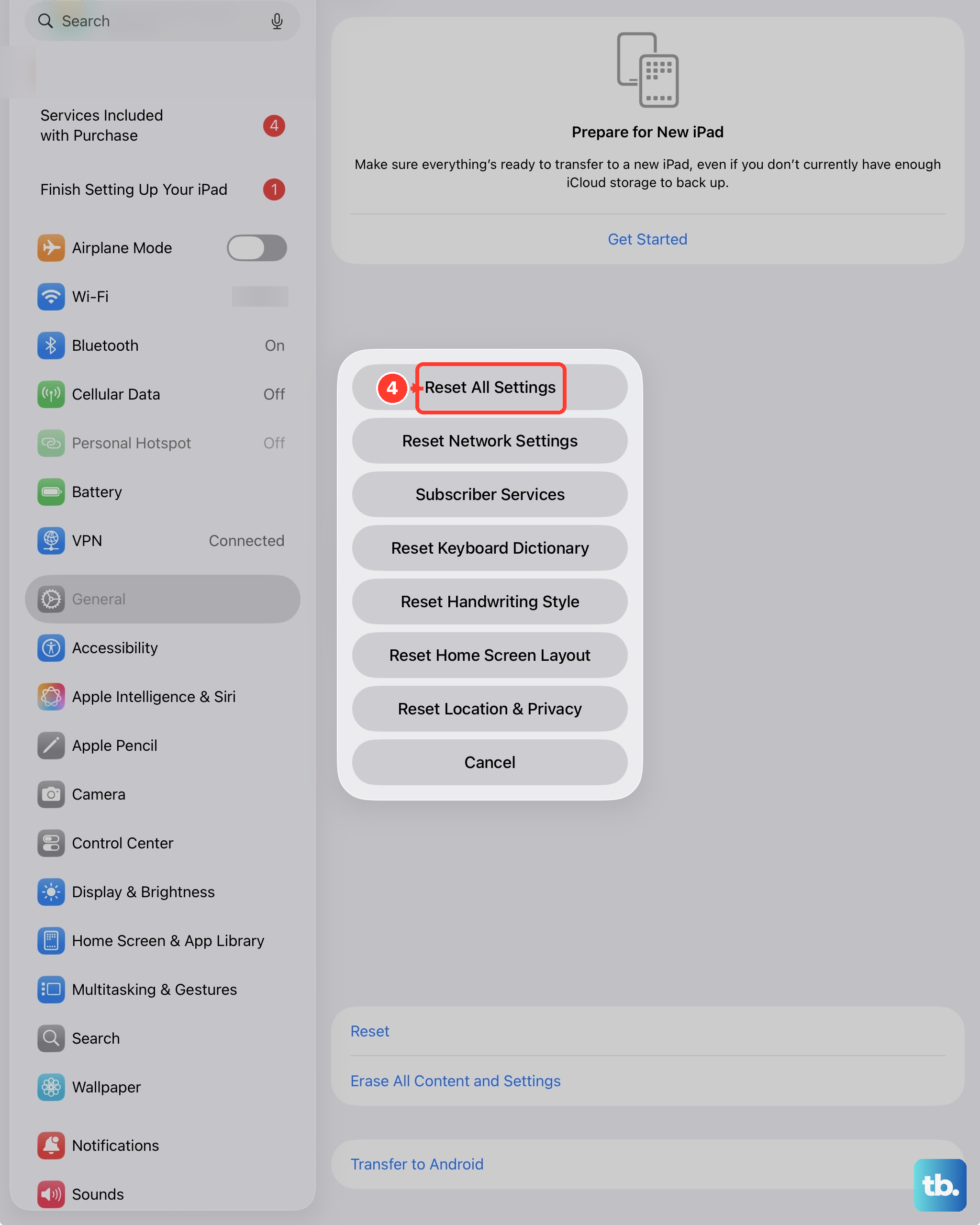
This is a significant step, so it's a last resort before considering a hardware issue. It will erase all your personalized settings (like wallpaper, privacy choices, and keyboard dictionaries) but will not delete your apps or data.
Go to Settings > General > Transfer or Reset iPad. Tap Reset, and this time select Reset All Settings. You'll need to set up things like Face ID, passcodes, and display brightness again, but it can clear out deep-seated software glitches affecting Wi-Fi.