
If videos on your iPad Air (2026) are stuttering, freezing, or buffering, it can really ruin the experience. This is a common issue that pops up for a few specific reasons, but the good news is you can usually fix it yourself without too much hassle.
Free Up Storage Space on Your iPad
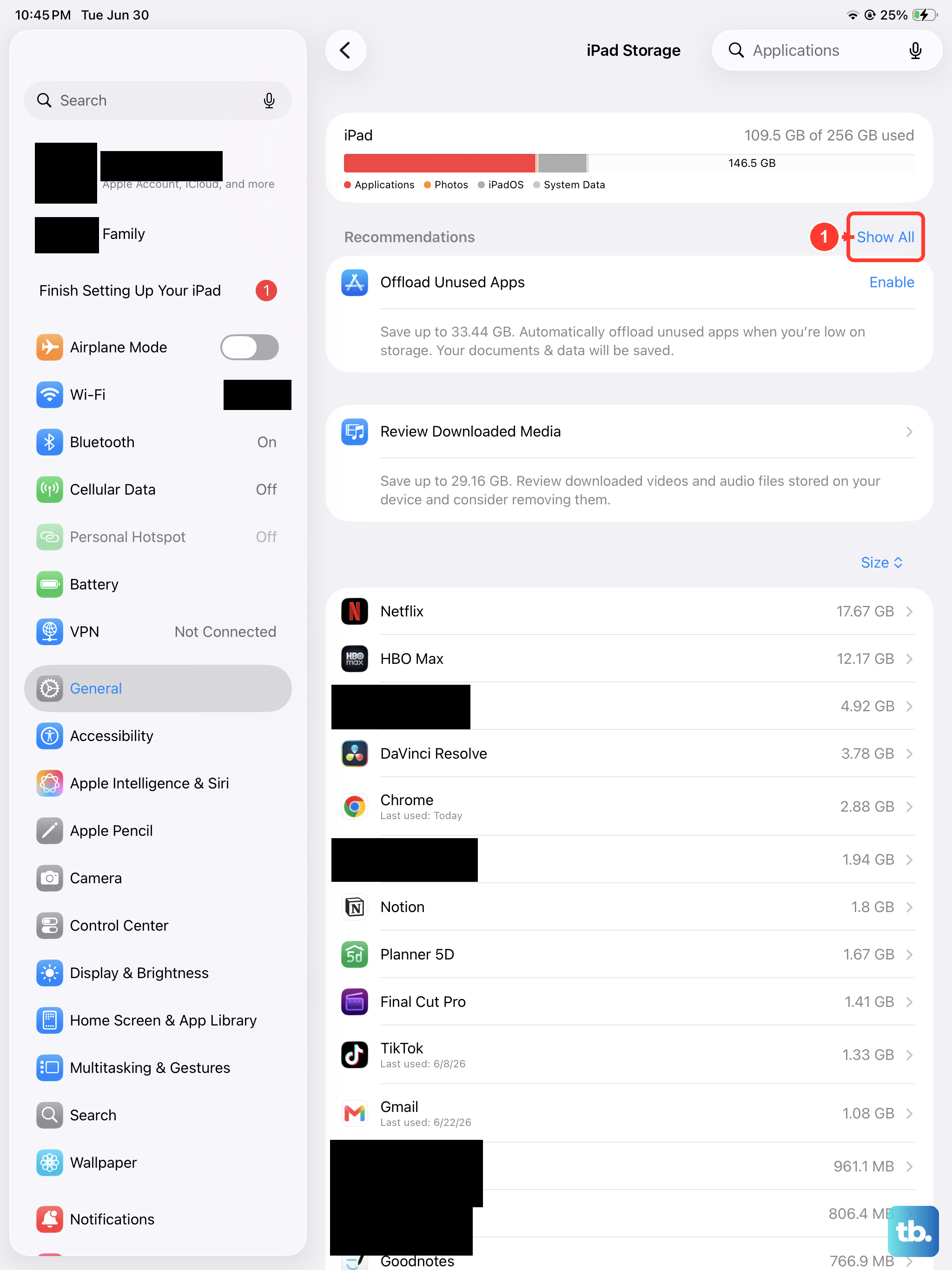
This is often the first thing I check. When your iPad's storage is nearly full, the system struggles to manage the temporary files and cache needed for smooth video playback. This can cause dropped frames and lag, especially with high-resolution files.
Head to Settings > General > iPad Storage to see how much space you have left. If you're below 5-10GB of free space, it's time for a cleanup. You can offload unused apps, clear browser caches, or move photos and videos to iCloud.
Check Your Internet Connection for Streaming
If you're watching videos on YouTube, Netflix, or any streaming service, a weak Wi-Fi signal is the most likely culprit for buffering and lag. Even if you think your connection is strong, other devices on the network or interference can cause problems.
Try playing a video that's saved directly on your iPad. If it plays fine, then your internet is the issue. You can try restarting your router, moving closer to it, or temporarily switching to a different network to test.
Update iPadOS and Your Apps
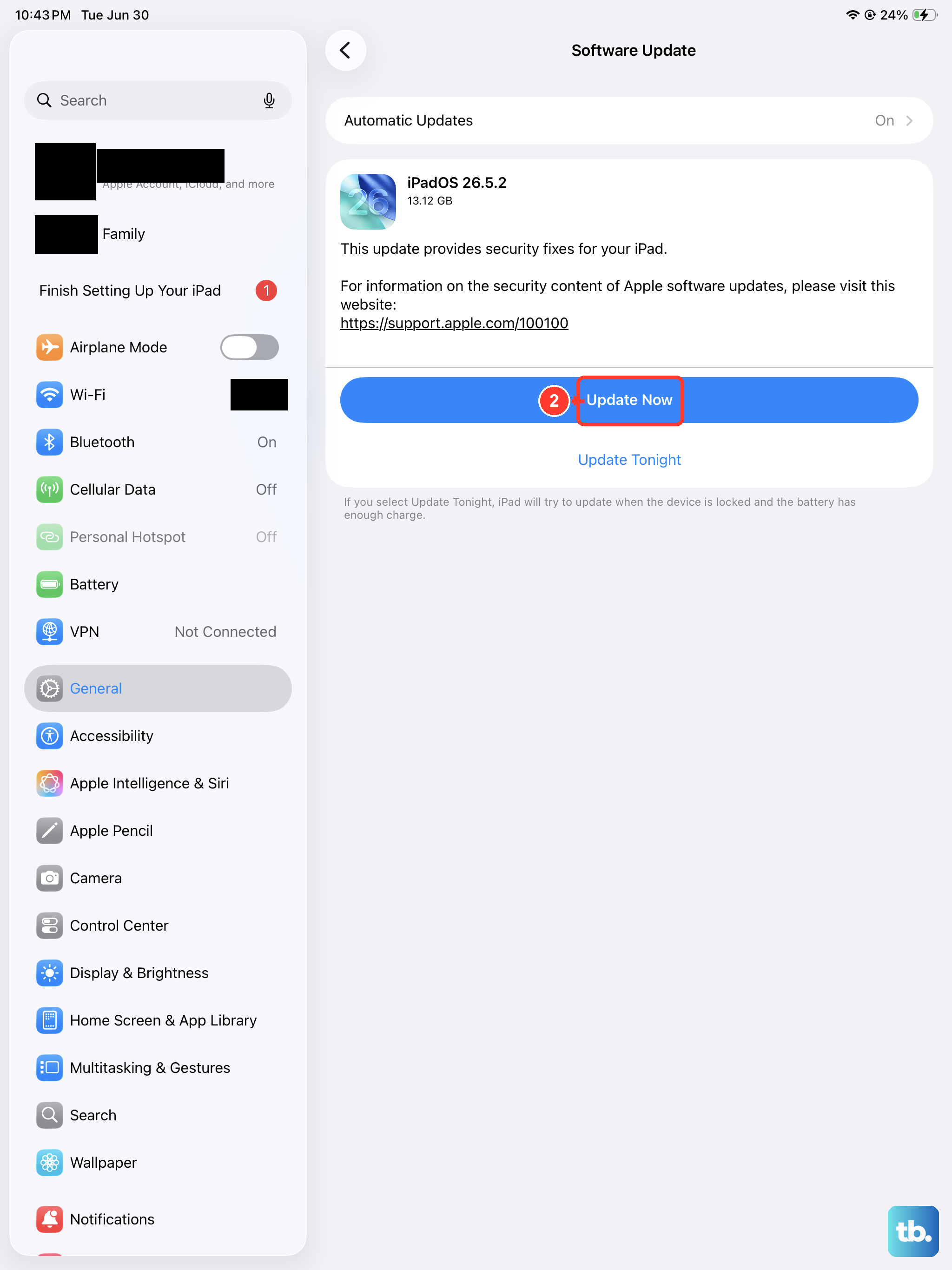
Running an outdated version of iPadOS 26 can lead to compatibility bugs with video codecs or specific apps. Apple releases updates that often include performance improvements and fixes for media playback issues.
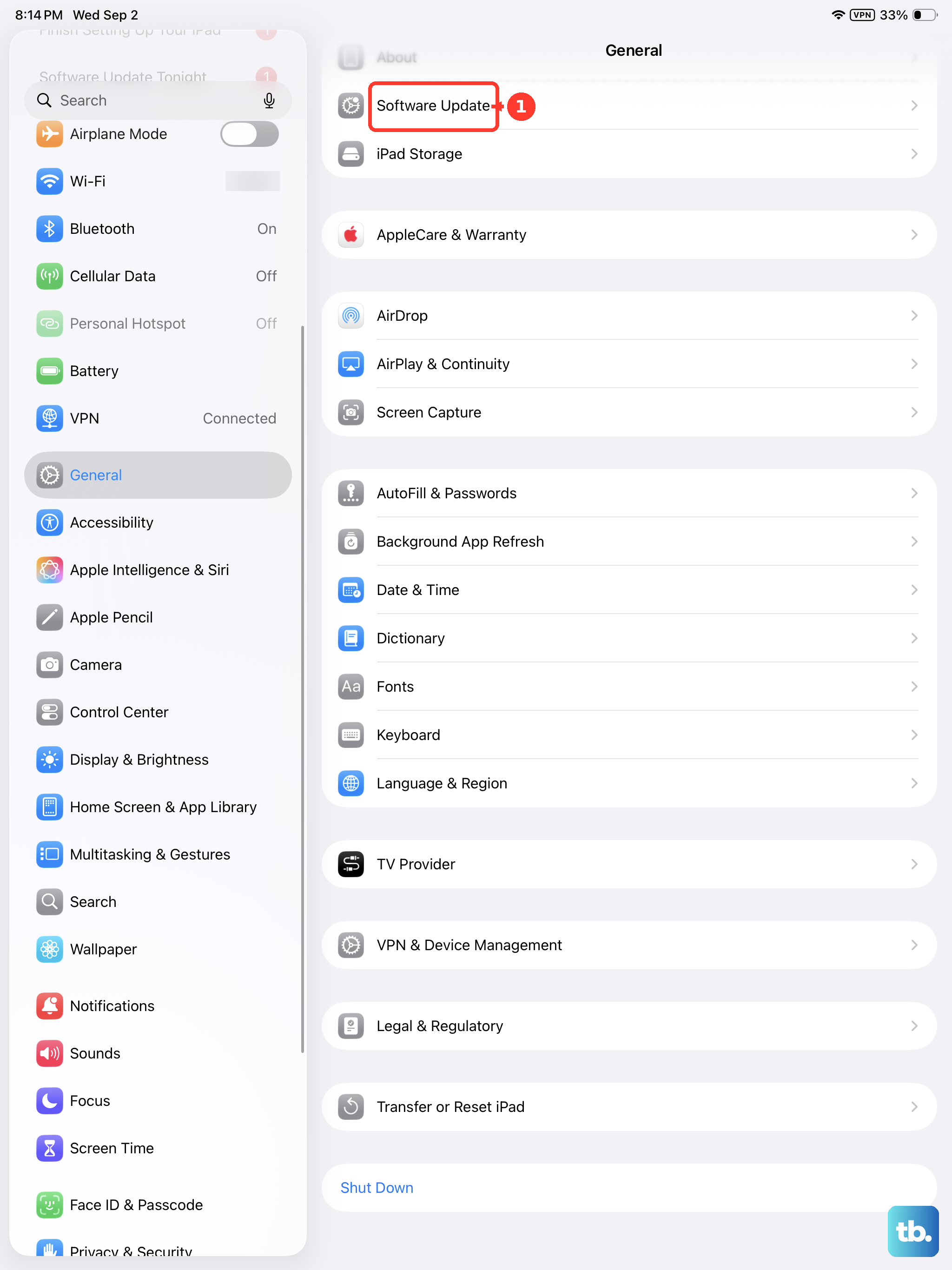
Go to Settings > General > Software Update to check for and install any available updates. Don't forget to also update the specific app you're having trouble with through the App Store.
Force Restart Your iPad Air
A simple restart can clear out temporary software glitches that might be affecting video performance. For the iPad Air (2026), the force restart sequence is a bit different than just tapping a button.
Quickly press and release the Volume Up button, then quickly press and release the Volume Down button. Finally, press and hold the Top button until you see the Apple logo appear on the screen. This is a clean reboot that doesn't delete any of your data.
Close Background Apps and Reduce Load
Having too many apps running in the background can consume system resources like RAM and processor power, which your video player needs to run smoothly. This is especially true if you're multitasking with Split View or Slide Over.
Swipe up from the bottom of the screen and pause in the middle to enter the App Switcher. Swipe up on any apps you aren't actively using to close them. Then, try playing your video again with a cleaner system state.
Reset All Settings
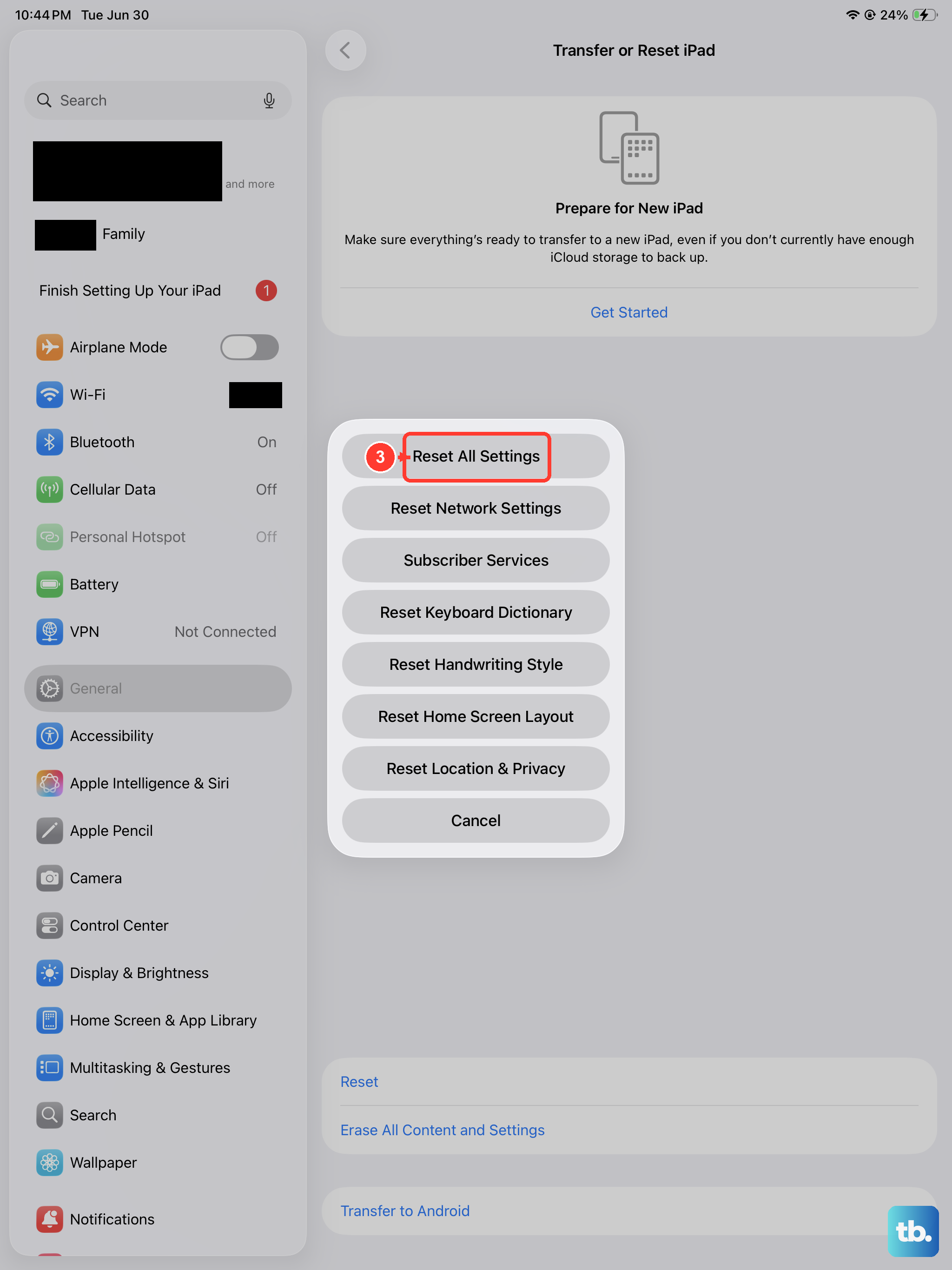
If the lag persists, a deeper software reset might help. This will revert all your preferences, like Wi-Fi passwords, wallpaper, and privacy settings, back to their defaults without erasing your personal data, photos, or apps.
You can find this option by going to Settings > General > Transfer or Reset iPad > Reset > Reset All Settings. You'll need to re-enter your Wi-Fi password and reconfigure some preferences afterward, but it often resolves persistent performance hiccups.
Check for Overheating
Your iPad Air is designed to throttle its performance if it gets too hot to protect its internal components. If you've been using it for a long time, have it in a thick case, or are in direct sunlight, it might be overheating.
If the back of the iPad feels very warm to the touch, give it a break. Turn it off, take it out of its case, and let it cool down in a shaded place for 15-20 minutes. Then try playing your video again once it's back to a normal temperature.
Test a Different Video Player or File
Sometimes the problem isn't with the iPad, but with a specific app or a corrupted video file. Try playing the problematic video in a different app, like the built-in Photos app versus VLC or Infuse.
If the video plays fine elsewhere, the issue is with the original app. Try uninstalling and reinstalling that app. If all videos from a certain source are laggy, the file format or encoding might be incompatible.