
If your iPad Air (2026) has suddenly gone silent and stopped vibrating for notifications or keyboard taps, it can be surprisingly disruptive. The good news is that this is almost always a software or settings issue you can fix yourself in just a few minutes.
Start With a Quick Restart
Before you dive into settings, give your iPad a fresh start. This clears out any temporary glitches that might be affecting the vibration motor. To force restart your iPad Air, press and quickly release the Volume Up button, then press and quickly release the Volume Down button. Finally, press and hold the Top button until you see the Apple logo appear on the screen.
It takes about 30 seconds and often solves the problem right away. I'd start with this one every time.
Check Your Silent Switch and Focus Modes
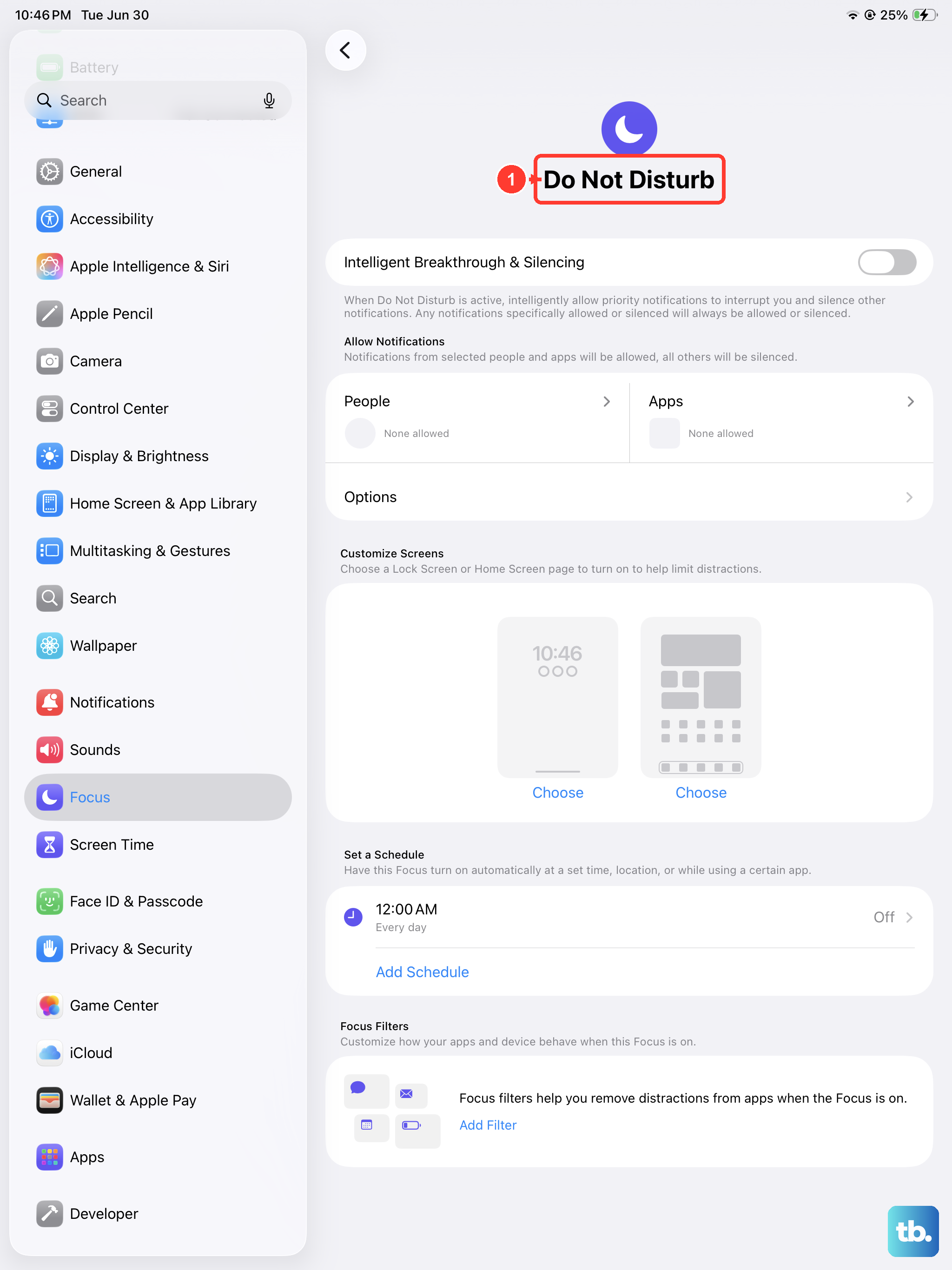
This is the most common culprit. On the side of your iPad Air, you'll find the physical Silent switch (also called the Side switch). Make sure it's not flipped down into the silent position, which disables all sounds and vibrations. If it is, flip it up.
Also, check if a Focus mode like Do Not Disturb or Sleep is active. Swipe down from the top-right corner to open Control Center and look for the Focus icon. If one is on, tap it to turn it off, as some Focus modes can silence vibrations.
Verify Your Sound and Haptics Settings
Open the Settings app and go to Sounds & Haptics. Here, you'll find the master controls for vibration on your iPad. First, ensure the "Vibrate on Ring" and "Vibrate on Silent" toggles are switched on.
While you're here, scroll down to the "System Haptics" section. Make sure "System Haptics" is enabled. This controls vibrations for system interactions and keyboard feedback. If it's off, your iPad won't vibrate for much of anything.
Adjust Keyboard Haptic Feedback
If you're missing vibrations specifically when you type, the keyboard settings are separate. Go to Settings > General > Keyboard. Tap on "Haptic Feedback" and make sure the toggle is turned on.
This setting gives you a subtle tap sensation with each keypress. Some users turn it off to save a tiny bit of battery, forgetting it's there until it's gone.
Review App-Specific Notification Settings
Sometimes, the issue isn't system-wide but confined to a single app like Messages or Mail. Open Settings and scroll down to the list of your installed apps. Tap on the app that's not vibrating.
Select "Notifications." Make sure "Allow Notifications" is on. Then, tap on the specific notification type (like "Messages" or "New Mail") and look for the "Sounds" or "Haptics" option. Ensure that haptics are enabled for that alert style.
Update iPadOS
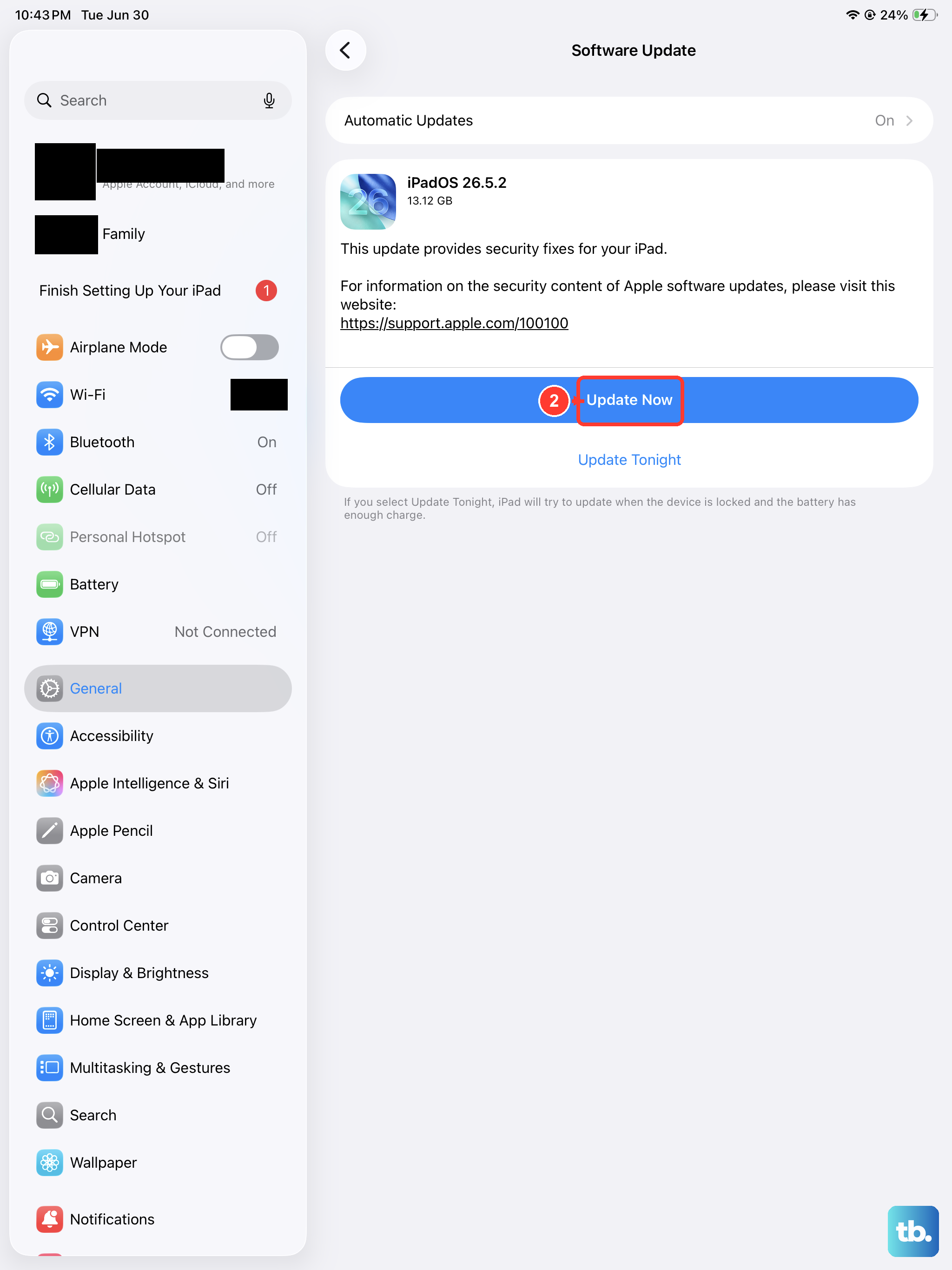
A bug in the system software can sometimes cause haptic features to stop working. Apple typically patches these issues in subsequent updates. Connect your iPad to power and Wi-Fi, then go to Settings > General > Software Update.
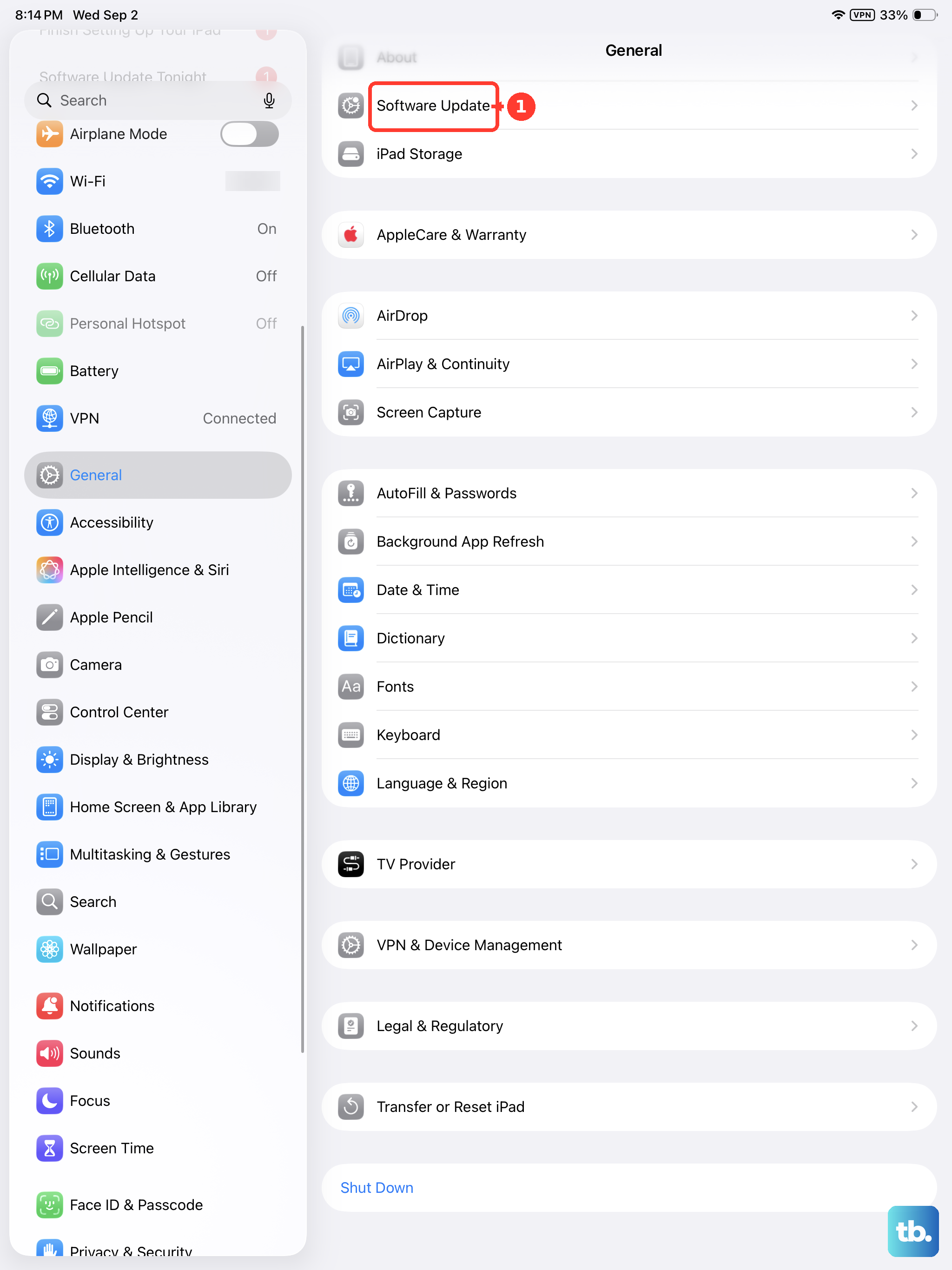
If an update for iPadOS 26 (or later) is available, tap "Download and Install." Keeping your software current is one of the best ways to maintain stability and performance on any iPad model.
Reset All Settings
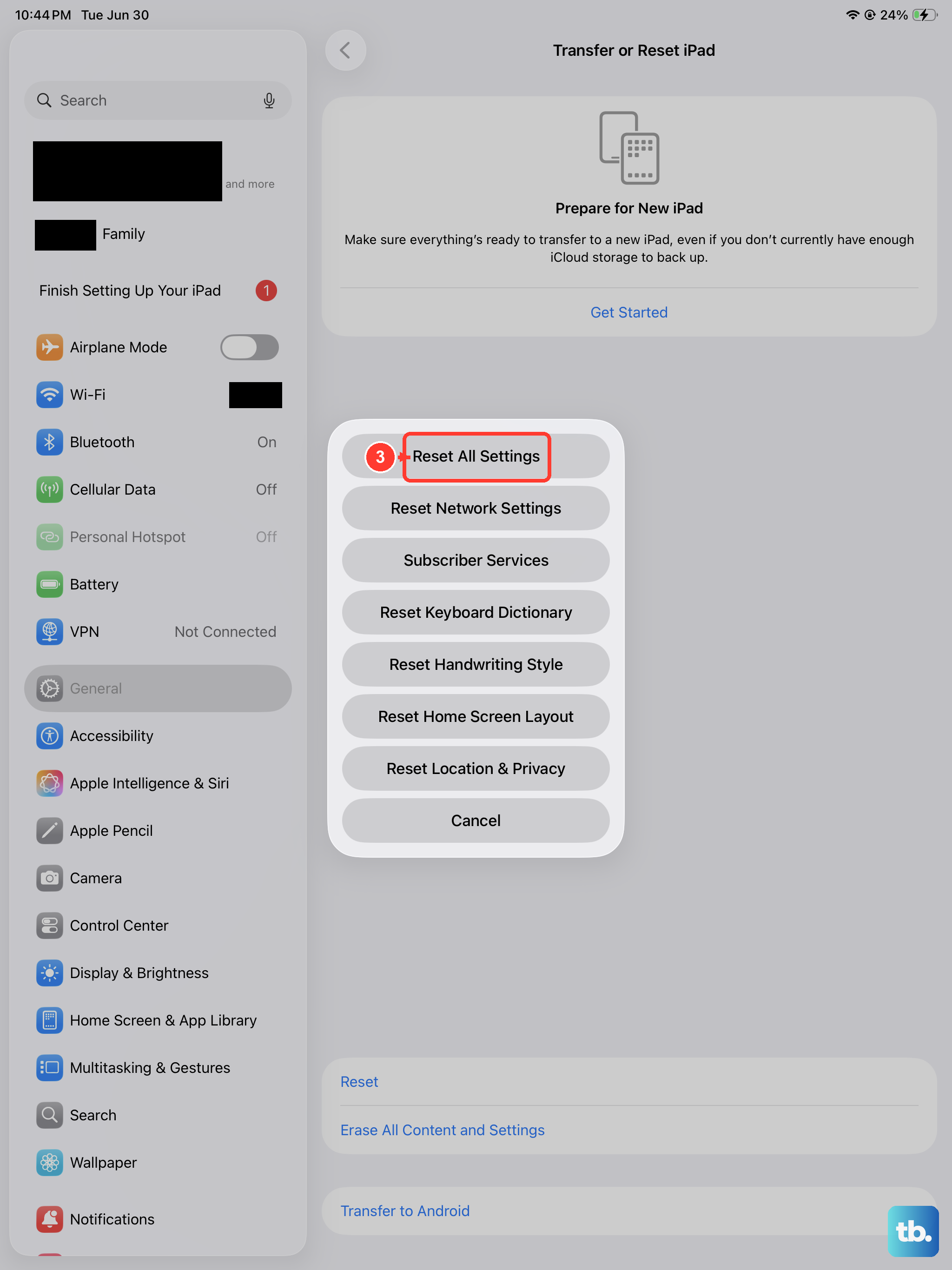
If you've checked everything and vibrations are still missing, a settings reset can help. This won't erase your personal data like photos or apps, but it will revert all system settings (Wi-Fi passwords, wallpaper, privacy permissions) back to their defaults.
Go to Settings > General > Transfer or Reset iPad. Tap "Reset" at the bottom, then choose "Reset All Settings." Enter your passcode and confirm. Your iPad will restart, and you'll need to reconfigure your preferences, but this often clears stubborn software conflicts.
Test in a Different Context
To help pinpoint the issue, see if the vibration works anywhere. Open the Clock app and try setting a timer for one minute. When it goes off, it should vibrate. Also, try plugging in your USB-C charger. You should feel a brief confirmation haptic.
If you get vibration from the timer or charger but not from notifications, the problem is almost certainly in your notification settings. If there's no vibration at all, even from these system actions, the issue is more likely deeper in the settings or software.
Consider Recent Changes
Think about what changed just before the vibrations stopped. Did you install a new app or a beta profile? Have you recently restored from a backup? Sometimes, a newly installed app can have unexpected system effects.
You can try uninstalling any recent apps one by one to see if the vibration returns. If you're running an iPadOS beta, known issues with haptics are common, and reporting the bug is your best path forward.
Check for Physical Obstructions and Battery Health
While less common on a slate like the iPad, it's worth ensuring nothing is physically blocking the area where the vibration motor sits (typically near the logic board). Also, an extremely low battery can cause the system to disable non-essential features like haptics to conserve the last bits of power.
Plug your iPad Air into its 30W USB-C PD charger and let it charge for at least 30 minutes. Then, try the vibration tests again. Using the proper high-wattage charger ensures your device is getting enough power to operate all its components correctly.