
When the volume buttons on your iPad Air (2026) stop responding, it feels like you've lost a basic function. You press them to adjust a video or silence a notification, and nothing happens. The good news is that this is often a temporary glitch you can fix yourself without a trip to the store.
I'd start with the simplest solutions first, as they often do the trick.
Remove Your iPad Case
Take your iPad Air out of its case, especially if it's a folio or a tight-fitting model. Sometimes, the case material can shift and put pressure on the button cutouts, preventing the physical buttons underneath from being fully depressed. It's a quick check that rules out the most obvious external cause.
Perform a Force Restart
A force restart is the go-to fix for many unresponsive controls on an iPad. It clears out minor software hiccups without touching your data. For the 2026 iPad Air, which follows the modern design without a Home button, the process is straightforward.
Press and quickly release the Volume Up button. Then, press and quickly release the Volume Down button. Finally, press and hold the Top button. Keep holding it until you see the Apple logo appear on the screen, then you can let go.
Check the Volume Button Setting
There's a specific setting that could be the culprit. Open the Settings app and go to Sounds. Look for the option labeled "Change with Buttons" and make sure the toggle is switched on. If it's off, your physical volume buttons won't do anything, which explains the silence.
Use the On-Screen Controls
While you're figuring this out, you can still control your volume. Swipe down from the top-right corner of the screen to open Control Center. You'll see a volume slider there that you can adjust with your finger. You can also go into Settings > Sounds and use the slider at the top of that menu.
Clean Around the Buttons
Dust, lint, or a bit of sticky residue can easily get lodged around the small gap of the volume rocker. This is a common issue, especially if you use your iPad in different environments. Take a can of compressed air and give the area around both volume buttons a few short bursts to dislodge any debris.
For anything sticky, you can dip a cotton swab in a tiny amount of isopropyl alcohol (90% or higher is best), wring it out so it's just damp, and gently clean around the button edges. Let it dry completely before testing the buttons again.
Test the Buttons in Different Apps
Open a few different apps to see if the problem is universal. Try playing a video in the TV app, then try adjusting the volume. Open the Music app or a podcast app and do the same. If the buttons work in one app but not another, the issue is likely with that specific app, not your iPad's hardware.
You can try force-quitting the problematic app by swiping it away from the App Switcher, then reopening it.
Toggle the Mute Switch
If your iPad Air has the physical mute/orientation lock switch on the side, slide it back and forth a few times. This simple mechanical action can sometimes jog the internal connections related to the audio system. After toggling it, test your volume buttons again to see if they've woken up.
Enable AssistiveTouch for Virtual Buttons
AssistiveTouch creates a floating menu on your screen with virtual controls, including volume buttons. Enabling it and using the virtual buttons can sometimes reset the connection to the physical ones. Go to Settings > Accessibility > Touch > AssistiveTouch and turn it on.
A small gray circle will appear on your screen. Tap it, then tap Device, and you'll see Volume Up and Volume Down options. Tap these virtual buttons a few times, then try your physical buttons again. You can turn AssistiveTouch off afterward if you don't need it.
Update iPadOS
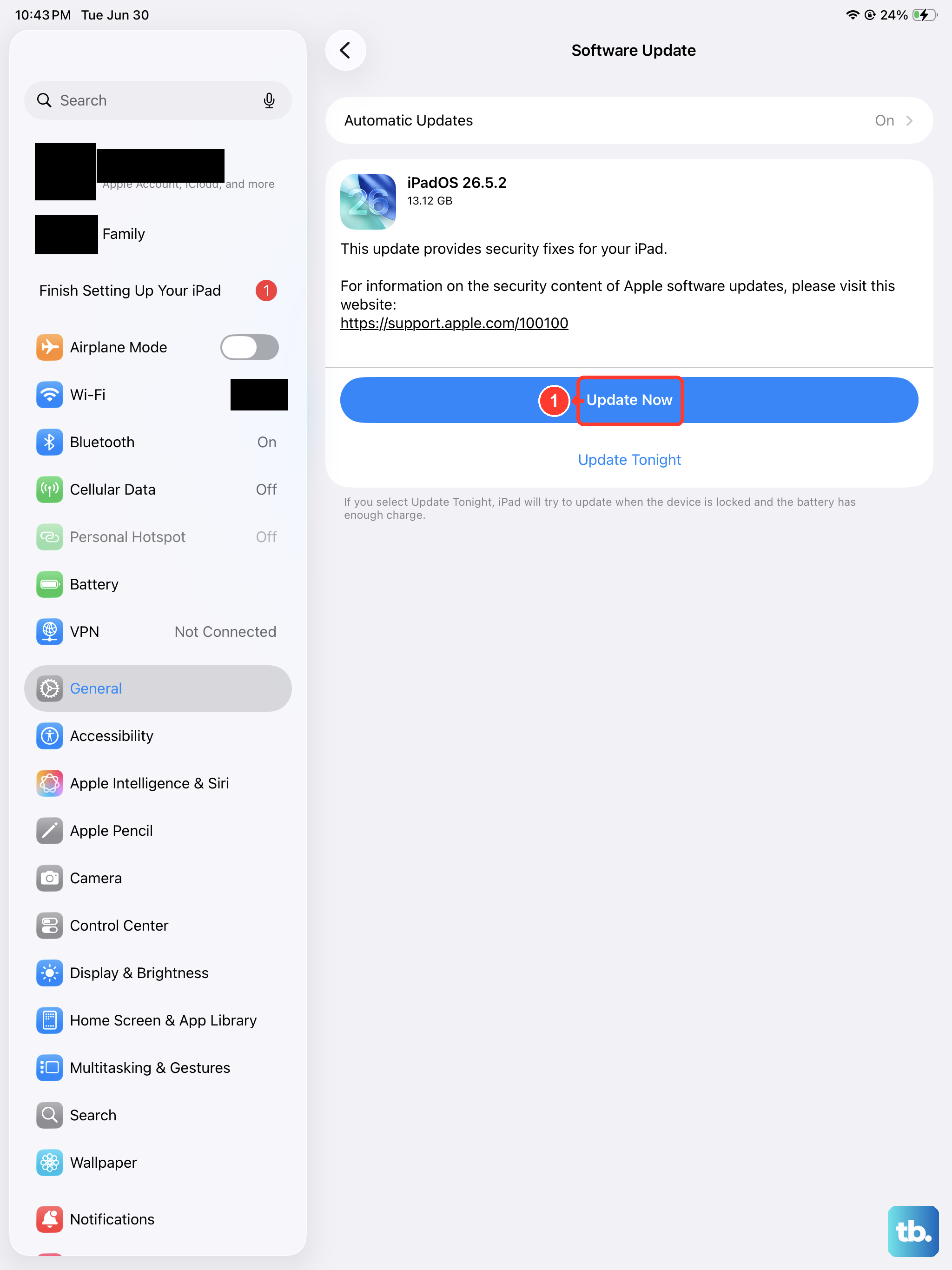
A software bug in iPadOS 26 could be interfering with the button inputs. Apple regularly releases updates that fix these kinds of issues. Plug your iPad into power using a USB-C charger (a 30W or higher PD charger is ideal for the 2026 model) and connect to Wi-Fi.
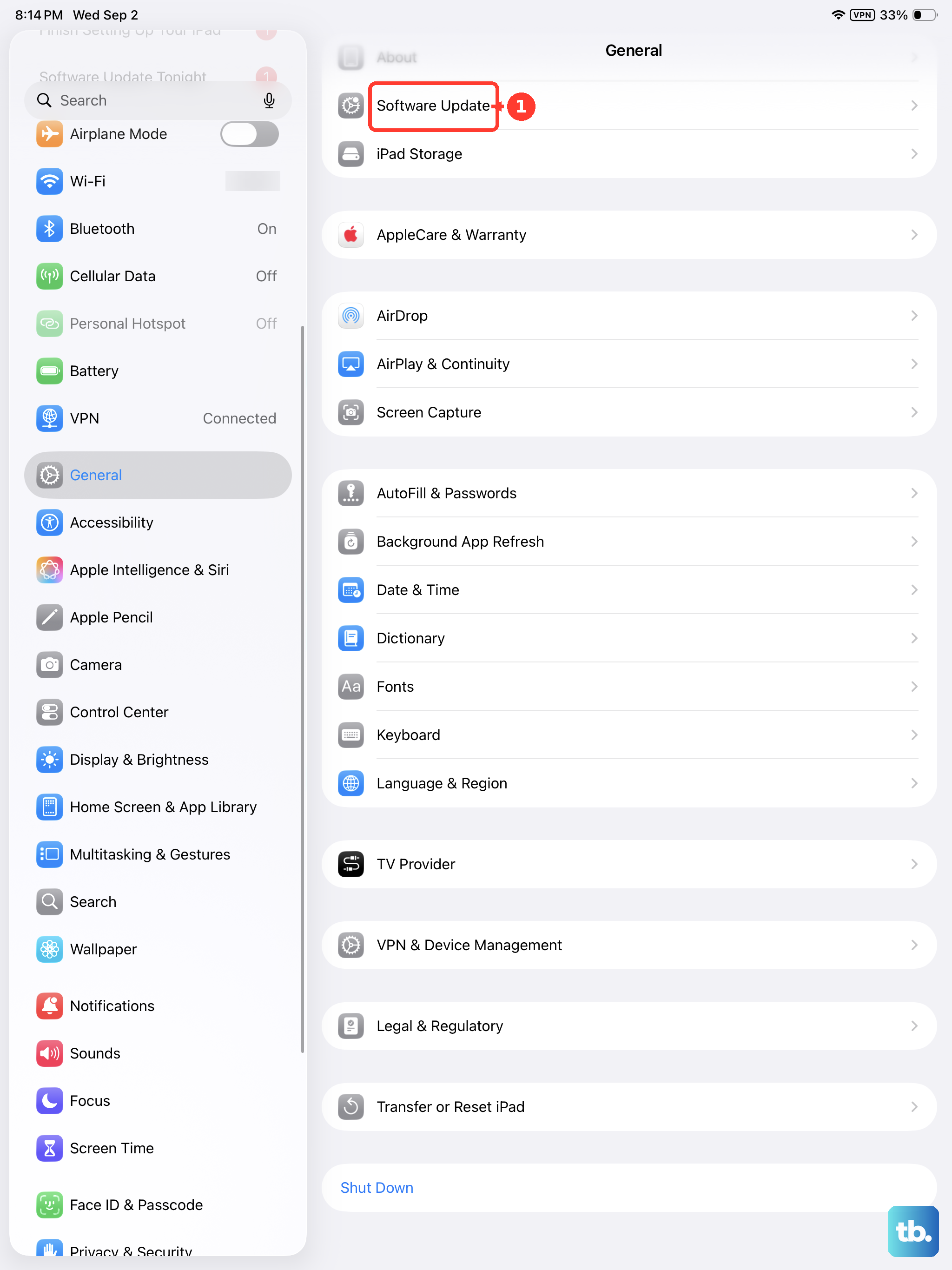
Then, go to Settings > General > Software Update. If an update is available, download and install it. This process can resolve underlying glitches that basic restarts can't fix.
Reset All Settings
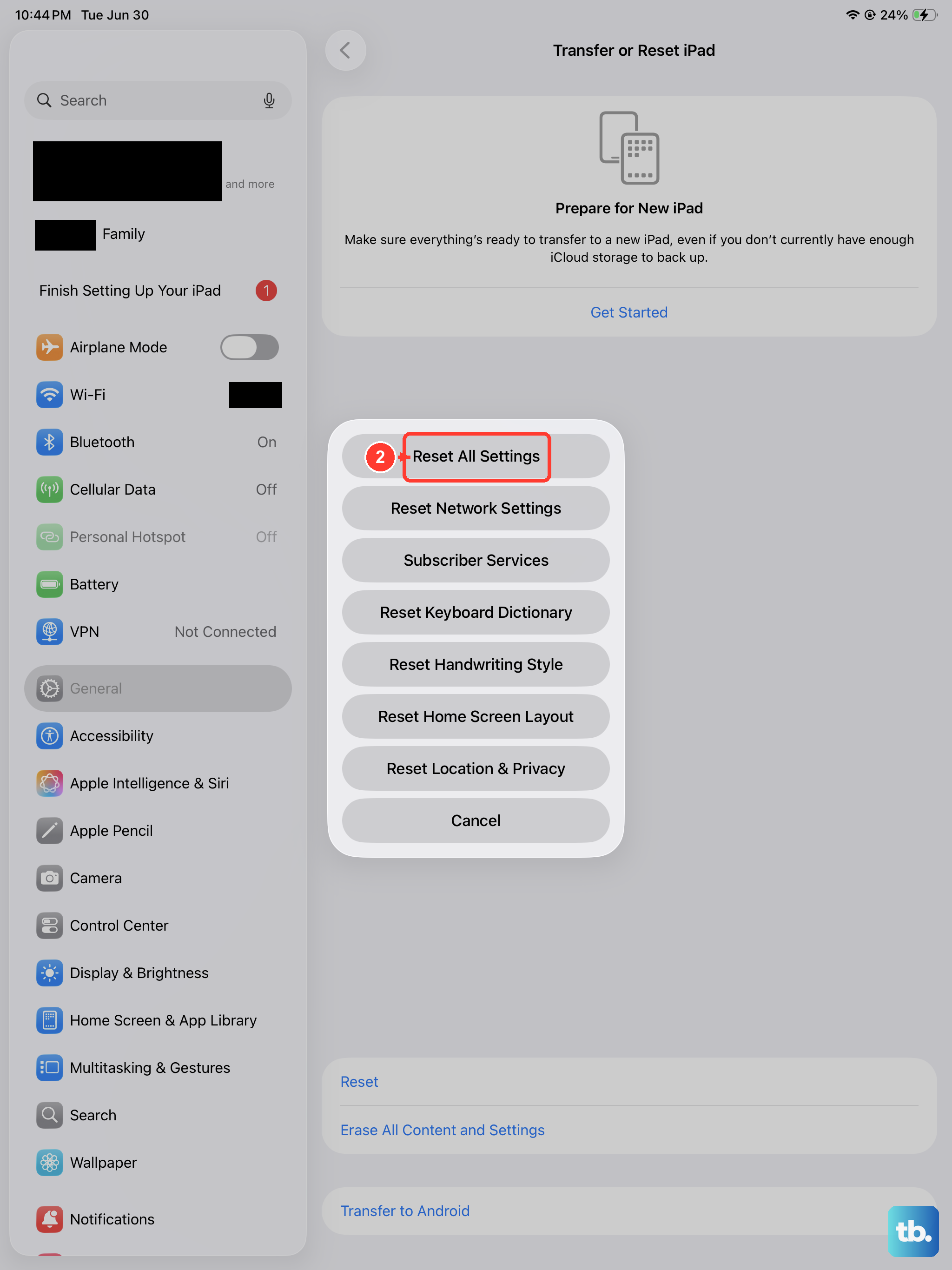
If you're still stuck, a reset can help. This will revert all your preferences, like wallpaper, network passwords, and privacy settings, back to their defaults, but it won't delete your apps or personal data. It's a deeper software refresh.
Go to Settings > General > Transfer or Reset iPad. Tap Reset and then choose Reset All Settings. You'll need to enter your passcode and confirm. After the iPad restarts, you'll need to reconfigure some preferences, but it's worth testing the volume buttons immediately afterward.