
When your iPad Air's keyboard stops popping up or becomes unresponsive, it can really slow you down. This is usually a software hiccup with iPadOS 26, and there are a few straightforward things you can try to get it working again.
Force Restart Your iPad
This is often the quickest fix for a frozen or glitchy keyboard. A force restart clears the iPad's memory without deleting any of your data. On the iPad Air (2026), you'll press and quickly release the Volume Up button, then press and quickly release the Volume Down button. Finally, press and hold the Top button until you see the Apple logo appear on the screen.
Once it boots back up, try opening an app like Notes or Messages to see if the keyboard responds.
Check for a Physical Keyboard Connection
If you use a Magic Keyboard or a Smart Keyboard Folio, the iPad might think a physical keyboard is attached. This would prevent the on-screen keyboard from appearing. Simply detach the keyboard case or turn off your Bluetooth keyboard.
You can also check this in settings. Go to Settings > Bluetooth and see if any keyboards are connected. If one is, tap the info icon (i) next to it and select Disconnect.
Close and Reopen Your App
The problem might be isolated to a single app. Swipe up from the bottom of the screen and pause in the middle to enter the App Switcher. Find the app you're having trouble with and swipe it up and off the top of the screen to close it completely.
Then, tap the app icon on your Home Screen to relaunch it. I'd start with this one, as it takes just a few seconds and often does the trick.
Update iPadOS
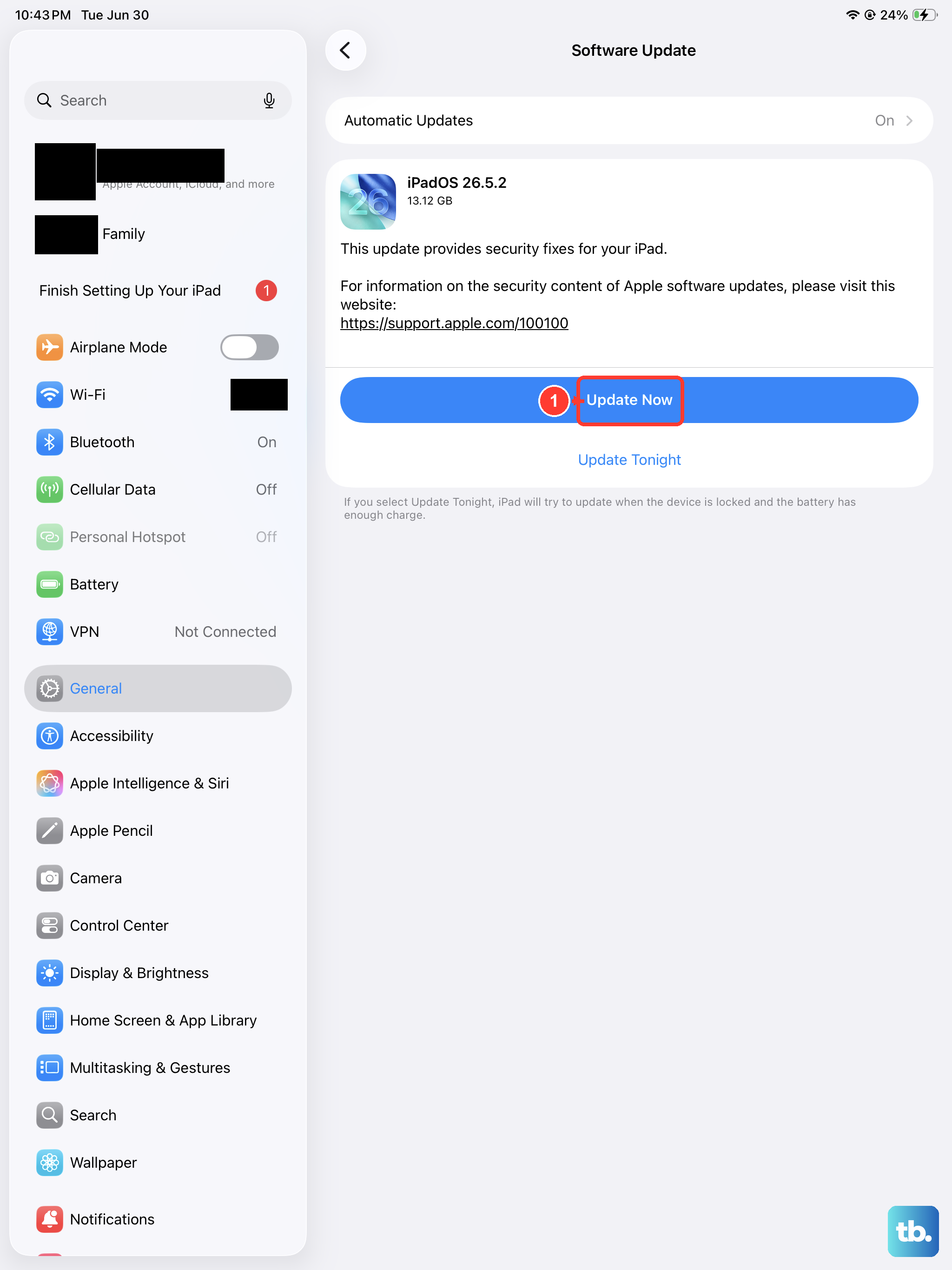
An outdated version of iPadOS can have bugs that affect system features like the keyboard. Apple regularly releases updates with fixes. To check, connect to Wi-Fi, go to Settings > General > Software Update.
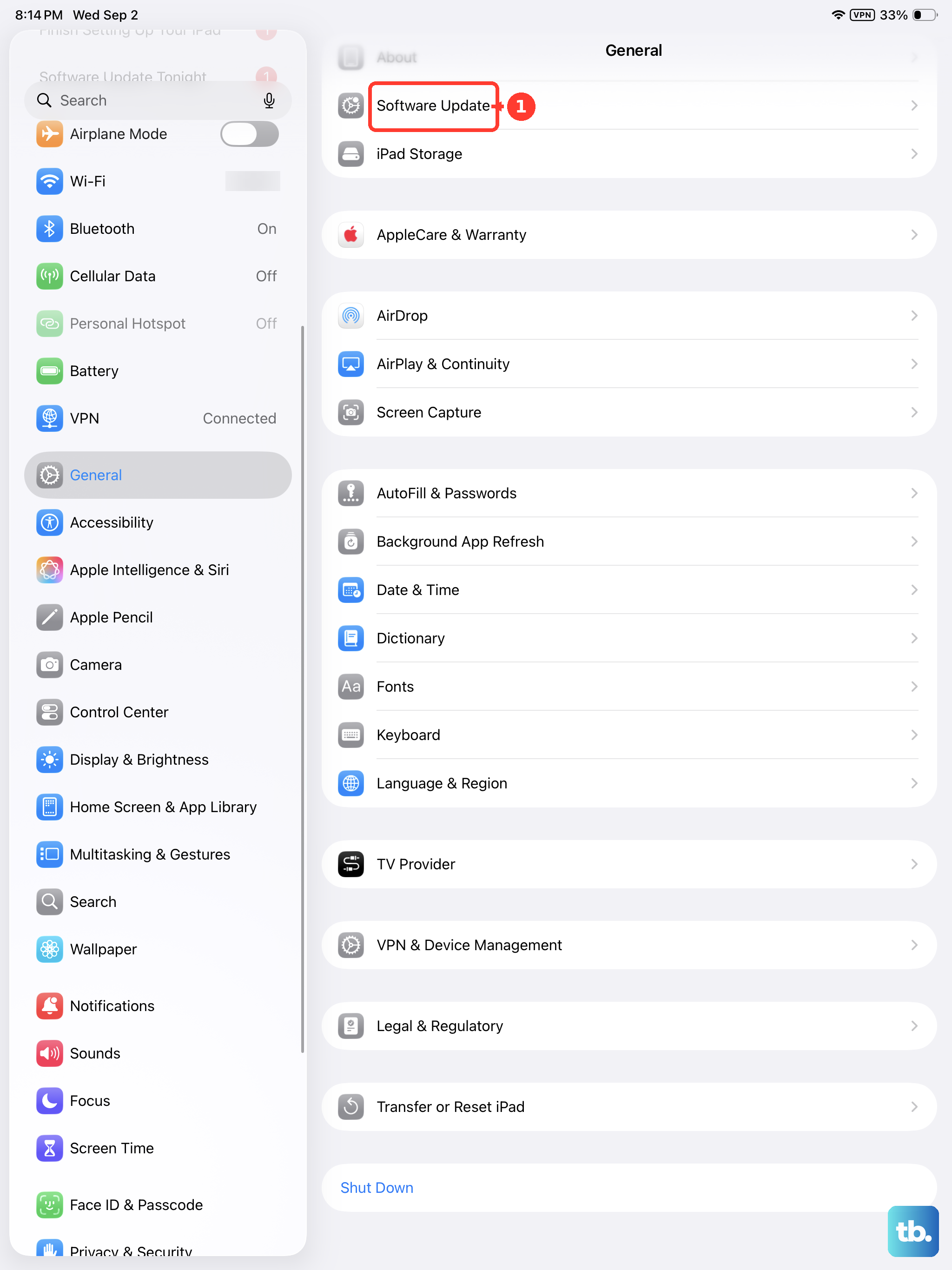
If an update is available, tap Download and Install. It's a good habit to check for updates regularly on your 2026 model for performance and stability improvements.
Reset All Settings
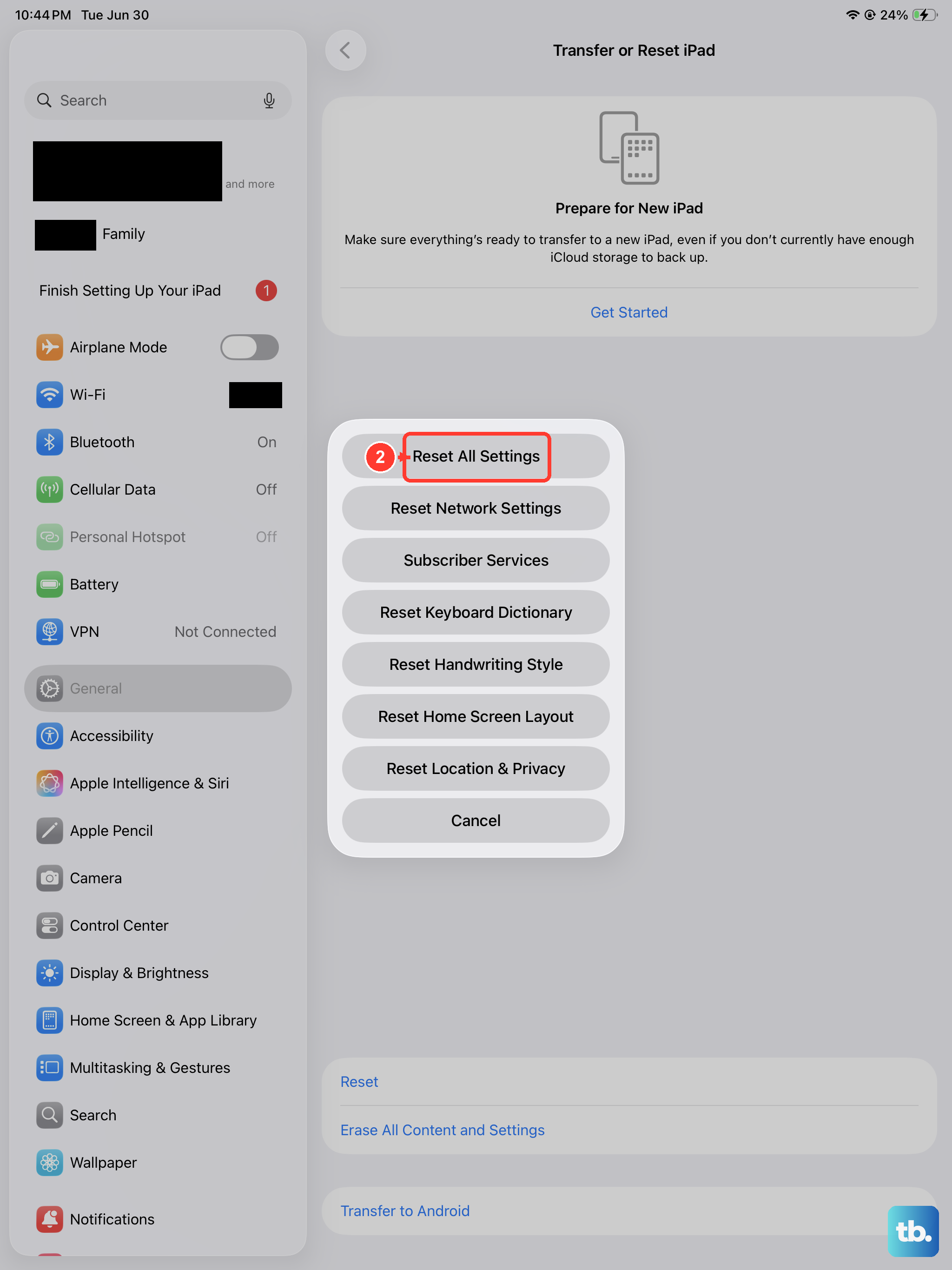
This will return all your system settings to their defaults without erasing your apps or personal data. You will need to reconfigure things like Wi-Fi passwords, wallpaper, and privacy permissions afterward.
To do this, go to Settings > General > Transfer or Reset iPad. Tap Reset and then choose Reset All Settings. Enter your passcode if prompted and confirm. Your iPad will restart.
Check Keyboard Settings and Accessibility
Sometimes a setting can get changed accidentally. First, make sure the on-screen keyboard isn't disabled. Go to Settings > General > Keyboard. Ensure all the toggles, like "Slide to Type," are set how you want them.
Also, check under Settings > Accessibility > Keyboards. Look for any options like "Full Keyboard Access" that might be enabled and interfering with the standard keyboard.
Try a Different Keyboard App
If the issue is with Apple's default keyboard, installing a third-party one from the App Store can be a great workaround. Popular options like Gboard or SwiftKey are fully compatible with iPadOS.
After installing one, you'll need to enable it. Go to Settings > General > Keyboard > Keyboards > Add New Keyboard. Select the keyboard you installed. You can then switch between keyboards by tapping the globe icon on the on-screen keyboard.
Check for Storage Space
If your iPad's storage is completely full, system functions can start to behave strangely. Go to Settings > General > iPad Storage to see how much space you have left.
If you're critically low, the system may recommend offloading unused apps or deleting large files. Freeing up a few gigabytes can often resolve odd glitches.
Erase All Content and Settings
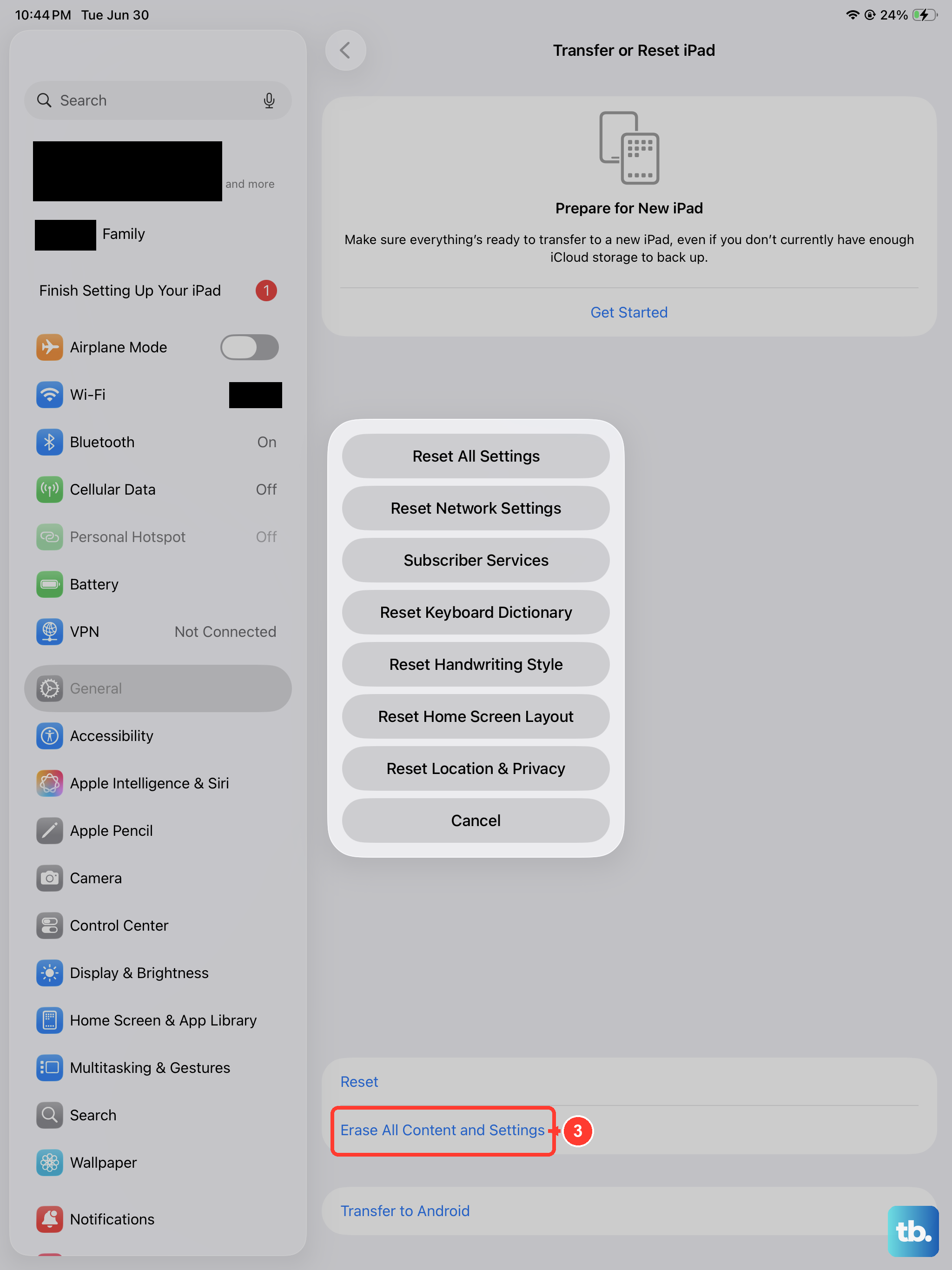
This is the most comprehensive step and should be your last resort. It will wipe your iPad completely, so you must have a recent backup in iCloud or on your computer. This process can eliminate any deep-seated software corruption.
First, ensure your backup is complete. Then, go to Settings > General > Transfer or Reset iPad and tap Erase All Content and Settings. After the iPad restarts, you can restore from your backup during the setup process.