
If your iPad Air (2026) screen is stuck in one orientation and won't flip when you turn the tablet, you're dealing with a classic iPadOS quirk. It's usually a quick software setting, but sometimes it needs a little more coaxing.
Let's start with the most common fix, which takes about ten seconds to check.
Toggle the Screen Rotation Lock
The first thing to check is the physical rotation lock. On the iPad Air, this is controlled by the Side Switch, which is right above the volume buttons on the top-right edge when you're holding it in portrait mode.
If the orange dot is visible next to the switch, rotation is locked. Just flick the switch up or down to change its position. You should see a small lock icon appear briefly on the screen to confirm the change.
If you don't see the orange dot, your Side Switch might be set to control mute instead of rotation lock. You can check this by going to Settings > Sounds and looking at the "Change with Buttons" option. If that's on, head to Settings > Control Center and add the "Screen Rotation Lock" module for quick access.
Check Control Center for Rotation Lock
Even if the Side Switch is set to mute, you can still lock rotation through software. Swipe down from the top-right corner of the screen to open Control Center.
Look for the icon that looks like a circular arrow with a lock around it. If it's highlighted or filled in, tap it to turn rotation lock off. The icon should become a simple outline when rotation is unlocked.
Force Restart Your iPad Air
A temporary software glitch can sometimes freeze the sensors. A force restart clears the iPad's memory without deleting any of your data or settings.
On the iPad Air (2026), press and quickly release the Volume Up button, then press and quickly release the Volume Down button. Immediately after, press and hold the Top button until you see the Apple logo appear on the screen. This usually takes about ten seconds.
Let the iPad boot up completely, then try rotating it again. I've found this resolves the issue more often than a standard restart.
Update to the Latest iPadOS
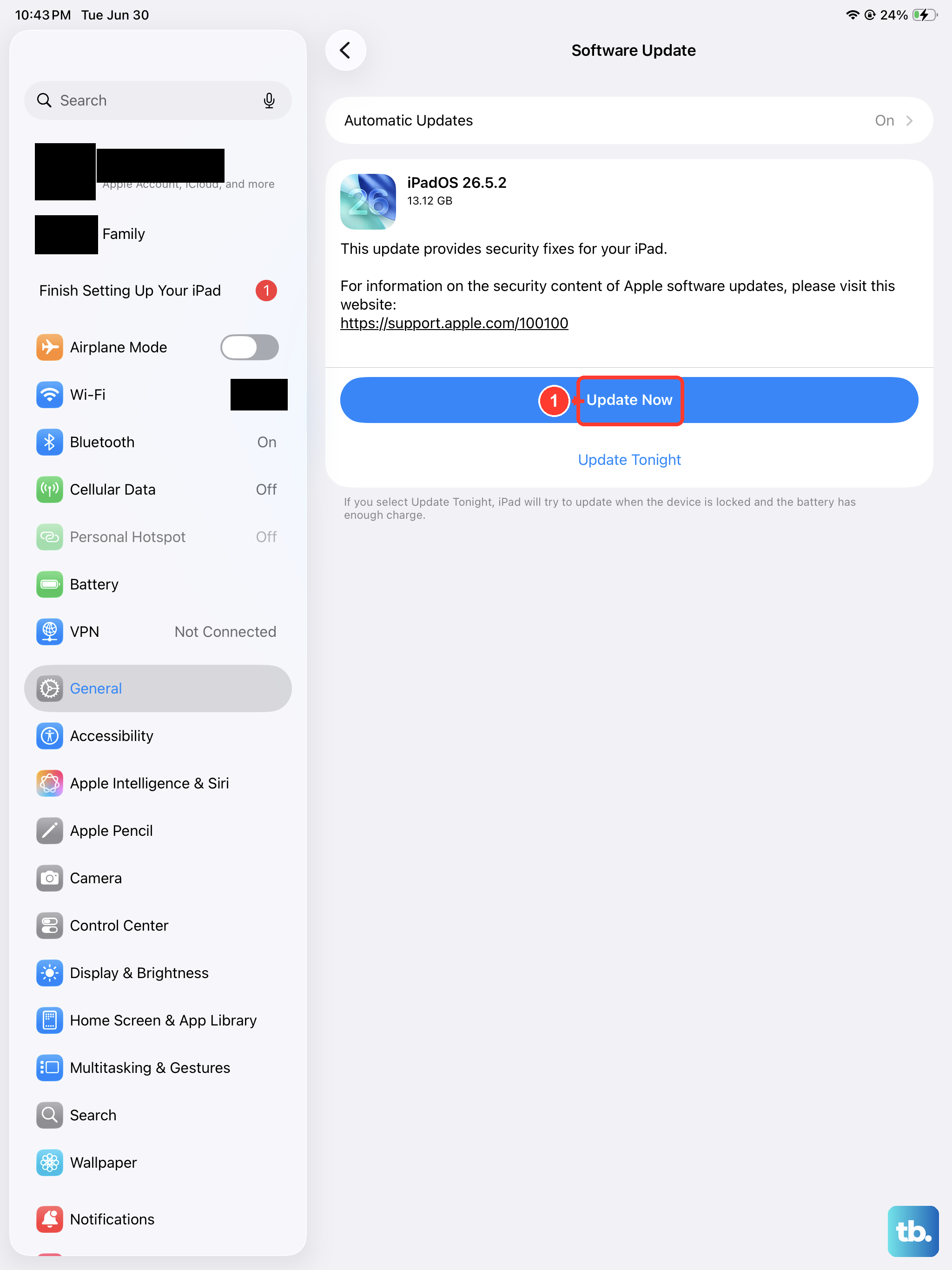
Apple regularly releases updates that fix bugs, including ones that can affect screen rotation and sensor performance. It's a good habit to check for updates regularly on your 2026 model.
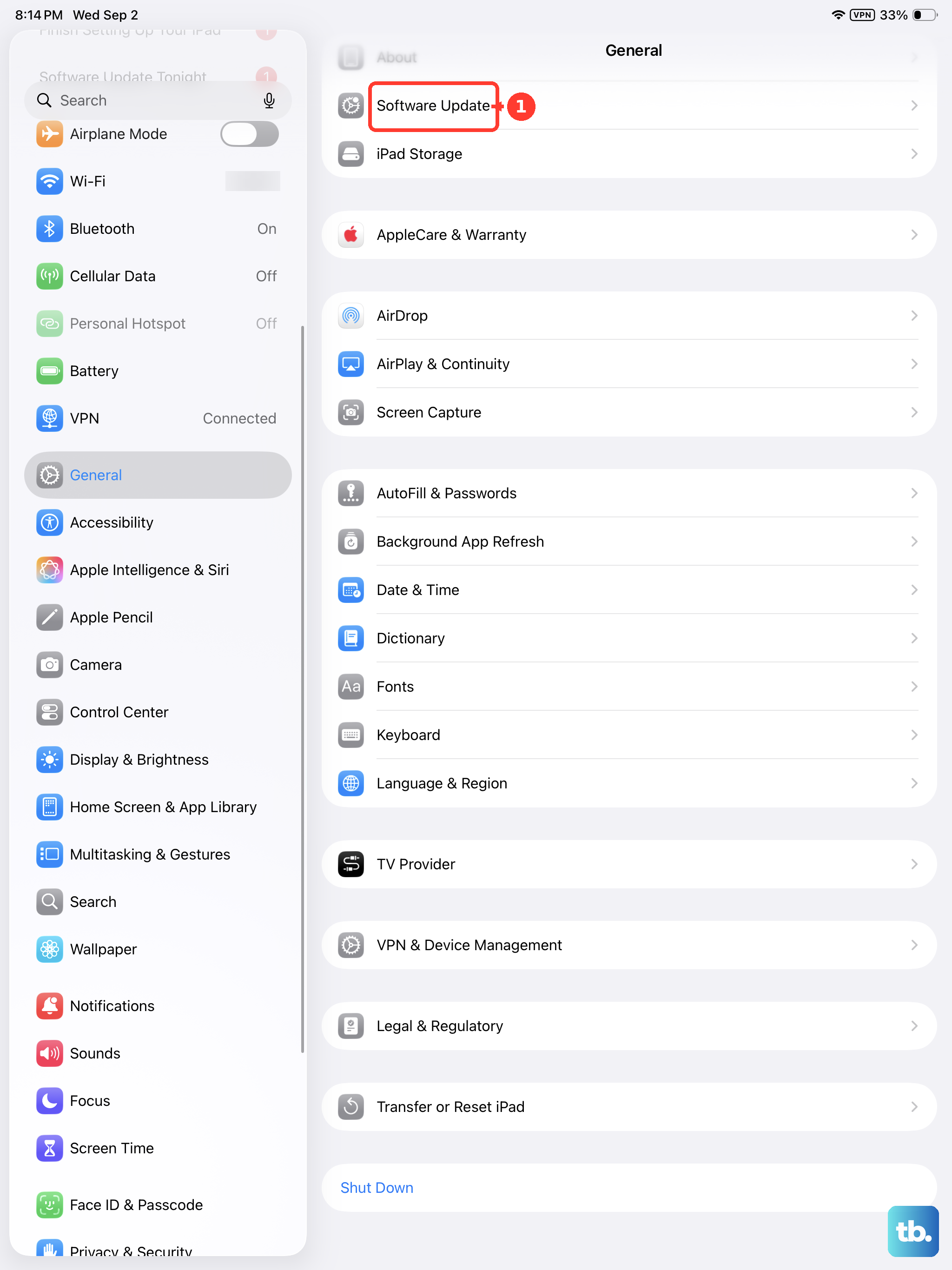
Go to Settings > General > Software Update. If an update is available, tap "Download and Install." Make sure your iPad is connected to power and Wi-Fi first, as the update can take a while.
Test Rotation in Different Apps
Some apps, especially games or video players, lock themselves into a specific orientation and don't respect the system setting. If your screen rotates fine in Safari or Mail but not in Netflix, the app is likely the culprit.
Try opening a few different apps to see if the behavior is consistent. If only one app has the problem, check its settings menu for a rotation or orientation lock option. You can also try closing the app completely by swiping it away from the App Switcher and reopening it.
Check for Guided Access or Accessibility Settings
Guided Access is a helpful feature that locks the iPad into a single app, but it can also lock the screen orientation. Triple-click the Top button (or the Side button on older models) to see if a passcode screen appears.
If it does, enter your Guided Access passcode and tap "End" in the top-left corner. You can also check this setting by going to Settings > Accessibility > Guided Access and making sure it's toggled off if you're not using it.
Also in Accessibility, look under Settings > Accessibility > Touch and ensure "Shake to Undo" is enabled. Some users have reported that disabling this can affect motion sensors.
Reset All Settings
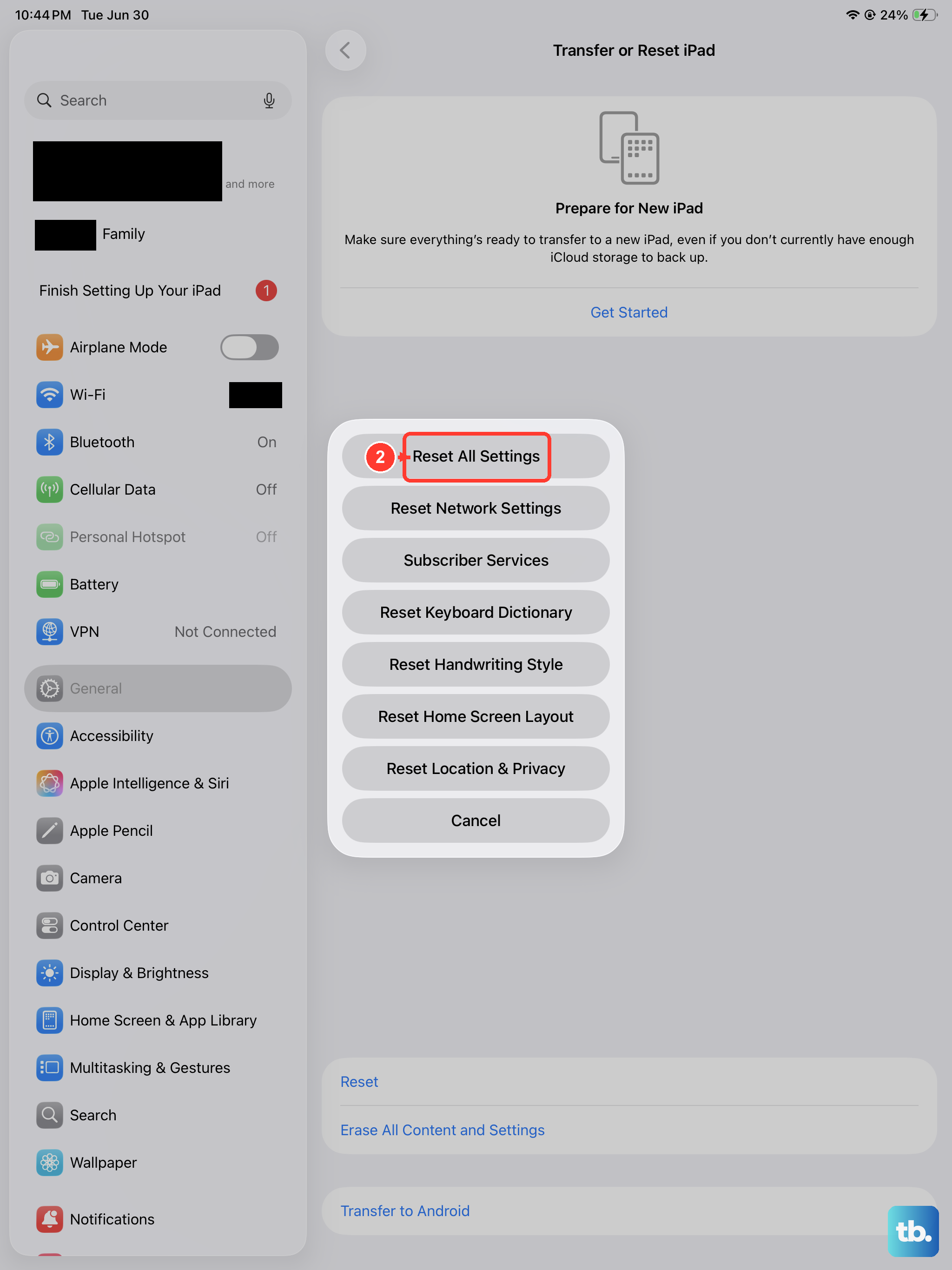
This is a more thorough step that will reset your network settings, wallpaper, and privacy permissions back to default, but it won't delete any of your personal data like photos or apps.
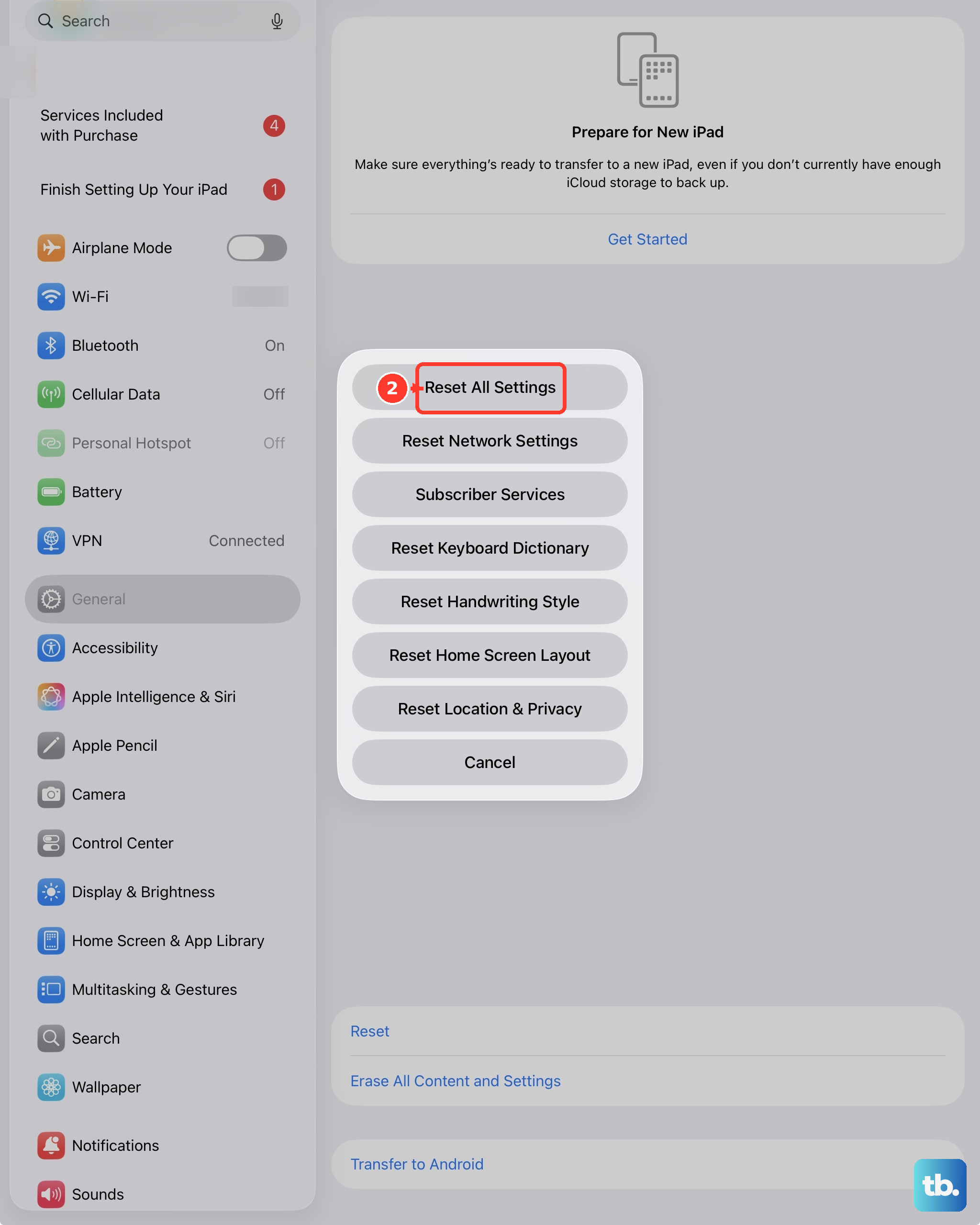
Go to Settings > General > Transfer or Reset iPad > Reset. Then, tap "Reset All Settings." Your iPad will restart. After it boots up, you'll need to reconnect to Wi-Fi and re-adjust any custom settings, but it often clears out persistent software bugs.
Consider a Sensor Calibration
While iPadOS doesn't have a public diagnostic mode like the secret codes on phones, you can help recalibrate the gyroscope and accelerometer with a simple motion. Open an app that you know supports rotation, like Safari.
With rotation unlocked, slowly rotate the iPad 360 degrees in each direction, roll, pitch, and yaw. Think of it as gently drawing circles and figure-eights in the air with your tablet. This can sometimes jog the sensors back to proper function if they've gotten stuck.