
When your iPad Air (2026) won't install apps, it can stop you in your tracks. Whether you're trying to download a new game or an essential work tool, that spinning circle that never finishes is incredibly annoying. The good news is that most of these issues are caused by simple glitches that you can fix yourself.
Let's go through the most effective ways to get the App Store working again on your iPad.
Check Your Internet Connection First
This is the most common culprit. The App Store needs a stable connection to Apple's servers to download anything. Pull down from the top-right corner of your screen to open Control Center and make sure Wi-Fi is on and connected.
If you see the Wi-Fi symbol but downloads are stuck, try turning Airplane Mode on for 10 seconds, then off again. This resets your network radios. You can also try switching to a different Wi-Fi network if one is available, as some networks can block the ports the App Store uses.
Restart Your iPad Air
A simple restart clears out temporary software bugs that can freeze the App Store. It's my go-to first step after checking the internet. Just press and hold the top button and either volume button until the power slider appears, then drag it to turn off.
Wait about 30 seconds, then press and hold the top button again until you see the Apple logo. Once it boots back up, try your download again. I've seen this fix the issue more times than I can count.
Force Restart Your iPad
If a normal restart doesn't help, or if the App Store is completely frozen, a force restart is the next move. This doesn't erase any data, it just gives the system a harder reset. On your iPad Air (2026), quickly press and release the Volume Up button, then quickly press and release the Volume Down button.
Immediately after that, press and hold the Top button. Keep holding it even after you see the power off slider. Hold it until the screen goes black and the Apple logo appears, then you can let go. This can clear up more stubborn system hiccups.
Check Your Apple ID and Payment Method
The App Store will block downloads if there's a problem with your account or payment. Open the Settings app and tap your name at the top, then tap "Media & Purchases." Sometimes you just need to sign out and sign back in to refresh your account status.
More often, it's an unpaid balance or an expired payment method. Tap "View Account" and look for any messages about billing issues. You might need to update an expired credit card or resolve a past-due amount from a subscription before new downloads will proceed.
Check Available Storage Space
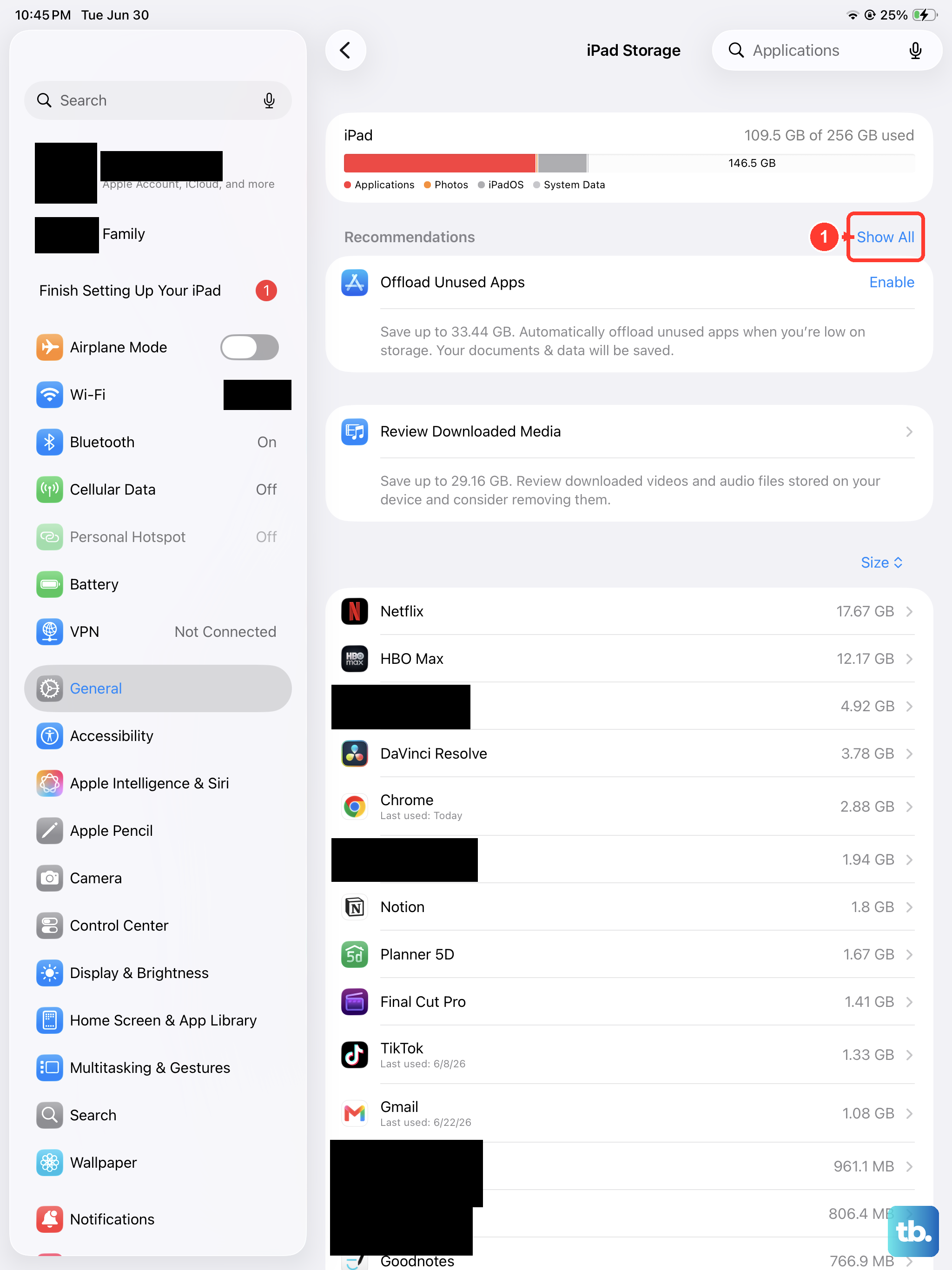
Your iPad needs free space to download and unpack app files. Go to Settings > General > iPad Storage. At the top, you'll see how much space is available. If you're below 1GB of free space, the App Store may refuse to install anything.
You can offload unused apps (which removes the app but keeps its documents and data) or delete old videos and photos to free up room quickly. Once you have enough space, go back and try the download again.
Update iPadOS
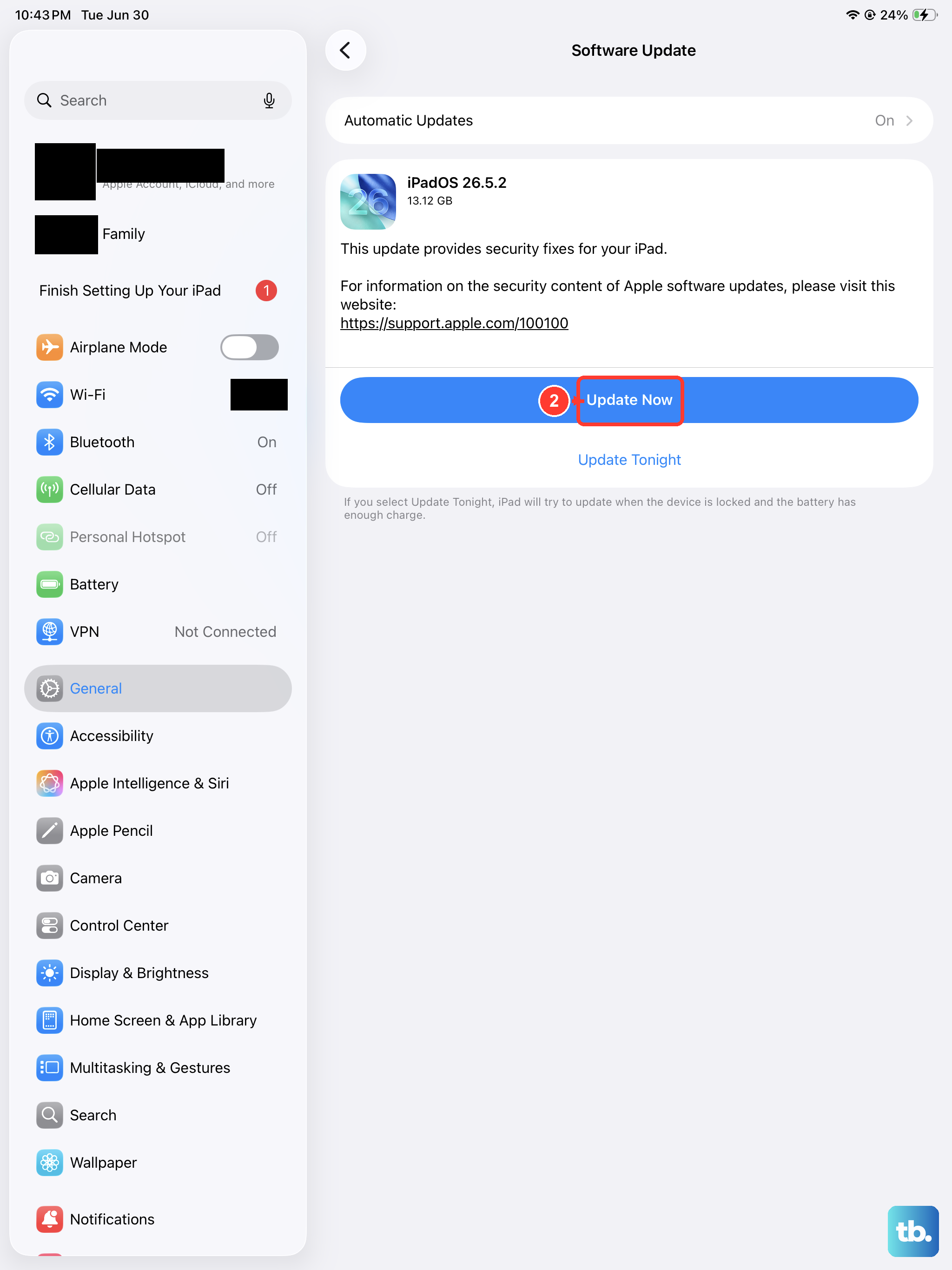
An outdated version of iPadOS can have bugs that break App Store functionality. Apple releases updates regularly to patch these kinds of issues. Go to Settings > General > Software Update.
If an update is available, tap "Download and Install." Make sure your iPad is plugged into power with its USB-C charger and connected to Wi-Fi. Keeping your 2026 iPad Air updated is one of the best ways to ensure everything runs smoothly, including app installations.
Check Screen Time and Content Restrictions
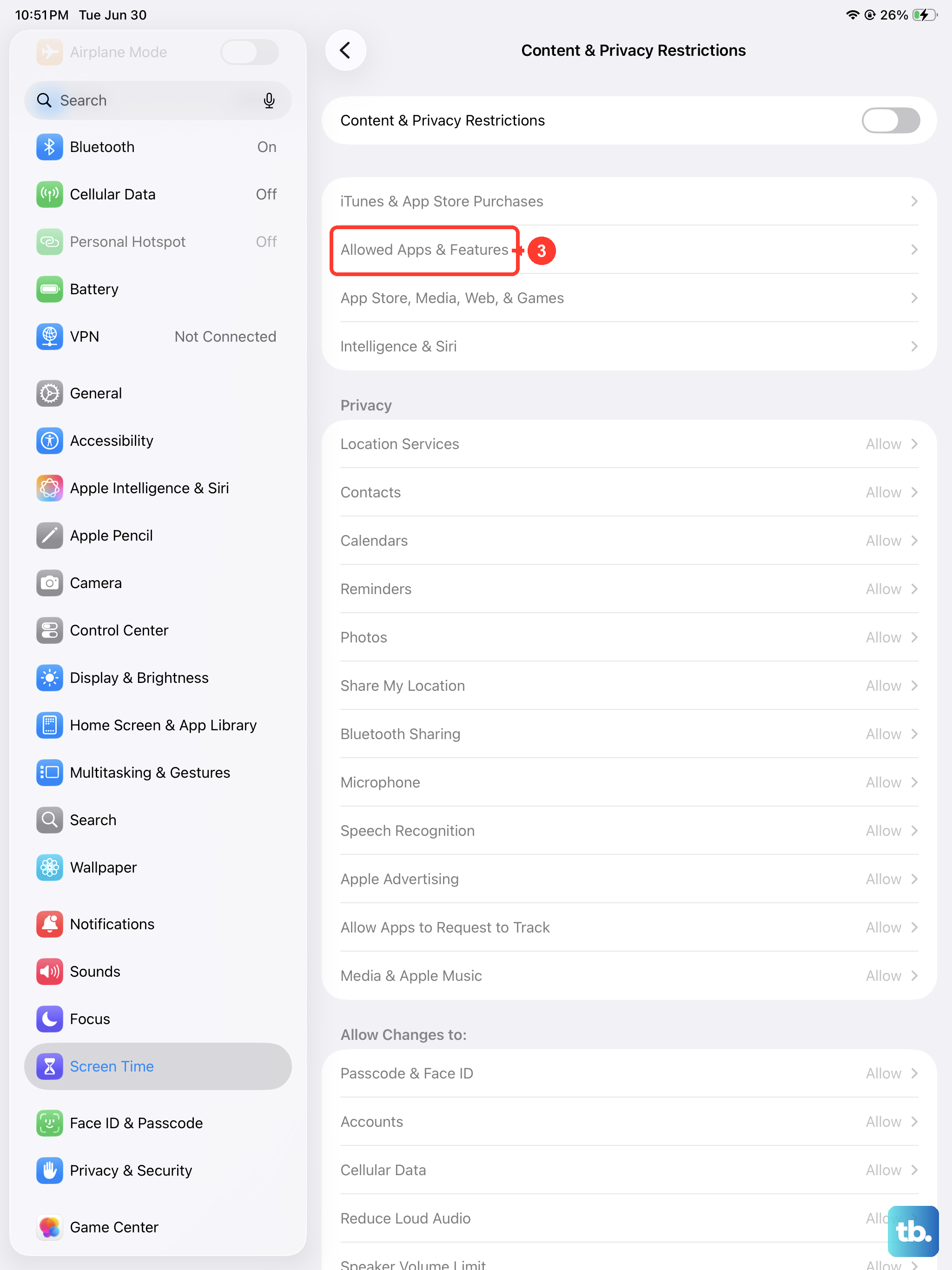
If you use Screen Time, or if this iPad is managed for a family member, a restriction might be blocking installations. Go to Settings > Screen Time > Content & Privacy Restrictions.
Tap "iTunes & App Store Purchases." Make sure "Installing Apps" is set to "Allow." Also check "Allowed Apps" below to ensure the App Store itself isn't turned off. This is a common oversight after setting up parental controls.
Reset All Settings
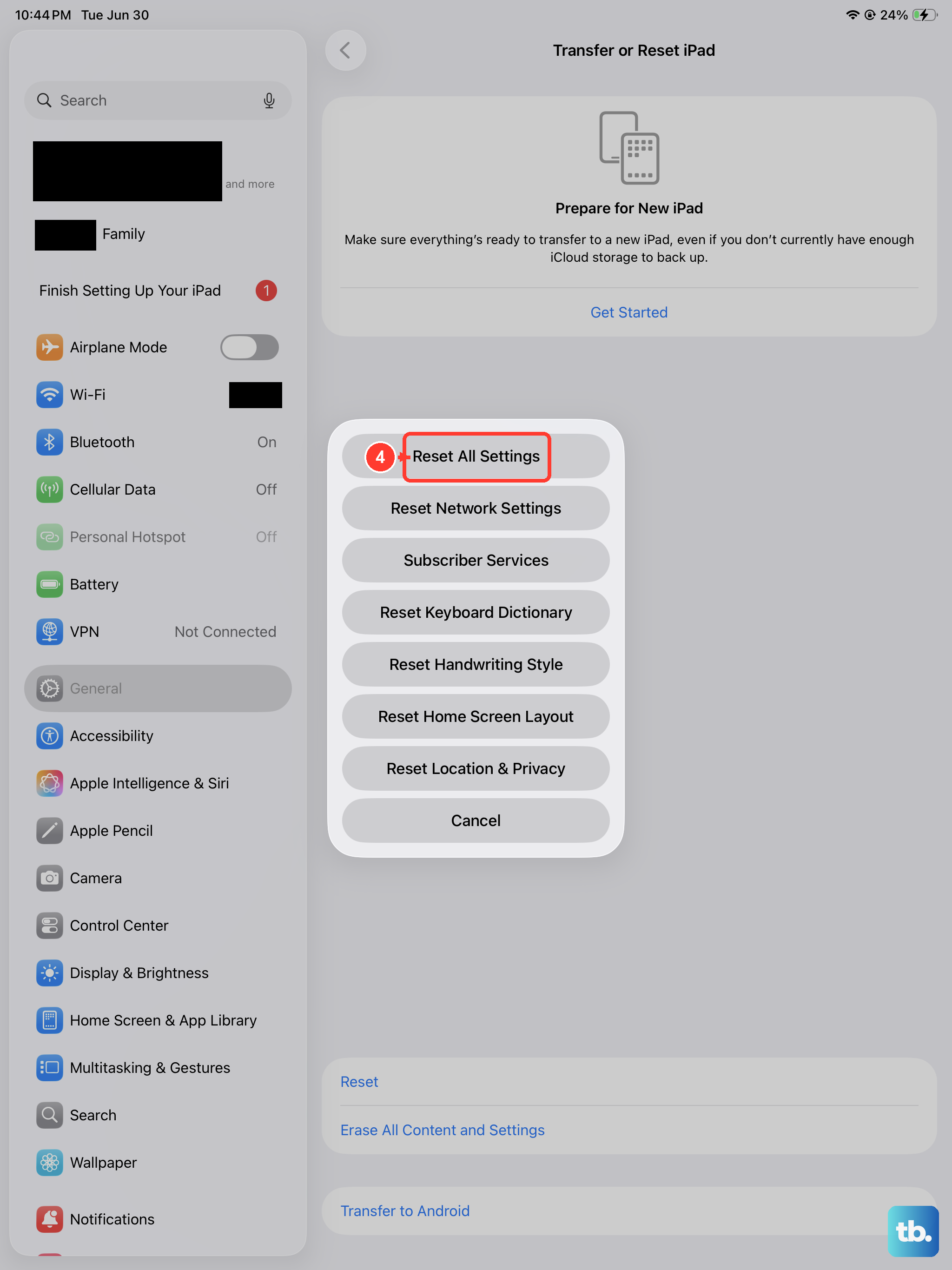
This is a stronger step that resets network settings, privacy permissions, and system configurations back to their defaults. It won't delete your personal data like photos or messages. Go to Settings > General > Transfer or Reset iPad.
Tap "Reset" and then choose "Reset All Settings." You'll need to enter your passcode. After the iPad restarts, you'll have to reconnect to Wi-Fi networks and re-set some preferences, but it often resolves deep-seated software conflicts that stop the App Store.
Sign Out and Back Into the App Store
This refreshes your connection to Apple's app servers. Open the Settings app and tap your Apple ID banner at the top. Scroll down and tap "Sign Out." You'll be asked if you want to keep a copy of your keychain and data on the iPad; you can say yes.
After signing out, restart your iPad. Then go back to Settings, sign back in with your Apple ID and password. Once you're signed in, open the App Store and try your download again. This process clears your local app download cache.
Check the App's Specific Requirements
Sometimes the issue isn't with your iPad, but with the app itself. Newer apps designed for iPadOS 26 might have specific hardware requirements your iPad meets, but it's worth checking. Also, if an app hasn't been updated in years, it might not be compatible with the latest iPadOS.
On the app's page in the App Store, scroll down to the "Information" section. Look for "Compatibility." It should say "Requires iPadOS 15.0 or later" or similar. If your iPadOS version is higher than the requirement, it should work, but very old apps can sometimes fail.
If you've worked through all these steps and you're still stuck, the problem could be more specific. Try downloading a different, free app as a test. If that one works, the issue is likely with the first app's server or listing. If nothing will download, it points back to your iPad or account.