
When an app on your iPad Air (2026) suddenly quits or freezes, it pulls you right out of whatever you were doing. This can happen for a bunch of reasons, from a minor software hiccup to something needing a deeper look. I'd start with a quick restart, as that clears out temporary glitches that can cause apps to misbehave.
To restart your iPad, press and hold the top button and either volume button until the power off slider appears. Drag the slider, wait about 30 seconds, then press the top button again to turn it back on. If the app is still crashing after that, don't worry, there are several other straightforward things to try.
Update the Problem App
App developers are constantly pushing out updates to squash bugs and improve stability. An outdated app is a common culprit for crashes. Head to the App Store and tap your profile icon in the top right corner.
Scroll down to see if there are any pending updates. If the app that's crashing is listed, tap the update button next to it. After it installs, open the app again to see if the problem is resolved.
Check for an iPadOS Update
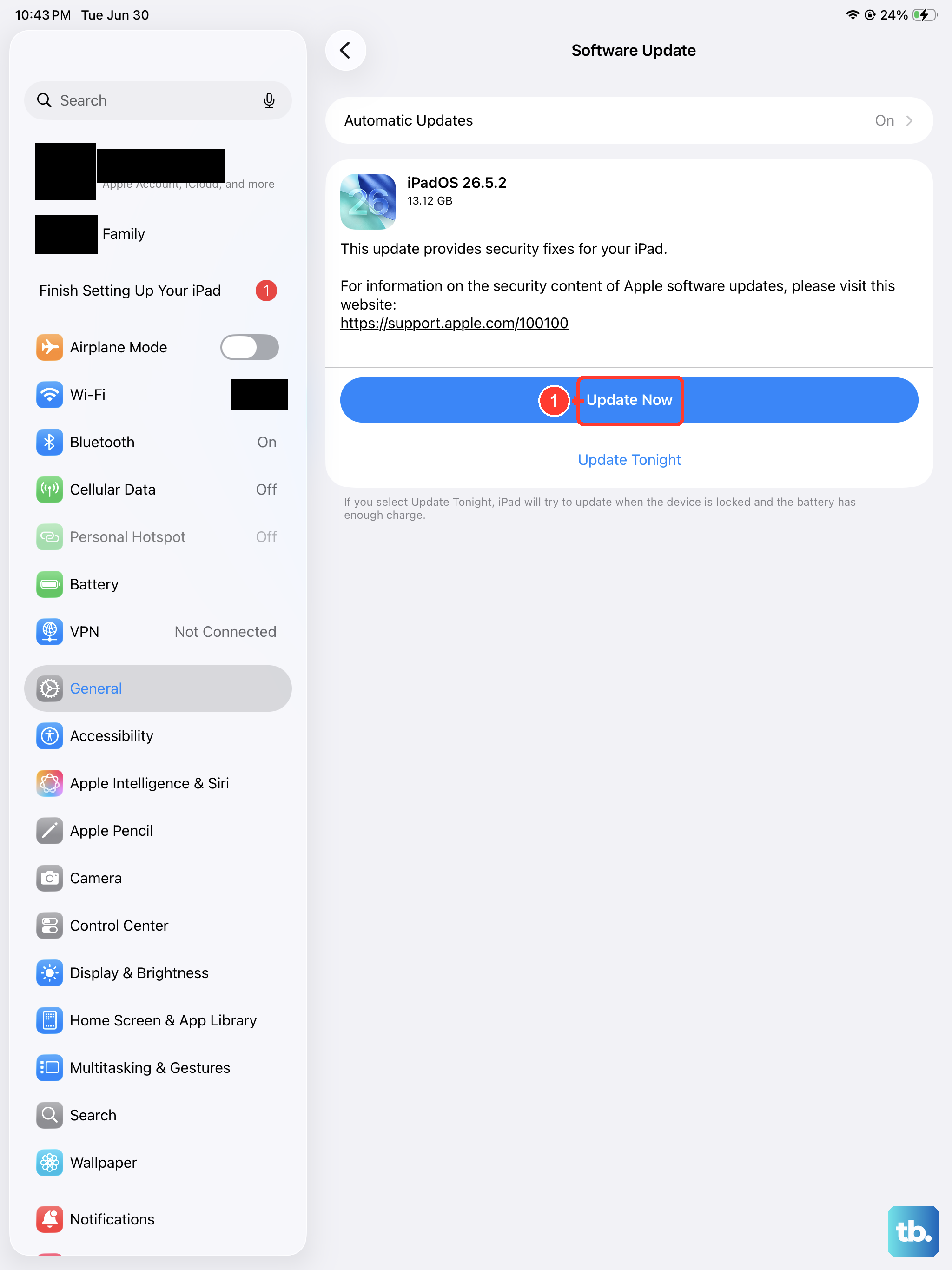
Sometimes, the issue isn't with the app itself but with how it interacts with the system software. Apple releases iPadOS updates that include important performance fixes and compatibility patches.
Go to Settings > General > Software Update. If an update is available, I'd recommend installing it, especially if you're noticing crashes across multiple apps. It's a good habit to check this regularly for your 2026 model.
Force Quit the App
If an app is frozen and won't respond, you need to force quit it. This is different from just switching away from it. Swipe up from the bottom of the screen and pause in the middle to enter the App Switcher.
Find the app's preview and swipe it up and off the top of the screen. This closes it completely. Then, tap the app icon on your Home Screen to launch it fresh. This often clears up whatever was causing it to hang.
Free Up Storage Space on Your iPad
Your iPad Air needs free space to operate smoothly. When storage is critically low, apps can crash because they don't have room to create temporary files or cache data. Go to Settings > General > iPad Storage.
This screen shows you what's taking up space. Look for large files you can delete, old videos, or apps you no longer use. Offloading unused apps (which removes the app but keeps its documents and data) can also help quickly free up gigs without losing your information.
Check Your Internet Connection
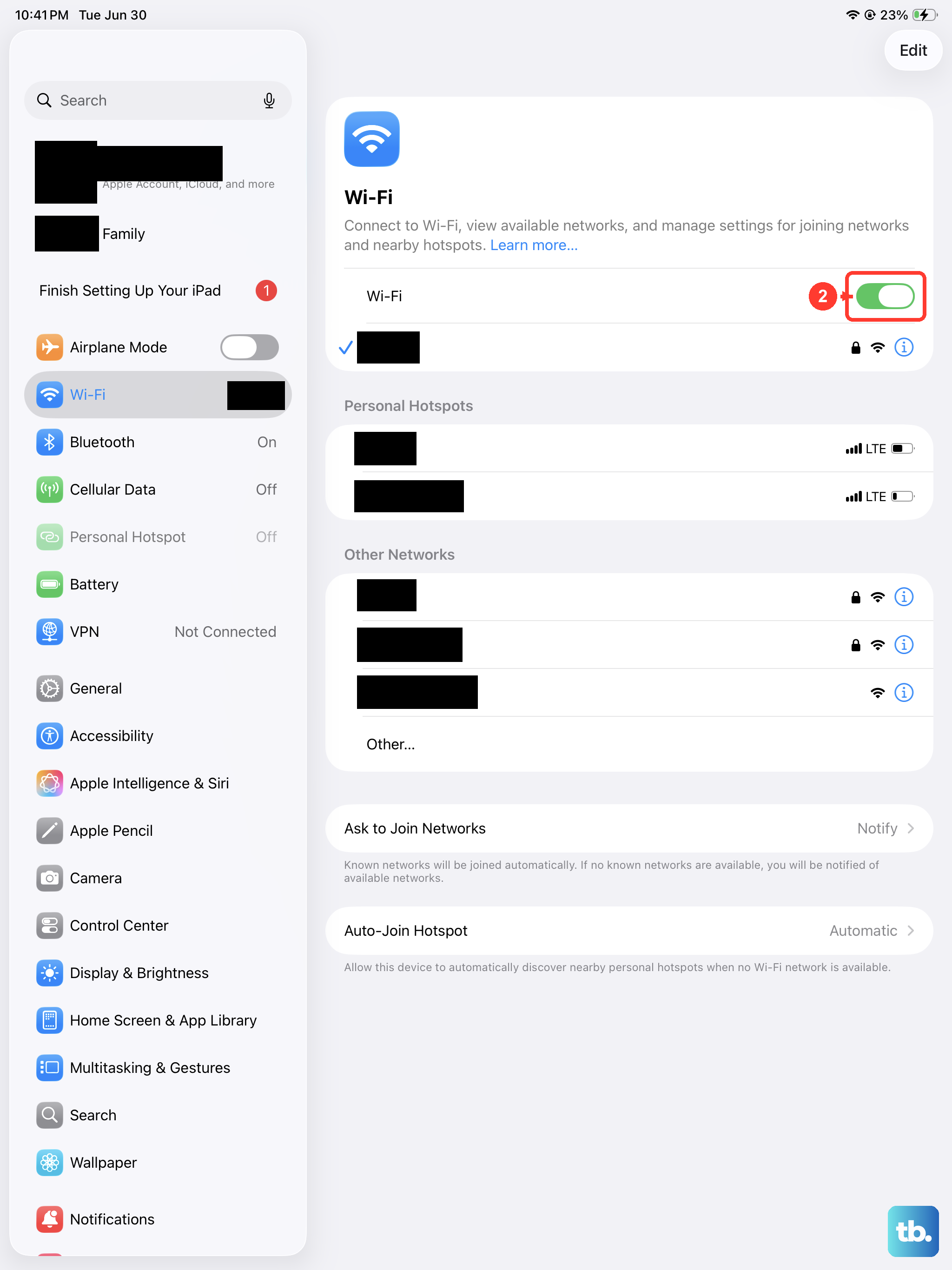
Apps that rely on a network connection, like streaming services or social media, may crash or fail to load if your Wi-Fi is unstable. Try switching your iPad into Airplane Mode for a few seconds and then turning it off again to reset the radios.
You can also try forgetting your Wi-Fi network and rejoining it. Go to Settings > Wi-Fi, tap the "i" icon next to your network, and select Forget This Network. Then, rejoin by entering the password again.
Offload and Reinstall the App
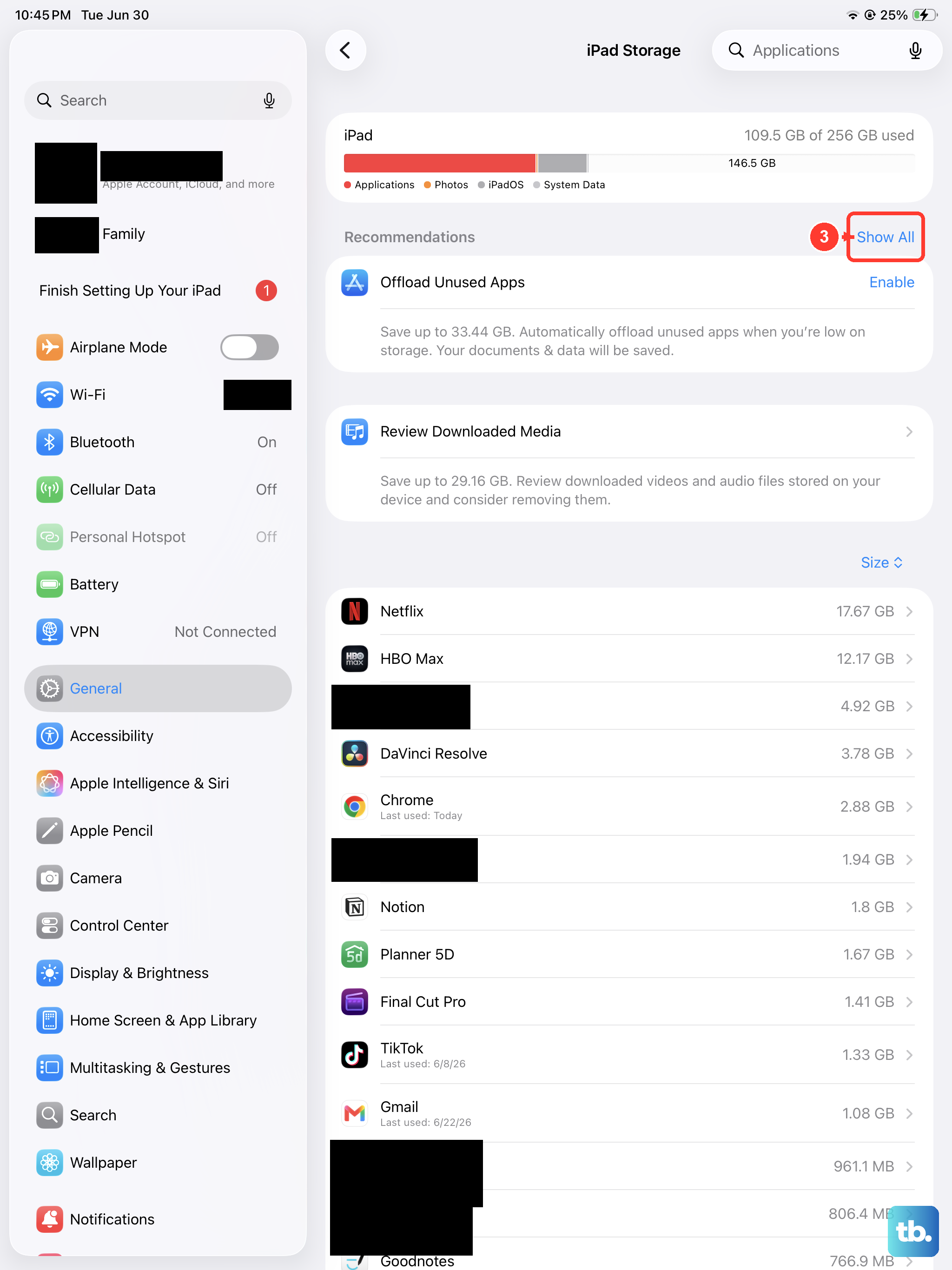
This is a more thorough step than force quitting. Offloading removes the app but keeps all its data and documents on your iPad. Go back to Settings > General > iPad Storage.
Tap on the problematic app from the list. Select Offload App and confirm. The icon will remain on your Home Screen with a small cloud symbol. Tap it to re-download the app. If the crashes were due to corrupted app files, this should fix it while preserving your data.
Reset All Settings
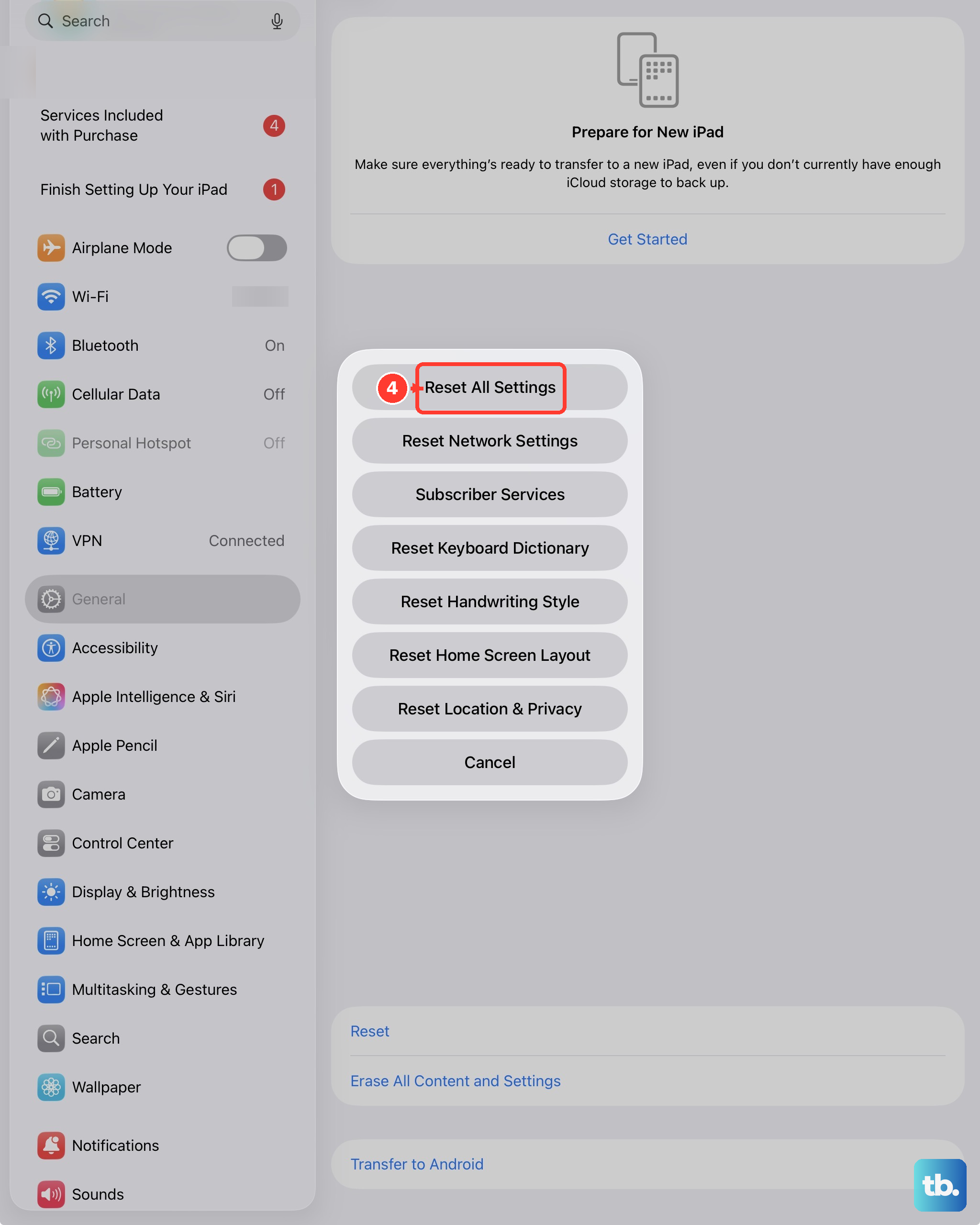
This is a bigger step, but it won't delete your personal data like photos or messages. It resets all your system settings, like Wi-Fi passwords, wallpaper, and privacy permissions, back to their defaults. It can resolve conflicts that cause apps to crash.
Go to Settings > General > Transfer or Reset iPad. Tap Reset and then choose Reset All Settings. You'll need to enter your passcode and confirm. After your iPad restarts, you'll have to reconnect to Wi-Fi and reconfigure some preferences, but your apps and data will be intact.
Perform a Force Restart
If your iPad is completely unresponsive or apps are crashing in a way that prevents normal use, a force restart can help. This is different from a normal shutdown and can clear more persistent software issues.
On your iPad Air (2026), quickly press and release the Volume Up button, then quickly press and release the Volume Down button. Immediately after, press and hold the Top button. Keep holding it until you see the Apple logo appear, then release.
Restore Your iPad via a Computer
If you've tried everything else and apps are still consistently crashing, restoring your iPad through a Mac or PC is the most comprehensive software fix. This erases the device and installs a fresh copy of iPadOS.
First, make sure you have a recent backup in iCloud or on your computer. Connect your iPad to the computer using a USB-C cable. On a Mac with macOS Catalina or later, open Finder. On a PC or older Mac, open iTunes. Select your iPad, choose "Restore iPad," and follow the prompts. After it's complete, you can set it up as new or restore from your backup.