
When you tap send on a photo and it just sits there, it's a common iPad annoyance. The issue could be with your connection, the app you're using, or a simple software hiccup. Let's start with the quickest fix that often works.
Check Your Internet Connection First
This is the most likely culprit. Open Safari and try loading a webpage. If it doesn't load, your iPad isn't connected. For Wi-Fi, go to Settings > Wi-Fi and make sure you're connected to the right network.
If you're using a cellular model, check the signal bars in the top-right corner. You can also toggle Airplane Mode on and off from Control Center to reset the radios. A quick restart of your home router can also clear up Wi-Fi gremlins.
Force Quit and Reopen the App
Whether you're using Messages, Mail, or a social media app, force quitting can clear a temporary glitch. Swipe up from the bottom of the screen and pause in the middle to enter the app switcher.
Find the app you're trying to send from and swipe it up and off the top of the screen to close it. Wait a few seconds, then tap the app icon to reopen it and try sending the photo again. I've found this resolves the issue more often than not.
Verify iMessage is Active for Blue Bubbles
If you're sending to another Apple device and the message bubble is green, it's going as an SMS/MMS text, not an iMessage. Go to Settings > Apps > Messages and ensure the iMessage toggle is on.
Sometimes the service just needs a refresh. Turn iMessage off, wait a moment, and turn it back on. Also, check Settings > Apps > Messages > Send & Receive to confirm your phone number or email is selected.
Enable MMS Messaging for Text (SMS)
If you're texting a non-Apple phone, you need MMS enabled. Go to Settings > Apps > Messages. Make sure MMS Messaging is turned on.
Also, enable Send as SMS below it. This allows your iPad to send the photo as a standard text message if iMessage fails or isn't available for the recipient.
Check Your Cellular Data Settings
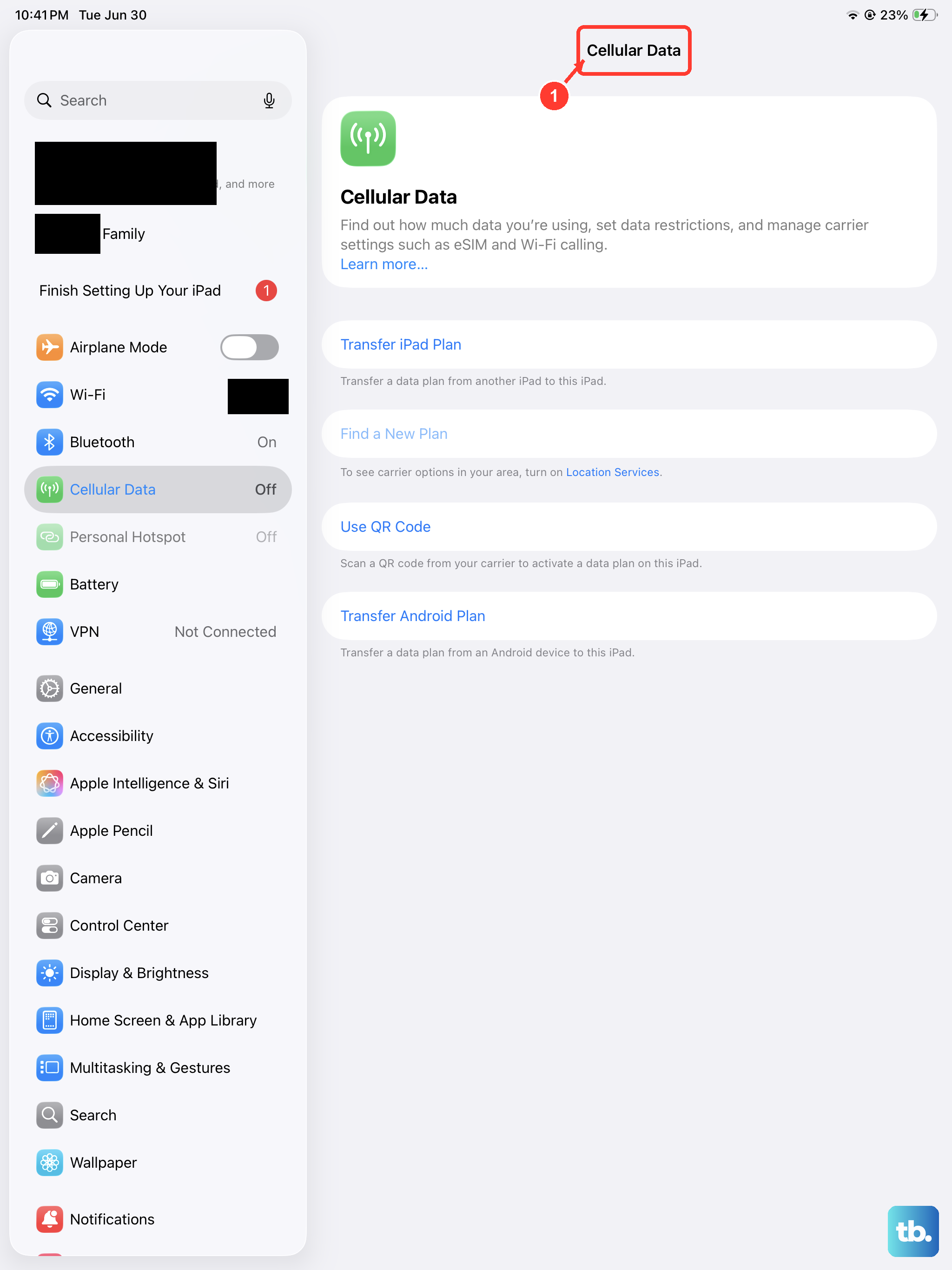
If you're using a cellular iPad model and not on Wi-Fi, you need to ensure cellular data is on for messaging. Go to Settings > Cellular Data and toggle it on.
Scroll down to find the Messages app in the list and make sure it's allowed to use cellular data. Also, check that Low Data Mode is turned off in your cellular data options, as it can restrict photo sending.
Restart Your iPad (11th Gen)
A simple restart clears the system's memory and stops any minor background processes that might be interfering. Press and hold the top button and either volume button until the power slider appears.
Drag the slider to turn it off completely. After about 30 seconds, press and hold the top button again until you see the Apple logo. This is different from the force restart, which we'll cover if this doesn't work.
Update Your iPadOS Software
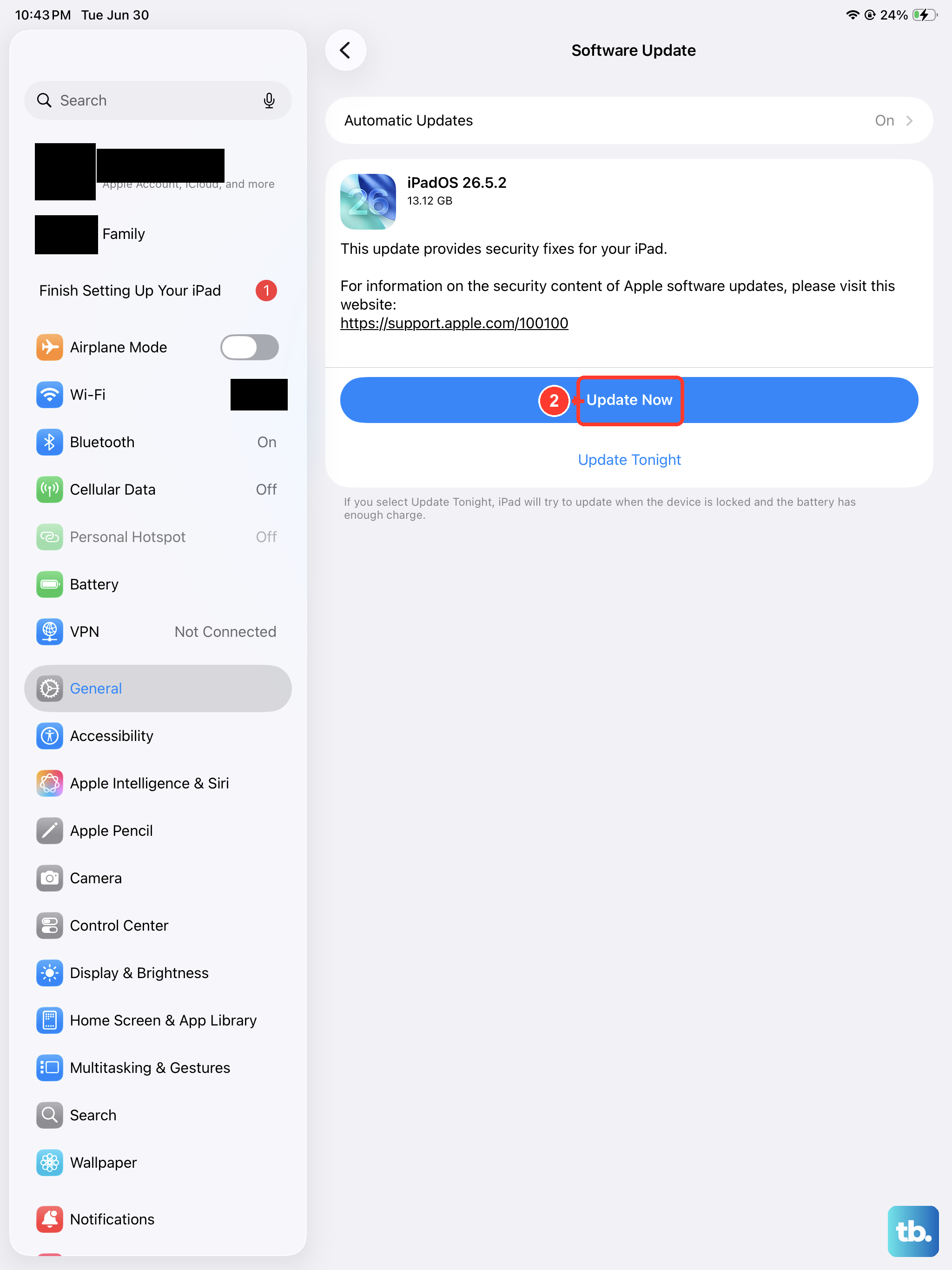
Running an outdated version of iPadOS can lead to bugs that affect messaging and sharing. Connect to Wi-Fi and plug in your iPad with its USB-C charger.
Go to Settings > General > Software Update. If an update is available, tap Download and Install. Keeping your 11th-gen iPad updated is one of the best ways to maintain stability.
Check Date & Time Settings
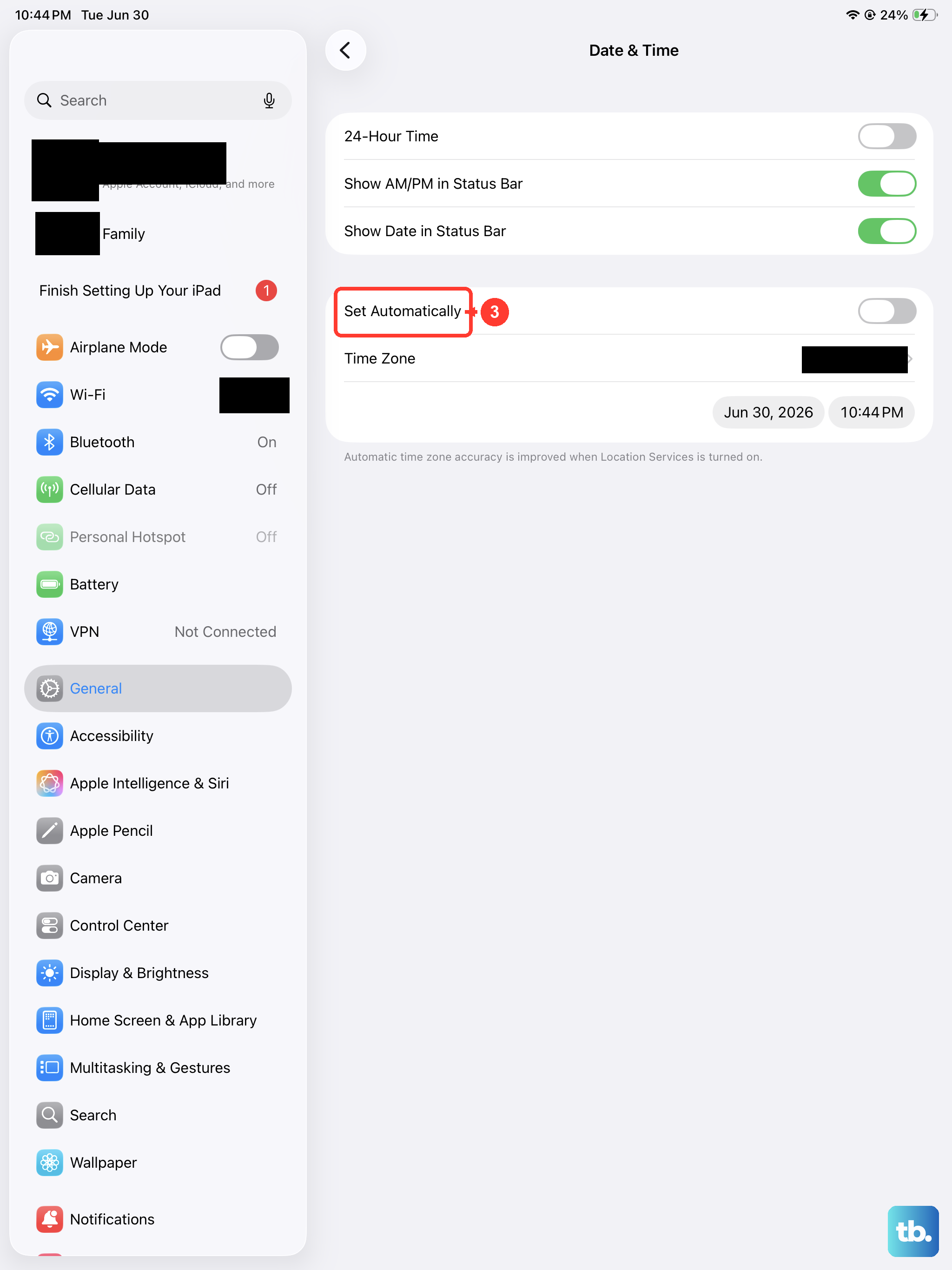
An incorrect date or time can cause authentication issues with Apple's servers, breaking iMessage. Go to Settings > General > Date & Time.
Make sure Set Automatically is enabled. If it's already on, try turning it off and back on to force a refresh with the time server.
Sign Out and Back Into Your Apple ID
This refreshes your connection to Apple's services, including iMessage and FaceTime. Go to Settings and tap your name at the top. Scroll all the way down and tap Sign Out.
You'll be asked if you want to keep a copy of your data on the iPad; it's safe to say yes. Restart your iPad, then go back to Settings to sign in with your Apple ID and password.
Perform a Force Restart
If the standard restart didn't help, a force restart is more thorough. On your iPad (11th generation), quickly press and release the Volume Up button, then quickly press and release the Volume Down button.
Immediately after, press and hold the Top button. Keep holding it until you see the Apple logo appear, then release. This doesn't erase any data, it just gives the system a hard reset.
Reset Network Settings
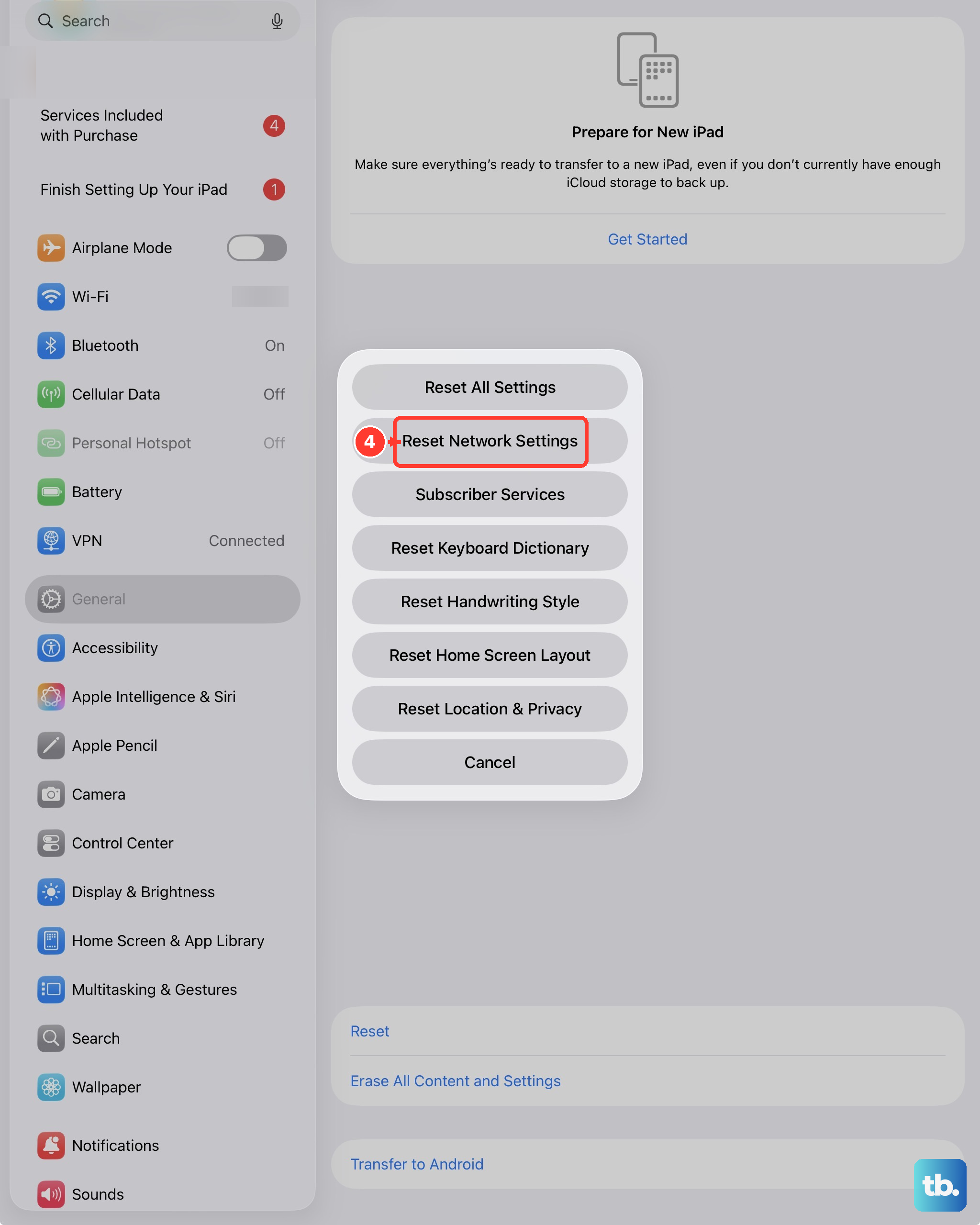
This clears all your Wi-Fi networks, passwords, cellular settings, and VPN configurations. Go to Settings > General > Transfer or Reset iPad.
Tap Reset and then choose Reset Network Settings. You'll need to enter your passcode and confirm. After the iPad restarts, you'll have to rejoin your Wi-Fi network.
Check for a Carrier Settings Update
For cellular models, your network provider occasionally pushes small updates. Make sure you're connected to the internet, then go to Settings > General > About.
If a carrier settings update is available, a pop-up notification will appear. Just follow the prompts to install it. This can improve network connectivity for sending MMS messages.
Try Sending From a Different App
If photos won't send in Messages, try using Mail or AirDrop to another Apple device nearby. Open the Photos app, select your picture, tap the share icon, and choose Mail or the name of a nearby device for AirDrop.
If the photo sends successfully through another method, the problem is isolated to your messaging app. If it fails everywhere, the issue is more likely with the photo file, your iPad's storage, or the system itself.
Ensure You Have Enough Storage
Your iPad needs a little free space to process and send media. Go to Settings > General > iPad Storage to see how much space is available.
If you're critically low, the system can struggle. Try offloading some unused apps or moving photos and videos to iCloud Photo Library to free up room.
Reset All Settings as a Last Resort
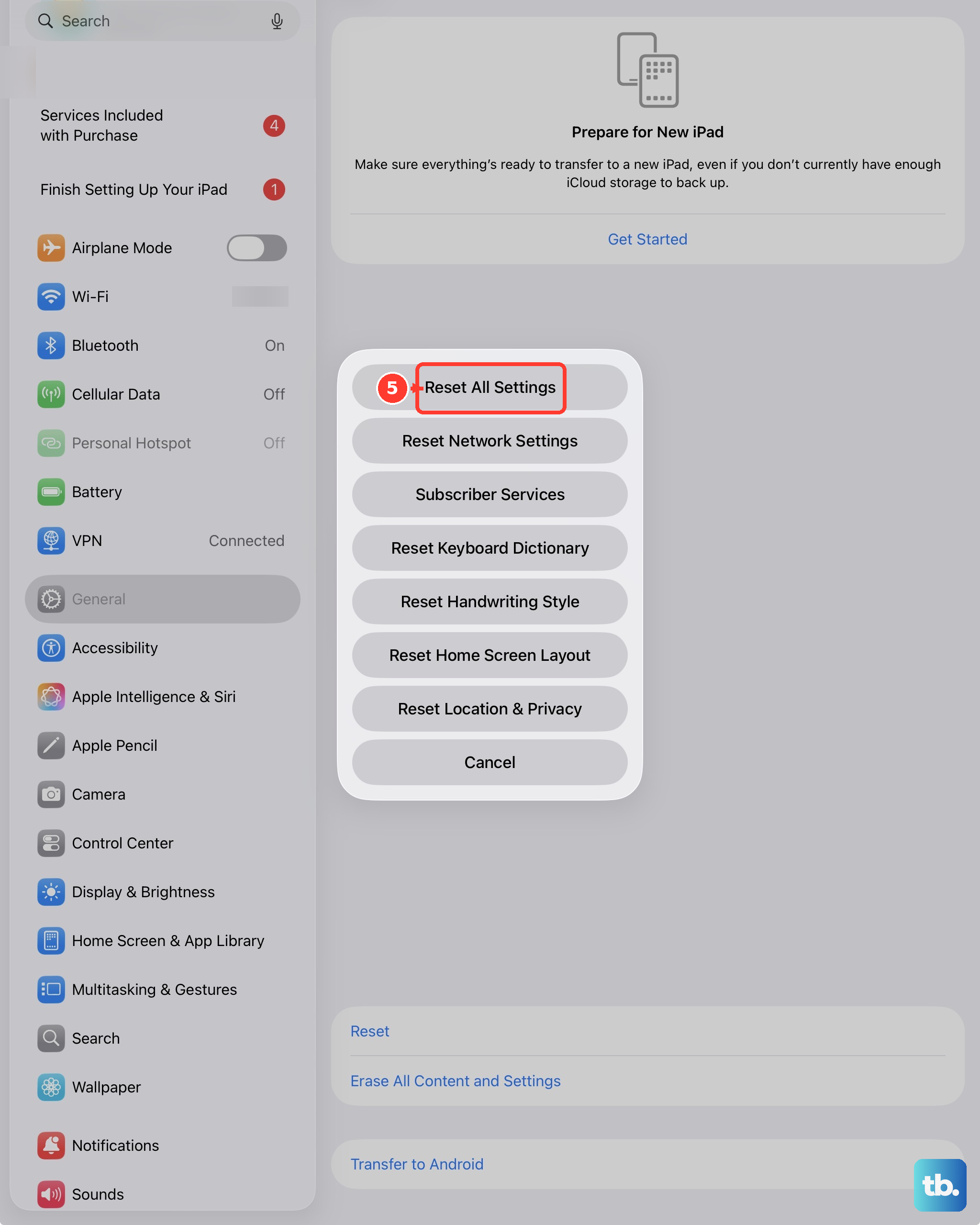
This will revert all your preferences, like wallpaper, privacy settings, and network info, back to factory defaults without deleting your personal data. Go to Settings > General > Transfer or Reset iPad.
Tap Reset and select Reset All Settings. Enter your passcode to confirm. After your iPad restarts, you'll need to reconfigure things like Wi-Fi and Face ID, but it can resolve deep-seated software conflicts.