
When your iPad's volume buttons stop responding, it can be a real nuisance. You press the up or down button and nothing happens, leaving you stuck with whatever volume level you're at. The good news is that most of the time, this is a software hiccup or a simple obstruction that you can fix yourself without a trip to the store.
Let's start with the most common and easiest solutions first.
Remove Your iPad Case
This is always the first thing to check. A case, especially a thicker folio or one that's slightly misaligned, can physically block the volume buttons from being fully pressed. Take the iPad out of its case completely and test the buttons again. I've seen this solve the problem more times than you'd think.
Perform a Force Restart
A force restart is the go-to fix for many weird iPadOS glitches, including unresponsive buttons. It clears the device's temporary memory without touching your data or settings. For the iPad (11th generation), here's exactly how to do it.
Press and quickly release the Volume Up button. Then, press and quickly release the Volume Down button. Finally, press and hold the Top button. Keep holding it until you see the Apple logo appear on the screen, then you can let go.
Check the Volume Button Setting
There's a specific setting in iPadOS that controls whether the physical buttons change the volume. It's worth a quick look to make sure it hasn't been accidentally turned off. Open the Settings app, then tap on Sounds. Look for the option called "Change with Buttons" and make sure the toggle is switched on and green.
Use the On-Screen Volume Slider
While you're figuring out the button issue, you can still control your volume. Swipe down from the top-right corner of the screen to open Control Center. You'll see a volume slider there that you can drag with your finger. You can also adjust it by going into Settings > Sounds and using the slider there.
Clean Around the Volume Buttons
Dust, lint, or pocket debris can easily get packed around the small seams of the volume buttons, preventing them from clicking properly. Take a can of compressed air and give the area around both buttons a few short bursts. For any sticky residue, a cotton swab lightly dampened with isopropyl alcohol can help, but be very gentle and don't let liquid seep into the device.
Test the Buttons in Different Apps
Sometimes the issue isn't with the buttons themselves, but with a specific app. Open the Apple Music app or the TV app and try to change the volume while media is playing. Then, try it while on the Home Screen or in a different app like YouTube. If the buttons work in some places but not others, the problem is likely software-related to that particular app.
Toggle the Mute Switch (If Your Model Has One)
Some iPad models have a physical mute/orientation lock switch on the side. If your iPad has one, try sliding it back and forth a few times. This simple mechanical action can sometimes jog the system and restore communication with the volume buttons. After toggling it, test the volume buttons again.
Enable AssistiveTouch for Virtual Buttons
AssistiveTouch creates a floating menu on your screen that includes virtual volume controls. Using these can sometimes help reset the connection to the physical buttons. Go to Settings > Accessibility > Touch > AssistiveTouch and turn it on.
A small gray circle will appear on your screen. Tap it, then tap Device, and then you'll see Volume Up and Volume Down options. Tap these virtual buttons a few times, then try your physical buttons again. You can turn AssistiveTouch off afterward if you don't need it.
Update Your iPadOS Software
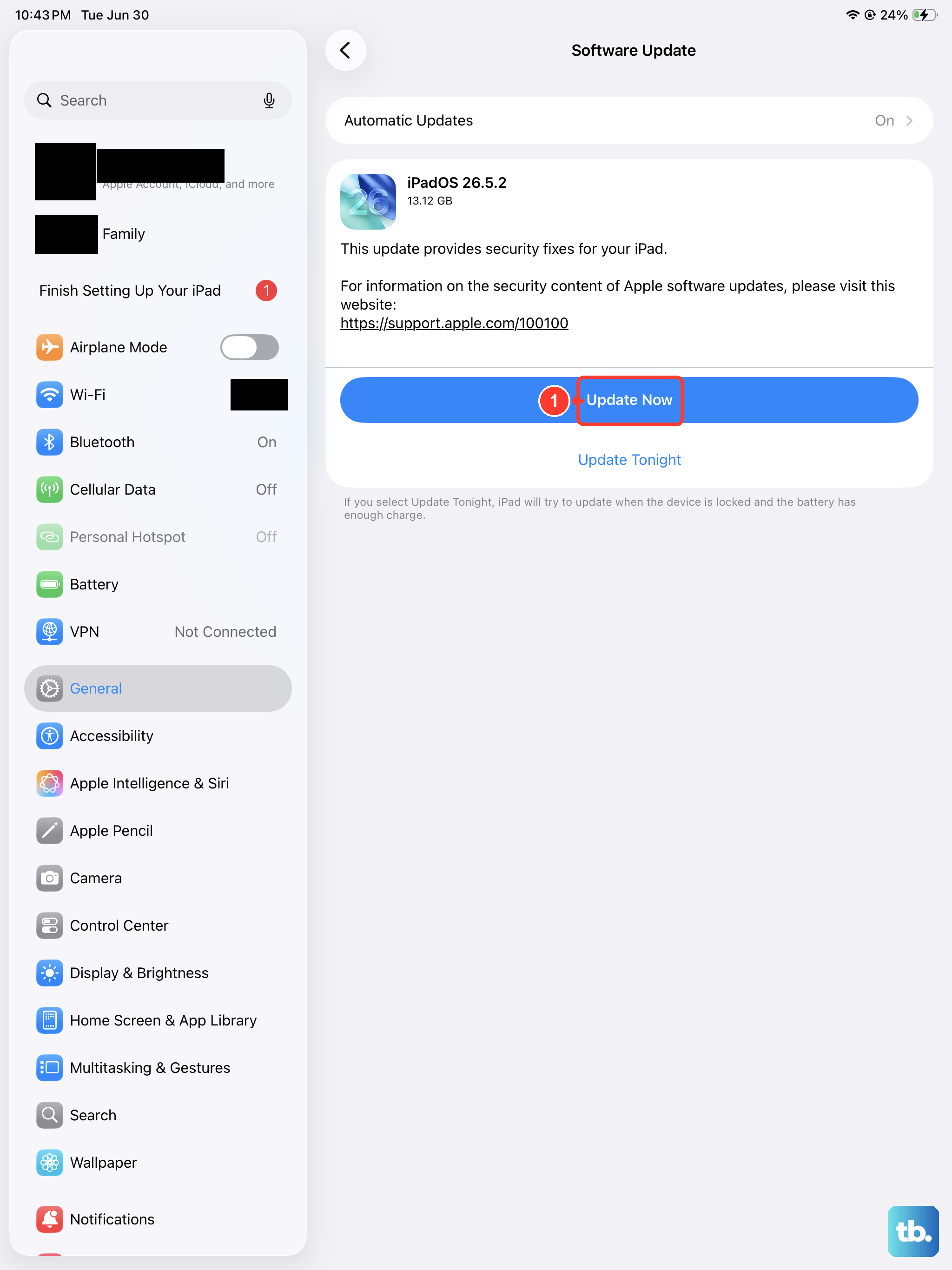
Software bugs in a specific version of iPadOS can cause all sorts of peripheral issues, including button problems. Making sure you're on the latest version is a crucial step. Connect your iPad to Wi-Fi and plug it into power with its USB-C cable.
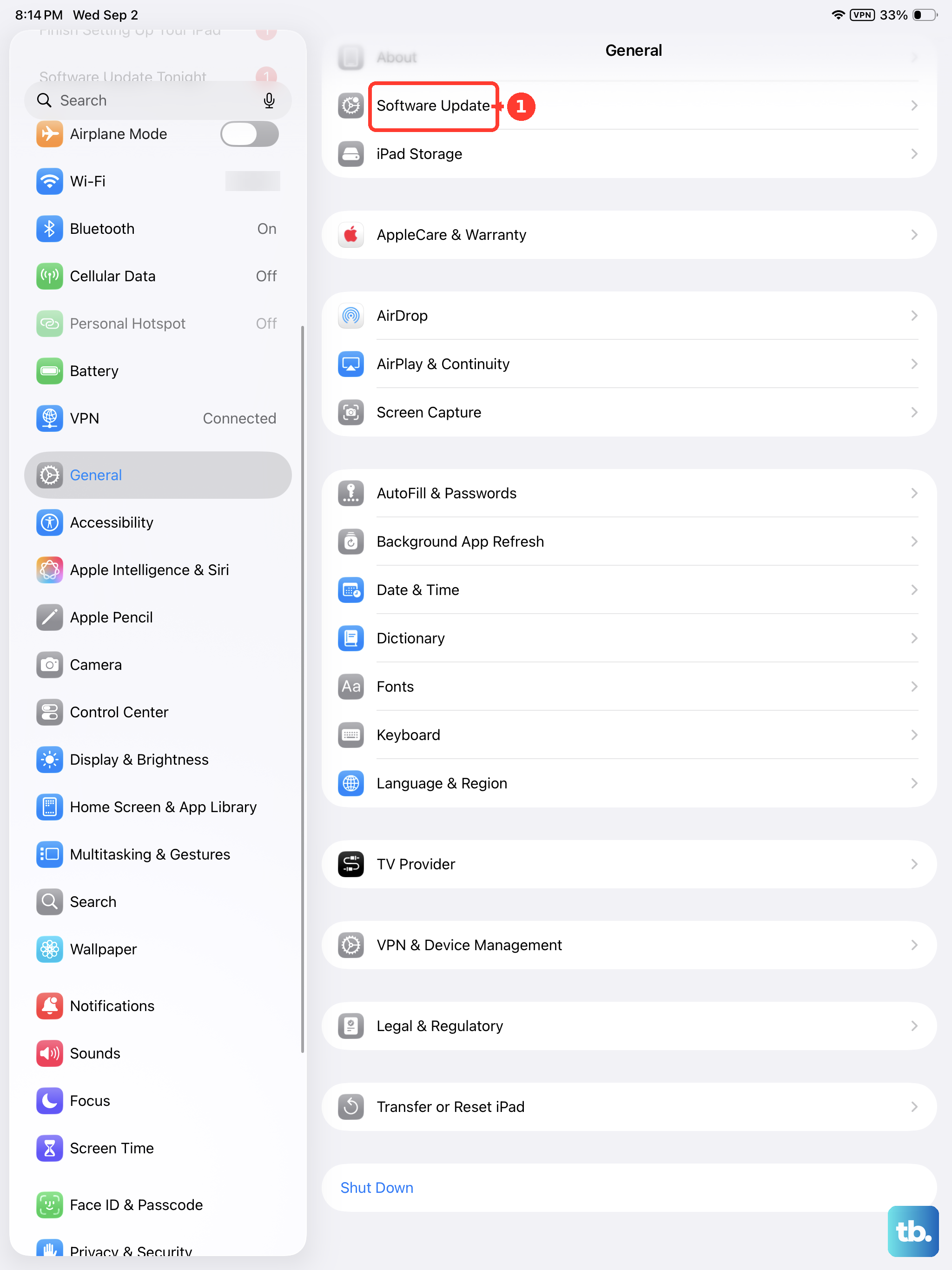
Then, open Settings, tap General, and select Software Update. If an update is available, tap Download and Install. A fresh install of the latest iPadOS can clear up many underlying glitches.
Reset All Settings
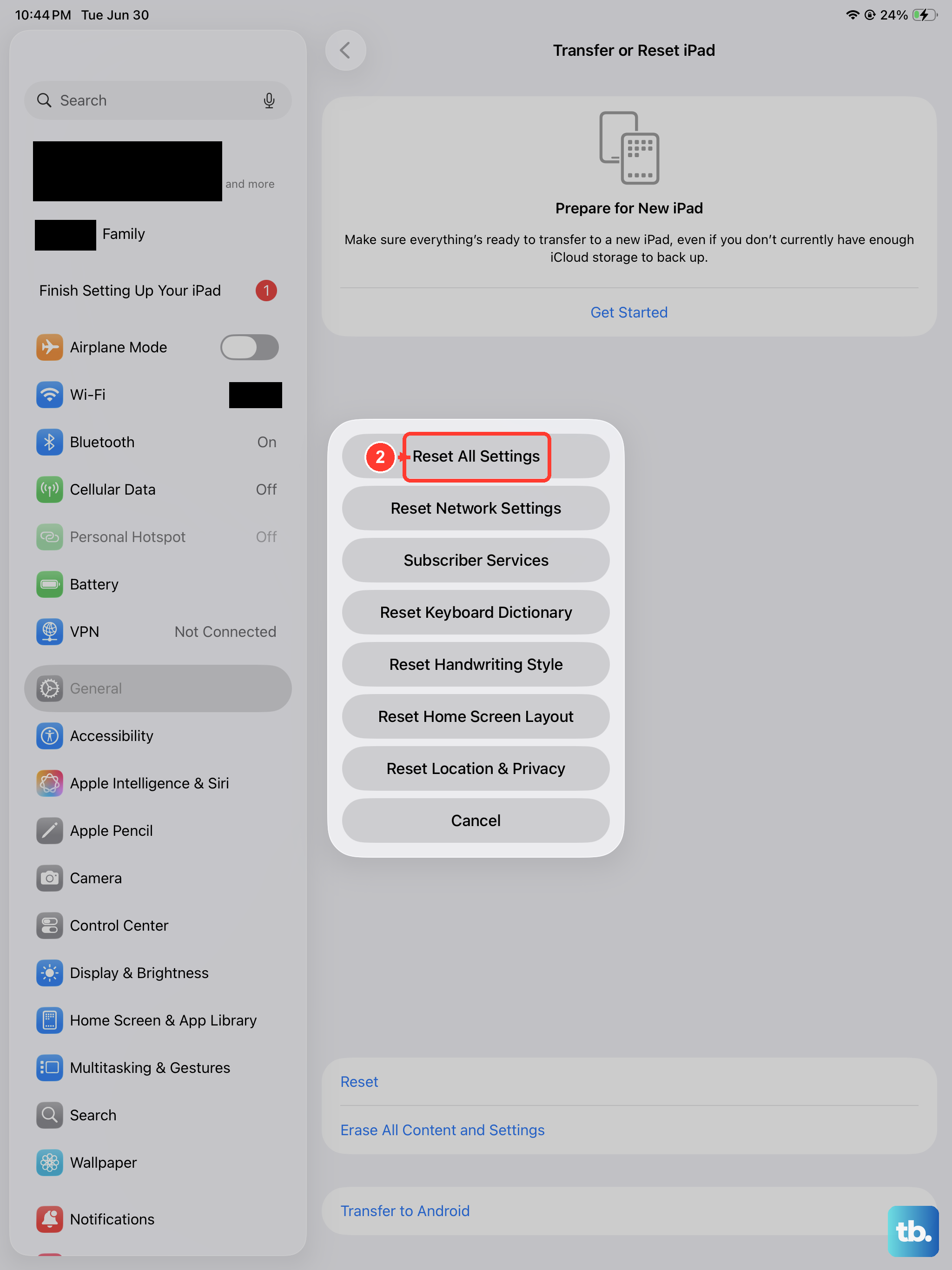
If you're still having trouble, a reset of all settings can help. This will revert all your preferences, like Wi-Fi passwords, wallpaper, and privacy settings, back to factory defaults, but it won't delete any of your personal data like photos or apps.
Go to Settings > General > Transfer or Reset iPad. Tap Reset, and then choose "Reset All Settings." Enter your passcode if prompted and confirm. After the iPad restarts, you'll need to reconfigure your settings, but it often resolves persistent software conflicts.