
Seeing your iPad (11th generation) frozen on the Apple logo is a stressful moment. The screen lights up with that familiar logo and then just… stays there. This boot loop usually happens after a problematic iPadOS update, a software glitch, or if the device ran out of storage at a critical moment. The good news is you can almost always get it running again.
Give It Time to Finish
Before you do anything else, plug your iPad into power using its USB-C port and a 20W adapter. Then, just wait. A major iPadOS update can leave the device on the logo screen for 15-20 minutes while it completes background installation and optimization. If you see a progress bar, it's actively working. Interrupting it now can make the problem worse.
Perform a Force Restart
If the logo is completely static for over 20 minutes, a force restart is your first active step. On the iPad (11th generation), you press and quickly release the Volume Up button, then quickly press and release the Volume Down button. Immediately after, press and hold the Top button until you see the Apple logo appear again. This interrupts the stuck boot cycle and often gets you right to the Home Screen.
Enter Recovery Mode
When a force restart just brings you back to the same frozen logo, you need to use recovery mode. Grab a USB-C cable and connect your iPad to a Mac or a Windows PC with iTunes installed. On a Mac with macOS Catalina or later, you’ll use the Finder app instead.
With it connected, quickly press and release the Volume Up button, then the Volume Down button, then immediately press and hold the Top button. Keep holding it even after you see the Apple logo, until the recovery mode screen appears (it shows a cable pointing to a computer icon). Your computer will then detect the iPad.
You’ll see two options: Update and Restore. Always choose Update first. This tries to reinstall iPadOS without touching your personal data. The process takes about 15 minutes. If the Update fails or can’t complete, you’ll have to choose Restore, which erases everything on the device.
Try DFU Mode as a Last Resort
DFU, or Device Firmware Update, mode is a deeper restore level than recovery mode. It’s useful if recovery mode fails or the iPad is completely unresponsive. Connect it to your computer with a USB-C cable. Quickly press and release Volume Up, then Volume Down. Now, press and hold the Top button for 10 seconds.
After 10 seconds, while still holding the Top button, also press and hold the Volume Down button for 5 seconds. Then, release the Top button but keep holding the Volume Down button for another 10 seconds. If done correctly, the screen will remain black. Your computer should detect a device in recovery mode and prompt you to restore it.
Manage Your Storage Before Updates
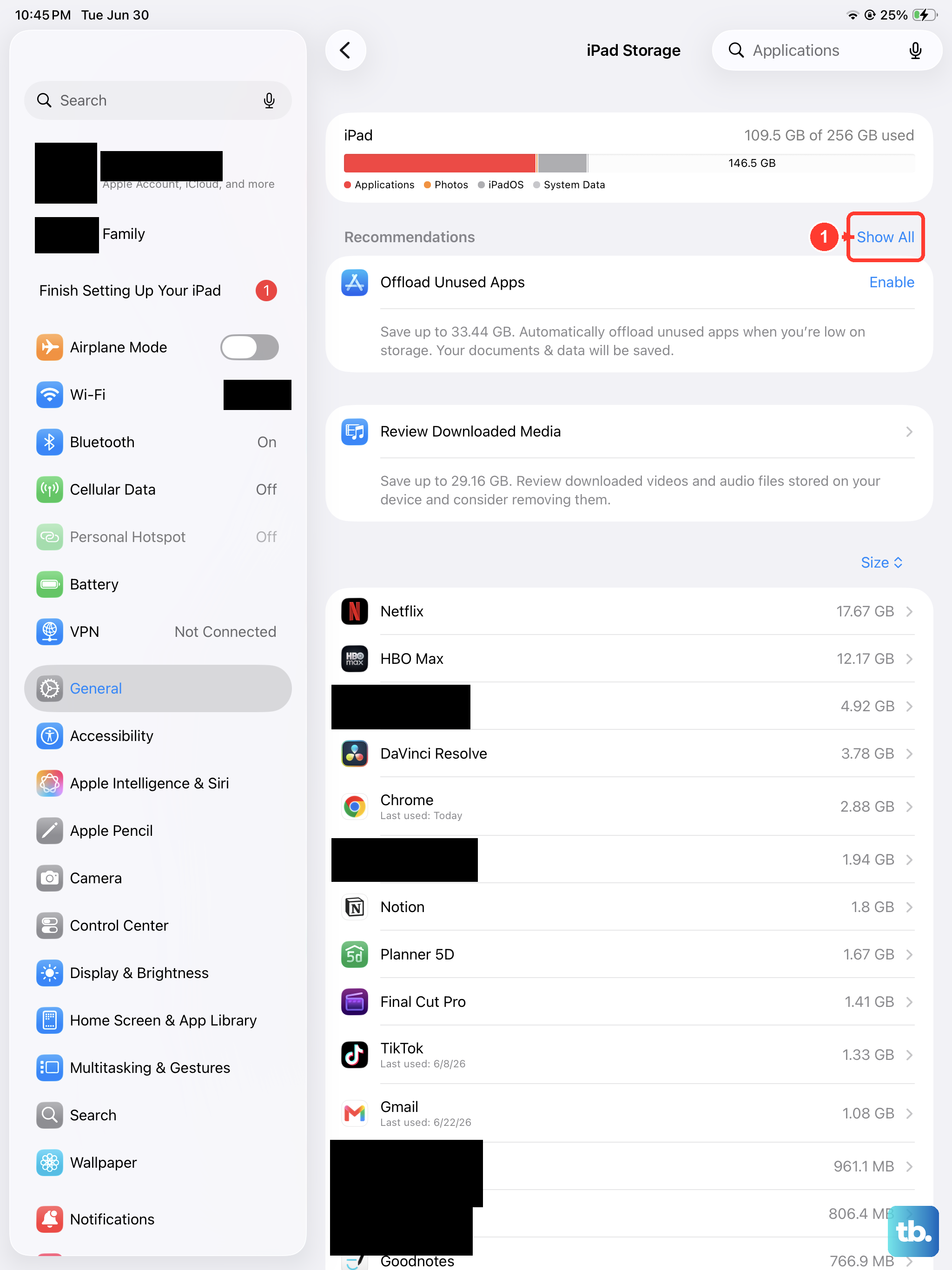
One of the most common triggers for this issue is attempting an iPadOS update without enough free space. If you get your iPad working again after a force restart, immediately check your storage in Settings > General > iPad Storage. I’d recommend freeing up at least 6-8 GB before trying to update again. Offload unused apps or move photos to iCloud to clear room.
Check Your Connection to the Computer
If your computer won’t recognize the iPad in recovery or DFU mode, the cable or port is often the culprit. Try a different USB-C cable, preferably an Apple-certified one. Also, try plugging into a different USB port on your computer, ideally one directly on the machine instead of a hub. A solid connection is critical for the restore process.
Restore Your Data from a Backup
If you had to use the Restore option and erase your iPad, you can get your data back. After the fresh iPadOS install, the setup assistant will ask if you want to restore from a backup. Choose Restore from iCloud Backup or Restore from Mac or PC depending on where your latest backup is stored. This is why regular backups to iCloud or your computer are so important.
Seek Hardware Support
If the iPad doesn’t respond to force restart, recovery mode, or DFU mode, and the screen remains black or stuck, there could be a hardware problem. A failing storage module or an issue with the logic board can cause permanent boot failure. In that case, your next step is to contact Apple Support or visit an Apple Store or authorized service provider for diagnosis.