
Running out of space on your iPad (11th generation) can really slow you down, stopping you from downloading new apps, saving documents, or updating to the latest version of iPadOS. The good news is that a few simple checks can often free up several gigabytes. I'd start by looking at what's actually taking up all that room.
See What's Filling Your iPad
Open Settings > General > iPad Storage. This screen gives you a complete breakdown of your storage usage, with apps sorted by size. Give it a moment to fully load and calculate. You'll almost always find Photos, Messages, and a few large productivity or creative apps at the top of the list.
Offload Apps You Don't Use
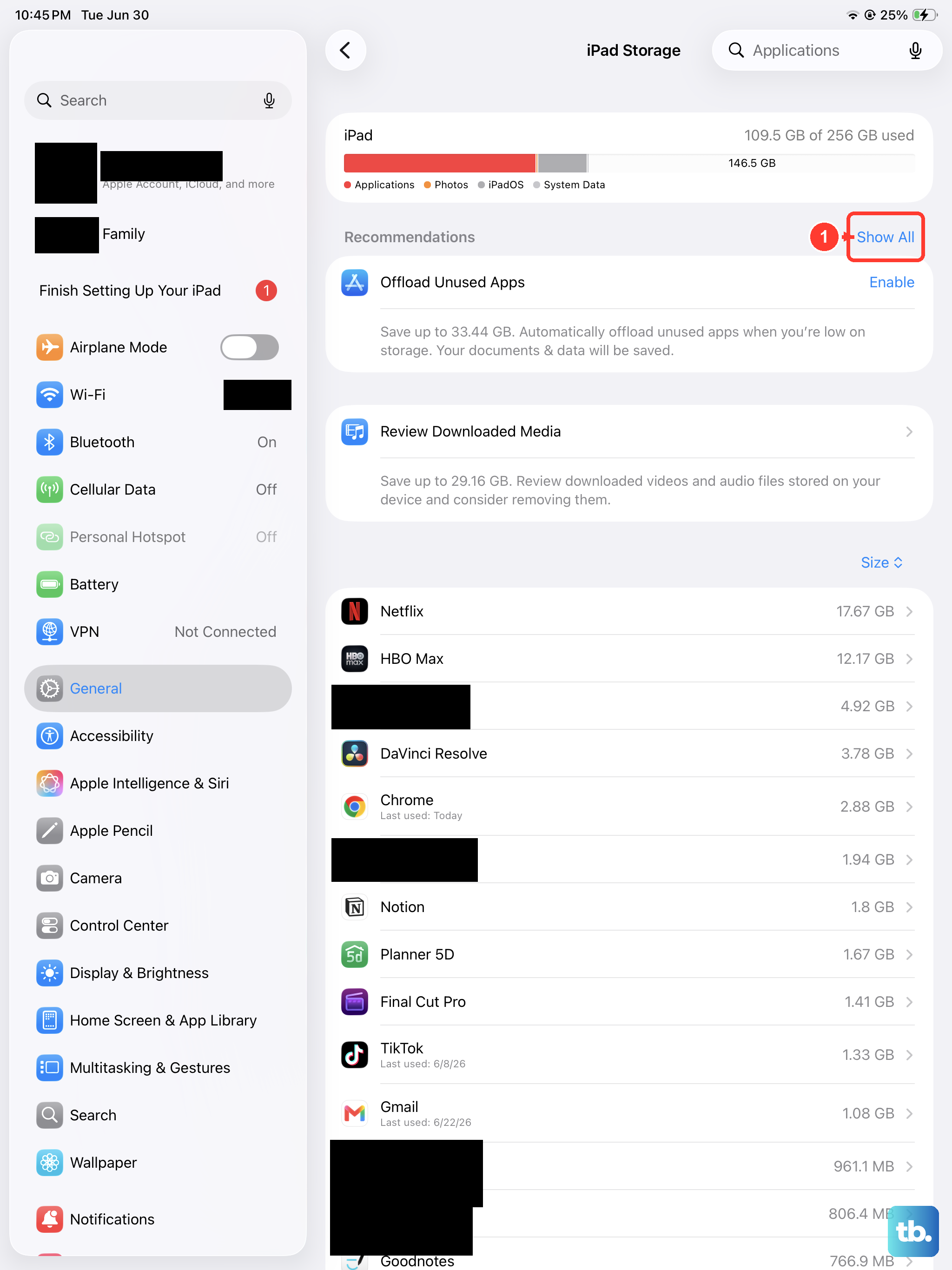
While you're in the iPad Storage menu, look for the Offload Unused Apps option and turn it on. This is a great set-it-and-forget-it feature that automatically removes apps you haven't opened in a while, but keeps all their documents and data saved. You can also offload apps manually by tapping on any app in the list and selecting Offload App. The app icon stays on your Home Screen with a little cloud icon, ready to re-download instantly when you need it.
Manage Your Photo and Video Library
Media files are the most common culprit for a full iPad. Go to Settings > Apps > Photos and make sure Optimize iPad Storage is enabled. This keeps your full-resolution originals safely in iCloud while storing smaller, device-friendly versions on your iPad itself. You can also open the Photos app and spend a few minutes deleting old screenshots, duplicate shots, and videos you've already shared. Remember to then go into the Recently Deleted album and empty it to permanently free up that space.
Clear Out Message Attachments
Years of text threads can hide a surprising amount of photos, videos, and documents. Head to Settings > General > iPad Storage and tap on Messages. You'll see a breakdown of file types like Photos, Videos, and GIFs. Tap into each category to review and bulk delete items. For a more automatic cleanup, you can set messages to delete after a year or 30 days by going to Settings > Apps > Messages > Keep Messages.
Delete and Reinstall Large Apps
Apps like video editors, games, and social media platforms can accumulate huge caches of temporary data. In your iPad Storage list, look for apps where the "Documents & Data" size is much larger than the "App Size." For these, deleting the entire app and reinstalling it fresh from the App Store is often the fastest fix. You won't lose your account or login information, just the temporary files that were bloating its size.
Review Downloaded Media Files
If you use your iPad for entertainment, check your streaming apps for offline downloads. In apps like Netflix, Disney+, or Apple TV, go to your Downloads library and remove episodes or movies you've already watched. For music, open the Apple Music or Spotify app and look for your downloaded songs or playlists to delete ones you no longer need offline.
Clear Safari Website Data
Safari stores website data, caches, and browsing history to load pages faster, but this can grow over time. To clear it out, go to Settings > Apps > Safari > Clear History and Website Data. If Safari is showing more than a gigabyte of usage in your storage breakdown, this step can reclaim a noticeable chunk of space instantly.
Check for System Data Issues
After a major iPadOS update, sometimes the "System Data" category can temporarily swell. In Settings > General > iPad Storage, scroll down to see its size. If it's unusually large (think 20GB or more), a simple restart can help. Press and quickly release the Volume Up button, then the Volume Down button, then press and hold the Top button until you see the Apple logo. If the problem persists after a day, it may resolve as the system finishes background tasks.
Leverage iCloud and External Storage
For a more permanent solution, consider how you're using iCloud. Upgrading your iCloud+ plan allows you to seamlessly store photos, files, and backups in the cloud. You can manage this at Settings > [Your Name] > iCloud. Also, don't forget the USB-C port on your 11th-gen iPad supports external drives. You can easily offload large project files or media libraries to a portable SSD to keep them accessible without filling your internal storage.