
When your iPad (11th generation) goes silent, it can really throw off your workflow, whether you're trying to watch a video, join a FaceTime call, or just get an alert. Sound issues can pop up for a bunch of reasons, but the good news is most of them are quick to fix on your own. Let's start with the most common solution and work our way through the rest.
It is worth confirming the basics with a quick quick sound test. If neither channel plays a tone, you are looking at a hardware or connection problem rather than a settings issue.
Check the Volume and Silent Mode
First, press the volume up button on the side of your iPad. You should see the volume indicator appear on screen. If it's all the way down, that's your problem. Also, check the switch above the volume buttons. If you see an orange stripe, the Ring/Silent switch is set to silent. Slide it toward the screen to turn silent mode off.
Sometimes, the sound for a specific app might be turned down. Open an app like Apple Music or YouTube and use the volume buttons while the app is active. You can also check the overall volume in Settings > Sounds. Make sure the sliders for Ringer and Alerts and for Media aren't at the bottom.
Disconnect Bluetooth Accessories
Your iPad might be trying to send audio to a paired Bluetooth device, like AirPods, a speaker, or a hearing aid, even if they aren't nearby. Swipe down from the top-right corner to open Control Center. Look at the audio card in the top-right. If it shows anything other than "iPad," tap it and select your iPad from the list.
For a more thorough check, go to Settings > Bluetooth. You'll see a list of your devices. If any show as "Connected," tap the info icon (i) next to it and choose Disconnect. You can also toggle the main Bluetooth switch off temporarily to see if your iPad's speakers kick back in.
Restart Your iPad
A simple restart clears out temporary software glitches that can affect audio. It's always worth a try and only takes a minute. Press and hold the top button and either volume button until the "slide to power off" slider appears. Drag the slider, wait about 30 seconds for the iPad to turn off completely, then press and hold the top button again until you see the Apple logo.
If the sound issue is more stubborn, you might need a force restart. This doesn't erase any data. Quickly press and release the Volume Up button, then quickly press and release the Volume Down button. Finally, press and hold the Top button. Keep holding it until you see the Apple logo appear, then let go.
Check for a Software Update
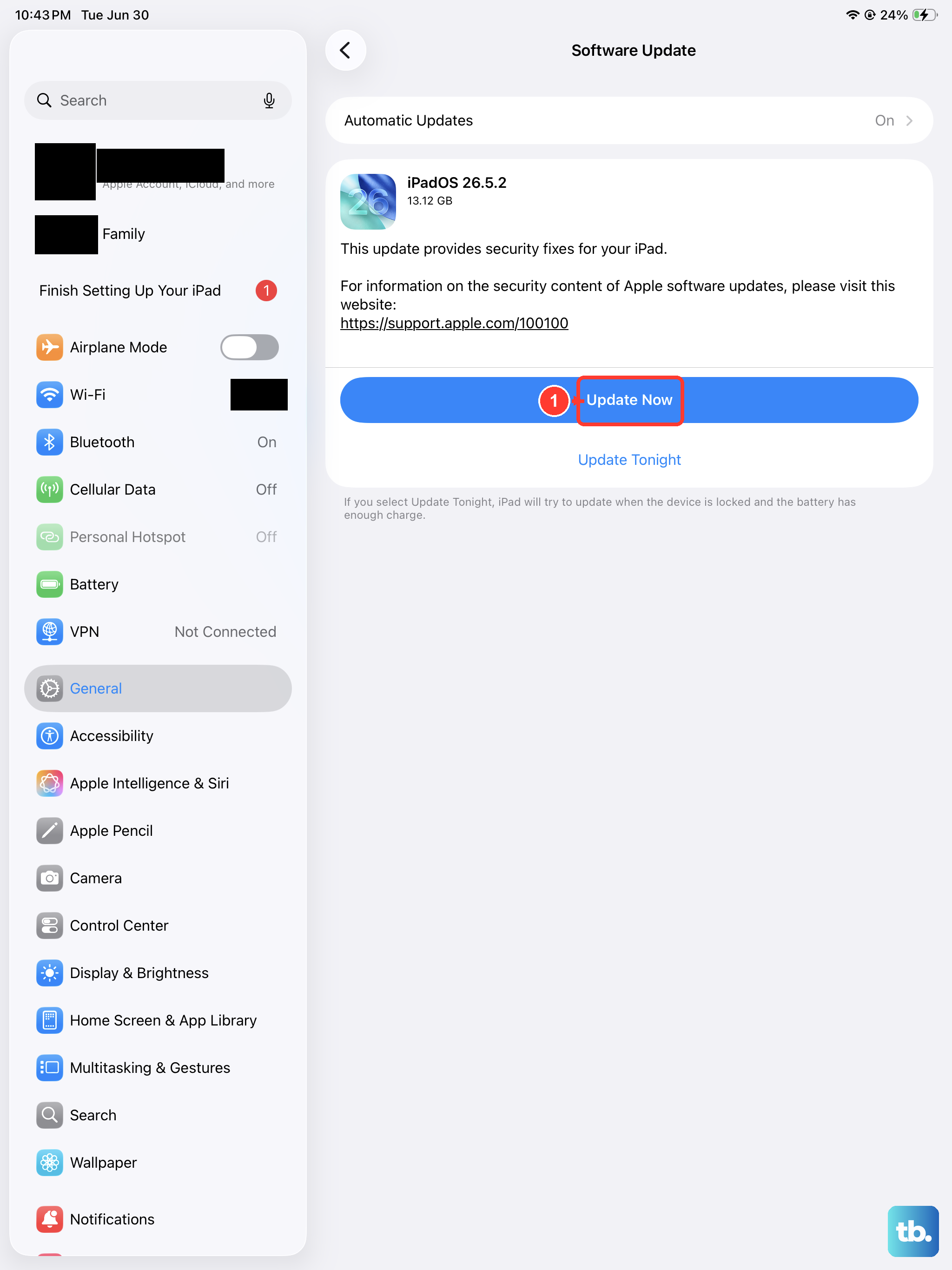
Apple frequently releases iPadOS updates that include bug fixes for audio and other system issues. Making sure you're on the latest version is a good habit. Connect to Wi-Fi and plug in your iPad with its USB-C cable and a 20W or higher power adapter.
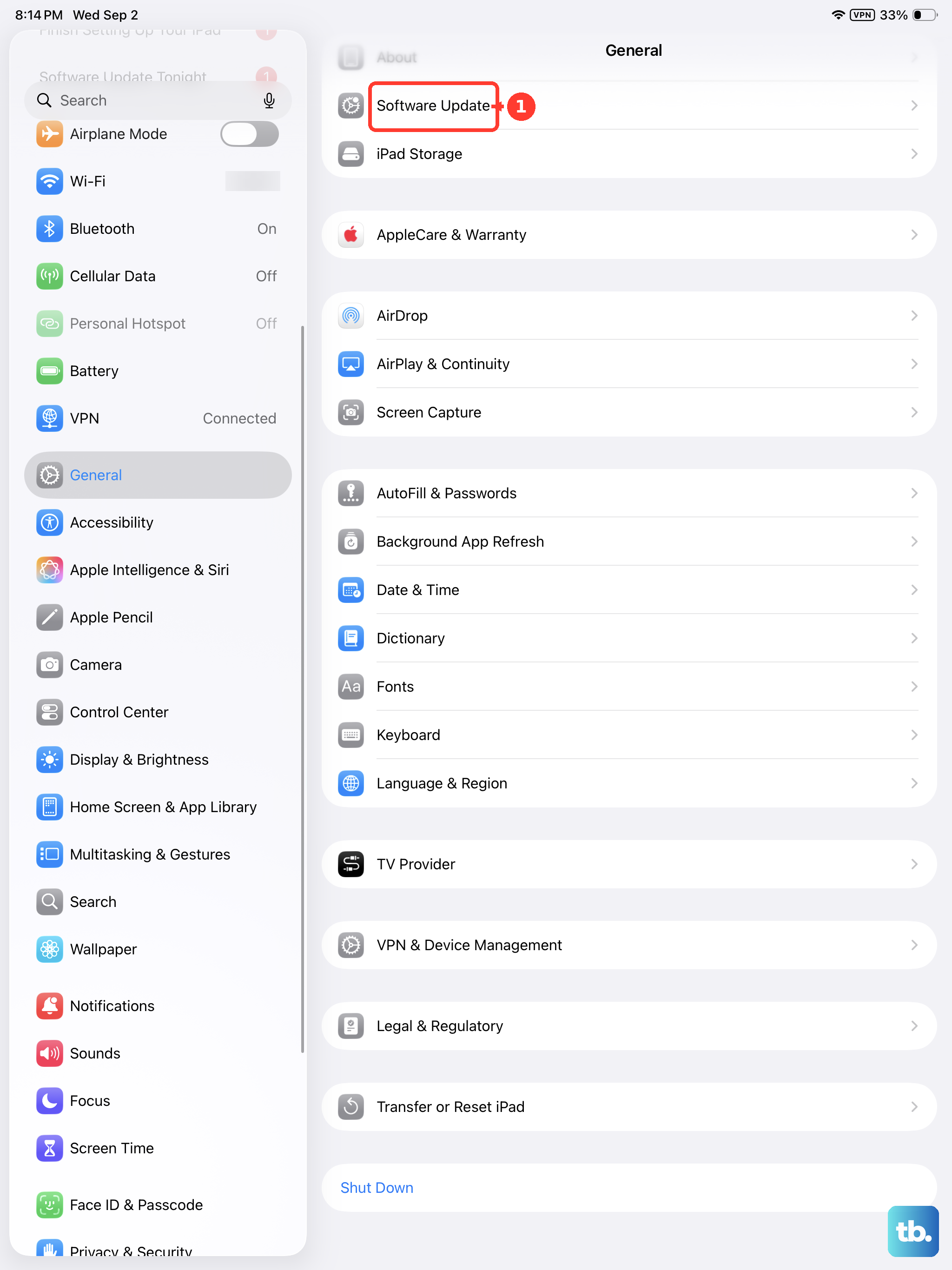
Then, go to Settings > General > Software Update. If an update is available, tap Download and Install. I'd recommend doing this before moving on to more involved fixes, as it often resolves odd behavior.
Review Focus Modes and Accessibility Settings
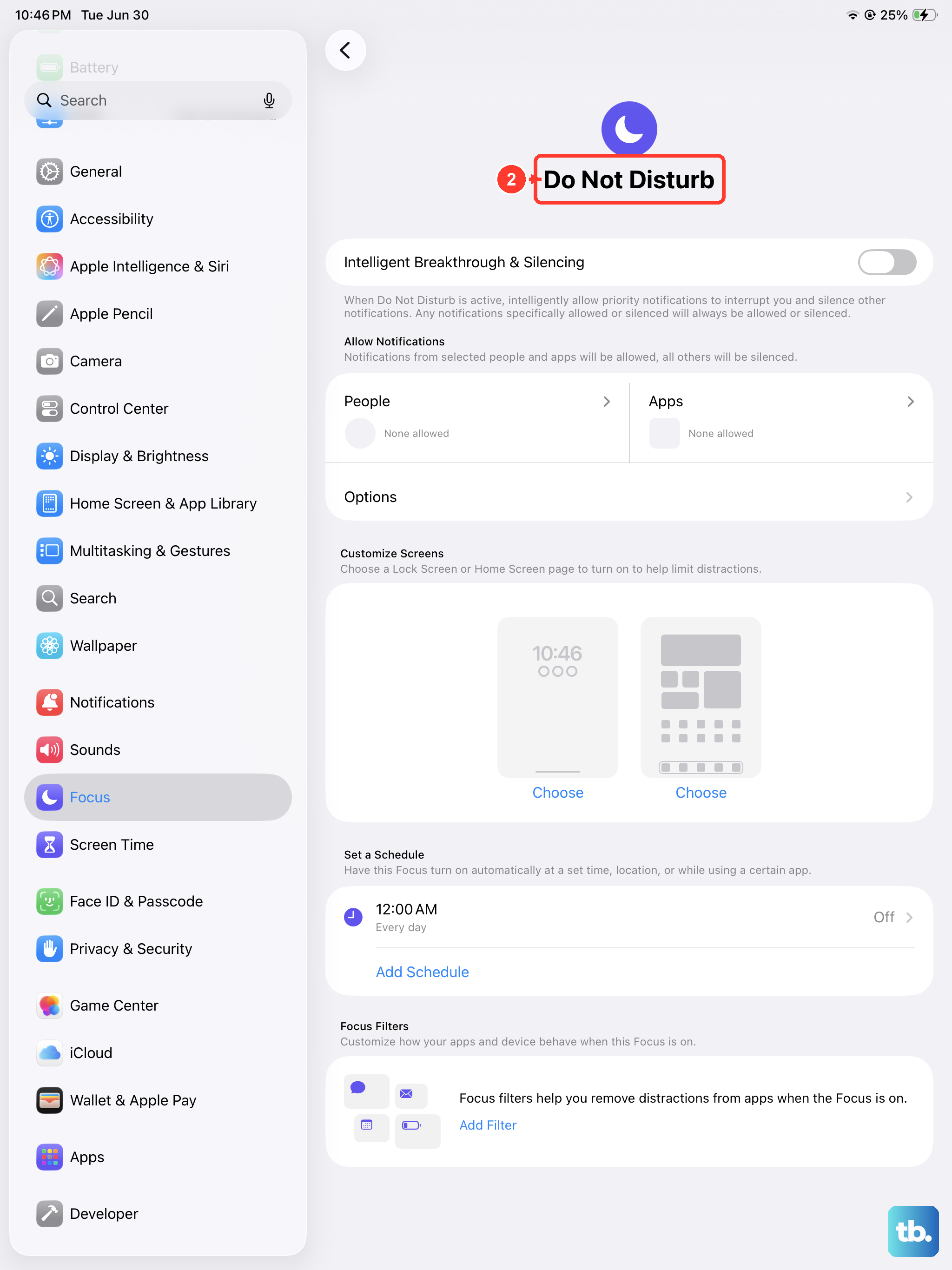
Focus modes like Do Not Disturb or Sleep can silence notifications. Swipe down to open Control Center and tap the Focus icon (it looks like a crescent moon). Make sure no Focus is active, or tap to turn it off. You can also check in Settings > Focus.
Next, look at accessibility settings. Go to Settings > Accessibility > Audio/Visual. Ensure the balance slider is centered. Also, in the main Accessibility menu, check Touch > Call Audio Routing to make sure it's not set to a specific output that isn't available.
Test Sound in Different Apps
Is the sound missing everywhere, or just in one place? Try playing a video from the TV app, a song in Apple Music, and a website with video in Safari. If sound works in some apps but not others, the problem is likely with that specific app, not your iPad's system.
In that case, try force-quitting the problematic app. Swipe up from the bottom of the screen and pause in the middle to see your recent apps. Swipe up on the app's preview to close it. Then reopen it. If that doesn't help, check the App Store for an update to that app, or try uninstalling and reinstalling it.
Clean the Speaker Grills
The speaker grills on your iPad can get clogged with lint from a bag or case. Take a close look at the grills along the top edge. Use a soft, dry, clean-bristled toothbrush or a soft-bristled artist's brush to gently sweep away any visible debris.
You can also use a can of compressed air, but hold it upright and use very short, gentle bursts from a few inches away. Never use a paperclip or anything sharp to poke at the grills, as you can easily damage the speakers inside.
Reset All Settings
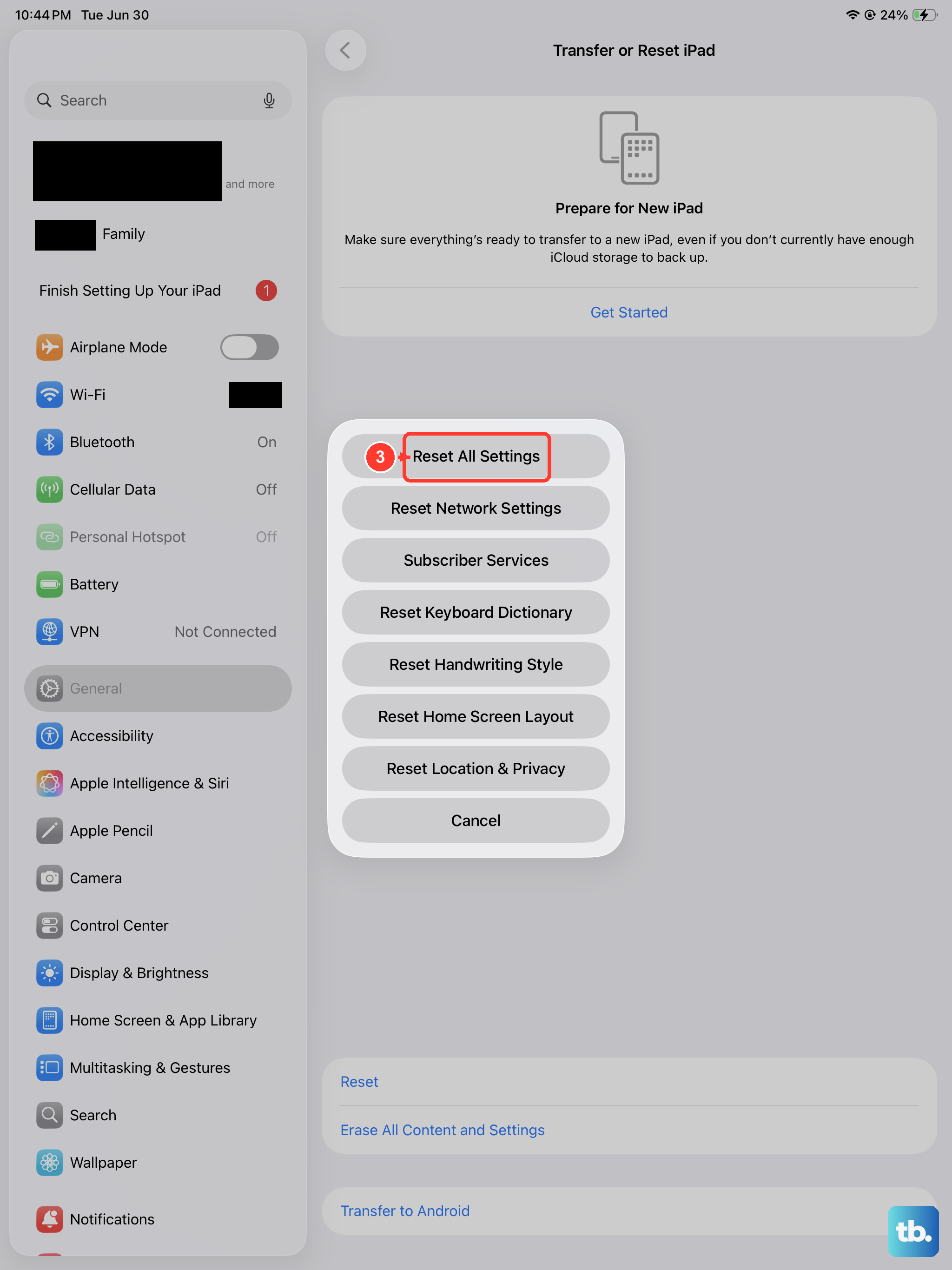
This will return all your system settings to their defaults without deleting your personal data, photos, or apps. It can fix deeper configuration conflicts. First, make sure you know your Wi-Fi passwords, as you'll need to re-enter them.
Go to Settings > General > Transfer or Reset iPad > Reset. Then, tap Reset All Settings and enter your passcode. Your iPad will restart. After it boots up, you'll need to reconfigure things like wallpaper, privacy settings, and notifications, but your sound should be back to normal.
Check for Physical Damage or Contact Support
If you've dropped your iPad recently or gotten it wet, there could be internal damage to the speakers or audio components. Carefully inspect the edges and speaker grills for any dents or cracks. Listen closely while playing audio at max volume; if you hear any crackling, distortion, or if the sound is only coming from one side, it's likely a hardware issue.
At this point, if none of the software fixes have worked, the next step is to contact Apple Support. You can start the process in the Apple Support app or on their website. They can run remote diagnostics and help you arrange a repair if it's still under warranty or covered by AppleCare+.