
When your iPad (11th generation) won't open the Settings app, it's usually a temporary software hiccup. The app might freeze on launch, crash back to the Home Screen, or just not respond at all. This can happen after an iPadOS update or when an app's data gets a little scrambled.
Force Restart Your iPad
This is almost always the first thing you should try. A force restart clears out the device's working memory without deleting any of your personal data. It's different from a normal restart and can fix a surprising number of glitches.
On an iPad without a Home button, press and quickly release the volume button closest to the Top button, then press and quickly release the volume button farthest from the Top button. Finally, press and hold the Top button until you see the Apple logo appear on the screen. Let go of the button and let your iPad finish booting up.
Check for an iPadOS Update
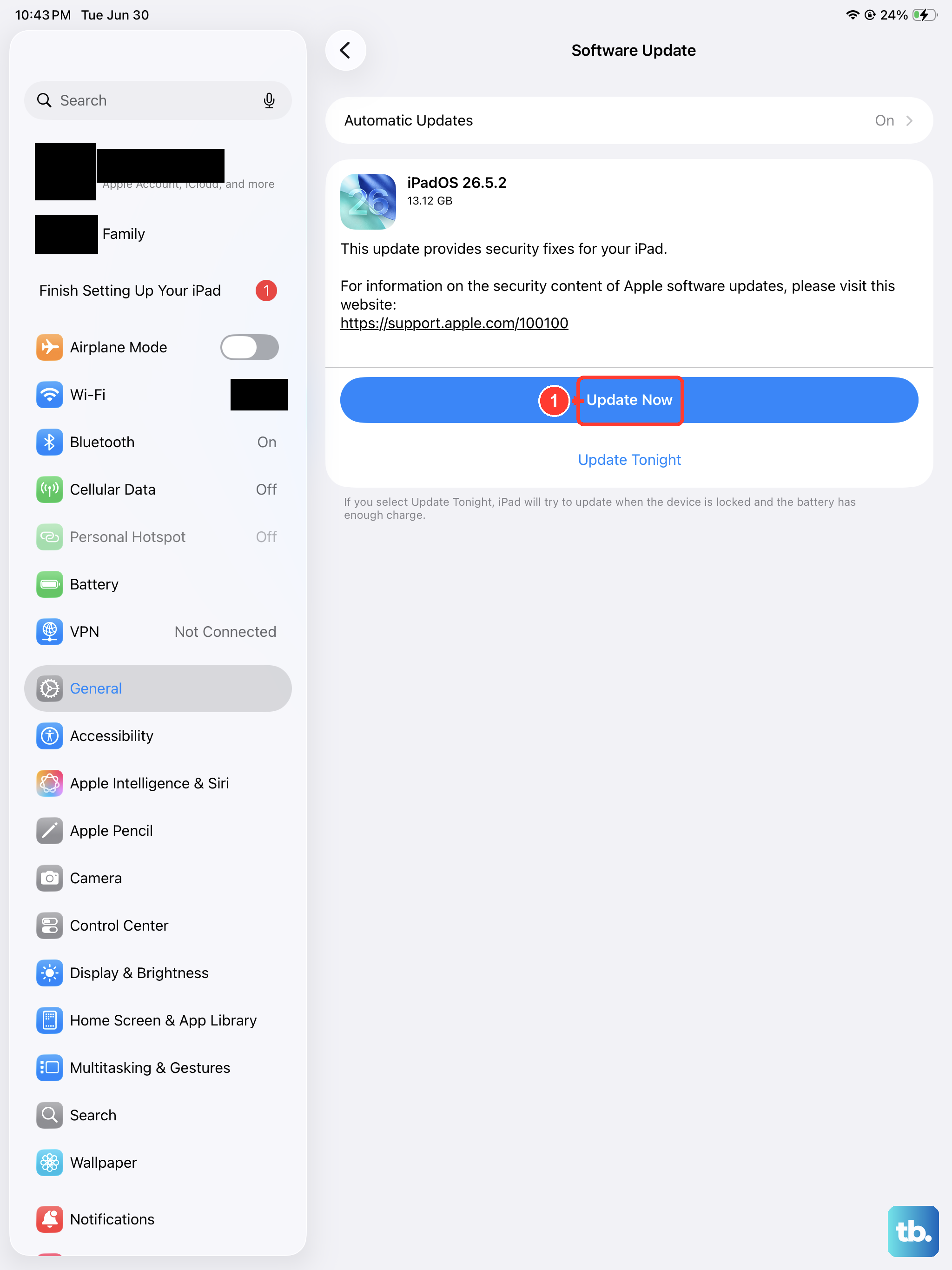
If the Settings app is crashing due to a known bug, Apple will often release a fix in a software update. Since you can't get into Settings normally, you'll need to use your computer.
Connect your iPad to a Mac or PC using a USB-C cable. On a Mac with macOS Catalina or later, open Finder. On a Windows PC, open the Apple Devices app; if your PC doesn't have Apple Devices, or if you're using macOS Mojave or earlier, open iTunes instead. Select your iPad when it appears, then look for Check for Update or Update. If an update is available, follow the prompts to install it.
Keeping your iPad on the latest version of iPadOS is good practice for both security and stability. I'd start with this check if a simple restart didn't do the trick.
Try Reset All Settings if Settings Opens Briefly
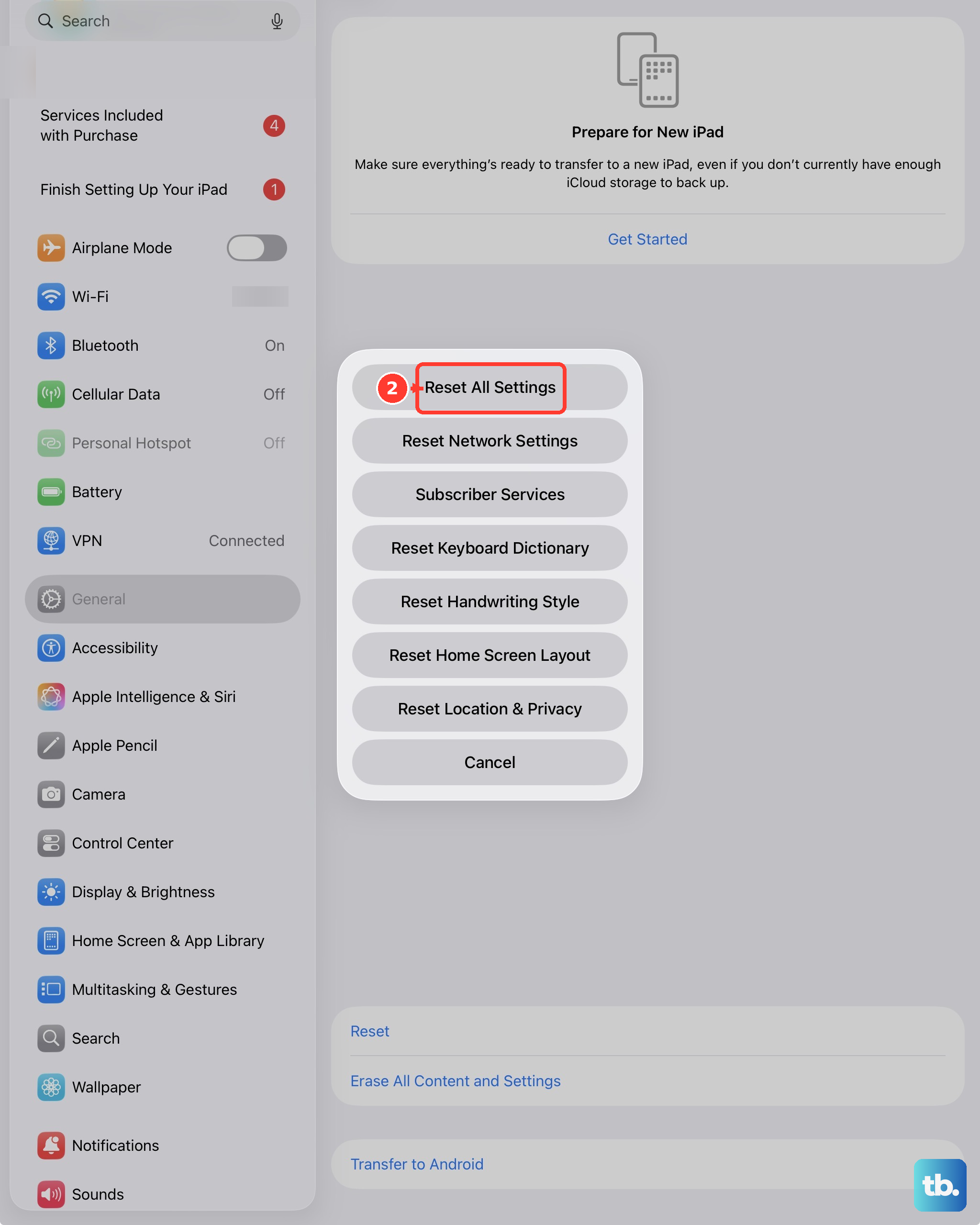
If Settings opens long enough to use it, go to Settings > General > Transfer or Reset iPad > Reset > Reset All Settings. Apple says this returns settings to their defaults without deleting your content.
Reset All Settings removes or resets items such as network settings, the keyboard dictionary, location settings, privacy settings, and Apple Pay cards. It does not delete your data or media.
If Settings will not stay open long enough to reach that screen, skip this step and use recovery mode from a computer instead. Recovery mode's Update option reinstalls iPadOS without erasing your data; Restore erases the iPad.
Free Up Storage Space
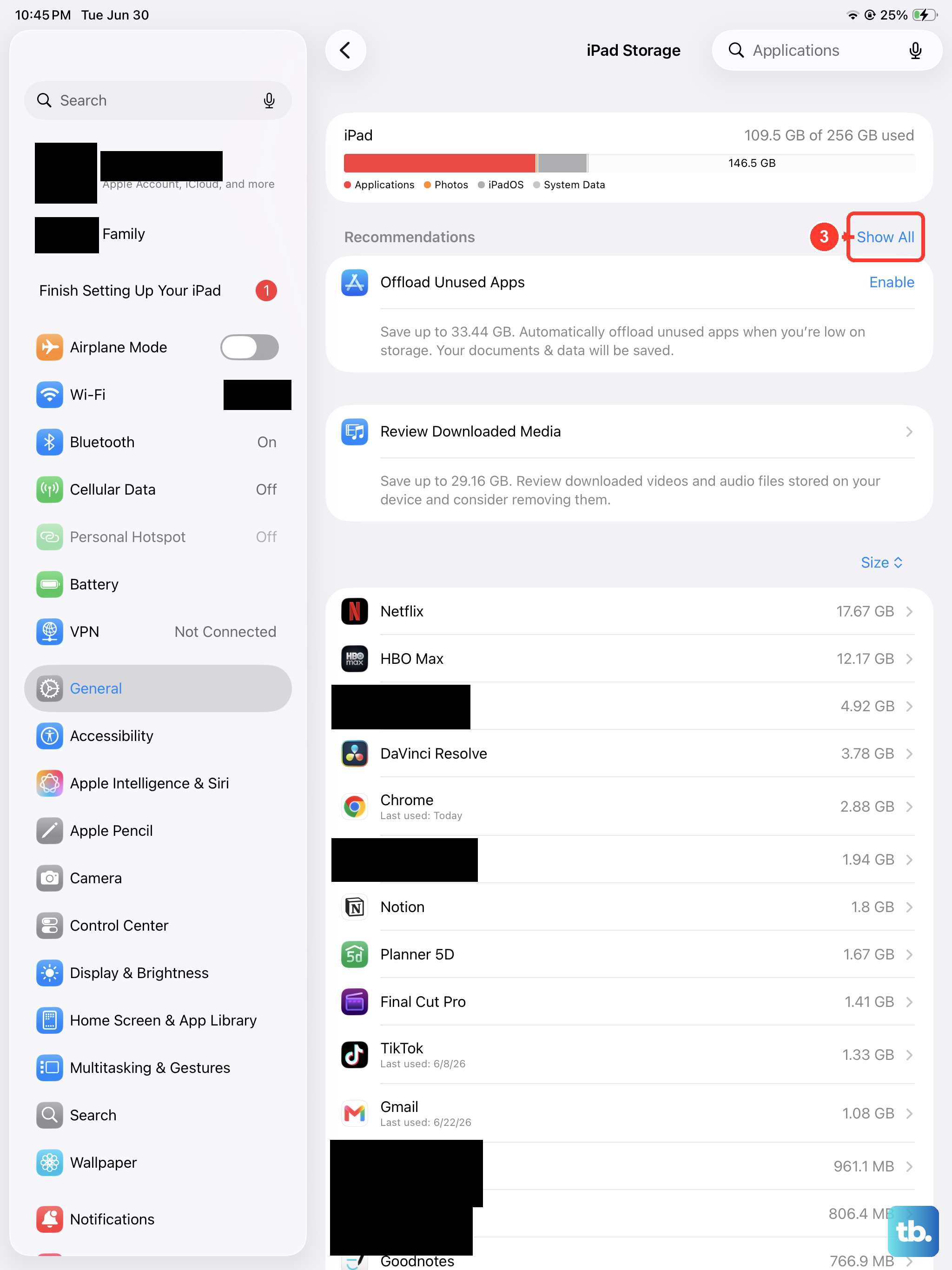
Low free space can slow down iPadOS, and Apple recommends maintaining at least 1 GB of free space to avoid slowdowns. You can see storage in Finder, the Apple Devices app, or iTunes, but managing it is tricky without the Settings app.
If you're near your limit, try offloading some large files temporarily. You can connect your iPad to a computer and manually move photos and videos off the device. Deleting unused apps directly from the Home Screen can also free up significant space quickly.
Once you've cleared some room, try force restarting your iPad again to see if Settings will open.
Restore Your iPad via a Computer
If nothing else has worked, a full restore is the final step. This will erase everything on your iPad and install a fresh copy of the latest iPadOS. You must have a recent backup in iCloud or on your computer before proceeding.
Put your iPad into Recovery Mode again by connecting it to your computer and performing the force restart sequence, holding the Top button until the Recovery screen appears. This time, select your iPad in Finder on a Mac, the Apple Devices app on a Windows PC, or iTunes on an older Mac or a PC without Apple Devices, then choose Restore.
Your computer will download the software and completely wipe the iPad. After it restarts, you can set it up as new or restore from your backup. A fresh install eliminates any corrupted system files that were causing the problem.