
Seeing your iPad's screen flicker or flash is incredibly distracting, especially on a device you use for everything from work to movies. It can start as a subtle annoyance and quickly become a major headache. This issue on the iPad (11th gen) can stem from a temporary software hiccup, a problematic display setting, or, less commonly, a hardware fault. Let's walk through the fixes, starting with the simplest.
A browser based screen test cycles solid colors and gradients across the whole screen, which helps you confirm whether the panel itself shows the fault.
Force Restart Your iPad
This is the first thing I'd try. A force restart clears the iPad's temporary memory and can stop a glitchy process causing the flicker. On your iPad (11th gen), quickly press and release the Volume Up button, then quickly press and release the Volume Down button. Immediately after, press and hold the Top button. Keep holding it until you see the Apple logo appear, then let go. This takes about 10 seconds and doesn't erase any of your data.
Turn Off Auto-Brightness
The ambient light sensor that controls auto-brightness can sometimes get confused, leading to rapid, flickering adjustments. To turn it off, open the Settings app. Tap on Accessibility, then select Display & Text Size. Scroll down and toggle off the switch for Auto-Brightness. After disabling it, go back to Settings > Display & Brightness and manually set your preferred brightness level.
Disable True Tone
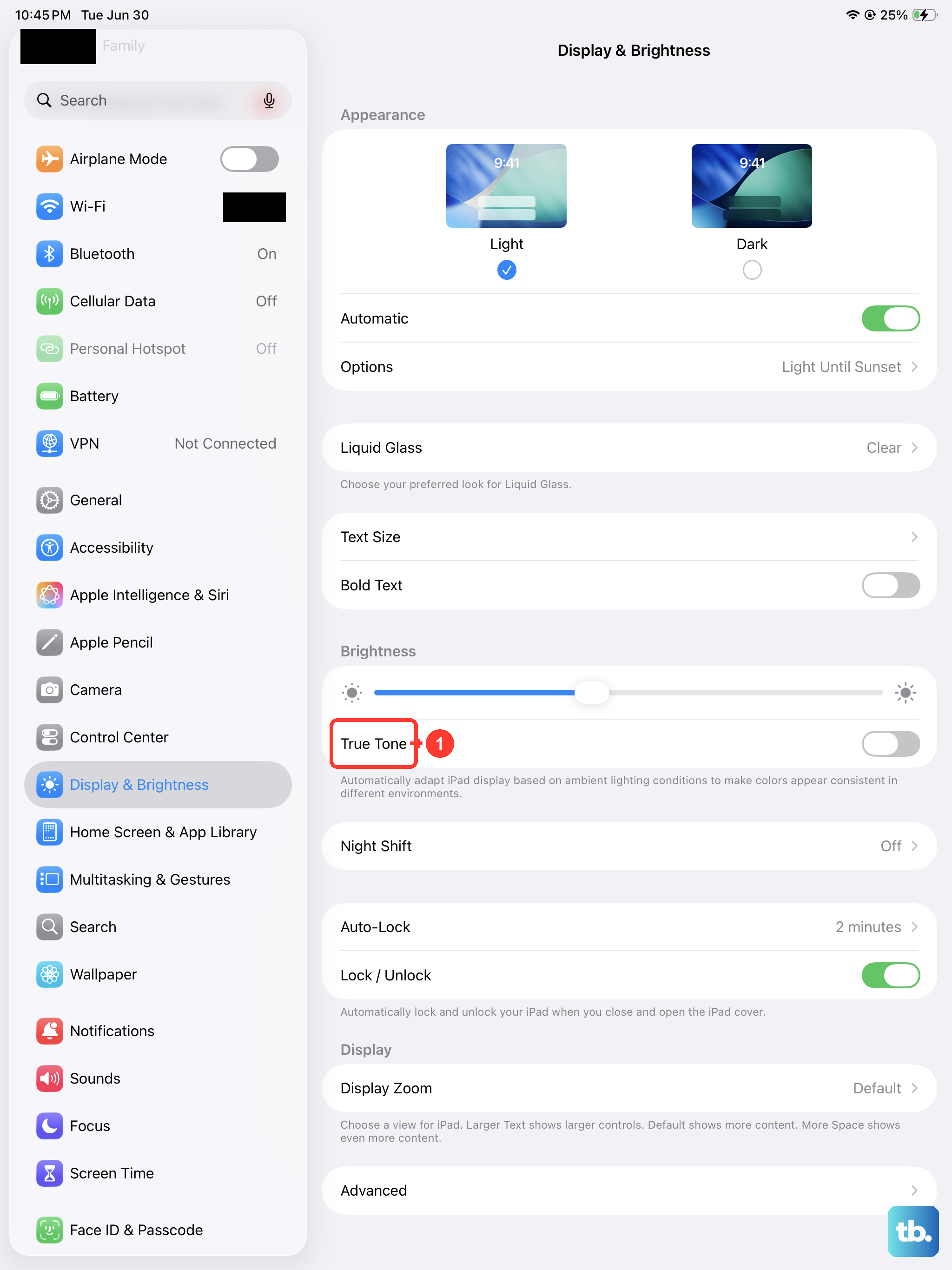
True Tone is designed to make the screen color match your room's lighting, which is great for reading. However, if the color sensors are having an issue, it can cause a subtle, pulsing flicker. You can check this by going to Settings > Display & Brightness. Simply tap the toggle next to True Tone to turn it off. See if the screen stabilizes after a moment.
Update iPadOS
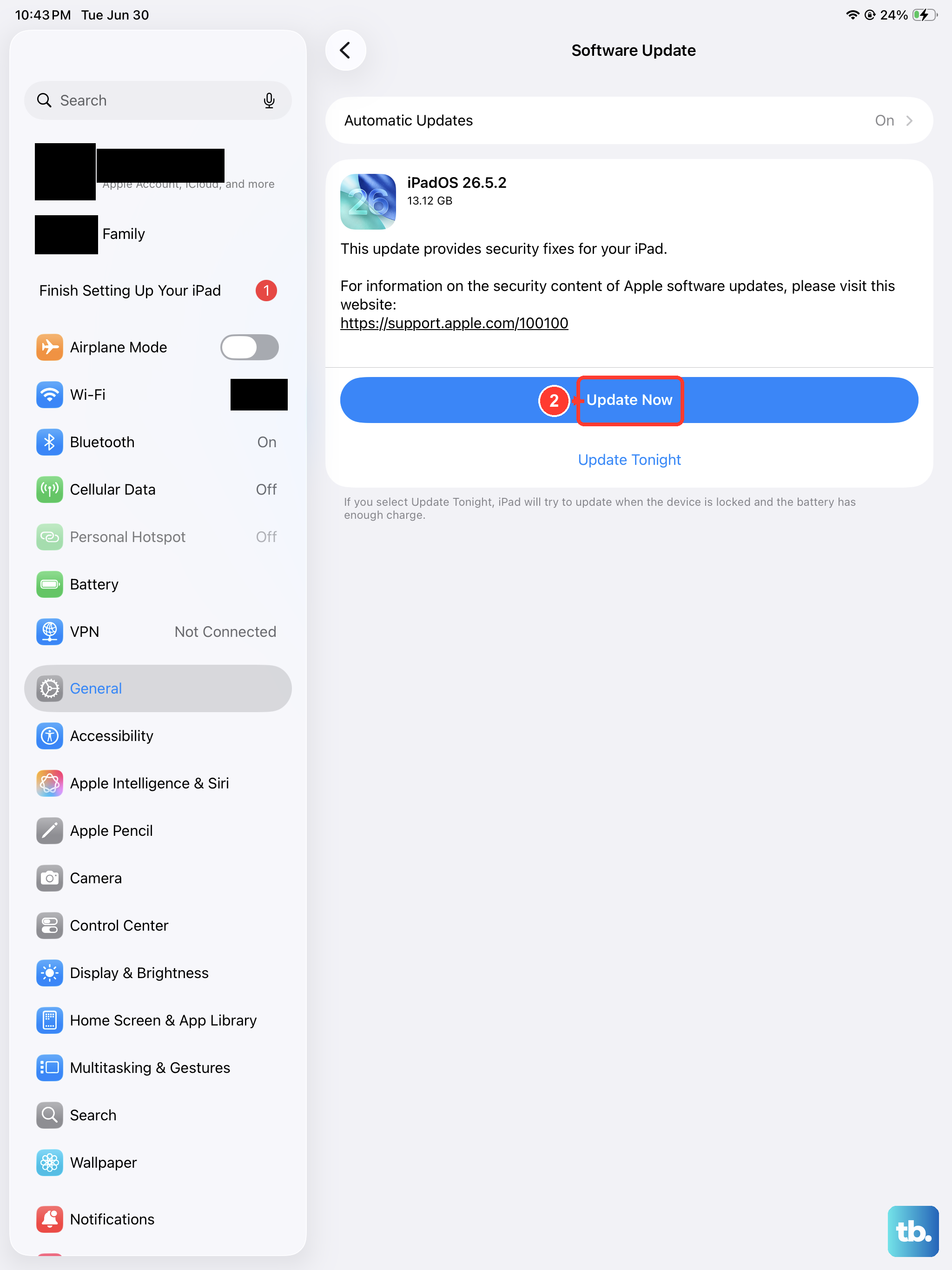
Apple frequently releases updates that include fixes for display-related bugs. Making sure you're on the latest version of iPadOS is a crucial step. Open Settings, tap General, and then select Software Update. If an update is available, tap Download and Install. It's a good practice to keep your iPad updated not just for fixes, but for performance and security too.
Close All Open Apps
A specific app, especially one that uses graphics or video heavily, might be causing the problem. Swipe up from the bottom of the screen and pause in the middle to bring up the App Switcher. Here, you'll see all your open apps. Swipe up on each app's preview to close it. Once they're all closed, restart the iPad normally and see if the flickering is gone. If it is, you can reopen your apps one by one to see which one triggers it.
Reset All Settings
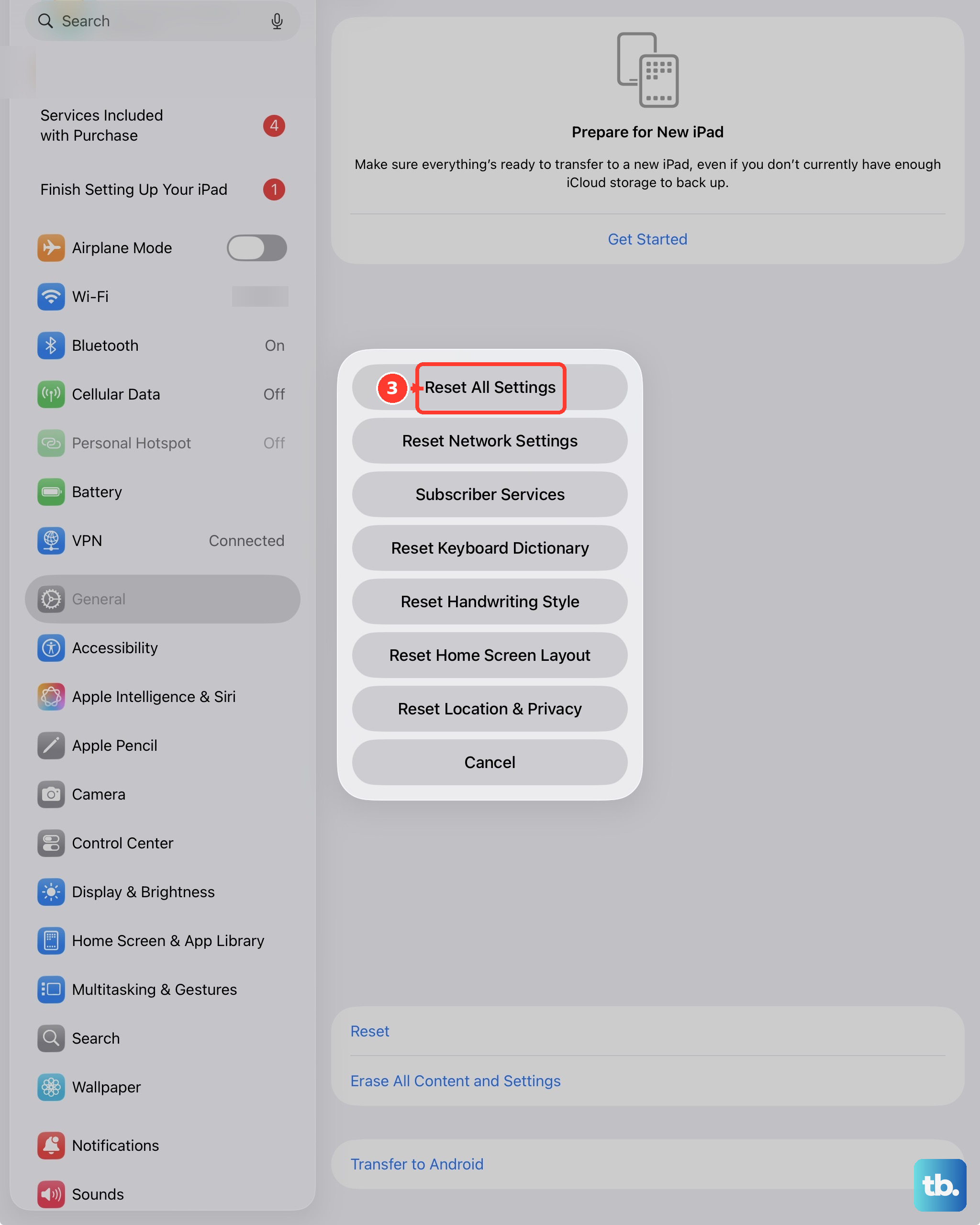
This step resets every system setting on your iPad back to its factory defaults. That includes your network settings, wallpaper, display preferences, and privacy permissions. Your personal data like photos and apps remains untouched. To do this, go to Settings > General > Transfer or Reset iPad. Tap Reset, and then choose Reset All Settings. You'll need to enter your passcode. This can resolve deeper configuration conflicts that a simple restart can't fix.
Check for Physical Issues
If the flickering started after you dropped the iPad or placed something heavy on it, there could be internal damage. Carefully inspect the screen for any new cracks, even tiny ones, or areas that look discolored or have pressure marks. Also, check the USB-C port for any debris, as connection issues can sometimes affect power delivery to the display. For any physical damage, you'll need to contact Apple Support or visit an authorized service provider.
Restore Your iPad via a Computer
If all else fails, a full restore is the definitive test for a software problem. First, make sure you have a recent backup in iCloud or on your computer. Then, connect your iPad to a Mac or PC using a USB-C cable. On a Mac with macOS Catalina or later, open Finder. On a PC or older Mac, open iTunes. Select your iPad, and click the Restore iPad button. This will erase the device and install a fresh copy of iPadOS. If the flickering is gone after the restore, it was software. If it persists on a clean install, the issue is almost certainly hardware.