
When your iPad (11th generation) doesn't show up on your computer, it stops you from transferring photos, backing up with Finder, or syncing files. It's a common hiccup, but one you can almost always fix yourself without a trip to the Apple Store.
The problem usually comes down to a few simple things. A flaky USB-C cable, a software glitch on either device, or a setting that needs a quick toggle are the usual suspects. I'd start by checking the cable and port, as that's the fix for most people.
Check Your USB-C Cable and Port
Grab the USB-C cable you're using and give it a close look. Check for any fraying, bent pins, or debris stuck in the connector. Even a little pocket lint packed into the iPad's USB-C port can break the connection.
If you see dust in the port, power off your iPad first. Then, use a can of compressed air or a soft, dry brush to gently clean it out. Avoid using metal objects like paperclips. Try a different cable if you have one, preferably the one that came with your iPad or another high-quality USB-C cable.
Also, plug the cable into a different USB port on your computer. If you're using a hub or adapter, try connecting directly to the computer's port instead. Some cheaper hubs don't handle data transfer well.
Restart Your iPad and Computer
A simple restart clears out temporary software bugs that can block the connection. First, restart your Mac or Windows PC and let it fully boot up. Then, restart your iPad.
If a normal restart doesn't help, try a force restart on the iPad. This is a bit different on the 11th-gen model. Quickly press and release the Volume Up button, then quickly press and release the Volume Down button. Finally, press and hold the Top button until you see the Apple logo appear, then let go.
Trust This Computer on Your iPad
When you connect a new iPad to a computer, you must explicitly grant it permission. If you accidentally tapped "Don't Trust" or the prompt disappeared, your computer won't see the device.
Unlock your iPad and reconnect it to your computer with the USB cable. A prompt should appear on your iPad's screen asking if you want to "Trust This Computer." Tap Trust and enter your passcode if asked. If the prompt doesn't show up, disconnect the cable, lock your iPad with the side button, unlock it again, and then reconnect the cable.
Update Your Software
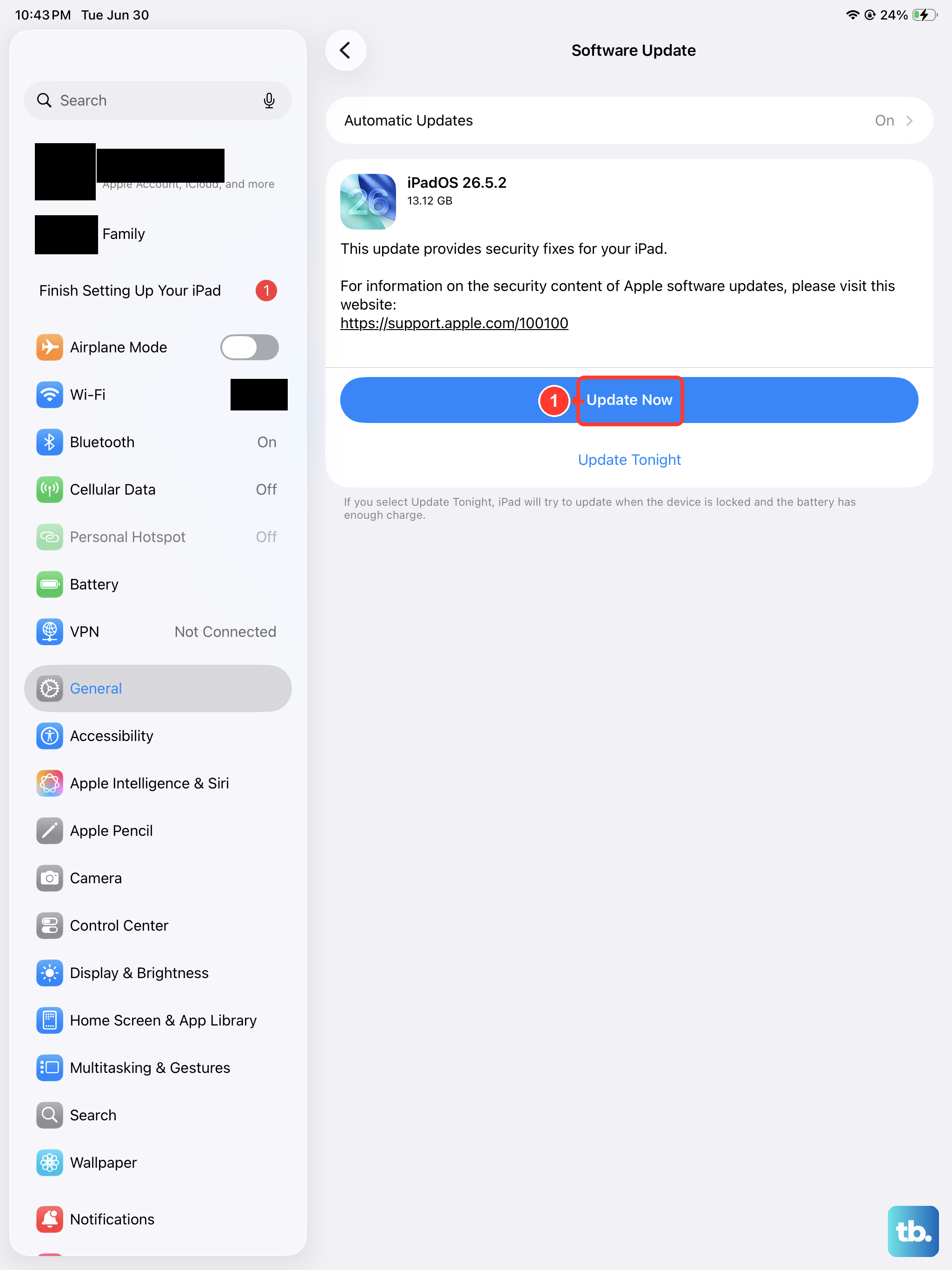
Outdated software is a major cause of connection problems. First, make sure your iPad (11th generation) is running the latest version of iPadOS. Go to Settings > General > Software Update. If an update is available, install it. Keeping iPadOS updated is crucial for performance and compatibility.
On your computer, check for updates too. On a Mac, go to Apple menu > System Settings > General > Software Update. On a Windows PC, you'll want to check for updates to Windows itself. An outdated version of iTunes (if you're on an older Windows system) or macOS can cause detection issues.
Check Finder or iTunes Settings
If you're using a Mac with macOS Catalina or later, your iPad connects through Finder, not iTunes. Open a new Finder window and look under "Locations" in the sidebar. Your iPad should be listed there. If you don't see it, make sure Finder is set to show it.
Go to Finder > Settings (or Preferences) and click the "Sidebar" tab. Ensure "CDs, DVDs, and iOS Devices" is checked. On a Windows PC or an older Mac, open iTunes. Look for a small device icon near the top left of the window. If you see it, click it. Your iPad's management screen should appear.
Try a Different Computer or User Account
This is a great way to figure out where the problem lies. Try connecting your iPad to a different computer, if you have access to one. If it works on a second machine, the issue is with your primary computer's software or USB ports.
If you're on a Mac, you can also try creating a new test user account and connecting the iPad there. If it works in the new account, something in your main user profile's settings or preferences is causing a conflict. This points you toward a software fix on the computer side.
Reset Location & Privacy Settings
This resets the "Trust This Computer" relationship for all previously connected computers without erasing your personal data. It can clear up a corrupted permission setting. On your iPad, go to Settings > General > Transfer or Reset iPad.
Tap "Reset" and then choose "Reset Location & Privacy." You'll need to enter your passcode. After the reset, reconnect your iPad to the computer. You'll get the "Trust This Computer" prompt again as if it's the first connection. Tap Trust and see if the computer now detects it.











