
When your headphones stop working with your iPad, it can ruin your plans for watching a movie, listening to music, or joining a video call. The audio might come from the iPad's speakers instead, sound distorted, or the iPad might not recognize the headphones at all. Let's get it sorted.
If you suspect one side has failed, an online online headphone test settles it quickly. Play each channel on its own and you will know whether it is the headphones or the source.
Restart Your iPad
This is the quickest fix for a lot of weird audio glitches. To restart your iPad, press and quickly release the Volume Up button, then press and quickly release the Volume Down button. Finally, press and hold the Top button until you see the Apple logo appear on the screen. It takes about 30 seconds and clears out temporary software bugs that can mess with audio routing.
Check the Physical Connection
If you're using wired headphones, make sure they're fully plugged into the USB-C port. Give the plug a firm push to ensure it's seated all the way. For Bluetooth headphones, check that they're charged and powered on. It's always a good idea to test your headphones with another device, like your phone, to confirm they're working properly.
Clean the USB-C Port
Lint and pocket debris are the enemies of the USB-C port. If your wired headphones aren't being detected, this is often the culprit. Use a dry, soft-bristled brush or a wooden toothpick to gently clean out the port. Avoid using anything metal. A clean port ensures a solid connection for both audio and charging.
Check and Adjust the Volume
While your headphones are connected, press the Volume Up button on the side of your iPad. Make sure the volume slider isn't all the way down. You can also open Control Center by swiping down from the top-right corner to see the volume slider there. Sometimes, the volume for headphones gets turned down separately from the main system volume.
Forget and Re-Pair Your Bluetooth Headphones
Go to Settings > Bluetooth. Find your headphones in the list and tap the information icon (i) next to them. Tap Forget This Device and confirm. Then, put your headphones back into pairing mode and select them from the list on your iPad to pair from scratch. This creates a fresh connection profile.
Verify the Audio Output
Your iPad might be sending sound somewhere else. Open Control Center, then press and hold the volume slider in the top-right corner. A menu will pop up showing all available audio outputs. Make sure your headphones are selected here, not the iPad speakers or another device like a HomePod.
Toggle Bluetooth Off and On
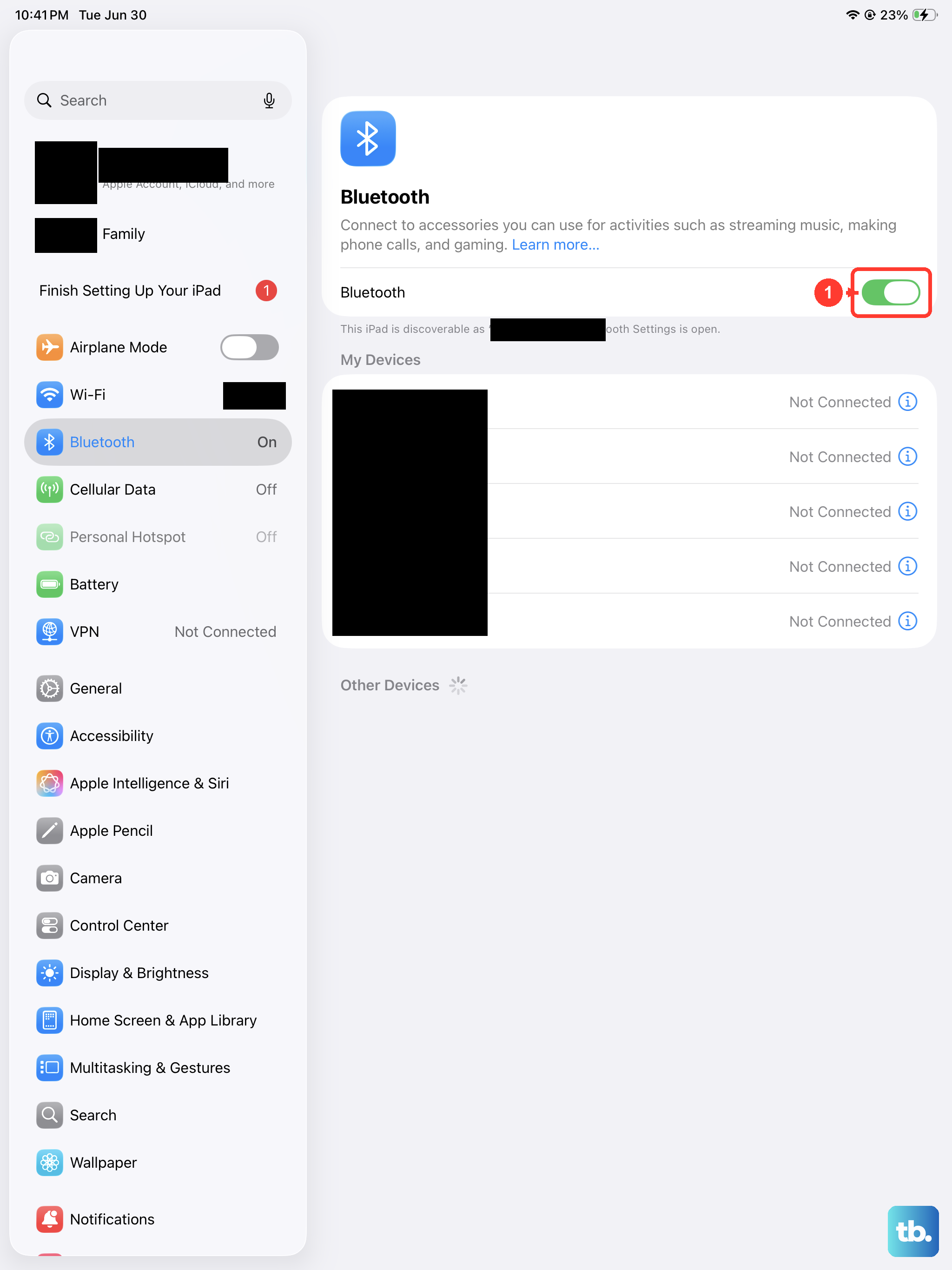
A simple refresh of the Bluetooth radio can solve connection hiccups. Go to Settings > Bluetooth and tap the toggle to turn it off. Wait about ten seconds, then turn it back on. This is a faster step than forgetting the device and often does the trick.
Check for a Stuck Headphone Mode
Occasionally, the iPad can get stuck thinking headphones are plugged in when they aren't. You might see a headphone icon on the volume indicator. Cleaning the USB-C port thoroughly, as mentioned earlier, is the first step. If that doesn't work, plug and unplug your wired headphones a few times, or perform a restart.
Update iPadOS
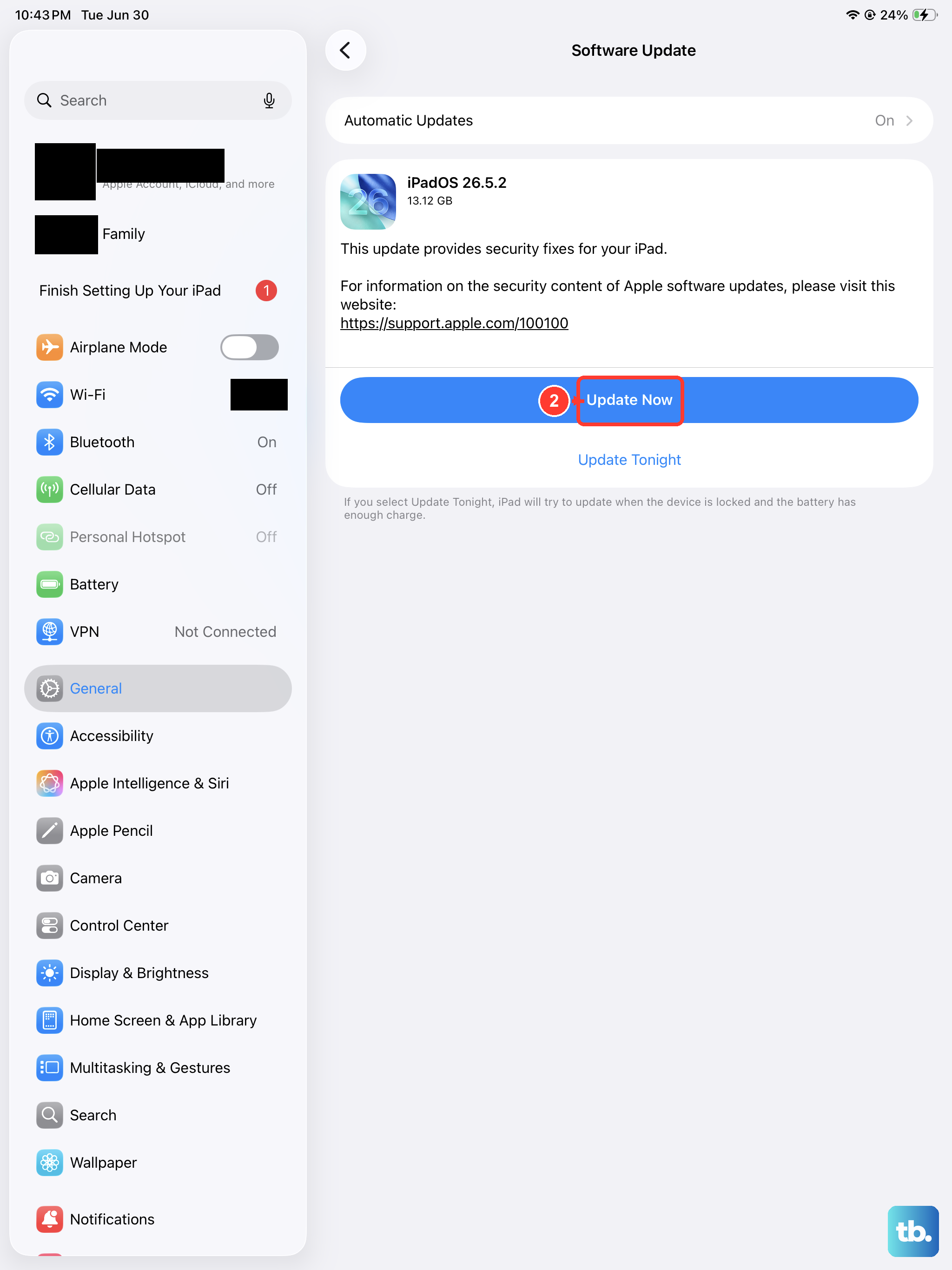
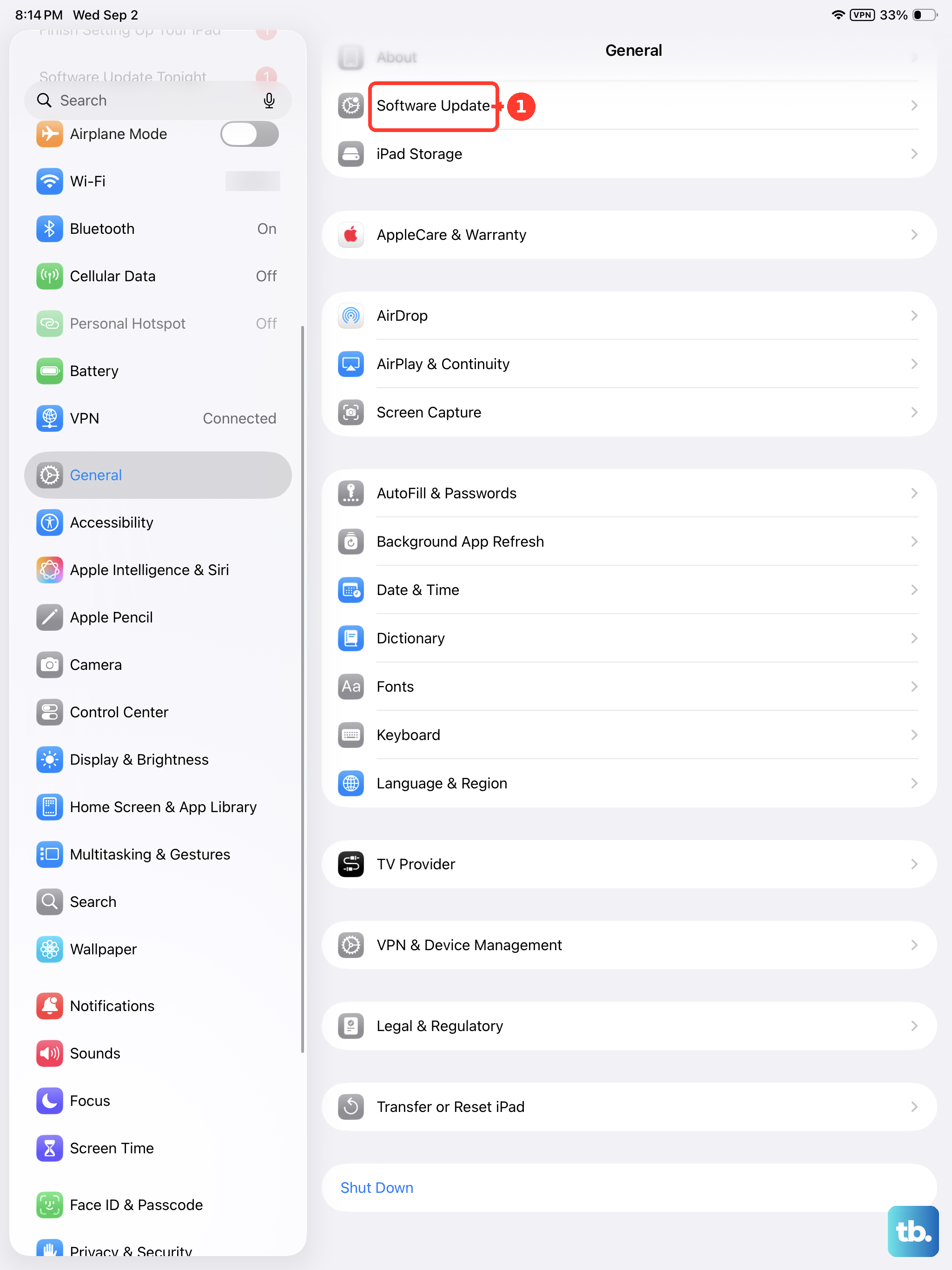
Apple frequently releases updates that fix audio and Bluetooth bugs. Go to Settings > General > Software Update. If an update is available, install it. Keeping your iPad updated is also crucial for security and overall performance, especially on newer models.
Reset All Settings
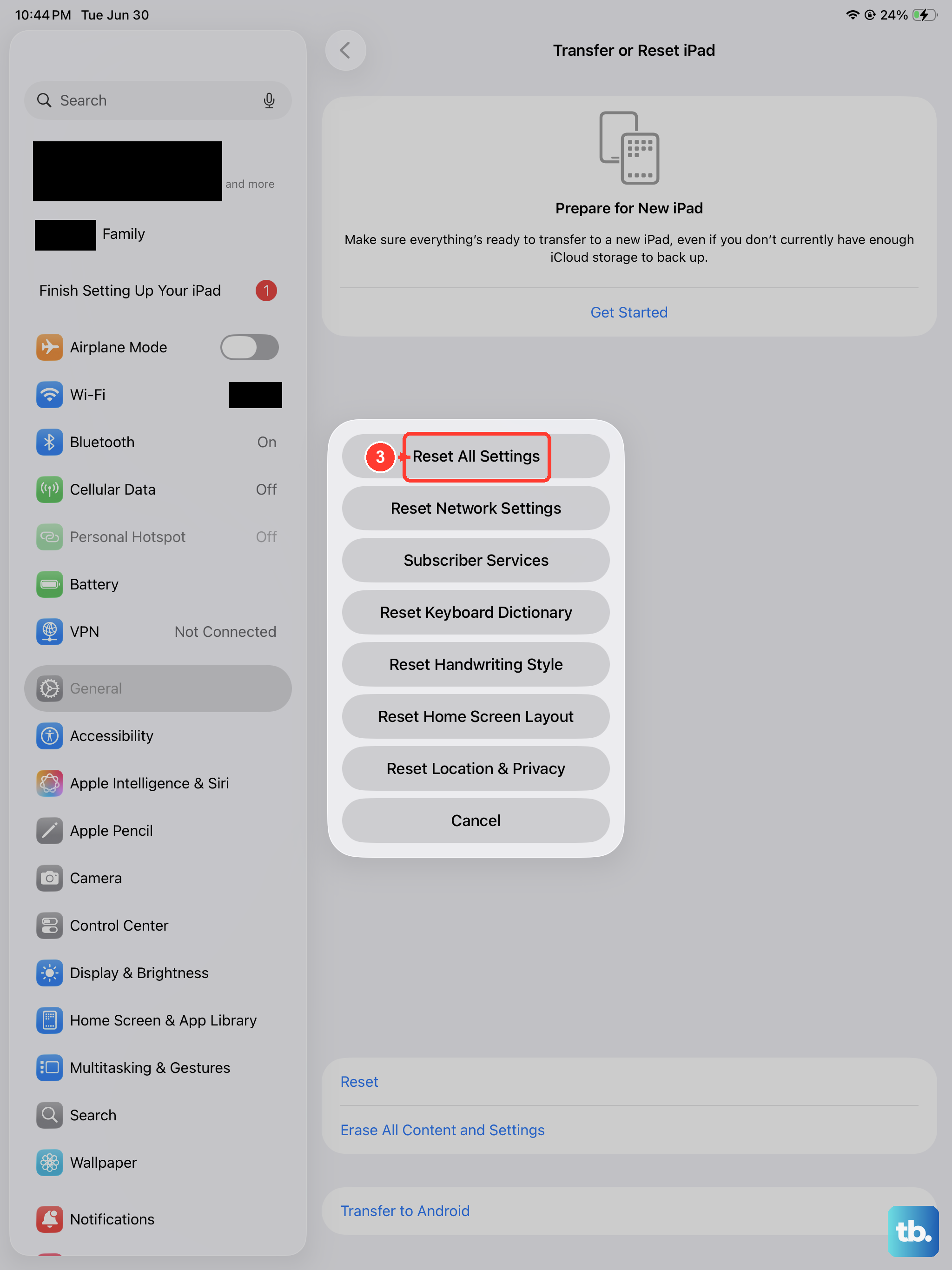
If you've tried everything else and the problem persists, this is a more comprehensive step. Go to Settings > General > Transfer or Reset iPad > Reset > Reset All Settings. This will not erase your personal data, but it will reset all system settings to default. You'll need to re-pair Bluetooth devices and reconfigure things like Wi-Fi passwords and wallpaper.