
A frozen iPad can be incredibly frustrating, especially when you're in the middle of something. The screen might be stuck on an app, the home screen, or even the Apple logo, completely ignoring your taps and swipes. Most of the time, this is a temporary software hiccup that you can resolve yourself without losing any photos or documents.
Force Restart Your iPad
This is almost always the first thing you should try. The process for the 11th generation iPad is straightforward. Quickly press and release the Volume Up button, then quickly press and release the Volume Down button. Finally, press and hold the Top button until you see the Apple logo appear on the screen. Hold it for about 15 seconds even if nothing seems to happen at first. This forces a clean reboot and won't delete any of your data.
Let It Charge
If your iPad's battery is critically low, it might not have enough power to respond or boot properly. Plug it into a charger using the USB-C cable and a power adapter. I'd recommend using Apple's 20W USB-C Power Adapter for the fastest, most reliable charge. Leave it plugged in for at least 20-30 minutes before trying to turn it on again.
Close a Problem App
Sometimes the iPad itself is fine, but a single app has crashed and frozen. If you can still access the home screen or app switcher, swipe up from the bottom of the screen and pause in the middle to bring up your open apps. Find the frozen app's preview and swipe it all the way up and off the top of the screen to close it. You can then tap its icon to reopen it. If one app keeps freezing, check the App Store for an update.
Check for Overheating
Your iPad is designed to slow down or even become unresponsive if it gets too hot to protect its internal components. If the back feels unusually warm to the touch, move it out of direct sunlight and take it out of any case that might be trapping heat. Let it cool down completely for 15-20 minutes before trying to use it again, and avoid charging it while it's still hot.
Update iPadOS
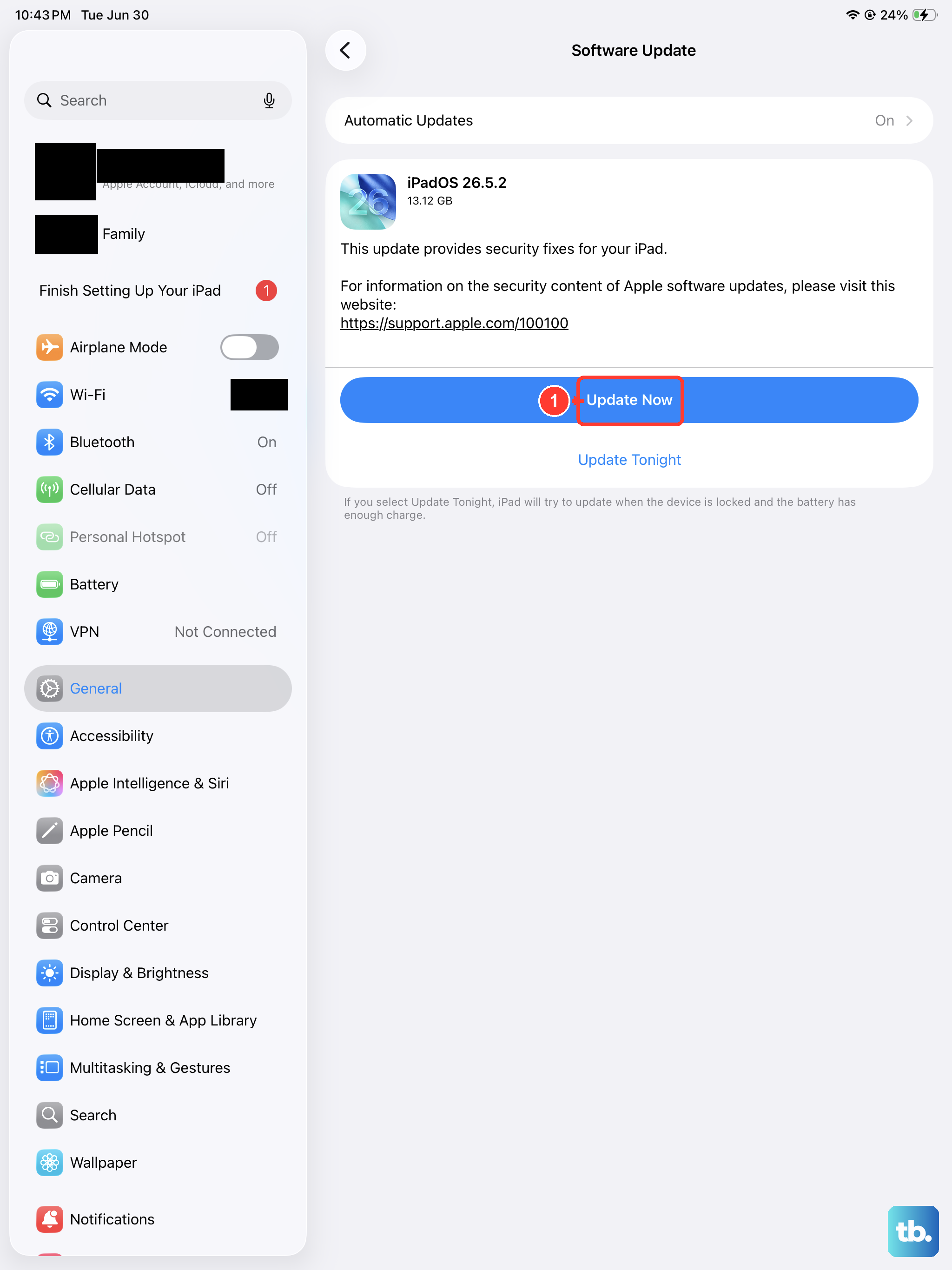
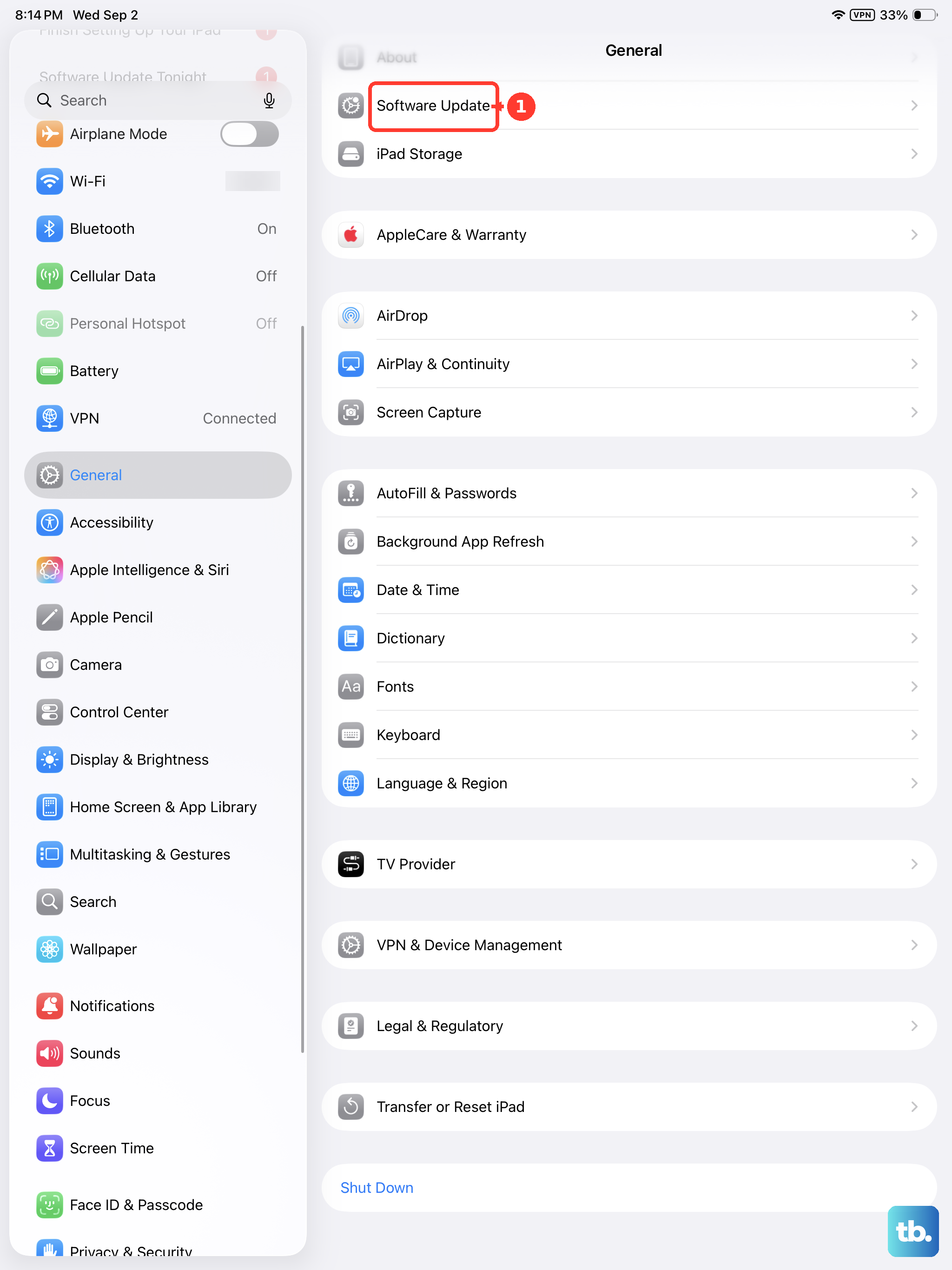
Running outdated software is a common cause of stability issues, including random freezes. Once you've got your iPad working again, head to Settings > General > Software Update. Install any available update. Keeping iPadOS updated is one of the best ways to ensure smooth performance and security. If the iPad freezes during an update, you might need to use a computer to restore it.
Free Up Storage Space
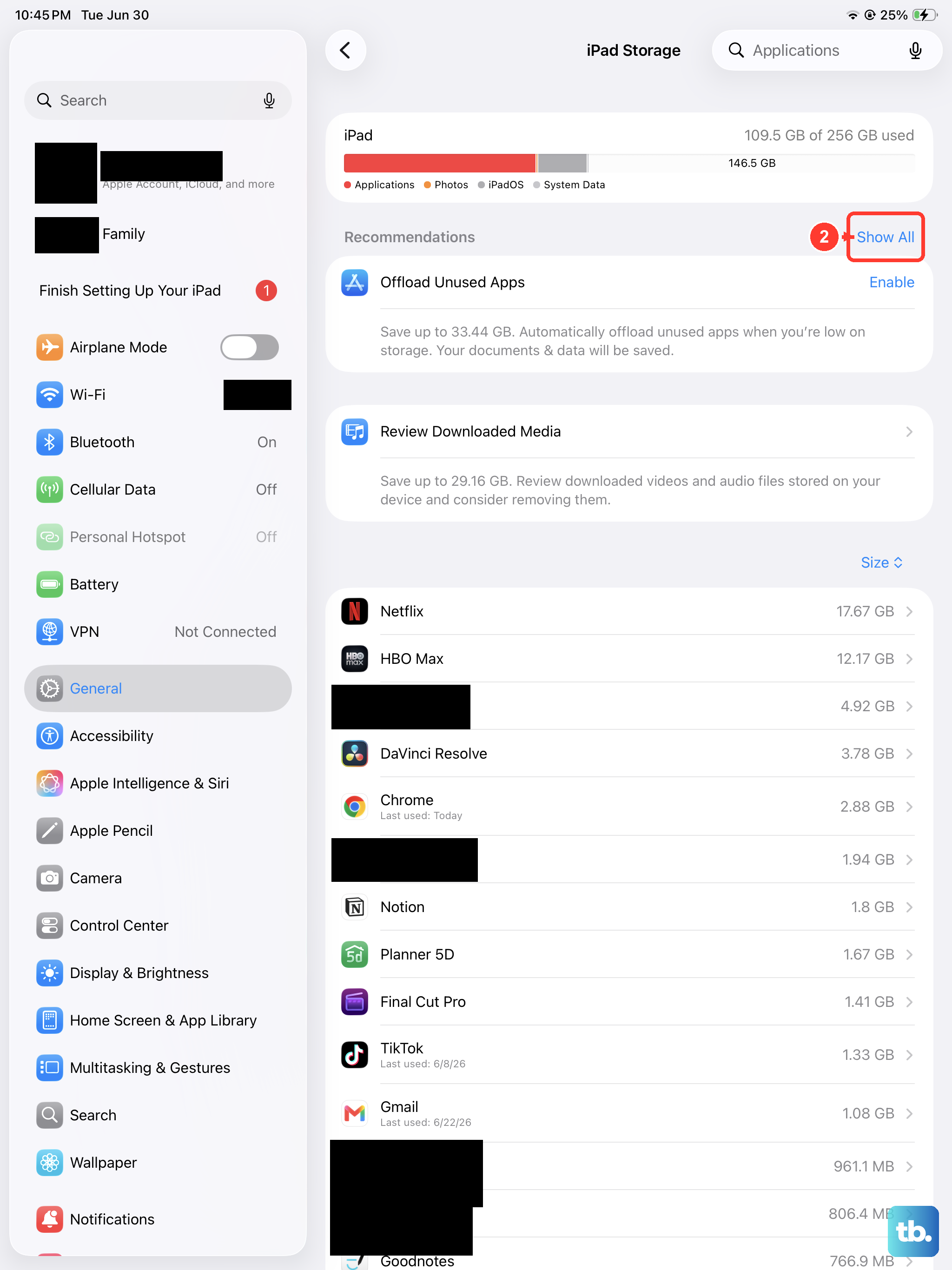
When your iPad's storage is completely full, the system has no room to create temporary files it needs to operate, which can lead to freezing. Go to Settings > General > iPad Storage to see what's taking up space. You can offload unused apps, delete old messages, or move photos to iCloud. I've found aiming for at least 5-10 GB of free space helps prevent these kinds of performance issues.
Reset All Settings
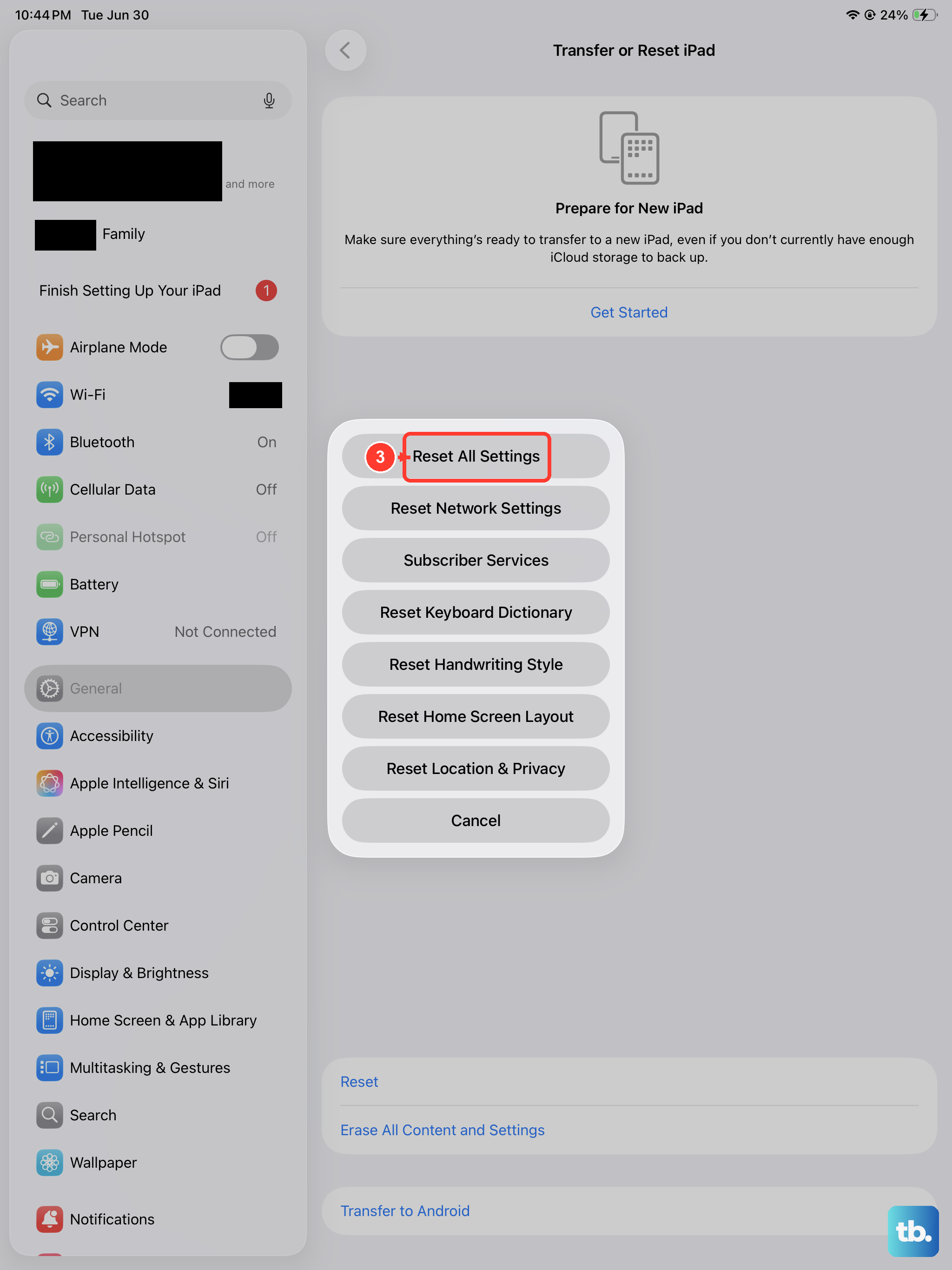
If freezes keep happening after a restart, a system setting might have become corrupted. You can fix this by going to Settings > General > Transfer or Reset iPad > Reset > Reset All Settings. This will return all your preferences (like Wi-Fi passwords and wallpaper) to their defaults, but it won't touch your personal data, apps, or media. It's a good middle step before a full restore.
Restore Using a Computer
For a persistent freeze that a force restart can't fix, you'll need to connect your iPad to a Mac or PC. First, put the iPad into recovery mode by pressing and quickly releasing the Volume Up button, then the Volume Down button, then immediately holding the Top button until you see the recovery mode screen. On a Mac with macOS Catalina or later, open Finder. On a PC or older Mac, open iTunes. You'll be given the option to Update or Restore. Always choose Update first, as it reinstalls iPadOS without erasing your data. If that fails, you may need to choose Restore, which will erase the iPad, so a recent iCloud or computer backup is essential.