
If the fingerprint sensor on your iPad (11th generation) has suddenly stopped recognizing your touch, it can lock you out of your device and apps. This usually comes down to a software hiccup or a simple setting that needs a refresh.
The quickest thing to try is a force restart. It clears out temporary glitches without affecting your data. Press and quickly release the Volume Up button, then quickly press and release the Volume Down button. Finally, press and hold the Top button until you see the Apple logo appear on the screen.
Check Your Finger and the Sensor
Start with the basics. Make sure your finger and the sensor area on the top button are completely clean and dry. Moisture, lotion, grease, or even a small amount of dirt can prevent a good read. Use a soft, lint-free cloth to gently wipe the metal ring of the top button.
Also, consider if your fingerprint itself has changed. Minor cuts, scrapes, dry skin, or even just doing a lot of manual work can alter your fingerprint enough that the sensor no longer recognizes it. Try using a different finger that you've also registered to see if the problem is isolated to one digit.
Re-register Your Fingerprint
If a simple restart didn't help, the next most effective step is to delete your existing fingerprint and add it again. Over time, as you use your iPad, the stored image can become slightly corrupted or less accurate.
Go to Settings > Touch ID & Passcode. Enter your passcode, then tap on the fingerprint that's giving you trouble. Tap Delete Fingerprint and confirm. To add it back, tap Add a Fingerprint and follow the on-screen prompts, making sure to move your finger around to capture the edges.
Update iPadOS
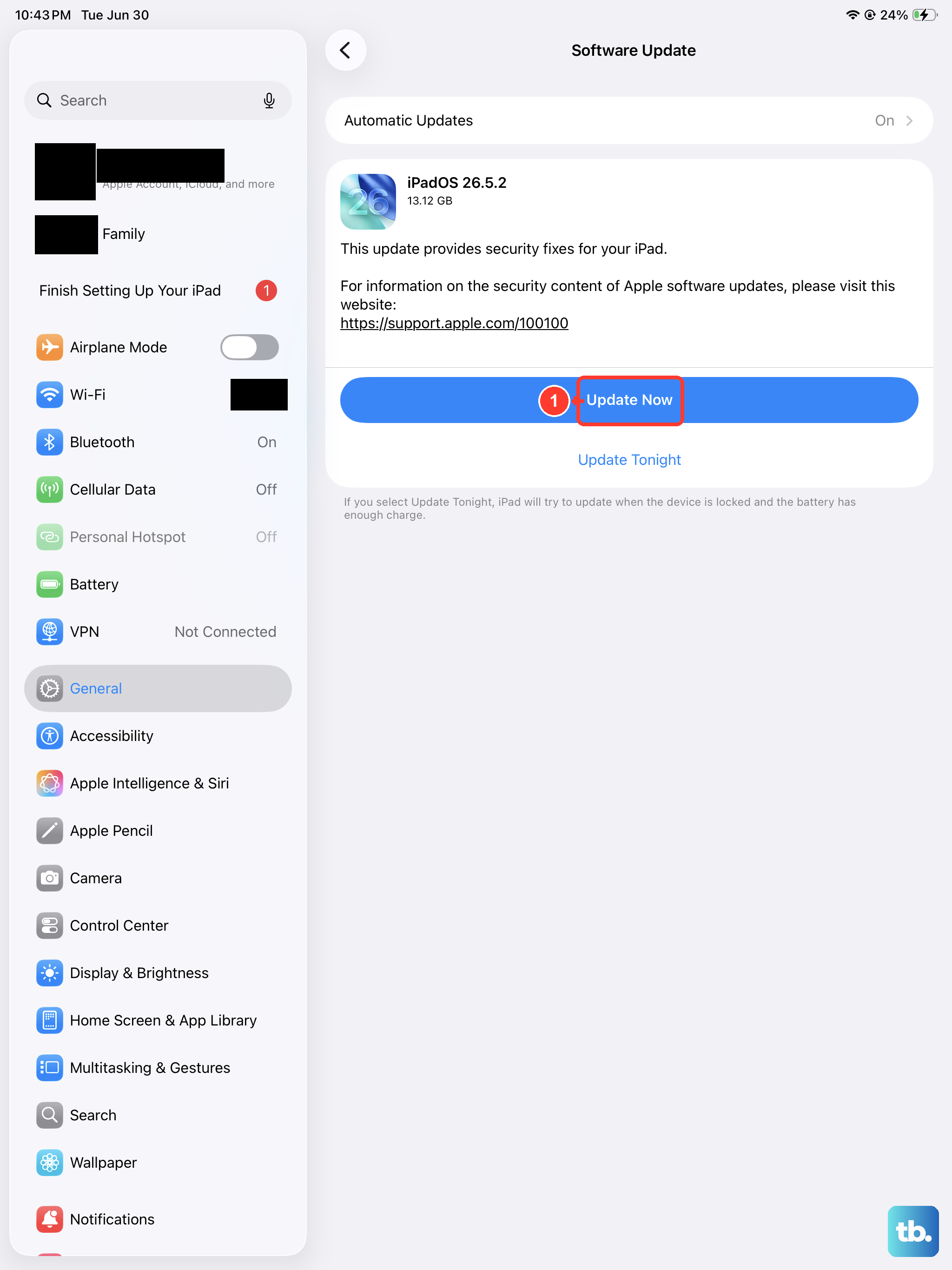
An outdated version of iPadOS can sometimes cause conflicts with the Touch ID sensor. Apple releases updates that include bug fixes for exactly these kinds of hardware communication issues.
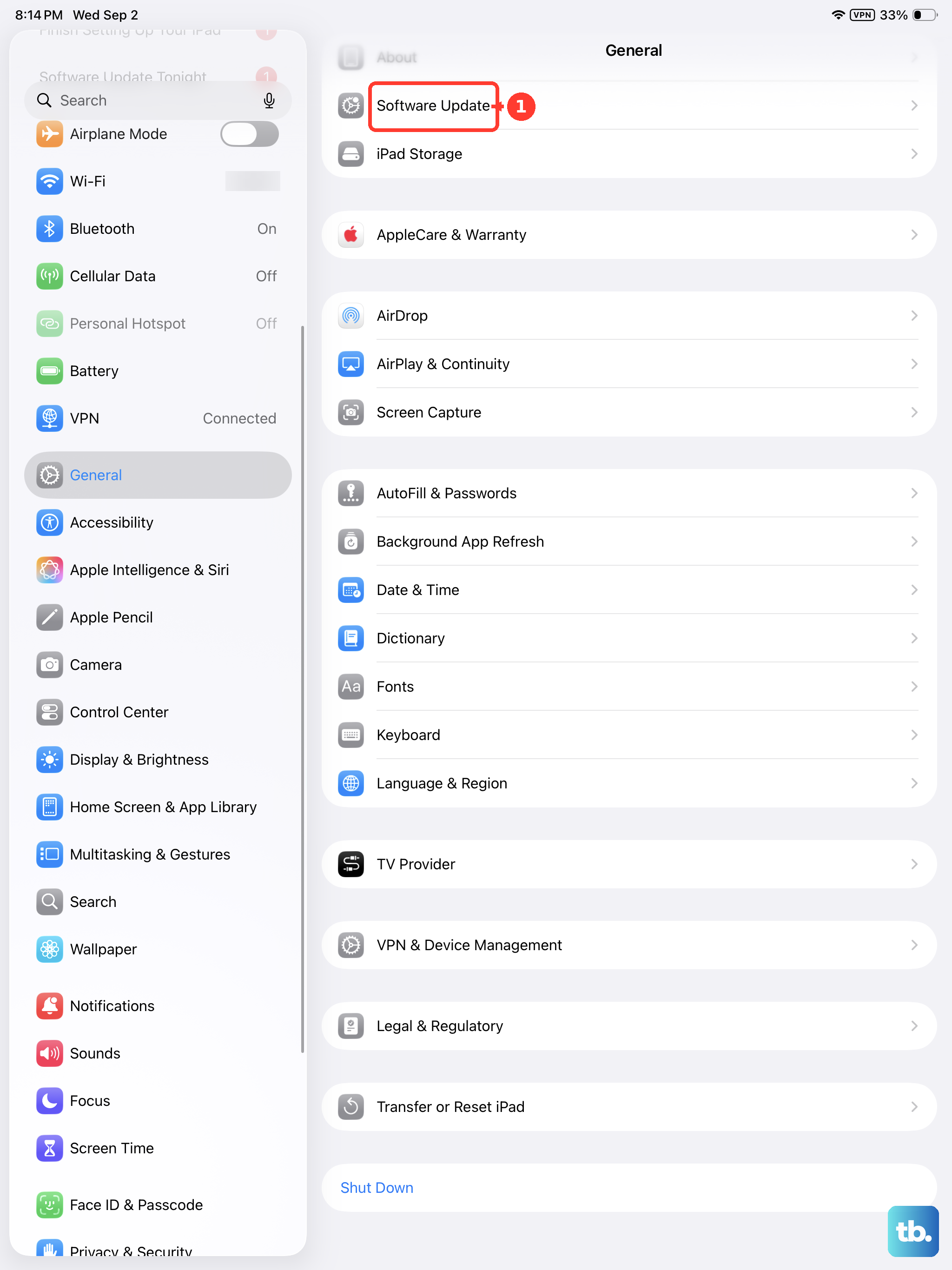
Connect your iPad to power and Wi-Fi, then go to Settings > General > Software Update. If an update is available, tap Download and Install. I've seen minor point updates resolve sensor problems that seemed like hardware failures.
Check for App Interference and Settings
If the fingerprint sensor works to unlock your iPad but fails within a specific app, the issue is likely with that app's settings or a recent update. Open the app's settings (usually within the app itself) and look for the biometrics or Touch ID section. Try turning the feature off and back on.
Also, go back to Settings > Touch ID & Passcode. Make sure the toggles for iPad Unlock and iTunes & App Store are still enabled. Sometimes a software glitch can inadvertently turn one of these off.
Reset All Settings
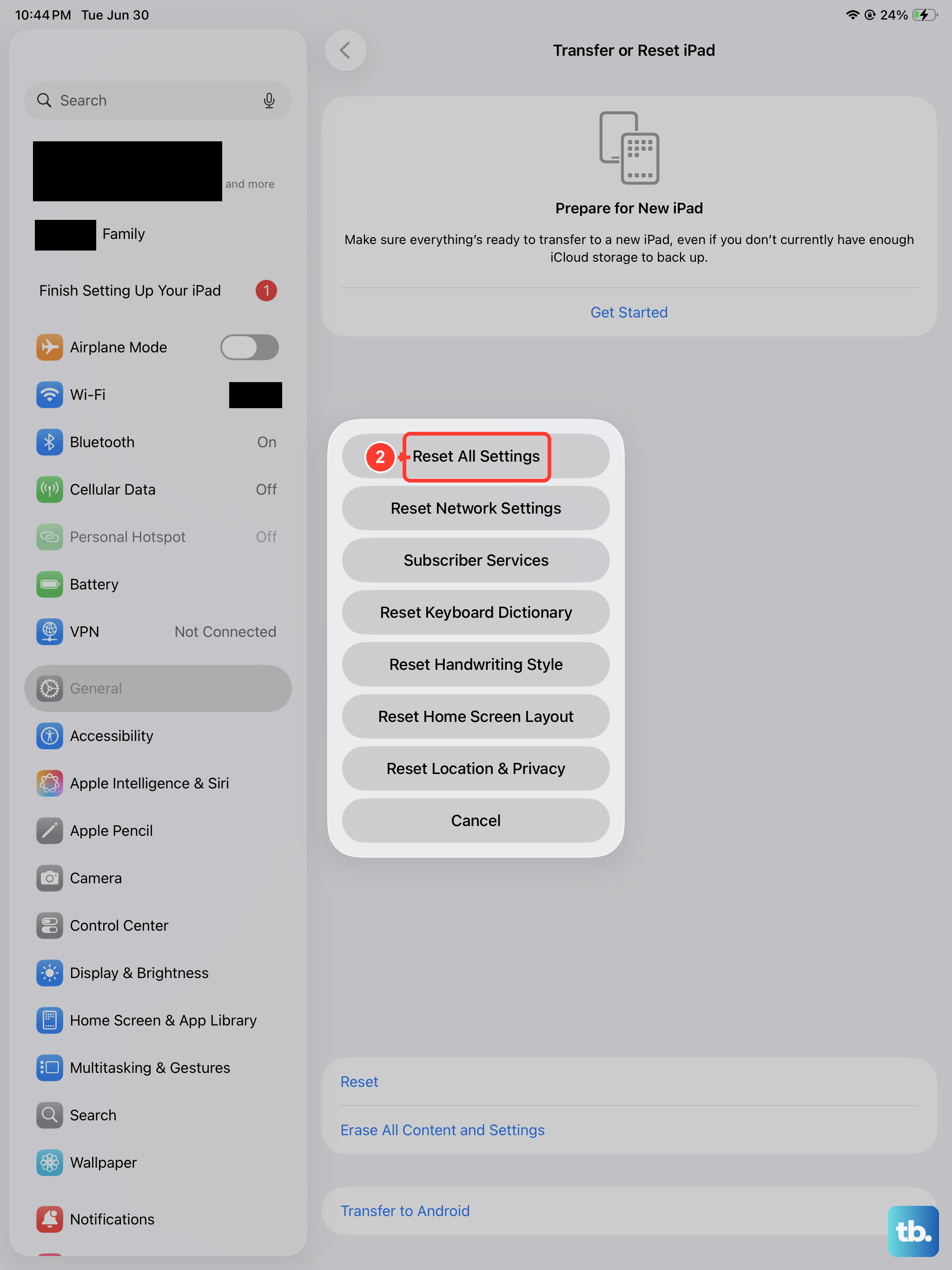
This is a more thorough step if the problem persists. It will reset all your system settings, like Wi-Fi passwords, wallpaper, and privacy permissions, back to their defaults without erasing any of your personal data or apps.
Go to Settings > General > Transfer or Reset iPad. Tap Reset and then choose Reset All Settings. You'll need to enter your passcode. After the iPad restarts, you'll need to re-enable Touch ID and re-join Wi-Fi networks, but it often clears up stubborn software conflicts.
Before doing this, it's a good idea to ensure you have a recent backup, either to iCloud or your computer, just as a general precaution.
Consider Environmental Factors
While the iPad (11th generation) doesn't support wireless charging, other environmental factors can play a role. Extremely low or high temperatures can affect the sensor's performance. If your iPad is very cold, let it warm up to room temperature.
Also, if you're using a case that covers the top button, it might be applying slight pressure or not leaving enough of the metal ring exposed. Try removing the case temporarily to see if the sensor starts working again.