A blurry camera on your iPad can ruin everything from a quick document scan to a video call. The blur might make text look fuzzy, cause faces to be soft, or give your photos a hazy, out-of-focus look. Before you worry about a hardware issue, there are several simple things you can try to clear it up.
Clean the Camera Lenses
Start with the most obvious fix. Use a soft, lint-free microfiber cloth to gently wipe the camera lenses on the back of your iPad. Fingerprints and dust are the most common culprits for a blurry or foggy image. I'd avoid using your shirt or a paper towel, as they can leave tiny scratches on the lens coating over time.
Don't forget the front-facing camera, too, especially if you notice blurriness during FaceTime calls. A quick wipe can make a big difference. For stubborn smudges, you can lightly dampen the corner of the cloth with water, but never spray liquid directly onto the iPad.
Remove Any Case or Cover
Take your iPad out of its case or Smart Folio. Sometimes, a case that doesn't align perfectly can have a lip that slightly covers the edge of the camera lens or leaves a reflective surface too close to it. Take a test photo without the case to see if the image is sharper.
Also, check that you haven't applied any camera lens protectors or stickers. While less common on iPads than phones, these can drastically reduce image quality and cause persistent blur if they aren't perfectly clear or aligned.
Tap to Focus in the Camera App
Open the Camera app and tap directly on the subject you want to be in focus. You'll see a yellow square appear. The iPad's camera might be focusing on the background, especially if your subject is off-center or close to the lens.
For more control, you can press and hold on the screen to lock the focus and exposure (AE/AF Lock). This is helpful for scanning documents or taking multiple photos of the same scene, as it prevents the camera from refocusing between shots.
Close and Reopen the Camera App
Swipe up from the bottom of the screen to go to the Home Screen, then swipe up again on the Camera app preview to close it completely. Reopen the app and try taking another photo. A temporary software glitch can sometimes cause the autofocus or image processing to malfunction, resulting in a blurry output.
Restart Your iPad
If closing the app didn't help, a full restart can clear out any stuck processes. Press and quickly release the Volume Up button, then press and quickly release the Volume Down button. Finally, press and hold the Top button until you see the Apple logo appear, then release.
This force restart sequence is the same for all iPad models with a USB-C port and no Home button. It's a good way to refresh the entire system, including the camera software.
Check for Lens Condensation
If you've moved your iPad from a cold environment to a warm one, or if you're in a very humid room, condensation can form on or inside the camera lens. This creates a foggy, blurry effect. Let the iPad sit at room temperature for 15-20 minutes to acclimate.
Resist the urge to blow on the lens or use a hairdryer, as this can push moisture further inside or cause static. Just let it dry naturally. In my experience, this is a common issue people overlook.
Update iPadOS
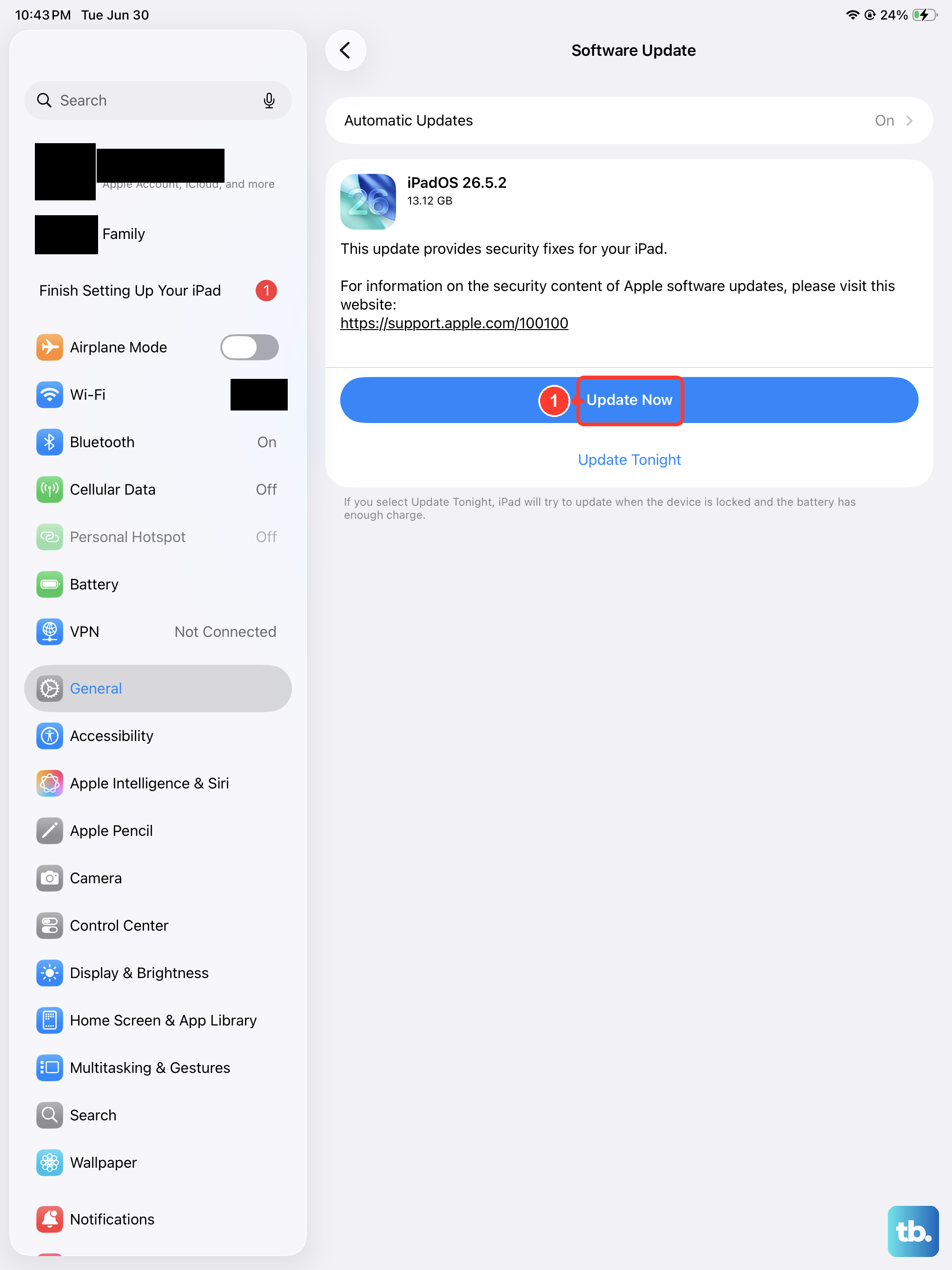
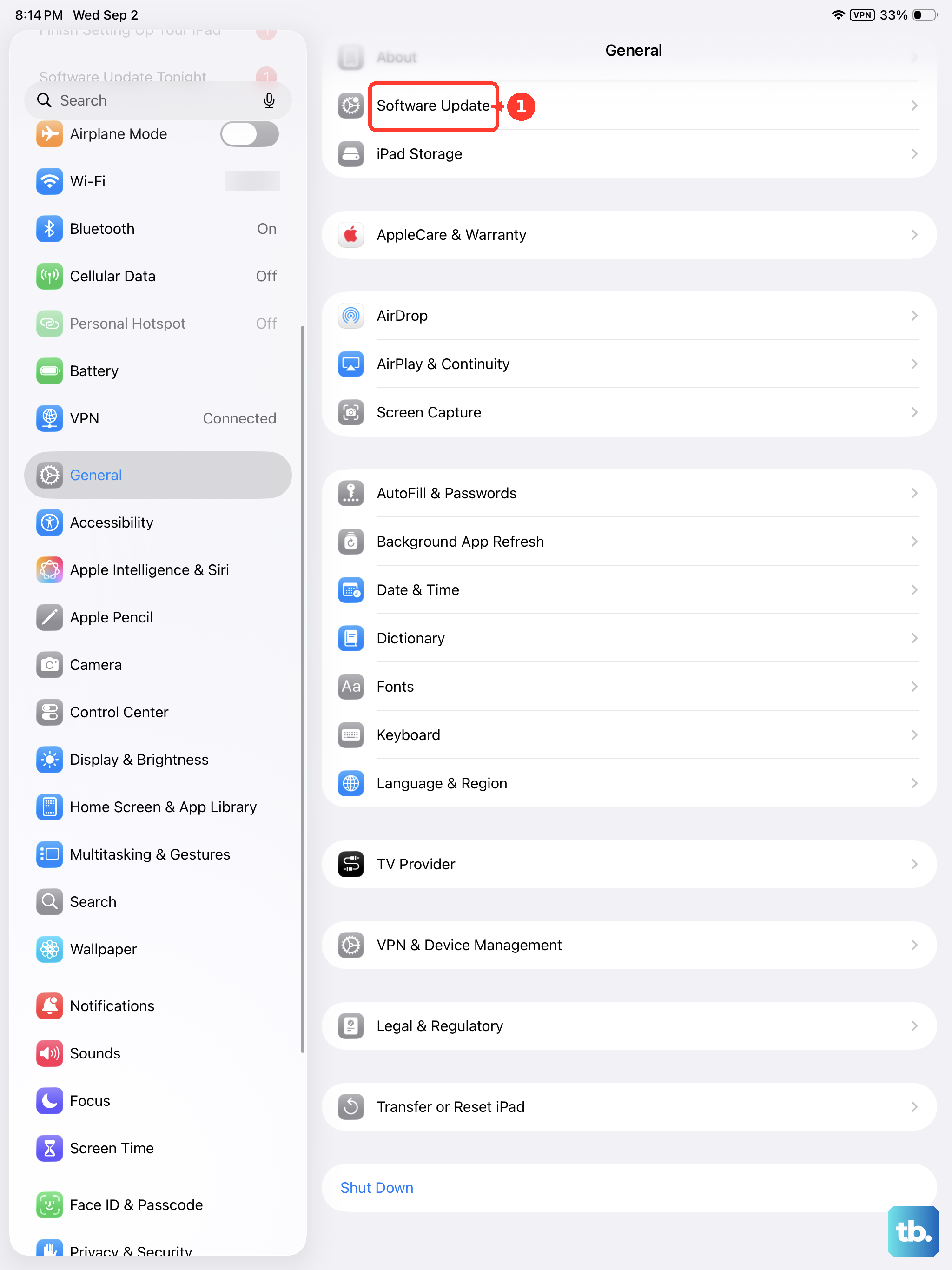
Go to Settings > General > Software Update. Apple frequently releases updates that include camera improvements and bug fixes. A known issue causing blur in certain shooting modes might already have a patch available. Keeping your iPad (11th generation) on the latest version of iPadOS is one of the best ways to ensure all features work correctly.
Use the Lens Cleaning Detection Feature
On iPadOS 26, your iPad can automatically detect when a lens is dirty. If the system sees a smudge that's likely causing blur, it may show a notification suggesting you clean the lens. If you see this prompt, give the lenses another wipe with a microfiber cloth.
This feature works in the background and is a great way to avoid realizing you've taken a whole batch of hazy photos or videos.
Reset the Camera Settings
If you've changed a lot of settings, one of them might be interfering. Go to Settings > Camera > Preserve Settings. Try turning all the toggles off. This will reset the Camera app to its default state every time you open it, which can clear up any problematic custom configurations.
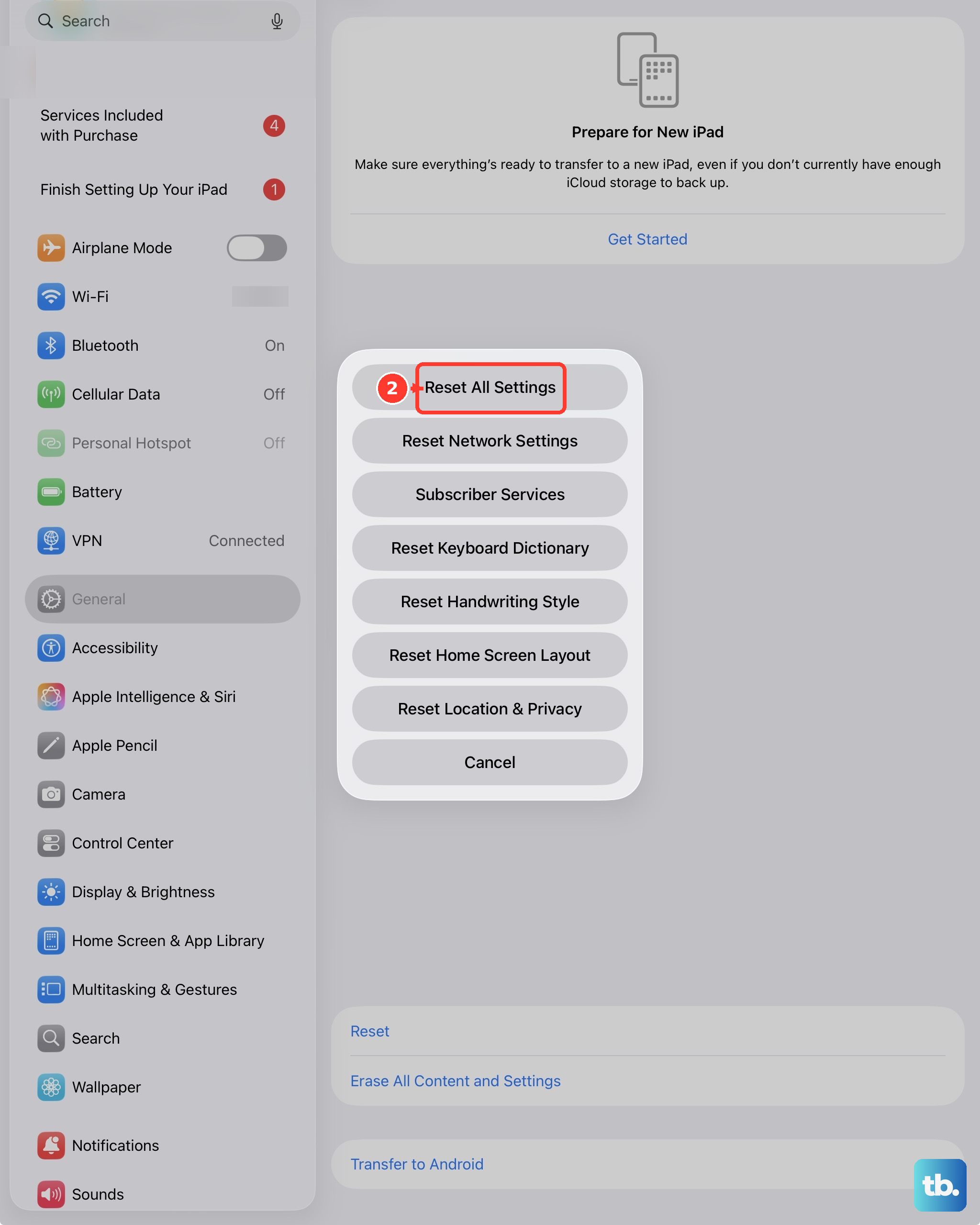
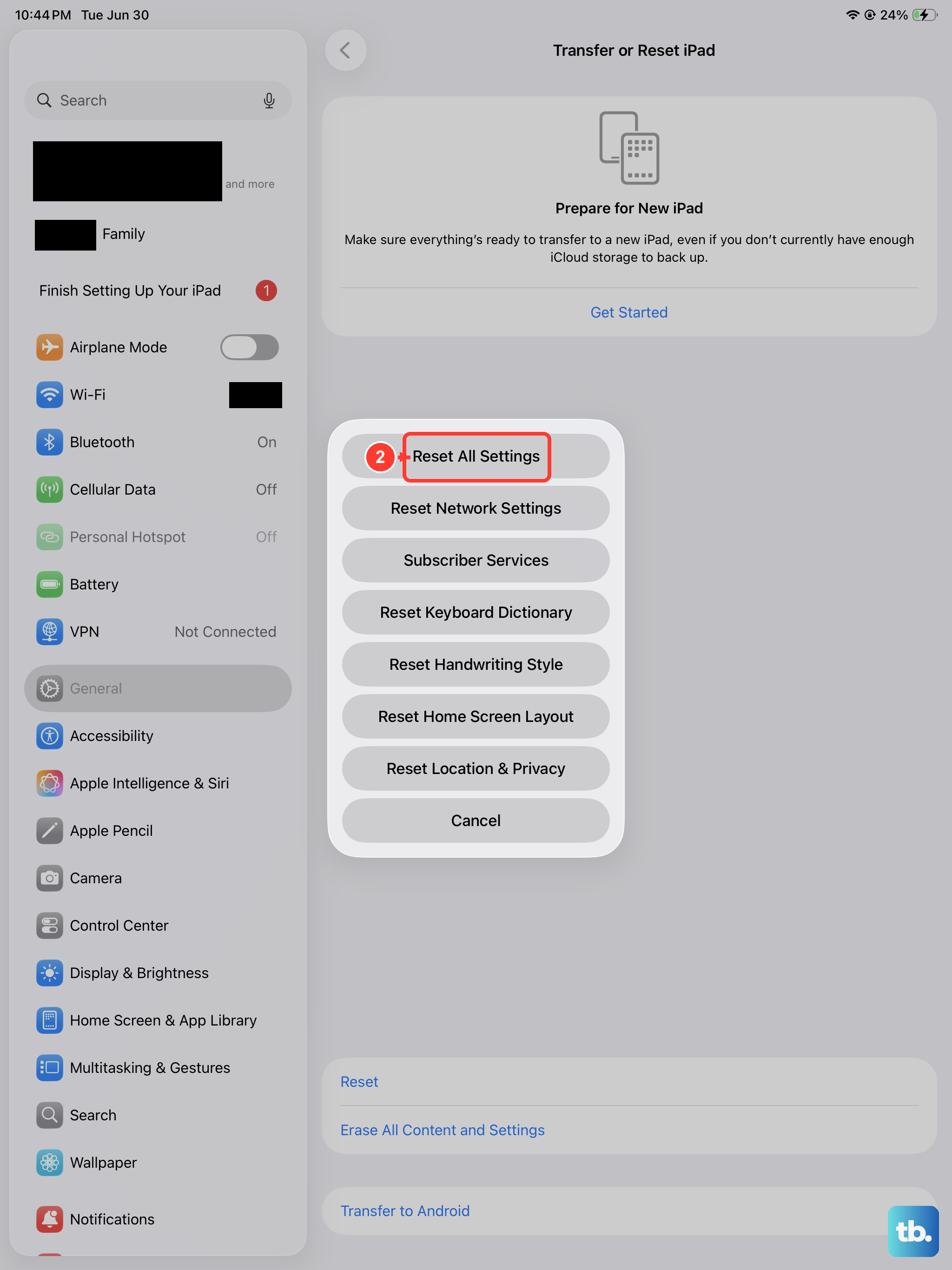
You can also go to Settings > General > Transfer or Reset iPad > Reset and choose Reset All Settings. This is more comprehensive and will reset everything to factory defaults, but you won't lose any personal data like photos or apps. It often resolves deeper software conflicts.