
Seeing a call fail on your iPad (11th gen) can be a real interruption, especially if you're using it for FaceTime or Wi-Fi calling. This usually happens when the device can't maintain a stable connection, whether that's to the internet or, for cellular models, to the mobile network.
Weak signals, a minor software hiccup, or a setting that's out of place are the typical culprits. Here are ten ways to get your calls working again, starting with the quickest fix you can try right now.
Toggle Airplane Mode
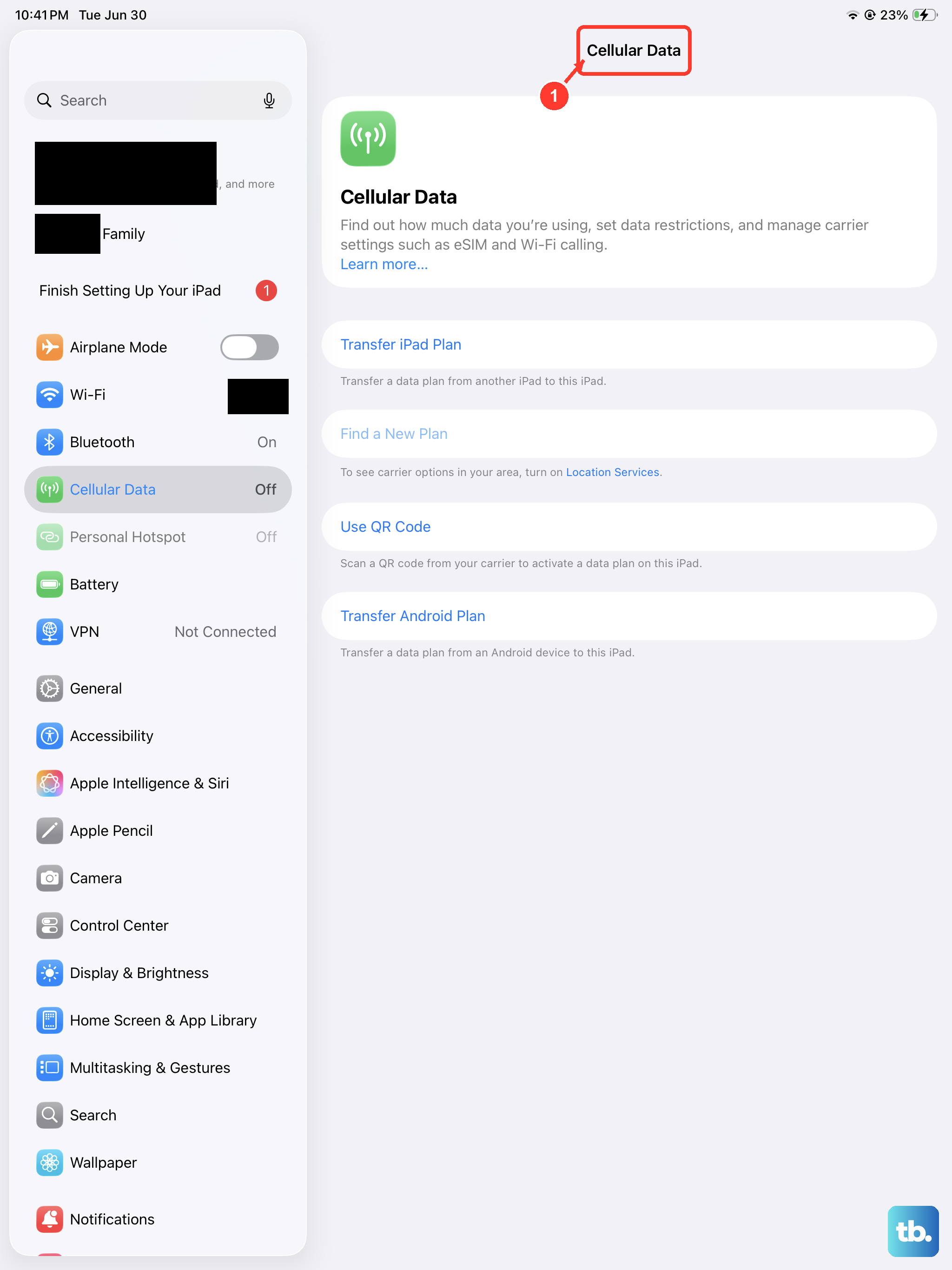
The fastest way to reset your iPad's network connections is with Airplane Mode. This clears out any temporary glitches that might be preventing calls from connecting properly.
Open Control Center by swiping down from the top-right corner of the screen. Tap the airplane icon to turn it on, wait about 15 seconds, then tap it again to turn it off. Your iPad will reconnect to Wi-Fi and cellular data, which often resolves the issue immediately.
Check Your Internet Connection
Since your iPad relies on Wi-Fi or cellular data for calls, a poor connection is the most common reason for failures. Start by looking at the Wi-Fi or cellular signal icon in the top-right corner.
If you're on Wi-Fi, try moving closer to your router or restarting the router itself. For cellular models, check if you have service bars. Moving to a different location or near a window can sometimes make a big difference.
Restart Your iPad
A simple restart can clear out minor software bugs that interfere with calling functions. It's a good second step if Airplane Mode didn't do the trick.
Press and hold the top button and either volume button until the power off slider appears. Drag the slider, wait about 30 seconds for the iPad to fully shut down, then press and hold the top button again until you see the Apple logo.
Update iPadOS
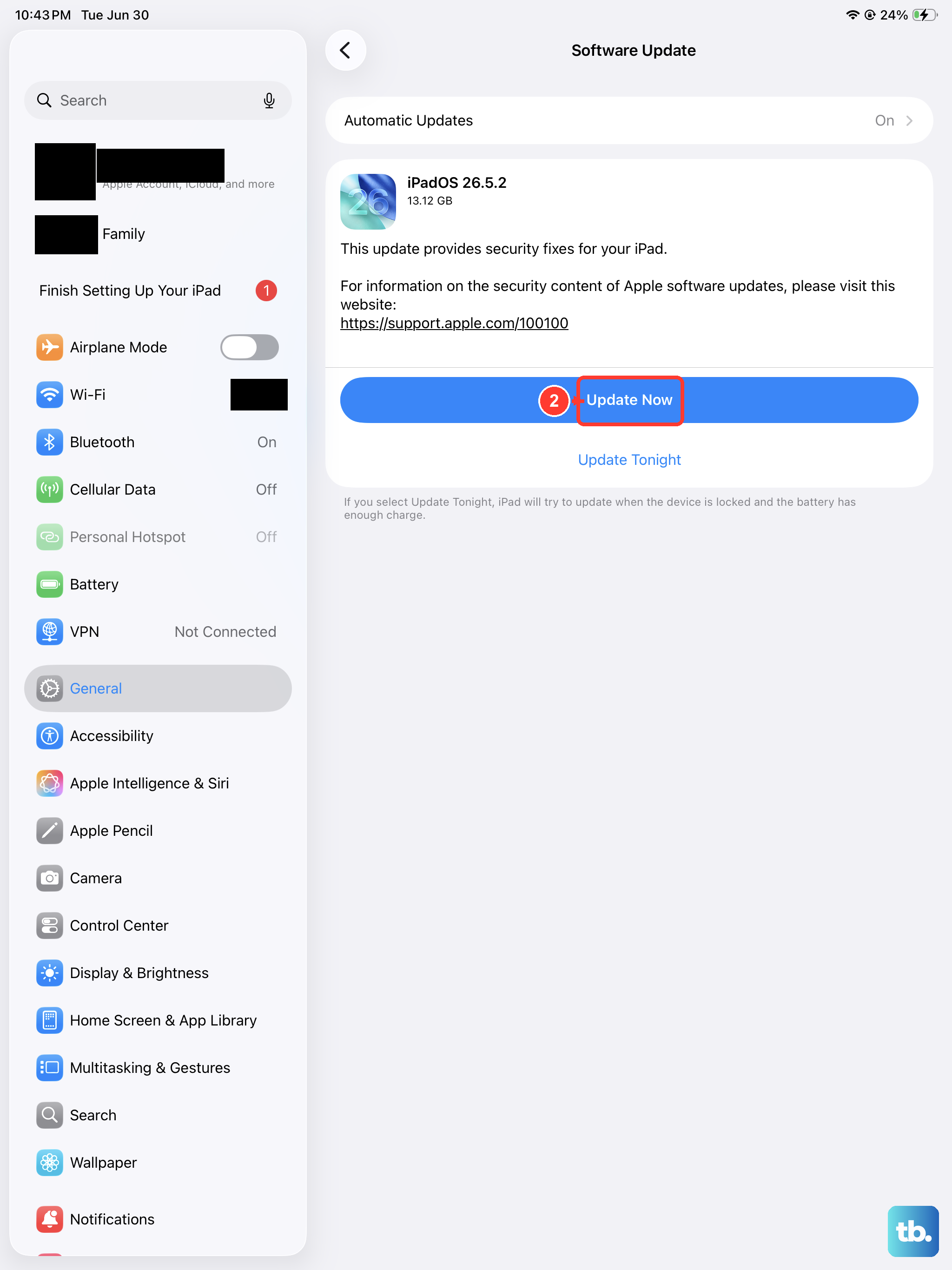
Running an outdated version of iPadOS can lead to compatibility issues with calling apps and services. Apple regularly releases updates that include bug fixes for connectivity problems.
Go to Settings > General > Software Update. If an update is available, make sure your iPad is connected to Wi-Fi and has sufficient battery, then tap to download and install it. I've seen updates resolve calling issues that seemed mysterious at first.
Check Focus Modes
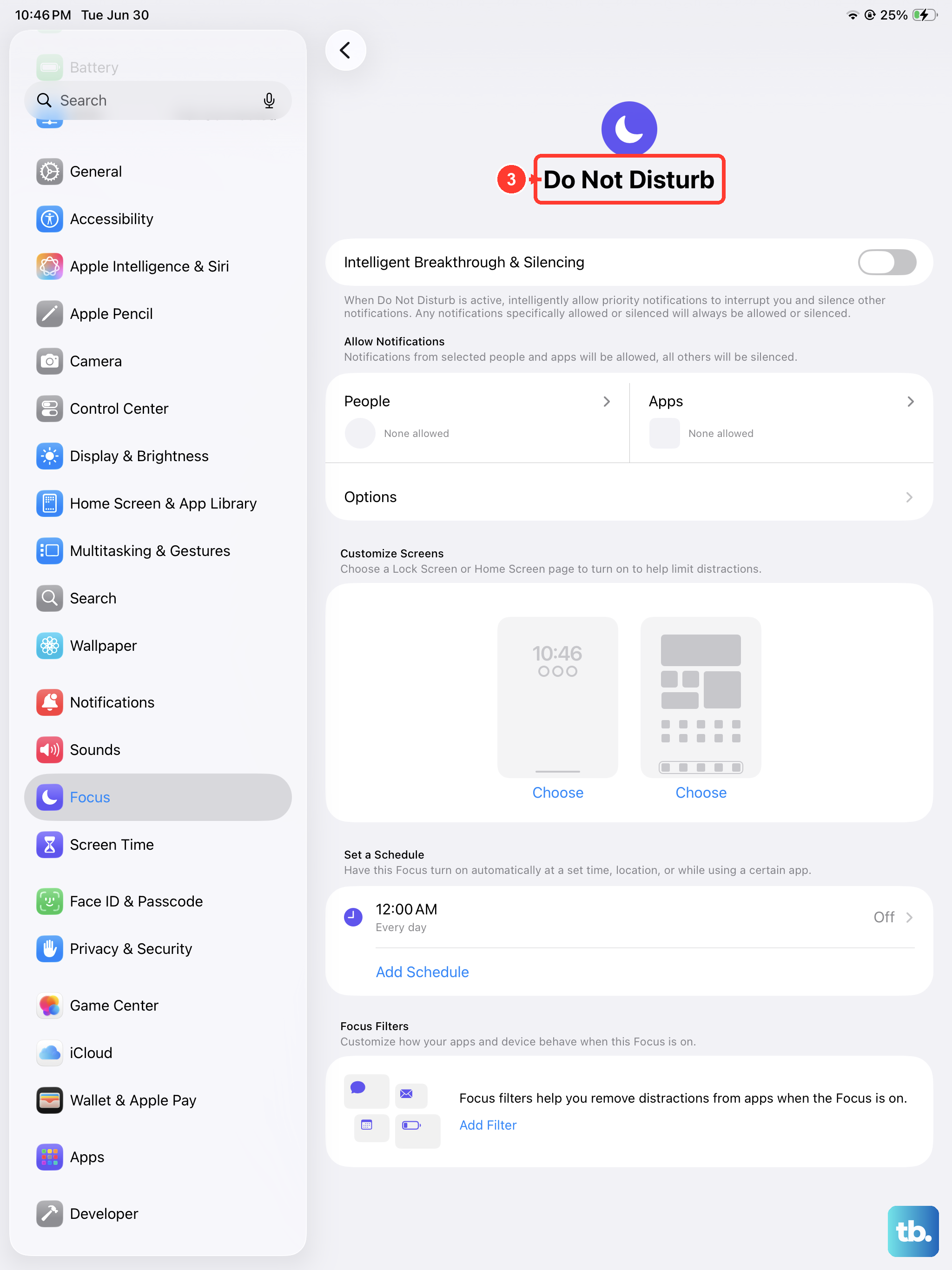
Focus modes like Do Not Disturb or a custom Work focus can silence calls and notifications. It's easy to forget one is active, which might make it seem like calls are failing when they're actually just being silenced.
Swipe down into Control Center and look at the Focus tile. If any Focus is active, tap it to turn it off. You can also check and manage all your Focus settings by going to Settings > Focus.
Reset Network Settings
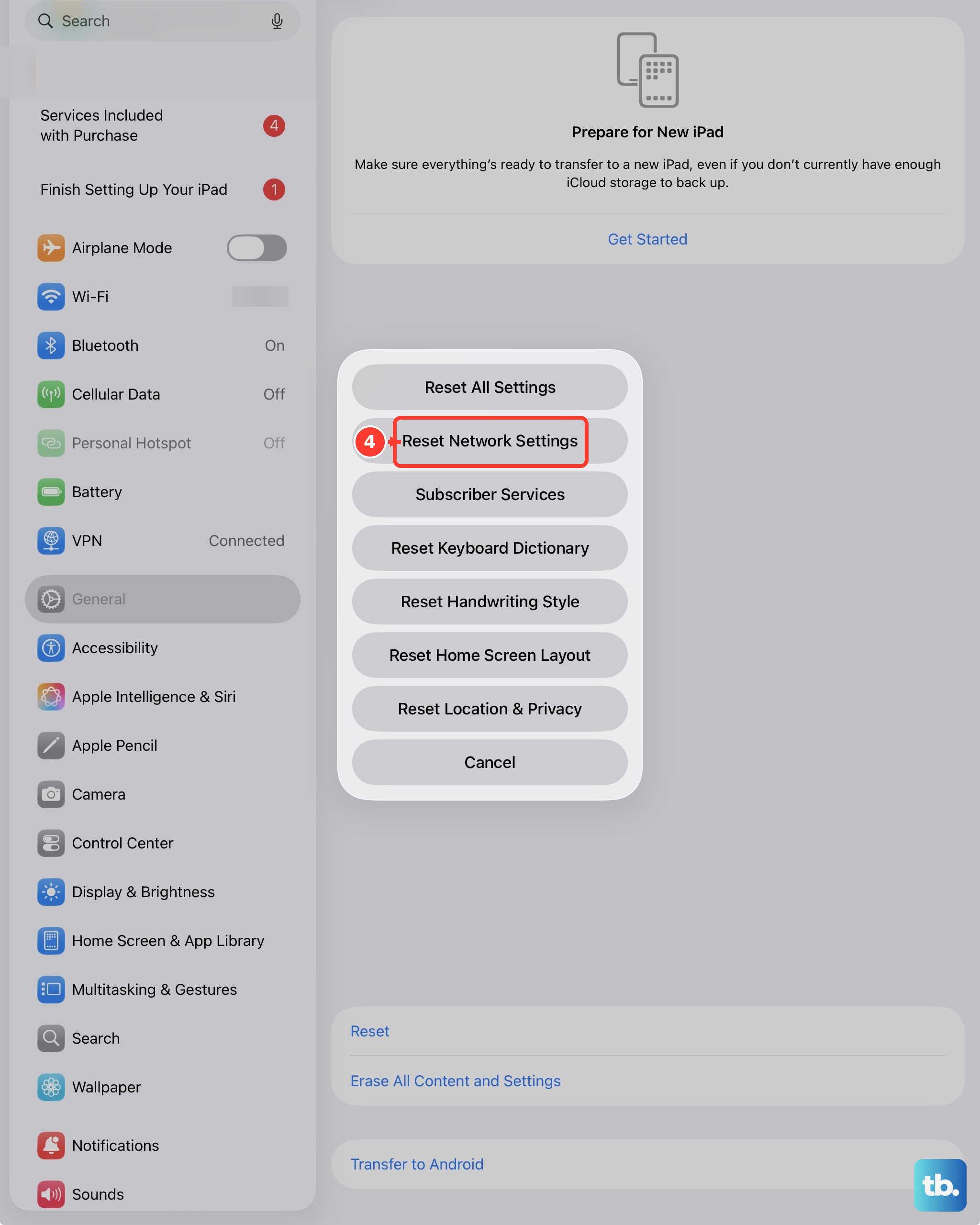
This is a more thorough step that clears all your saved network information. It will erase your Wi-Fi passwords, cellular settings, and VPN configurations, so you'll need to re-enter Wi-Fi passwords afterward.
To do this, go to Settings > General > Transfer or Reset iPad. Tap Reset, then choose Reset Network Settings. Enter your passcode if prompted to confirm. This often fixes persistent connection problems.
Verify the Calling App
The problem might not be with your iPad's connection, but with the specific app you're using, like FaceTime, WhatsApp, or your carrier's Wi-Fi calling feature. First, force close the app and reopen it.
If that doesn't help, check for updates to that specific app in the App Store. An outdated app version can cause all sorts of problems. You can also try deleting and reinstalling the app as a last resort for that specific service.
Check Date & Time Settings
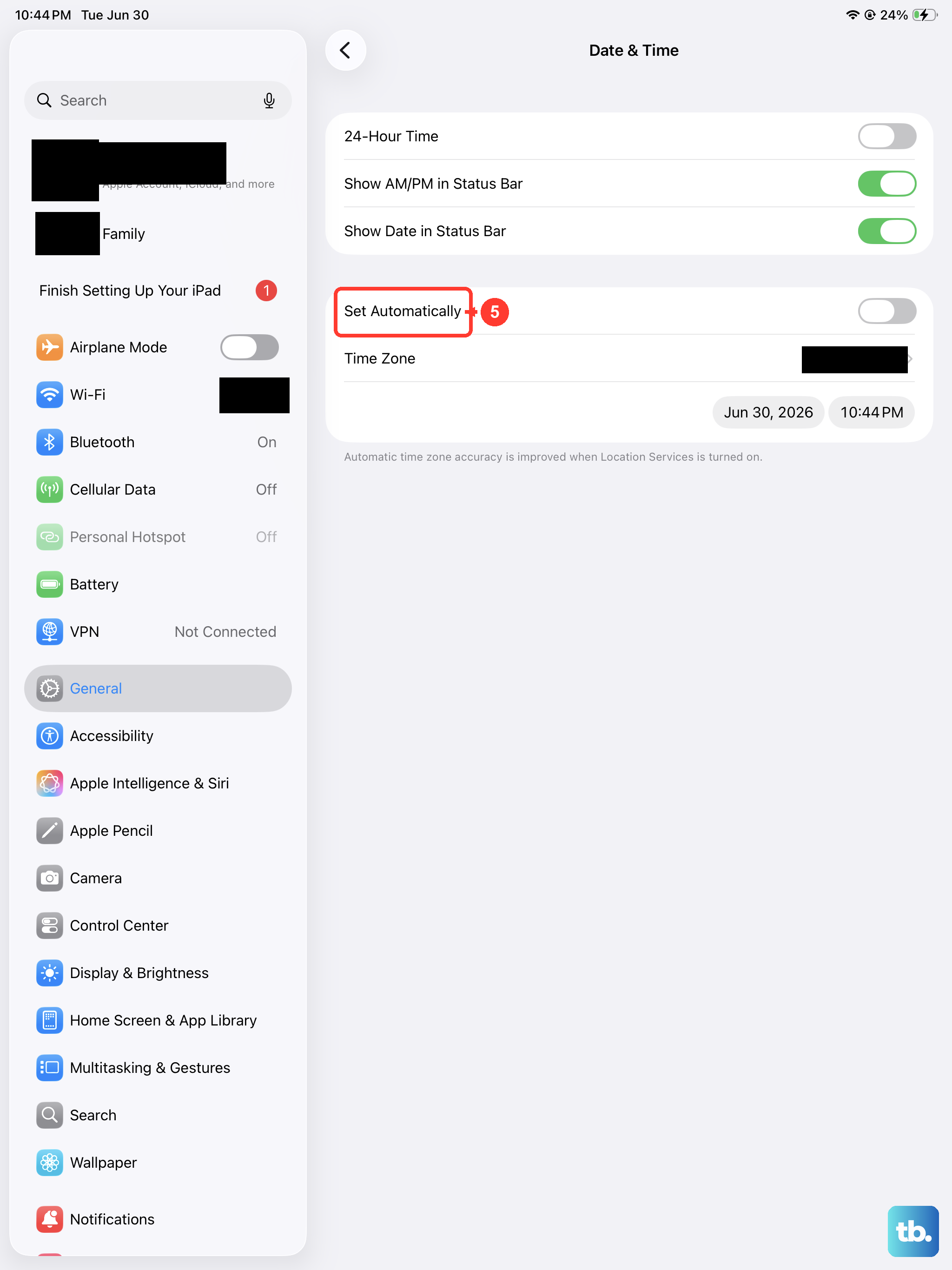
Incorrect date and time settings can sometimes interfere with secure connections, which many calling services use. Making sure this is set automatically is an easy fix.
Open Settings > General > Date & Time. Make sure the switch for Set Automatically is turned on. This allows your iPad to keep the correct time based on your network.
Review Blocked Contacts
If calls from a specific person keep failing, you might have accidentally blocked their number. This setting works across FaceTime and phone calls.
Go to Settings > Apps > Phone > Blocked Contacts (or Settings > Apps > FaceTime > Blocked Contacts). Swipe through the list to see if the number is there. You can swipe left on any entry to unblock it.
Contact Your Service Provider
If you've tried everything here and calls are still failing, the issue could be on your carrier's end. This is especially true for cellular iPad models or if you're using a Wi-Fi calling feature provided by your phone company.
Give your carrier's customer support a call. They can check for any network outages in your area, verify your account settings, and ensure your line is properly provisioned for data and calling services on your iPad.