
Seeing your iPad 10th Gen frozen on the Apple logo is a stressful experience. The screen just sits there, sometimes with a progress bar that never fills. This boot loop usually happens after an iPadOS update gets interrupted, a software file becomes corrupted, or the device runs critically low on storage during an install. The good news is you can almost always get it working again.
Give It Time to Finish
Before you take any action, just wait. A major iPadOS update can leave your iPad on the Apple logo screen for a surprisingly long time as it finalizes the installation. If you see a progress bar, it's still working. Plug it into a 20W or higher USB-C PD charger and leave it alone for at least 20 minutes. I've seen this resolve many "stuck" logos.
Perform a Force Restart
If the logo is completely static for over 20 minutes, a force restart is your first real fix. This interrupts the boot cycle. Quickly press and release the Volume Up button, then press and release the Volume Down button. Finally, press and hold the Top button until you see the Apple logo appear again, then let go. This often kicks the iPad past the stuck screen.
Enter Recovery Mode
When a force restart just brings you back to the same frozen logo, you need to use recovery mode. You'll need a computer with the latest version of Finder (Mac) or iTunes (Windows) and a good USB-C cable. Connect your iPad to the computer. Then, quickly press Volume Up, then Volume Down, and immediately hold down the Top button.
Keep holding the Top button even after you see the Apple logo. Wait for the recovery mode screen to appear, which shows a cable pointing to a computer icon. Your computer will then detect the iPad and give you two options: Update or Restore. Always choose Update first. This reinstalls iPadOS without erasing your data, though it can take 15-20 minutes.
Use DFU Mode as a Last Resort
DFU mode is a deeper restore level than recovery mode and is useful if the standard update fails. Connect your iPad to the computer. Press Volume Up, then Volume Down. Now, hold the Top button for 10 seconds. After 10 seconds, while still holding the Top button, also press and hold the Volume Down button for 5 seconds.
Then, release the Top button but keep holding the Volume Down button for another 10 seconds. If done correctly, the screen will remain black. Your computer will detect a device in recovery mode and prompt you to restore it. This process completely reinstalls the device firmware and will erase all data.
Free Up Storage Space
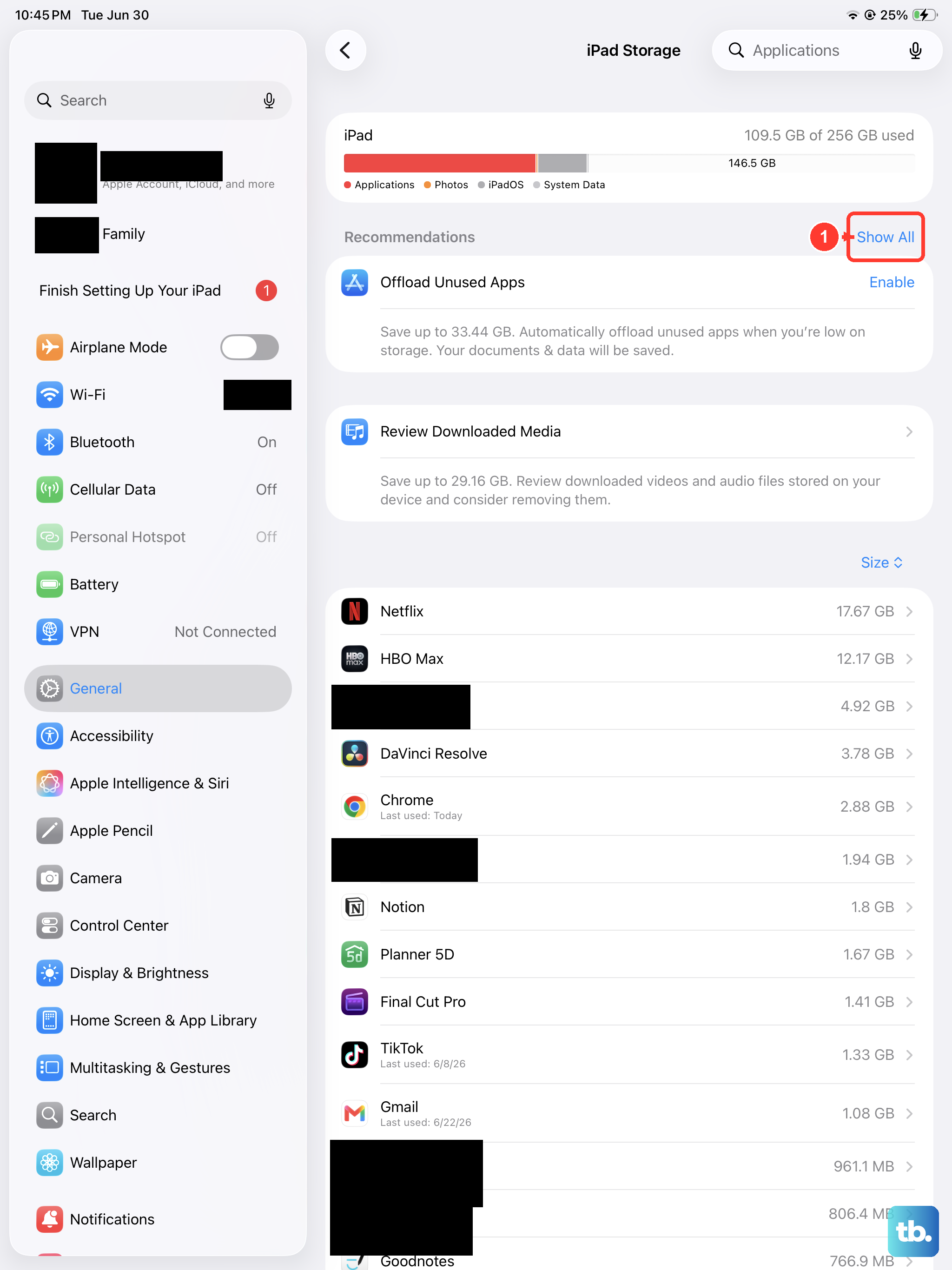
A common trigger for this issue is attempting an iPadOS update without enough free space. If you get your iPad working again after a force restart, immediately check your storage. Go to Settings > General > iPad Storage. You should aim to have at least 5-6 GB free before trying another update. Delete unused apps or offload large videos to iCloud.
Check Your USB-C Cable and Port
If your computer fails to recognize the iPad in recovery or DFU mode, the cable is often the culprit. Try a different USB-C cable, preferably an Apple-certified one. Also, try a different USB port on your computer. A damaged cable or a finicky port can prevent the critical connection needed for the restore process.
Since the iPad 10th Gen doesn't have wireless charging, a reliable wired connection is your only option here. Using the proper 20W+ USB-C PD charger for regular use can also help maintain stable battery health, which contributes to smoother updates.
Restore Your Data from a Backup
If you had to choose the "Restore" option, which erases the iPad, you can get your data back. After the iPad restarts, you'll go through the setup process. When prompted, choose Restore from iCloud Backup or Restore from Mac/PC. This is why maintaining recent backups, either via iCloud or on your computer, is so important.