
If your iPad 10th generation suddenly has no sound, it can stop you from watching videos, playing games, or joining calls. The good news is this is usually a quick software or settings glitch you can fix yourself. I'd start by checking the most common culprit first.
If you are not sure whether it is the speakers or the software, run an online left and right speaker test first. Working test tones rule out a hardware fault in seconds.
Check the Physical Mute Switch and Volume
First, look at the top edge of your iPad. There's a physical switch there. If you see an orange stripe, it means the mute switch is on and your iPad is silenced. Slide it forward to turn mute off.
Next, press the volume up button on the side a few times. Make sure you're not playing audio through a connected Bluetooth device, as that will show a different volume slider. Try playing a video in the TV app or a song in Apple Music to test the sound.
Disconnect Bluetooth Accessories
Your iPad might be silently routing all audio to a paired Bluetooth device like headphones or a speaker, even if they're in another room. To check, swipe down from the top-right corner to open Control Center.
Look at the audio card in the top-right. If you see a Bluetooth icon next to the volume slider, tap it. This will show a list of audio outputs. Select your iPad from the list to force sound back to the internal speakers.
You can also go to Settings > Bluetooth and toggle the main Bluetooth switch off temporarily to see if that restores sound.
Check Focus Modes and Do Not Disturb
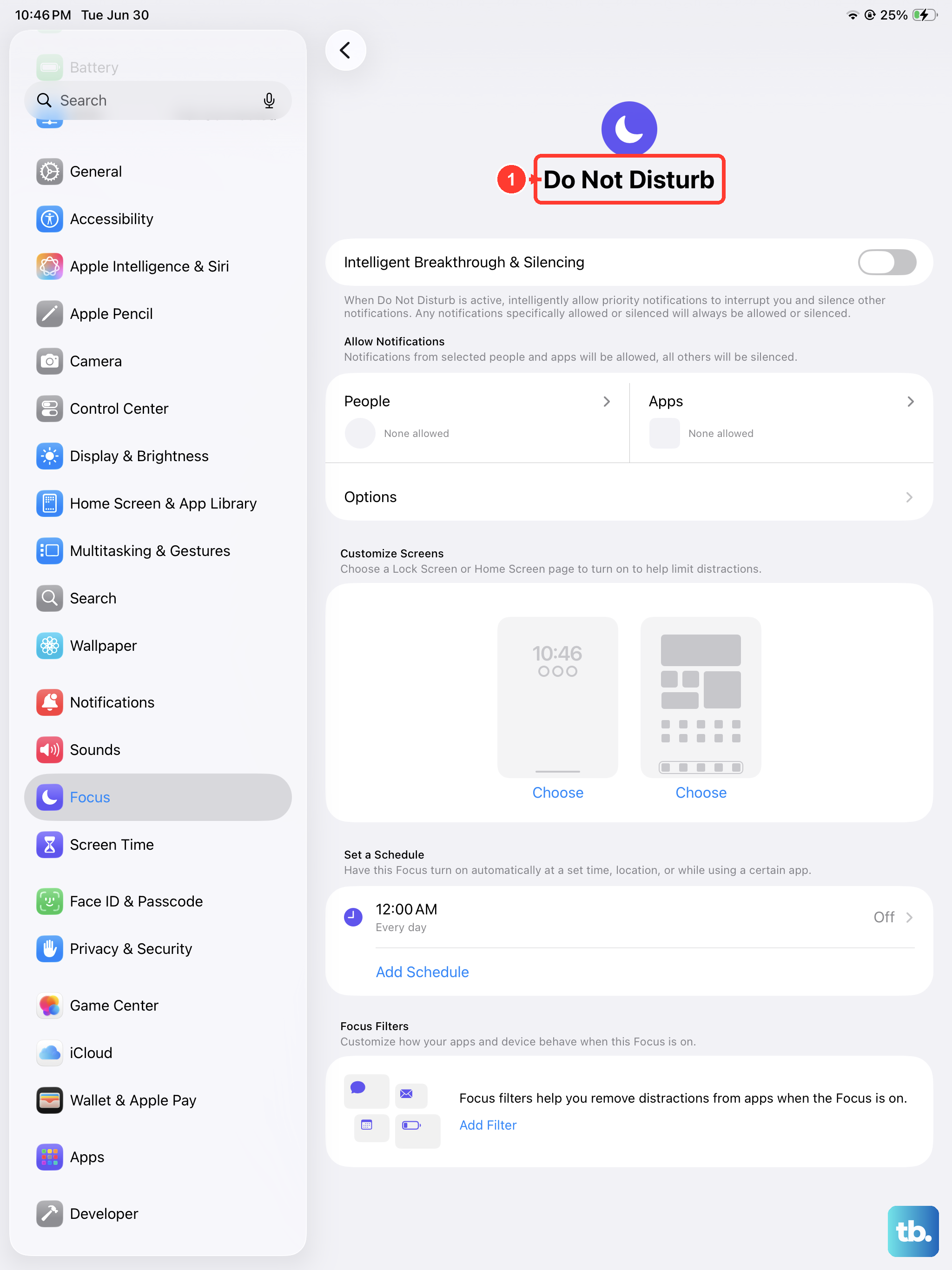
Focus modes like Do Not Disturb can silence notifications and sometimes system sounds. Swipe down to open Control Center and look for the Focus icon (it looks like a crescent moon).
If any Focus mode is active, tap the icon to turn it off. For a more thorough check, open Settings > Focus. Make sure no Focus is enabled, or review the settings for each one to ensure "Silence Notifications" isn't set to "Always."
Force Restart Your iPad
A simple force restart clears out temporary software bugs that can cause audio to cut out. It won't delete any of your data. On the iPad 10th generation, the process is specific.
Quickly press and release the Volume Up button. Quickly press and release the Volume Down button. Then, press and hold the Top button (on the top edge) until you see the Apple logo appear on the screen, then let go. This usually takes about 10 seconds.
Update iPadOS
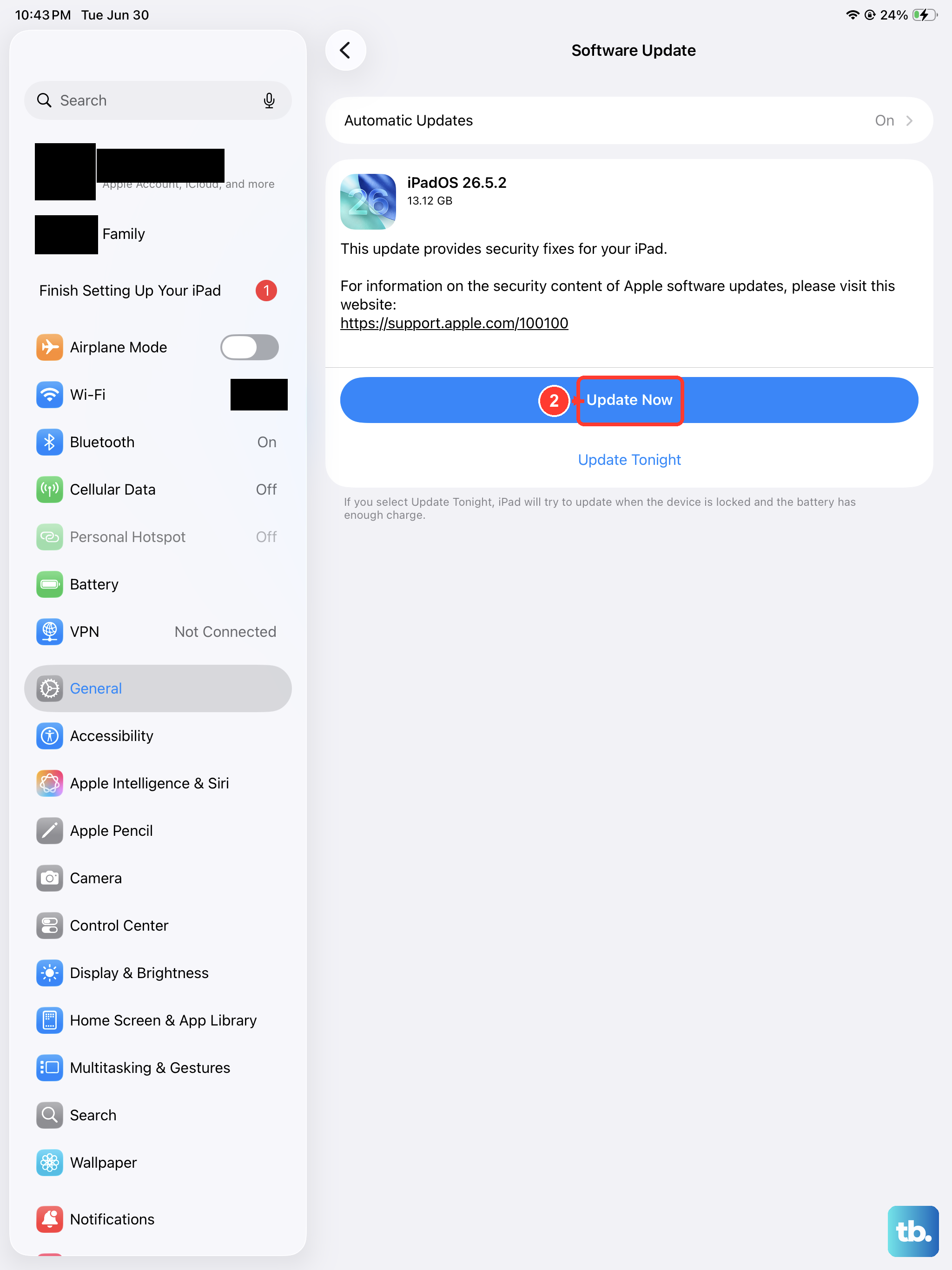
An outdated version of iPadOS can have bugs that affect audio drivers. Apple releases updates to patch these kinds of issues. Plug your iPad into power using a 20W or higher USB-C charger and connect to Wi-Fi.
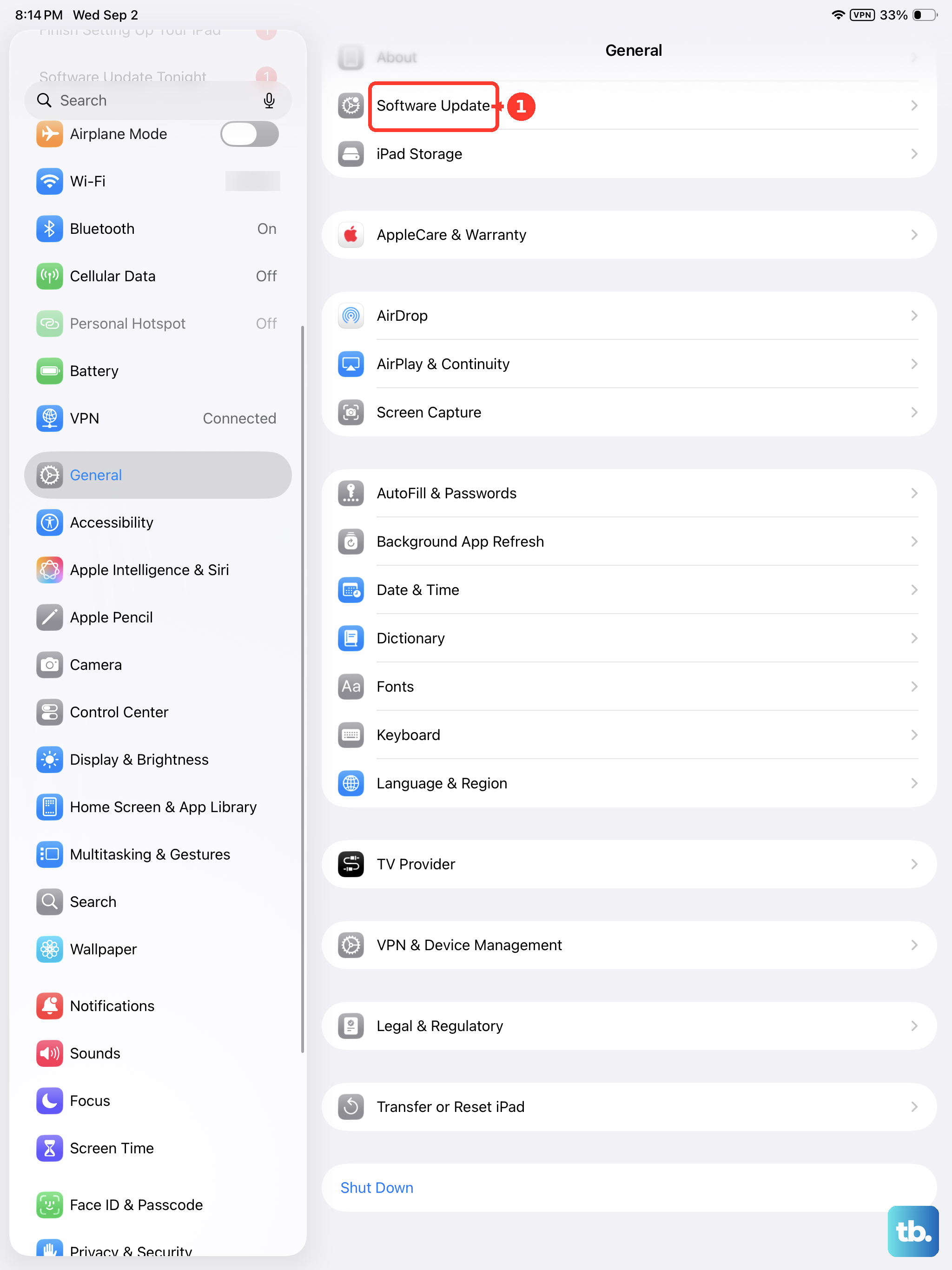
Then, go to Settings > General > Software Update. If an update is available, tap "Download and Install." I've seen minor point updates, like moving from iPadOS 18.0 to 18.1, resolve sound problems for many users.
Check Sound Settings in Accessibility
There are a few settings in Accessibility that can mute audio. Go to Settings > Accessibility > Audio & Visual. Look at the "Mono Audio" and "Balance" sliders.
Make sure the Balance slider is centered. If it's all the way to the left or right, you might only get sound from one speaker, making it seem like there's no sound at all. Also, ensure "Background Sounds" is turned off, as it can sometimes interfere.
Reset All Settings
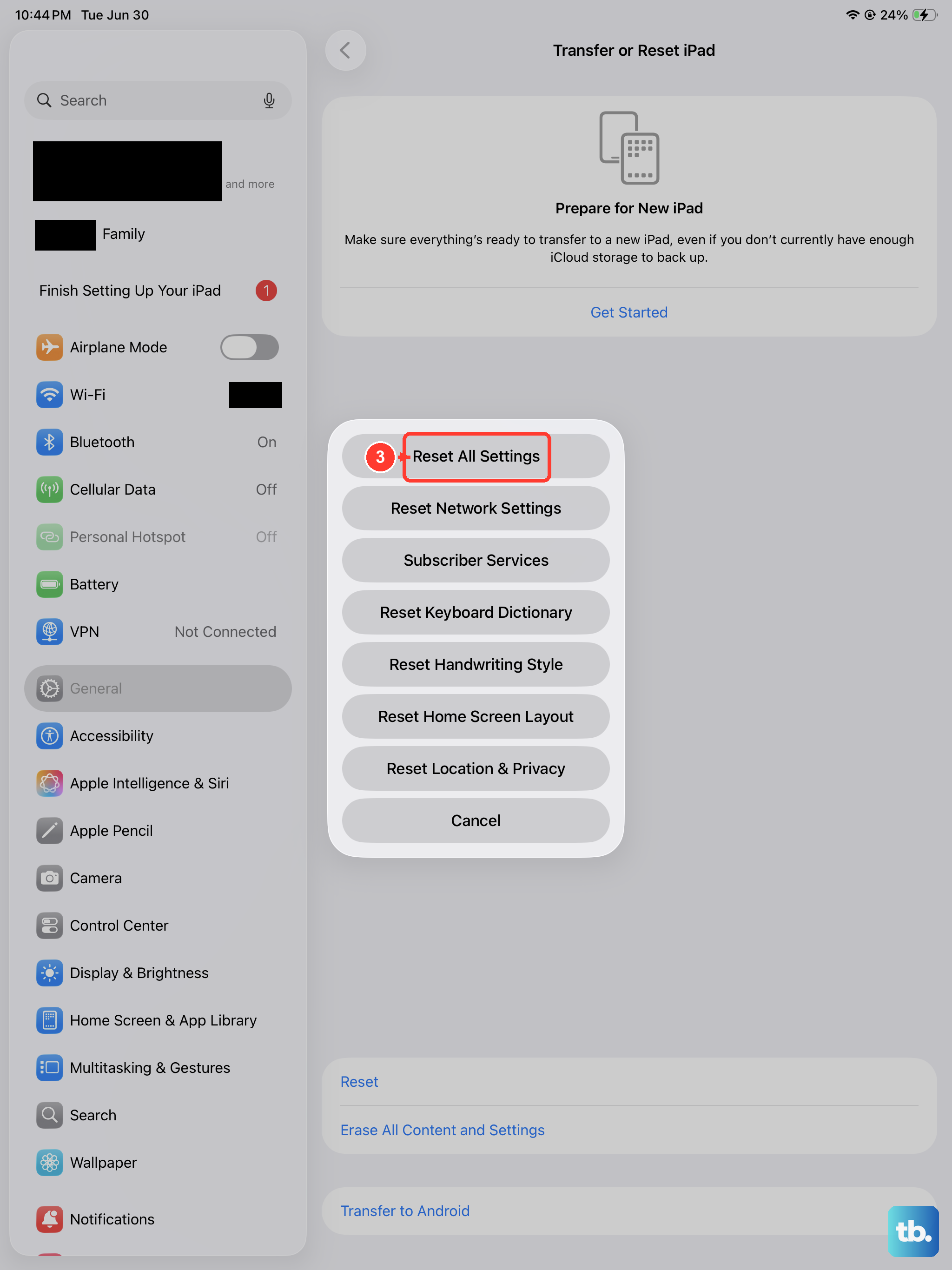
This will revert all your preferences, like Wi-Fi passwords, wallpaper, and privacy settings, back to their defaults, but it won't touch your personal data or apps. It can fix deeper configuration conflicts causing sound issues.
Go to Settings > General > Transfer or Reset iPad. Tap "Reset" at the bottom, then choose "Reset All Settings." You'll need to enter your passcode and confirm. Your iPad will restart.
Check for App-Specific Sound Issues
If the sound is only missing from one app, like YouTube or Netflix, the problem is likely with that app, not your iPad. First, force close the app. Swipe up from the bottom of the screen and pause in the middle to enter the app switcher.
Swipe up on the app's preview to close it. Then, go to the App Store, search for the app, and see if there's an "Update" button. If not, you can try deleting and reinstalling the app, which clears its corrupted cache.
Clean the Speaker Grills
The iPad 10th generation has speaker grills along the bottom edge of the device. Lint, dust, or pocket debris can get packed in there and muffle sound dramatically. Power off your iPad first.
Use a soft, dry, clean toothbrush or a soft-bristled brush. Gently brush across the speaker grills to dislodge any debris. You can also use a can of compressed air, but hold it upright and use very short bursts from a few inches away to avoid causing moisture damage.