
Slow internet on your iPad 10th Generation can really put a damper on streaming, browsing, or getting work done. The good news is that a few quick adjustments to your iPadOS settings can often get things moving again.
I'd start with the simplest fix first. A quick restart can clear out temporary software glitches that might be slowing down your connection. Just hold the top button and either volume button, slide to power off, wait 30 seconds, and then turn it back on.
Check Your WiFi Signal Strength
First, make sure you're actually connected to the best available network. Open Control Center by swiping down from the top-right corner and look at the WiFi icon. If it only has one or two bars, that's likely your problem.
Try moving closer to your router or access point. Physical obstructions like walls, especially in older buildings, can significantly weaken the signal for your iPad. If you're far from the router, consider using a WiFi extender to boost the coverage in that area.
Forget and Rejoin Your WiFi Network
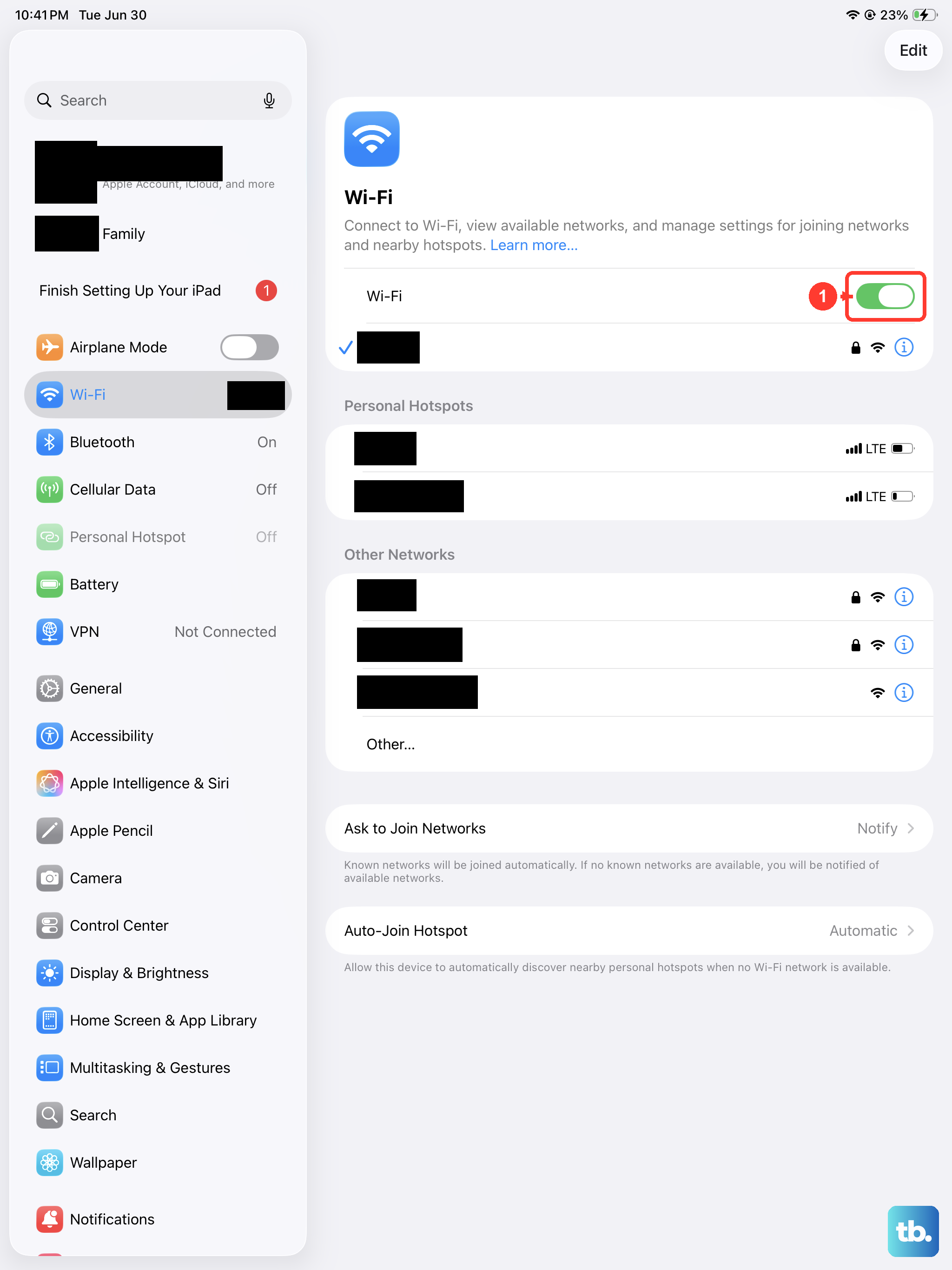
This is often the most effective single step. Your iPad might have outdated or corrupted connection data for your home network. Forgetting the network clears that out and forces a fresh, clean connection.
Go to Settings > WiFi and tap the "i" icon next to your network name. Tap Forget This Network and confirm. Then, select the network again from the list and re-enter the password to reconnect. This takes about a minute and can make a huge difference.
Disable Low Data Mode on WiFi
Low Data Mode is designed to reduce background network activity to save data, but it can also intentionally slow things down. It's useful on cellular connections, but you probably don't want it enabled on your home WiFi.
To check, go to Settings > WiFi and tap the "i" icon next to your connected network. Make sure the toggle for Low Data Mode is switched off. With it off, your iPad will freely fetch data for updates, backups, and background app refreshes.
Limit Background App Refresh
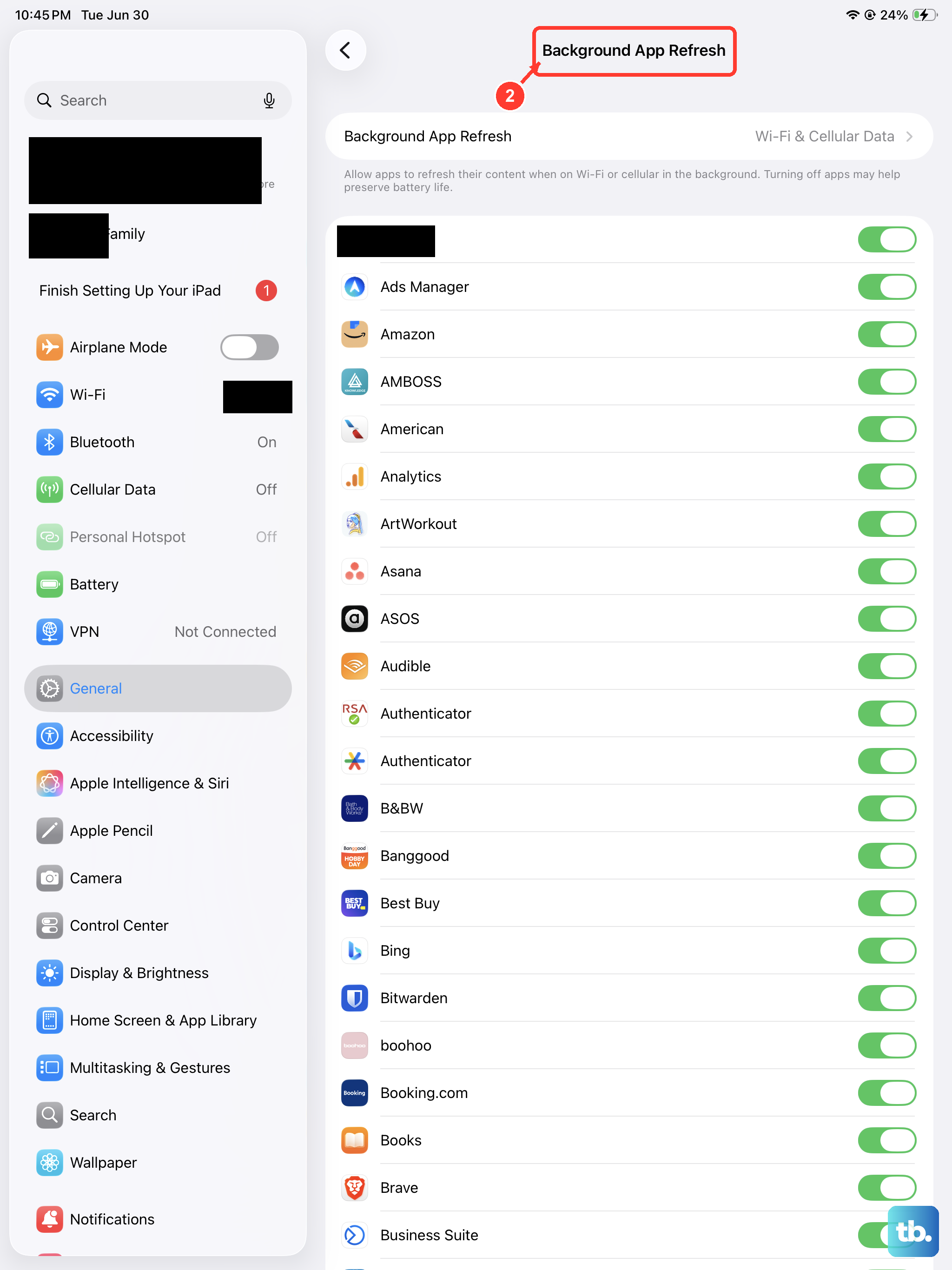
Apps running in the background can use up bandwidth even when you're not actively using them. Limiting this frees up your connection for what you're actually doing right now.
Head to Settings > General > Background App Refresh. You can turn it off completely or, for a better balance, set it to "WiFi Only." This prevents apps from using background data on cellular, but allows them to update normally when you're on your home network.
Clear Safari's Website Data and History
Over months of use, Safari accumulates a lot of cached files, cookies, and history. While this is meant to speed up return visits, a very large or corrupted cache can sometimes have the opposite effect and slow things down.
To clear it, open Settings, scroll down and tap Safari. Then, tap Clear History and Website Data and confirm. This will log you out of websites, so you'll need to sign in again, but it gives your browser a fresh start.
Update Your iPadOS Software
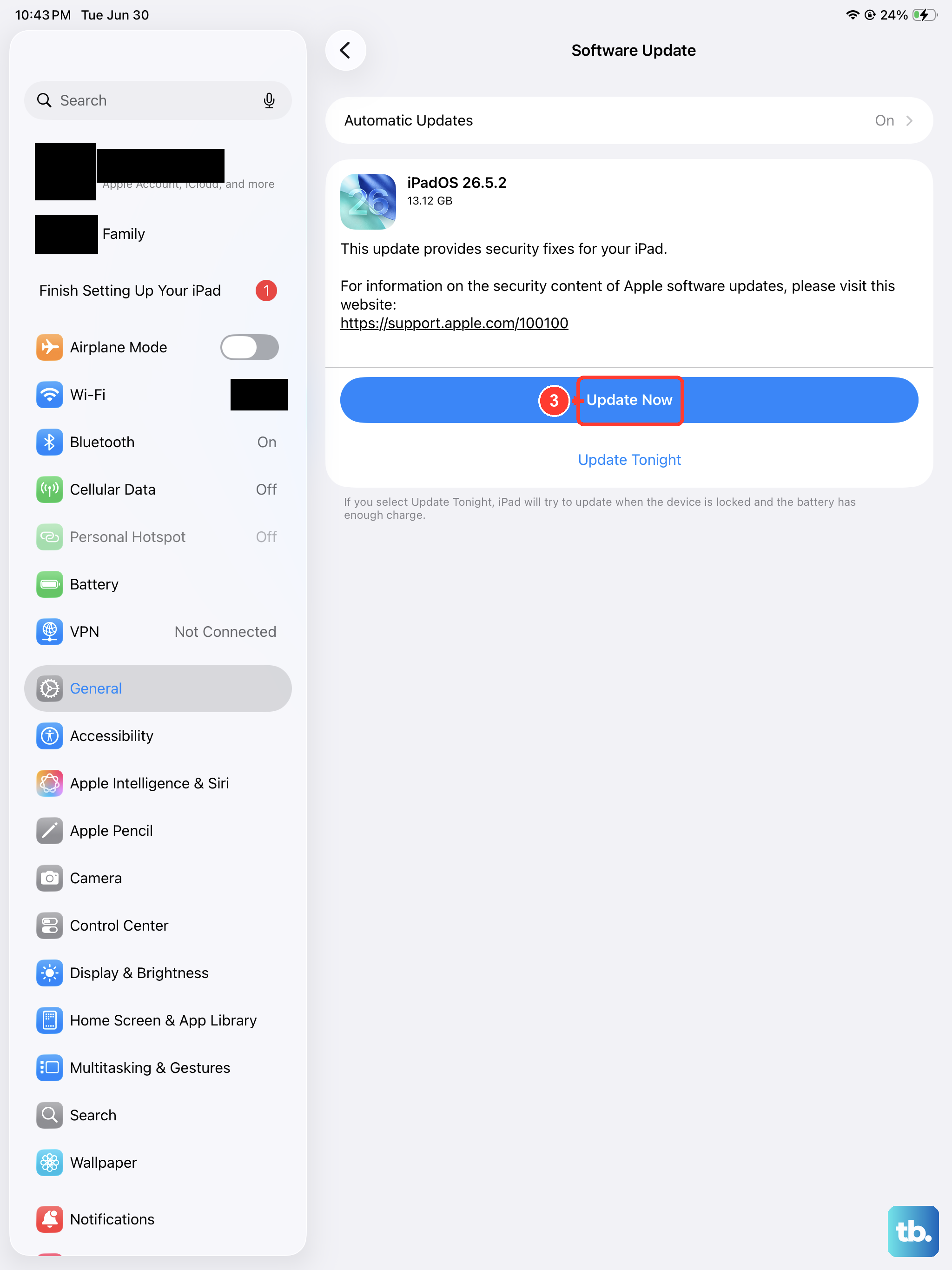
Apple regularly releases updates that include bug fixes and performance improvements for networking and connectivity. Running an outdated version of iPadOS could be the root cause of your slow speeds.
Go to Settings > General > Software Update. If an update is available, tap "Download and Install." Make sure your iPad is connected to power and WiFi during this process, as it can take a while, especially on the 20W charging of the 10th Gen model.
Reset Your Network Settings
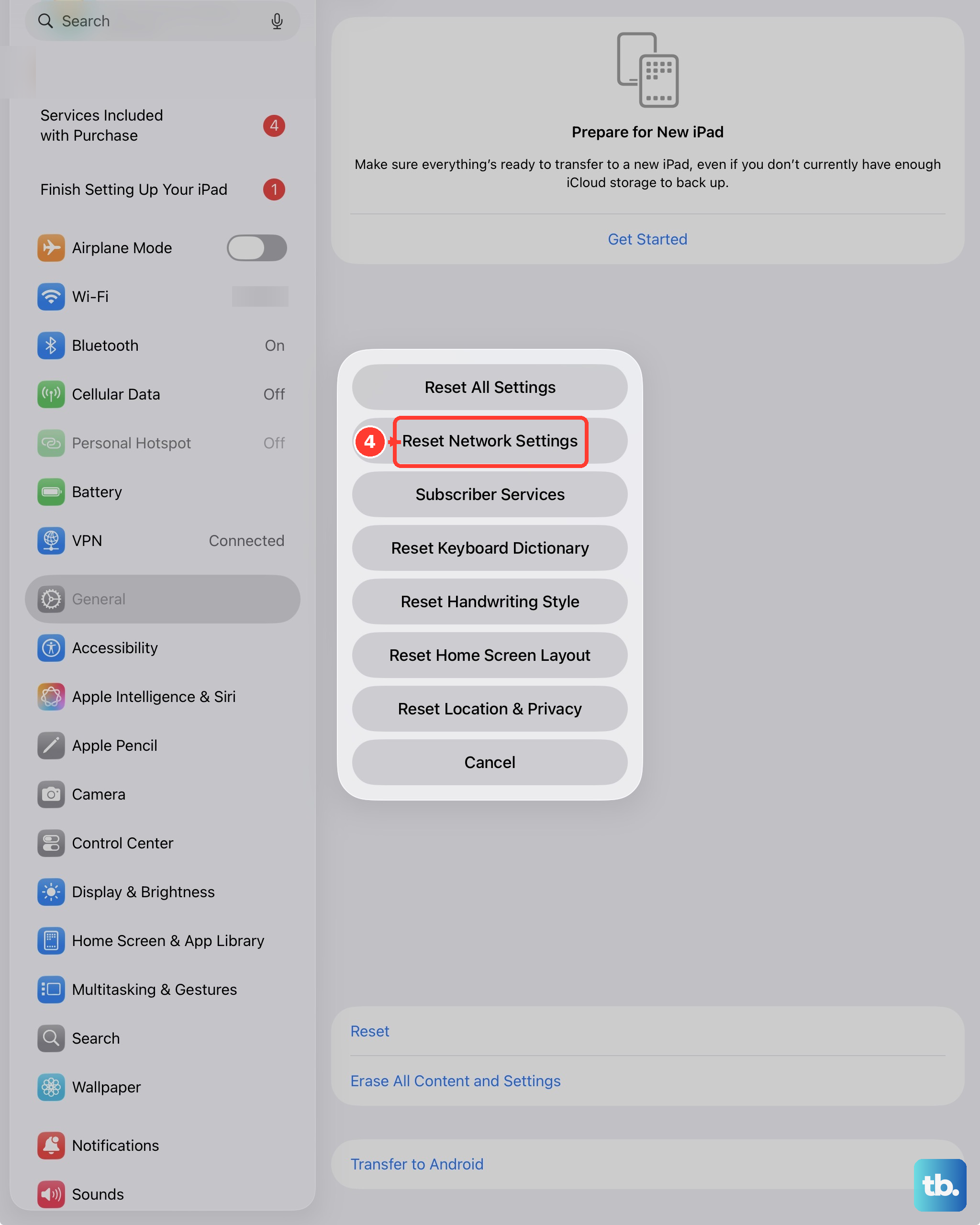
If you're still having issues, this is a more comprehensive step. Resetting network settings will erase all saved WiFi networks, passwords, cellular settings, and VPN configurations. You'll have to re-enter all your WiFi passwords afterward.
To do this, go to Settings > General > Transfer or Reset iPad. Tap Reset and then choose Reset Network Settings. Your iPad will restart. This is a reliable way to clear out any deep-seated network configuration errors.
Check for VPN or Content Blocker Interference
If you use a VPN app or a Safari content blocker, try temporarily disabling them. VPNs route your traffic through another server, which will always add some latency and often reduces speed. Some aggressive content blockers can also interfere with how web pages load.
For a VPN, simply open the VPN app you use and disconnect. For content blockers, go to Settings > Safari > Extensions and toggle them off. Test your speed again. If it improves, you know that service was the bottleneck.
Test Your Internet Speed and Router
The problem might not be your iPad at all. Use a speed test app from the App Store or a website like fast.com to check the actual speed your iPad is receiving. Compare it to the speed you're paying for from your internet provider.
If the speed is slow for all devices, restart your router and modem. Unplug them from power for 30 seconds, then plug them back in. Wait for all the lights to stabilize, then reconnect your iPad to WiFi. This clears the router's memory and can resolve congestion issues.
Try a Different DNS Server
Your iPad uses DNS servers to translate website names into addresses. Sometimes your internet provider's default DNS can be slow. Switching to a faster public DNS like Google DNS or Cloudflare DNS can speed up the initial connection to websites.
To change it, go to Settings > WiFi and tap the "i" next to your network. Tap Configure DNS, change it to Manual, and add new DNS servers. For Google, use 8.8.8.8 and 8.8.4.4. For Cloudflare, use 1.1.1.1 and 1.0.0.1. Tap Save and test your browsing speed.