
When the Settings app on your iPad 10th Generation won't open, it's usually a temporary software hiccup. The app might freeze, crash back to the Home Screen, or just not respond when you tap it. You can almost always get it working again with a few simple steps.
Force Restart Your iPad
This is the quickest fix and solves most temporary glitches. A force restart clears the iPad's memory without deleting any of your data. On the iPad 10th Generation, you do this by quickly pressing and releasing the Volume Up button, then quickly pressing and releasing the Volume Down button.
Finally, press and hold the Top button (the one on the top edge) until you see the Apple logo appear on the screen. Keep holding it through the black screen. Once the logo shows up, you can let go and wait for your iPad to restart.
Check for an iPadOS Update
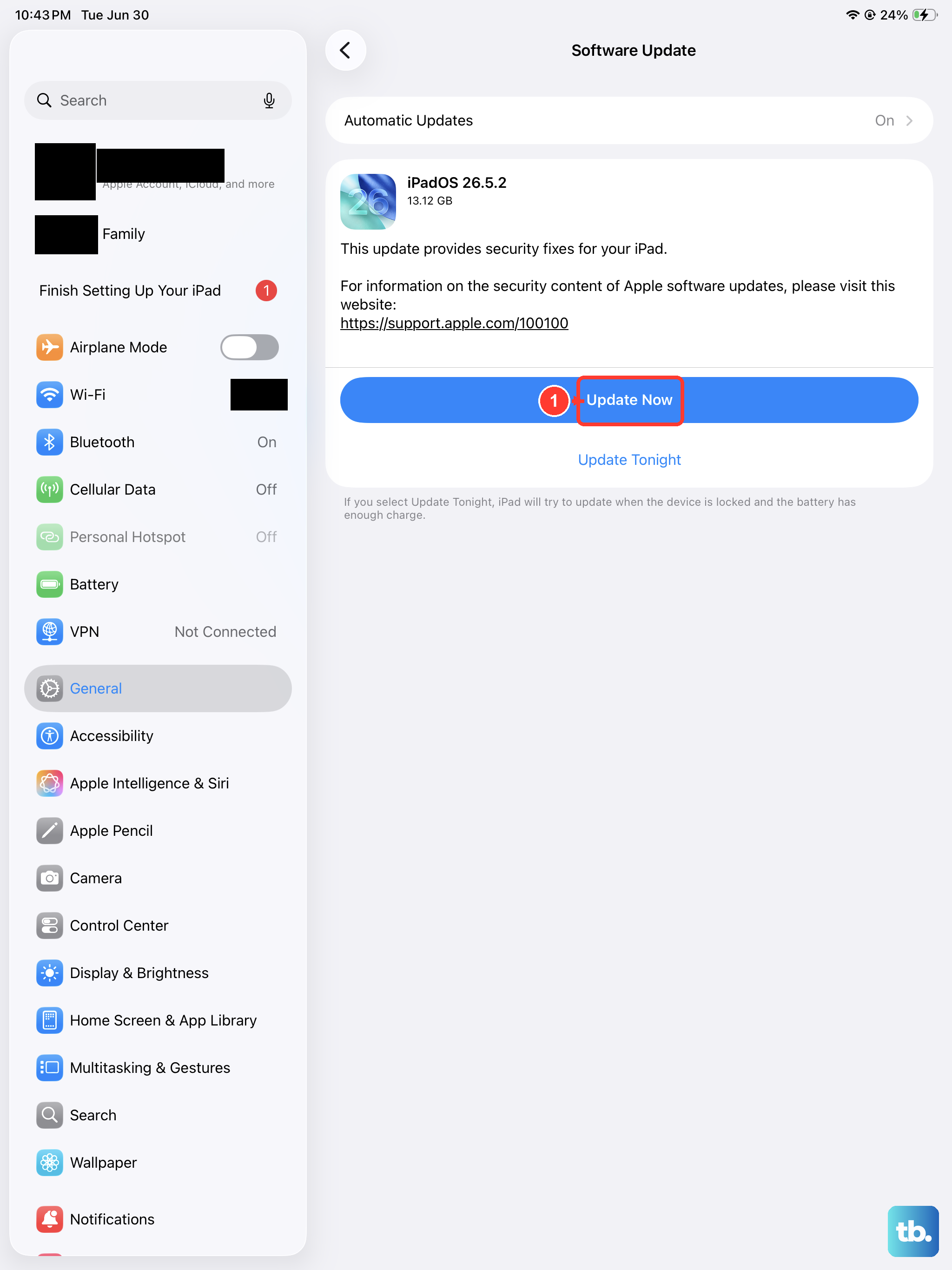
If the Settings app is crashing due to a software bug, Apple may have already released a fix in an update. You'll need to use a different method to check since the Settings app itself isn't working. Connect your iPad to a charger using a 20W or higher USB-C PD charger for the fastest, most reliable power.
Then, press and hold the Volume Down and Top buttons simultaneously until the power off slider appears. Ignore the slider and tap the "Cancel" text at the bottom. This action often triggers the iPad to check for any pending software updates in the background. Wait a few minutes, then try force restarting again to see if Settings will open.
Reset All Settings
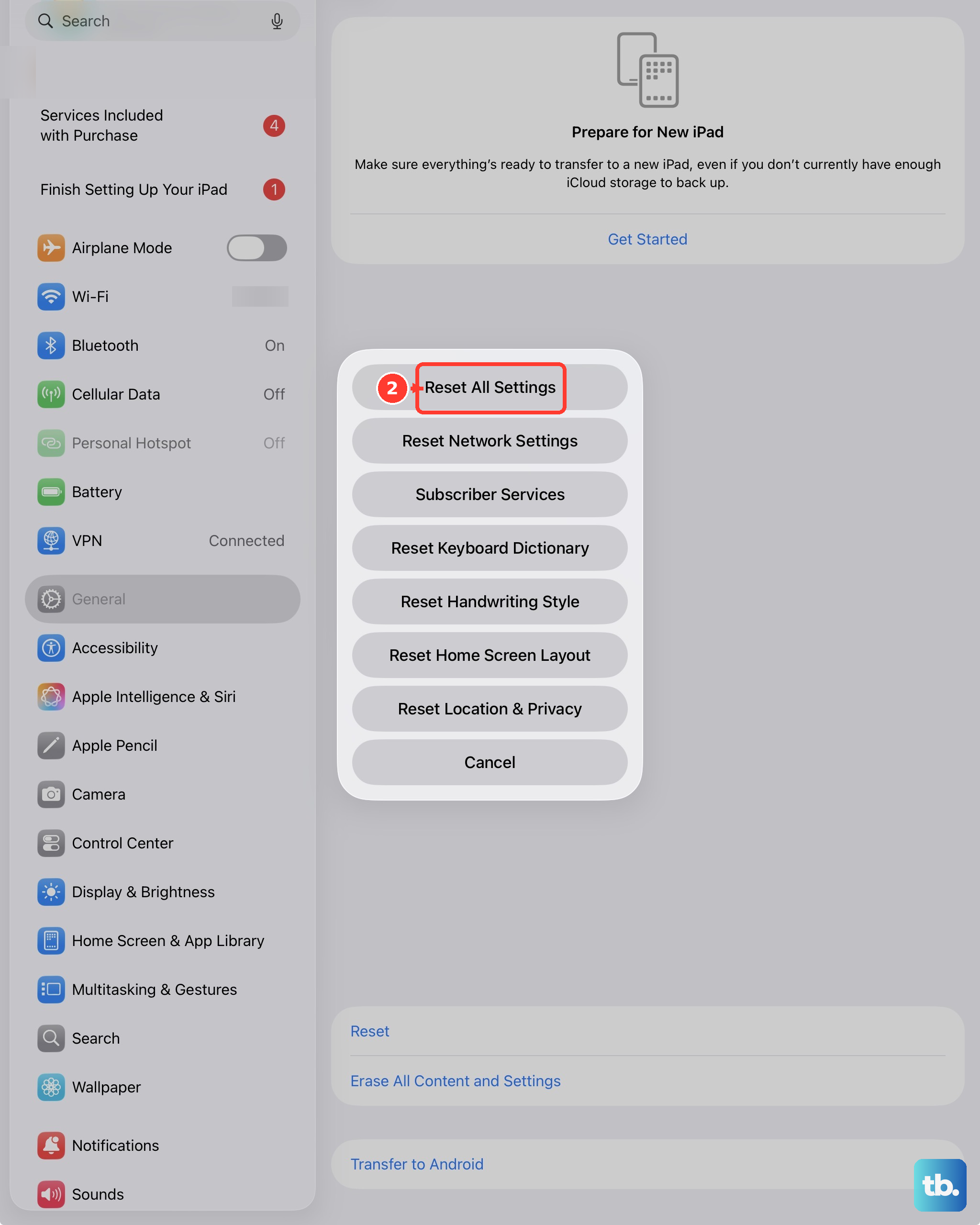
If the app is still stuck, a deeper reset might be needed. This will revert all your personalized settings, like Wi-Fi passwords, wallpaper, and privacy permissions, back to their defaults, but it won't touch your apps, photos, or documents. Since you can't get into Settings normally, you'll use the Recovery Mode method.
First, make sure your iPad is connected to a Mac or Windows PC with a USB-C cable. On a Mac with macOS Catalina or later, you'll need to use Finder. On an older Mac or a Windows PC, you'll use iTunes. Press and quickly release the Volume Up button, then press and quickly release the Volume Down button.
Immediately press and hold the Top button. Don't let go when you see the Apple logo. Keep holding until you see the Recovery Mode screen, which shows a cable pointing to a computer icon. On your computer, you'll get a prompt to Restore or Update your iPad. Choose "Update." Your computer will download and reinstall iPadOS without erasing your data. This process can take a while.
Restore Your iPad via a Computer
If updating through Recovery Mode doesn't work, a full restore is the final step. This will completely erase your iPad and install a fresh copy of iPadOS, so it's crucial you have a recent backup in iCloud or on your computer. You'll need to put your iPad back into Recovery Mode using the same button sequence: Volume Up, Volume Down, then hold the Top button until the Recovery screen appears.
This time, when your computer gives you the option, select "Restore." The computer will wipe the iPad and install the latest version of iPadOS. After it finishes, you can set it up as new or restore from your backup. I've found this almost always resolves persistent, app-specific crashes that survive other fixes.
Once you're back up and running, it's a good idea to make sure your iPad is updated to the latest iPadOS version. Go to Settings > General > Software Update. Using a 20W or higher USB-C power adapter is best for these large updates on the 10th Generation model, as its battery is quite large and slower chargers can make the process take much longer.