
Press and release the Volume Up button, then press and release the Volume Down button. Immediately press and hold the Top button until you see the Apple logo appear. This force restart is the single most effective fix for an unresponsive iPad screen, as it clears out temporary software glitches without erasing your data.
I'd start with this one every time. It works for most touch issues, especially if they started after installing an app or an iPadOS update. The screen should become responsive again once the iPad boots back up.
Clean the Screen and Your Hands
Turn off the iPad by holding the Top button and either volume button, then sliding the power off slider. Take a clean, slightly damp microfiber cloth and wipe the entire screen down thoroughly. Pay special attention to the edges where oils from your hands can build up.
Dry the screen completely with another clean part of the cloth. Also, make sure your own hands are clean and dry. The iPad 10th Gen's touch digitizer can be finicky with moisture or significant grime, even if it's not immediately visible.
Remove Any Screen Protector or Case
Take off any third-party screen protector you have applied. Some cheaper or poorly aligned protectors, especially glass ones that are too thick, can interfere with the touch sensitivity. Peel it off carefully and test the bare screen.
Next, remove the iPad from its case. Certain cases, particularly folio types that fold over the screen, can apply slight pressure or create static that disrupts the touch layer. Test the iPad's touch response with it completely naked for a few minutes.
Check for Charging Issues
Unplug the iPad from its charger and any connected accessories. A faulty USB-C cable or power adapter can sometimes introduce electrical noise that makes the screen behave erratically. Use only a certified 20W or higher USB-C PD charger for best results, as the 10th Gen supports faster charging.
Also, disconnect any other devices from the USB-C port, like hubs or external drives. Try using the iPad on battery power alone to see if the touch problem goes away. If it does, the issue is likely with a specific cable or accessory.
Check for Pencil Interference
If you use an Apple Pencil, this is a common culprit. Go to Settings > Bluetooth, find your Apple Pencil in the list, and tap the info (i) icon next to it. Select Forget This Device.
Restart your iPad using the force restart method described above. After it reboots, try pairing the Pencil again. For the 1st Gen Apple Pencil, you'll need the USB-C to Apple Pencil adapter to charge and pair it with this iPad model.
Close All Apps and Free Up RAM
If you can still access the App Switcher by swiping up from the bottom and pausing, do so. Swipe up on every app preview to close them all. This frees up system memory (RAM) that might be tied up by a misbehaving app.
Then, try using the iPad again. If touch responsiveness improves, an app you were using is likely the cause. Pay attention if the problem returns after opening a specific app like a game or drawing program.
Check for Pending Software Updates
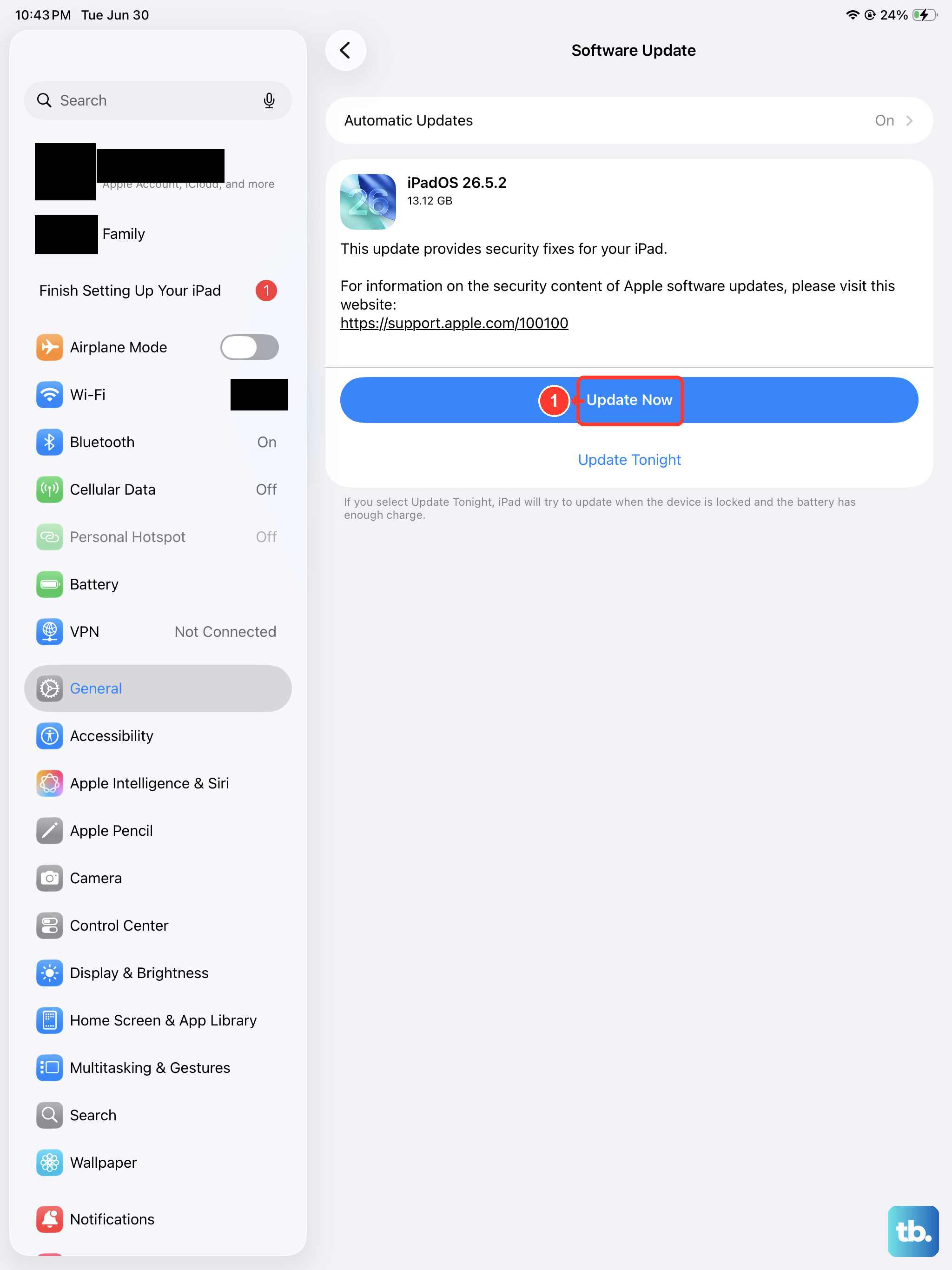
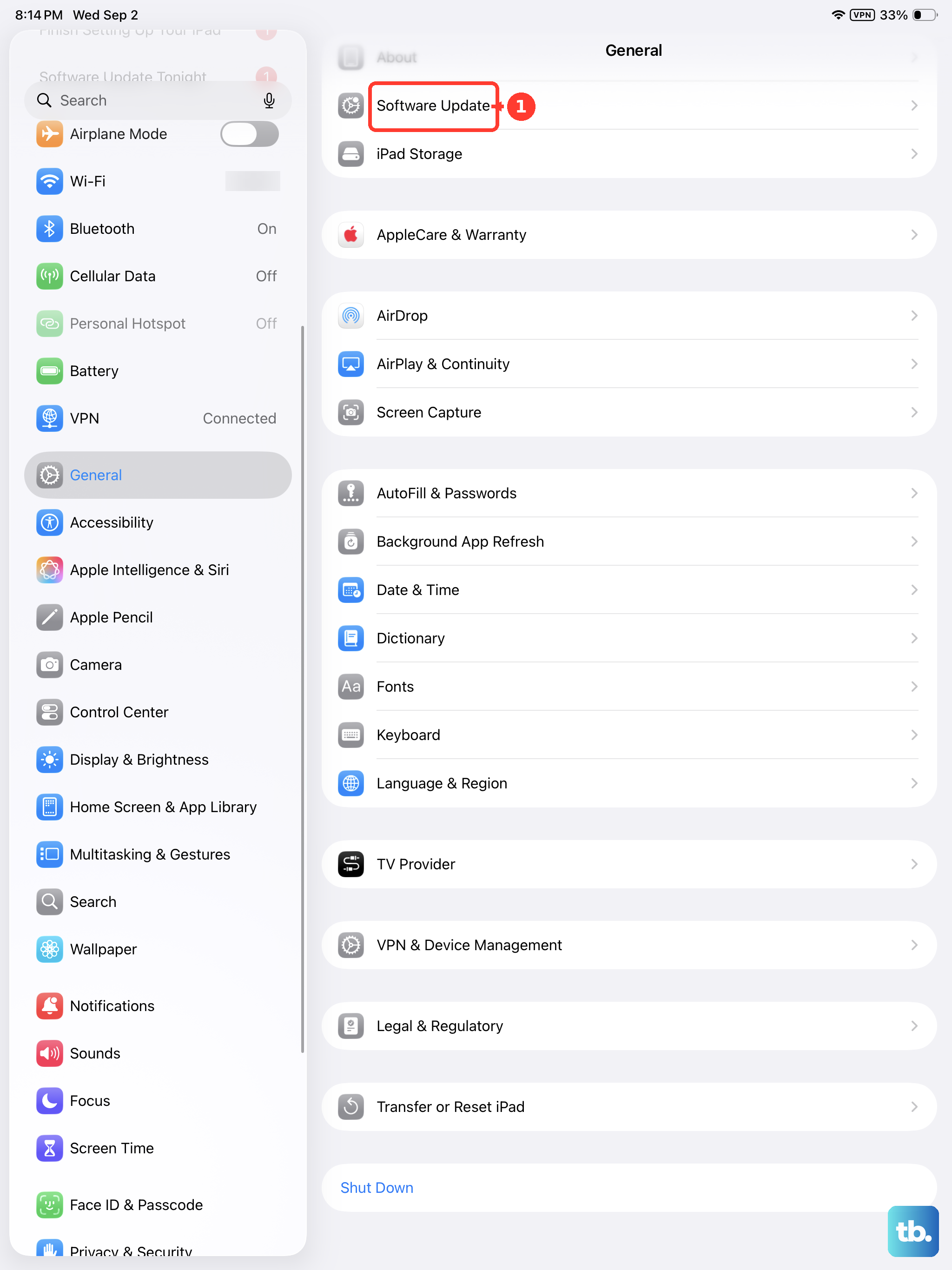
Connect your iPad to power and Wi-Fi. Go to Settings > General > Software Update. If an update is available, install it. Apple frequently releases iPadOS updates that include bug fixes for touchscreen and digitizer issues.
Make sure your iPad is plugged in during the update process, as a shutdown mid-update can cause more serious problems. These updates often resolve glitches introduced by previous versions.
Reset All Settings
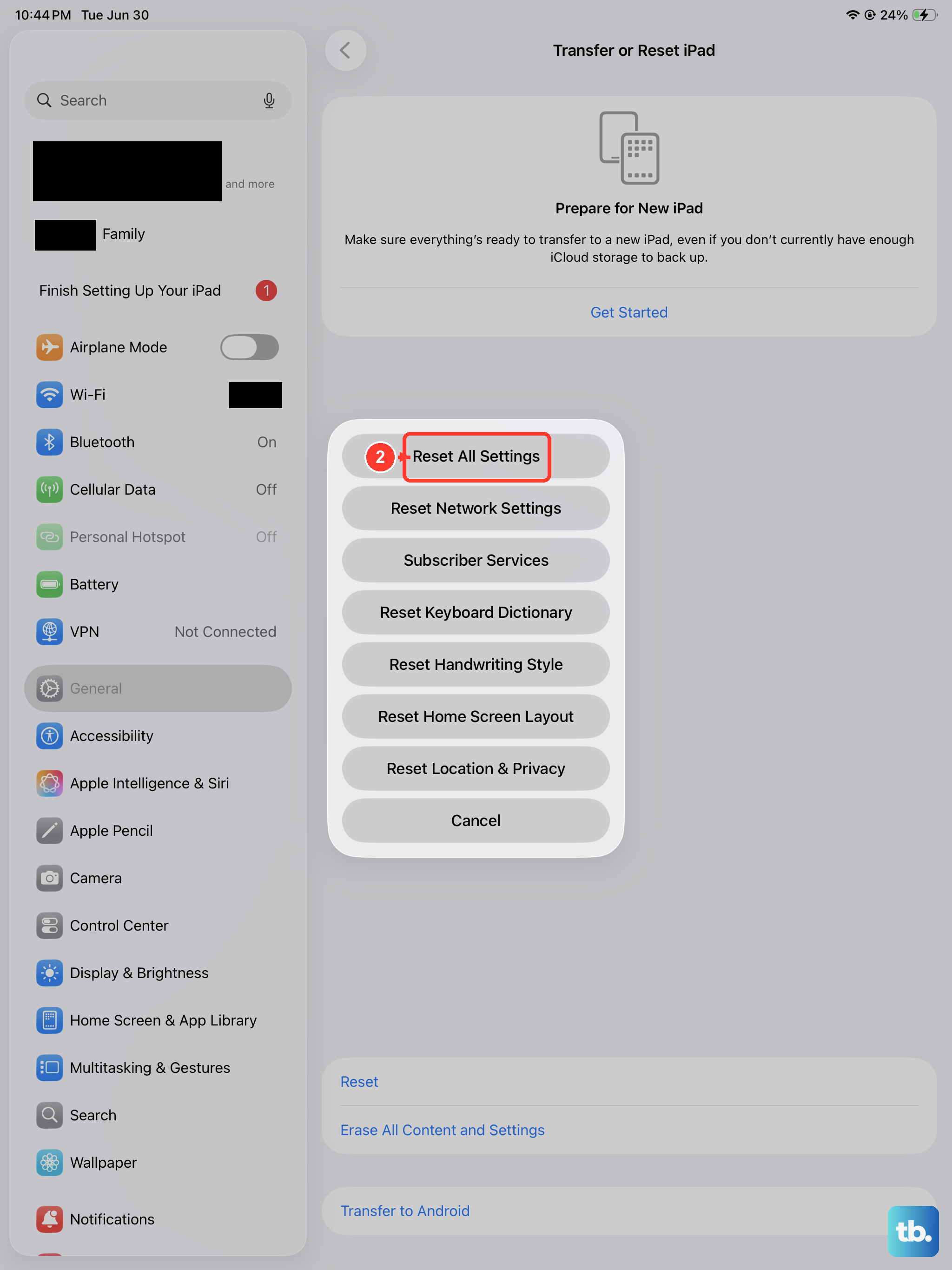
This is a stronger step that won't delete your personal data like photos or apps, but it will reset all your preferences. Go to Settings > General > Transfer or Reset iPad > Reset.
Choose Reset All Settings. You'll need to enter your passcode. This resets network settings, wallpaper, privacy permissions, and keyboard dictionaries back to default, which can eliminate a corrupted setting causing the touch failure.











