
Seeing your iPad 10th Generation screen flicker, flash, or show odd lines is incredibly distracting. It can make reading or watching anything a real chore. This problem can pop up from a software hiccup, a specific display setting, or sometimes a hardware concern. Let's walk through the steps to get your display back to normal.
Restart Your iPad
Always start with the simplest fix. A force restart can clear out temporary glitches causing the screen to act up. On your iPad 10th Generation, quickly press and release the Volume Up button, then quickly press and release the Volume Down button. Finally, press and hold the Top button until you see the Apple logo appear. This process is a bit different from older iPads, but it's the key for the 10th gen model.
Adjust Your Display Settings
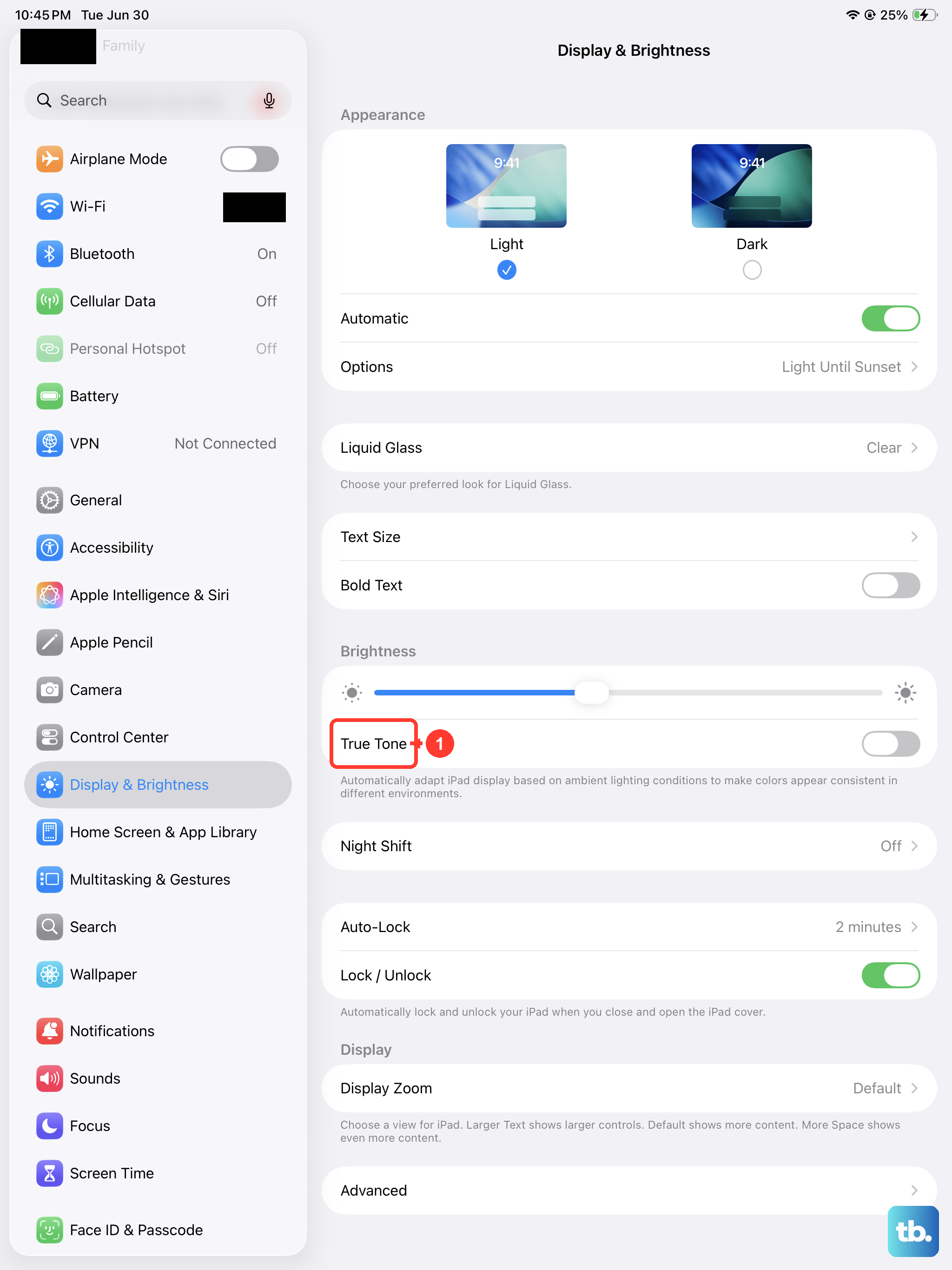
Several features designed to make the screen easier on your eyes can sometimes conflict and cause flickering. Head to Settings > Display & Brightness and try turning off True Tone first. This feature adjusts color temperature based on your room's lighting, and its sensor can occasionally glitch.
Next, check your accessibility settings. Go to Settings > Accessibility > Display & Text Size. Look for Auto-Brightness and toggle it off, then manually adjust your brightness from the main Display & Brightness page. Also, make sure Reduce White Point is switched off here, as it can interact poorly with other display controls.
Update iPadOS
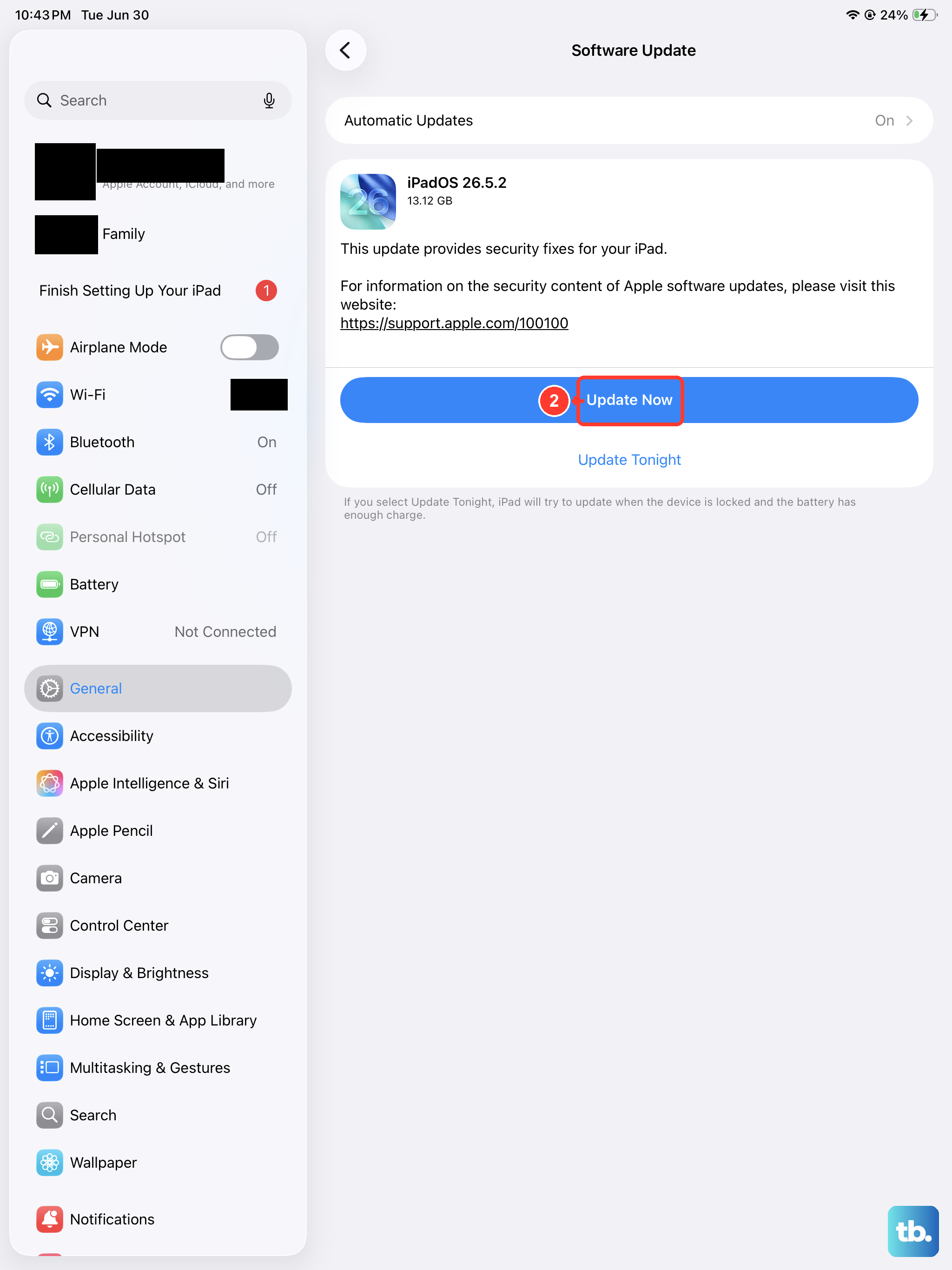
Apple frequently releases updates that squash bugs, including display-related ones. It's a good idea to make sure you're running the latest version of iPadOS. Go to Settings > General > Software Update and install any available update. I've seen updates specifically target screen flicker issues on various iPad models, so this is a crucial step.
Close Problematic Apps
An app that's not playing nicely with iPadOS can be the culprit behind a flickering display. Swipe up from the bottom of the screen and pause in the middle to bring up the App Switcher. Swipe up on each app preview to close it. After closing everything, see if the flickering stops. If it does, you can reopen your apps one at a time to figure out which one was causing the trouble.
Reset All Settings
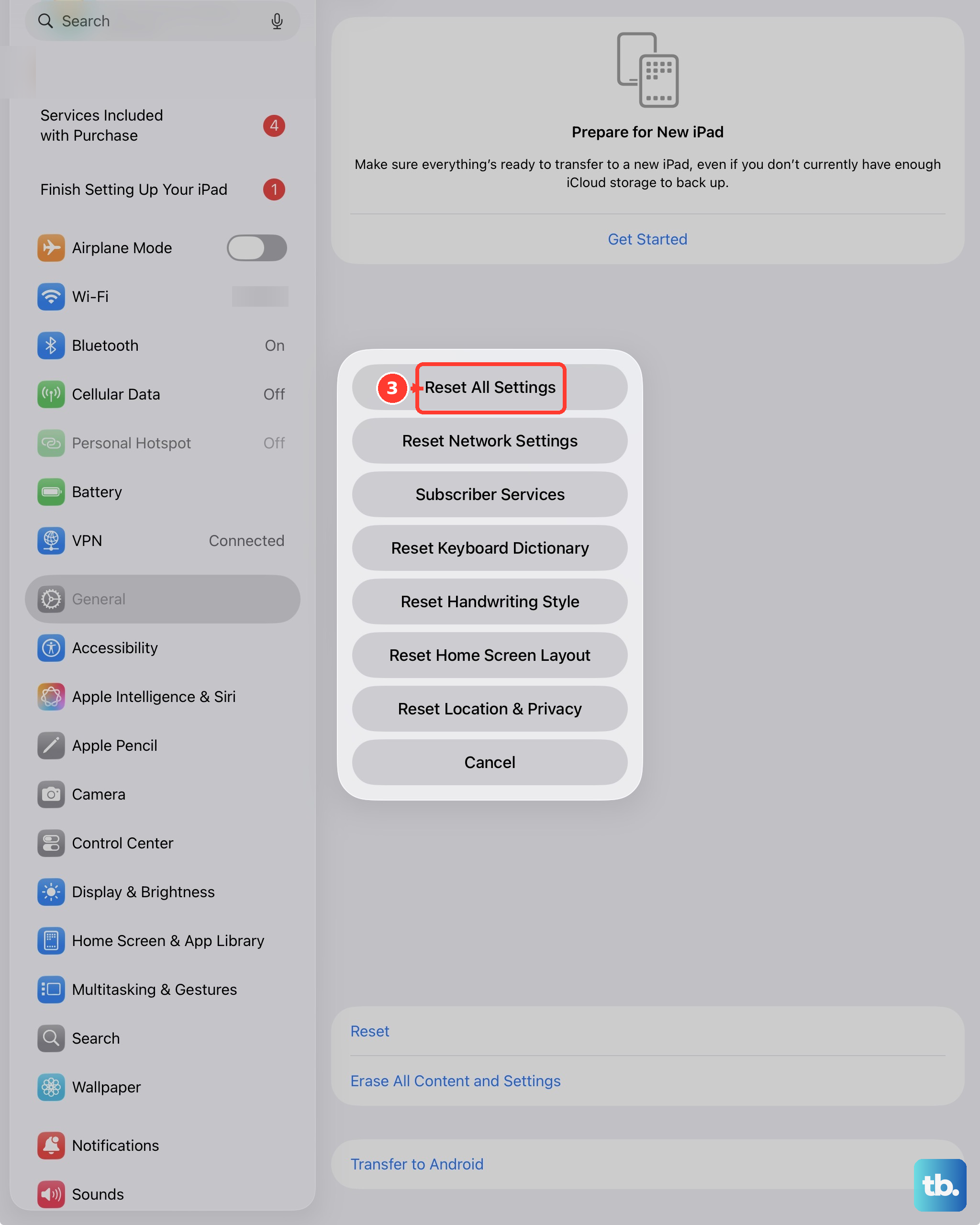
If the flickering seems tied to a deeper software configuration problem, resetting all settings can help. This won't delete your photos, apps, or personal data, but it will reset your Wi-Fi passwords, wallpaper, and display preferences back to default. Go to Settings > General > Transfer or Reset iPad, tap Reset, and then choose Reset All Settings. You'll need to re-enter your Wi-Fi password afterward, but it often resolves persistent glitches.
Check Your Charger and Cable
This iPad uses a USB-C port, and using a low-quality or damaged charger can sometimes introduce electrical noise that affects the display. Make sure you're using the official Apple 20W USB-C Power Adapter or a reputable third-party one that supports USB-C Power Delivery (PD). Try a different cable and power source to see if the flickering only happens while charging.
It's worth noting the iPad 10th Generation has a large battery, and the 20W charging can feel slow. While that's not directly related to flickering, using an underpowered charger that doesn't meet the 20W PD standard could contribute to unstable power delivery.
Look for Physical Damage
If the screen started flickering after a drop or impact, there might be internal damage. The iPad 10th Generation doesn't have a laminated display, meaning there's a small air gap between the glass and the actual screen. This can sometimes make issues more apparent. Look closely for any new cracks, spots where the display doesn't respond to touch, or areas with discoloration.
Restore Your iPad
If you've tried everything else, a full restore is the last software step. Make sure you have a recent backup in iCloud or on your computer. Connect your iPad to a Mac or PC, and use Finder (on macOS) or iTunes (on Windows) to select your device and choose Restore iPad. This erases everything and installs a fresh copy of iPadOS. If the flickering is gone after the restore, it was a software issue. If it persists on a clean install, the problem is likely hardware-based.