When your iPad 10th Generation's fingerprint sensor stops responding, it locks you out of more than just the home screen. You can't approve App Store downloads or use Touch ID for password autofill. The good news is this is usually a quick software fix.
I'd start with the simplest solution first. Give your iPad a quick restart. Press and hold the top button and either volume button until the power off slider appears. Drag the slider, wait 30 seconds, then press the top button again to turn it back on. This clears out any minor glitches that might be affecting the Touch ID sensor.
Clean the Home Button and Your Finger
The Touch ID sensor on your iPad is built right into the top button. Any dirt, oil, or moisture on your finger or the button itself can block the scan. Take a soft, lint-free cloth and gently wipe the top button clean.
Make sure your finger is completely dry and clean, too. Lotions, sweat, or small cuts can prevent a good read. If you've just washed your hands, dry them thoroughly before trying again.
Re-register Your Fingerprint
If a simple clean doesn't work, the next step is to delete your old fingerprint and set it up again. Over time, small changes to your finger or an imperfect initial scan can cause problems.
Go to Settings > Touch ID & Passcode. Enter your passcode to continue. Tap on the fingerprint that's giving you trouble, then tap Delete Fingerprint. Now, tap Add a Fingerprint and follow the on-screen prompts.
When you place your finger, don't just tap it. Rest it on the button, lift it slightly when you feel the haptic vibration, then adjust your position slightly for the next scan. Cover the edges of your fingertip for the most complete profile.
Check for a Pending iPadOS Update
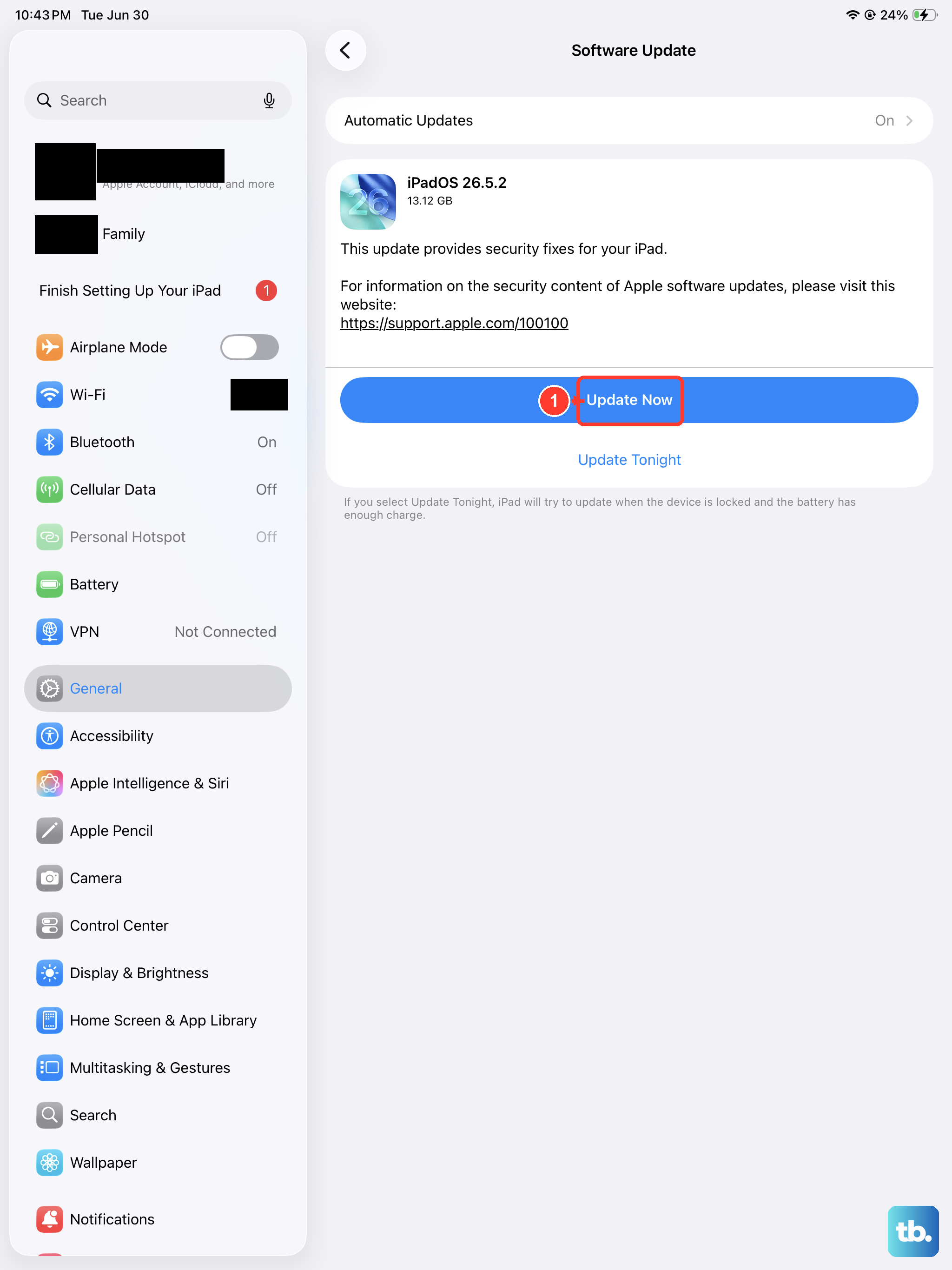
Software bugs can occasionally interfere with system features like Touch ID. Apple releases updates that often include fixes for these kinds of issues.
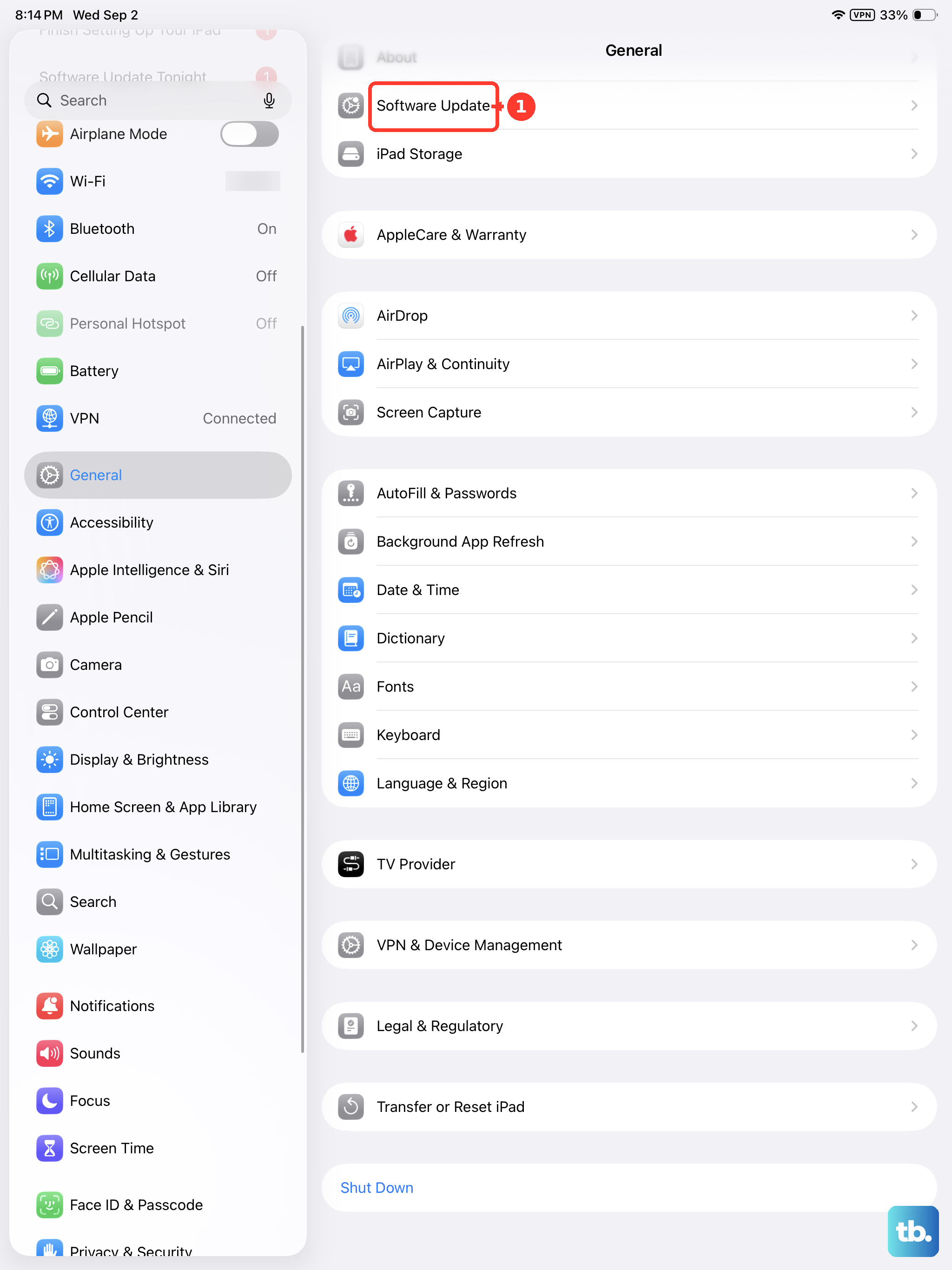
Open Settings and go to General > Software Update. If an update is available, I'd recommend installing it. Make sure your iPad is connected to Wi-Fi and has at least 50% battery, or is plugged into a 20W USB-C charger, before you start the update.
Try a Different Finger or Position
Sometimes the issue is with one specific finger. If you've only registered one fingerprint, try adding a second one as a backup. Go to Settings > Touch ID & Passcode and add another finger, perhaps from your other hand.
Also, pay attention to how you're holding the iPad. The sensor needs a firm, clear press. If you're trying to unlock it at an odd angle or with just the very tip of your finger, it might fail. Use the pad of your finger and press directly down.
Consider Your Case or Screen Protector
While less common on the iPad's top button than on an in-screen sensor, a poorly fitted case could potentially obstruct the Touch ID area. Check if the case's opening around the top button is clear and allows your finger to make full contact.
Screen protectors generally don't affect the separate Touch ID button, but if you've applied any kind of skin or thick protector directly over the button itself, that would definitely cause it to fail.
Perform a Force Restart
If a normal restart didn't help, a force restart can clear deeper system caches. This is different from just turning it off and on. Quickly press and release the Volume Up button, then quickly press and release the Volume Down button. Finally, press and hold the Top button.
Keep holding the Top button even after you see the power off slider. Continue holding until you see the Apple logo appear, then you can let go. This doesn't erase any data, it just gives the system a fresh start.
Reset All Settings
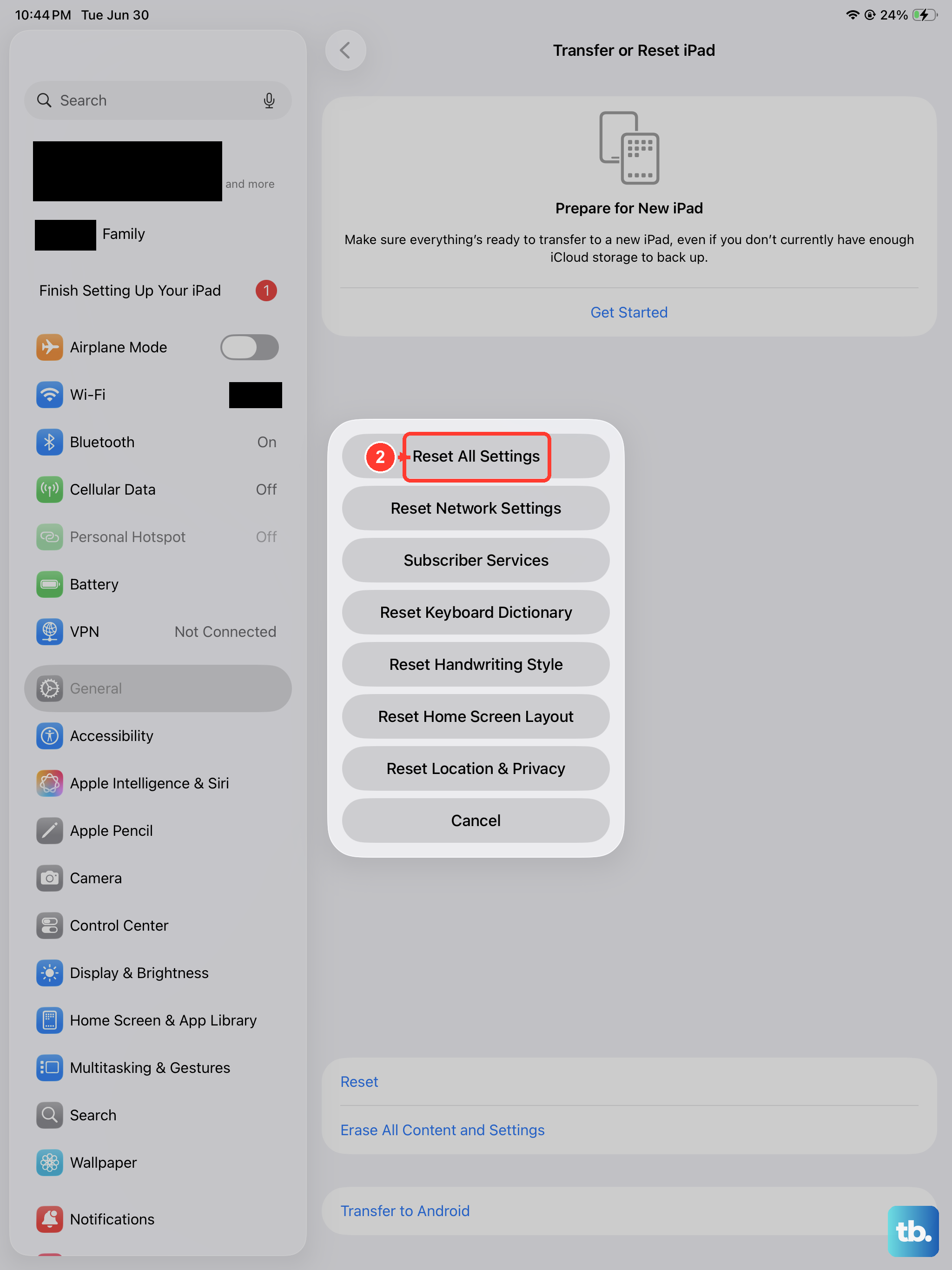
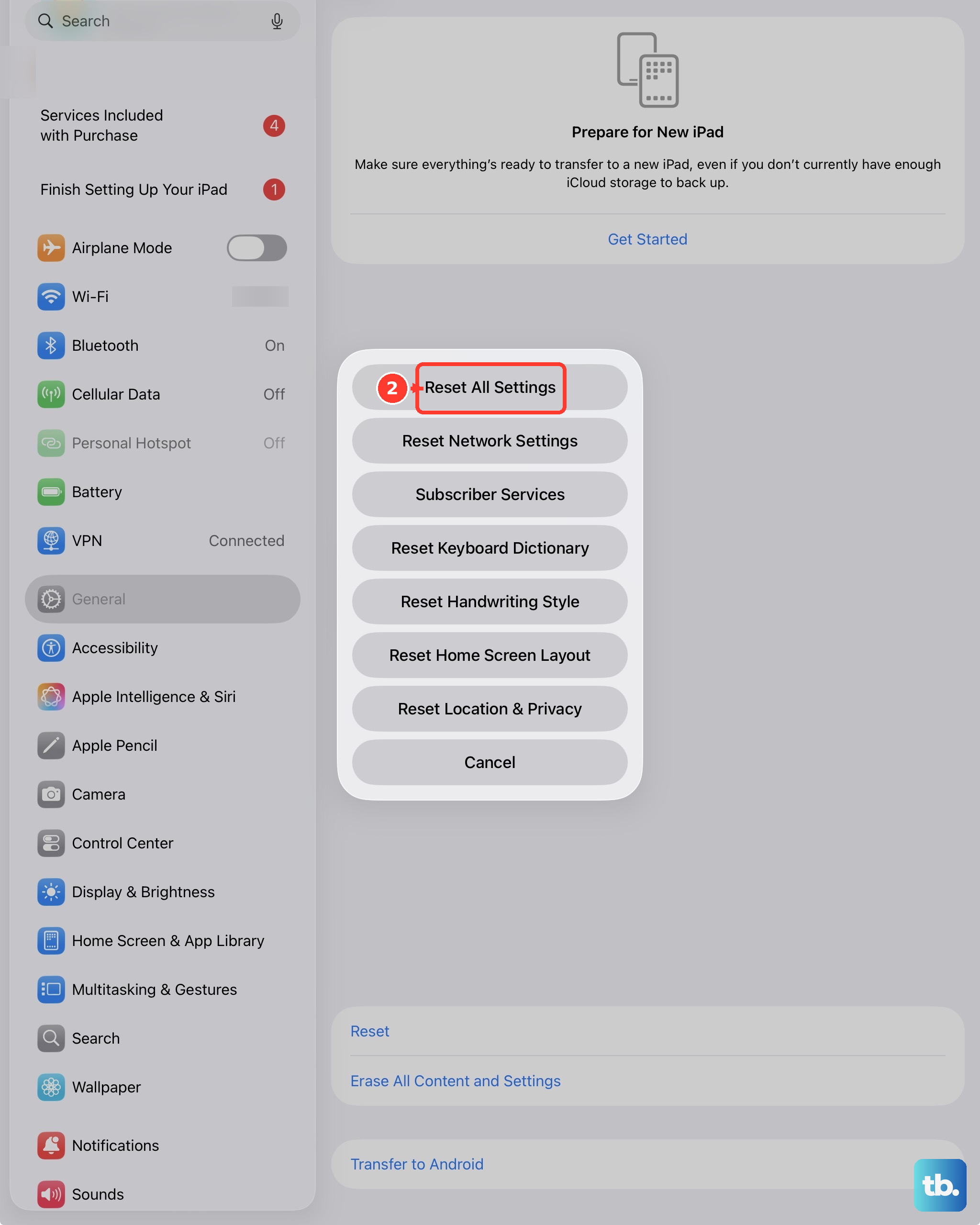
This is a more significant step, but it can resolve persistent software conflicts without deleting your personal data. It will reset your network settings, wallpaper, and privacy preferences back to default, but your photos, apps, and documents will remain.
Go to Settings > General > Transfer or Reset iPad. Tap Reset and then choose Reset All Settings. You'll need to enter your passcode and confirm. After the iPad restarts, you'll need to re-enable Touch ID and reconnect to Wi-Fi, but it often clears up stubborn issues.